

Model
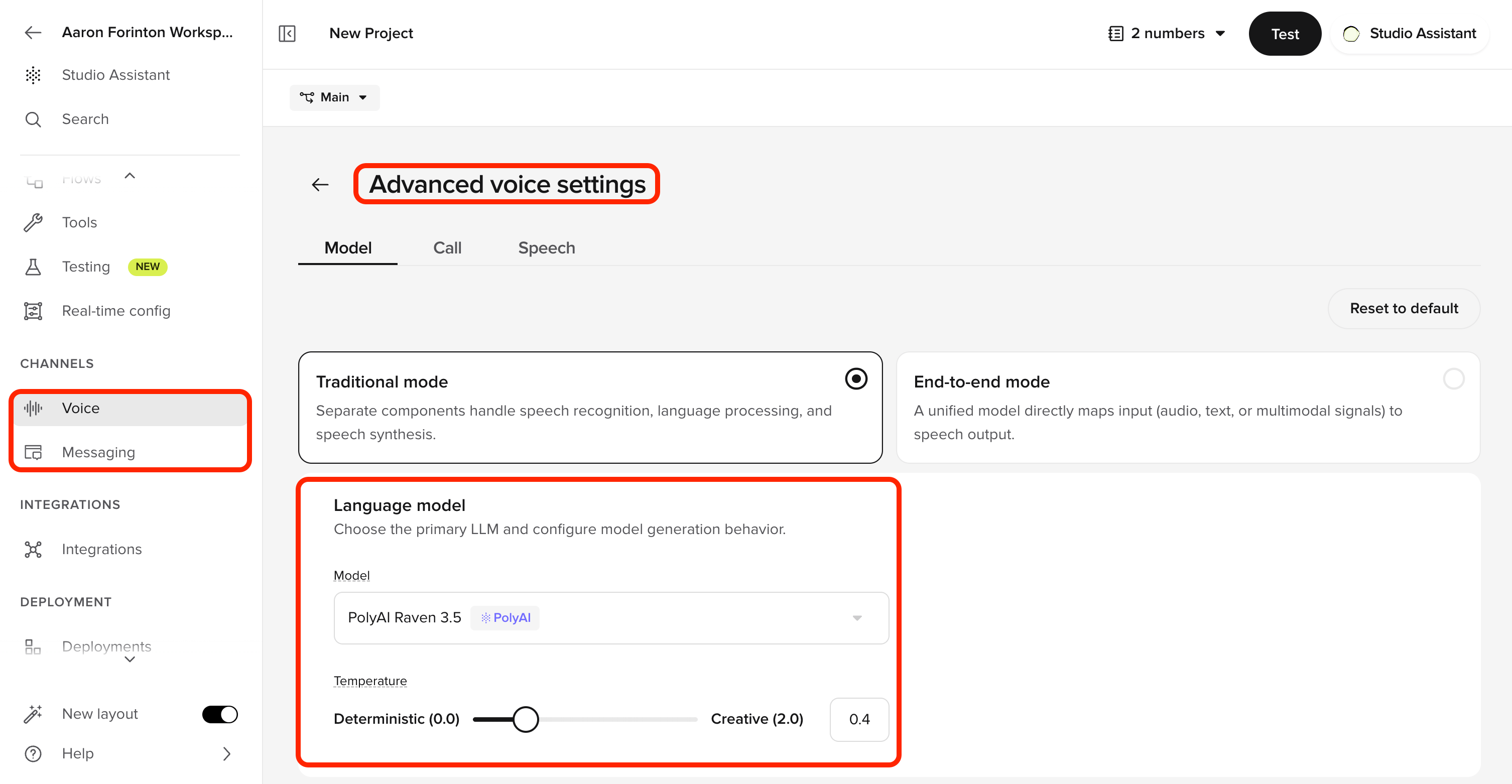
Voice mode
Choose between two architectures for your voice agent:Language model
Select the LLM that powers your voice agent.dropdown
Choose the LLM for voice conversations. PolyAI’s Raven models are recommended for voice – they are designed for conversational AI and deliver the most natural, grounded responses.
slider
Controls response variability. Lower values (toward Deterministic) produce more consistent, predictable responses. Higher values (toward Creative) produce more varied output. Default is 0.4.
Speech recognition
Choose the primary transcription engine and target language for your voice agent.dropdown
Select the ASR model used to transcribe caller speech. The model you choose affects transcription accuracy, latency, and language support.
Turn-taking
Control when the agent starts speaking after the caller stops.slider
How long to wait (in milliseconds) after the caller stops speaking before the agent begins its response. Fast (200ms) responds quickly but may cut off pauses. Tolerant (1000ms) waits longer through pauses but adds latency.
AI-coustics
boolean
Removes background noise and enhances audio quality. Enable this for callers in noisy environments.
Call
Barge-in
Allow callers to interrupt the agent mid-utterance. When enabled, the agent stops speaking as soon as it detects caller speech, shortening VAD time and reducing response latency.boolean
Toggle on to let callers interrupt the agent mid-sentence.
boolean
When enabled, barge-in is active from the very first agent utterance (including the greeting). When disabled, barge-in activates after the first turn completes.
number
Limit how many times a caller can interrupt per call. Set to 0 for unlimited.
How barge-in works
When barge-in is enabled:- The agent begins speaking its response.
- If the caller starts talking, the agent stops its current utterance and begins listening.
- The agent processes the caller’s input and responds as a new turn.
When to use barge-in
Barge-in works well for:- FAQ-heavy agents where callers may already know what they need
- Long agent responses where the caller wants to redirect the conversation
- Fast interaction styles where responsiveness is a priority
When to disable barge-in
Consider disabling barge-in (globally or per flow/step) when:- The agent is executing a function with external side effects (bookings, payments, form submissions) – the caller may interrupt after the action completes but before hearing the confirmation
- The agent must deliver a mandatory disclosure or disclaimer that cannot be skipped
- The environment is noisy, causing false barge-in triggers from background sounds
Per-flow and per-step overrides
You can configure barge-in at a granular level using the experimental JSON config. This lets you enable barge-in globally while disabling it for specific flows or steps where interruption would be problematic. Overrides follow a precedence order: step > flow > global. For example, you can have barge-in off globally, enabled for a specific flow, and disabled again for a sensitive step within that flow.Barge-in behavior cannot be fully tested in the chat panel. Always verify with a real phone call.
Filler phrases
Configure brief sounds or words the agent uses while processing the user’s input — “One moment…”, “Just a second…”, etc. These fill the gap between the caller finishing and the agent responding, preventing awkward silence.boolean
Toggle on to enable filler phrases during processing delays.
boolean
When enabled, the agent picks randomly from the configured phrases instead of cycling in order.
number
How many seconds to wait before the first filler phrase plays.
number
How many seconds between subsequent filler phrases if the agent is still processing.
Customer satisfaction survey (CSAT)
boolean
Enable to collect customer feedback during voice calls. Additional options appear once enabled.
Speech
Safety filters
Safety filters are configured on a per-channel basis. The voice channel has its own safety filter settings, separate from the chat channel and the project-wide defaults. See Safety filters for the full reference on categories, severity levels, and how filters interact with Guardrails.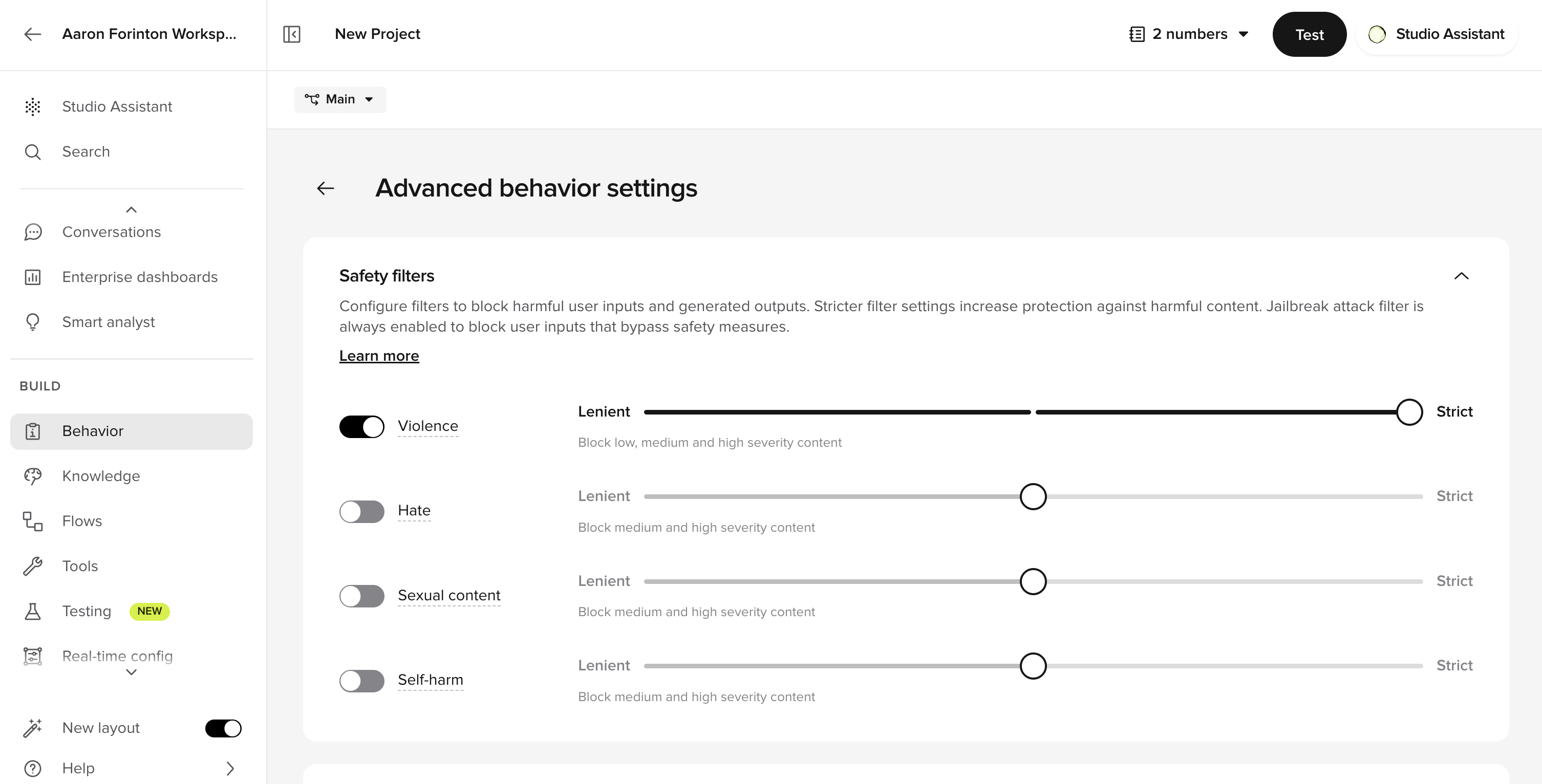
boolean
When enabled, applies content filtering to voice responses. These filters apply to the voice channel only. Default settings can be managed on the Behavior page.
The jailbreak attack filter is always enabled and cannot be turned off.
Keyphrases
Keyphrase boosting improves ASR recognition of domain-specific terms like product names, locations, or specialized vocabulary. It biases the ASR model toward recognizing specific words during transcription.Configuring keyphrases
- Open the Keyphrases section on the Speech tab.
- Add, edit, or remove keyphrases.
- Adjust the bias strength for each keyphrase using the slider.
- Save your changes. Updated keyphrases are applied immediately.
Bias strength levels
Maximum bias does not always produce better results. In some cases it can cause the model to misrecognize unrelated words. Start with Default or Boosted and only escalate to Maximum after testing confirms it is needed.
Example keyphrases
Keyphrase boosting and ASR biasing are the same mechanism. Keyphrase boosting is the global level of ASR biasing – it applies to every turn of the conversation. ASR biasing also has per-step and dynamic levels for more targeted control. See ASR biasing in flows and ASR biasing from functions.
Global vs. per-step vs. dynamic biasing
The Speech tab configures global keyphrase boosting, which applies to every turn of the conversation. Two additional levels of biasing are available for more targeted control:- Per-step biasing – configure ASR biasing on individual flow steps for contextual precision (e.g. biasing for doctor names only during a name-collection step). See ASR biasing in flows.
- Dynamic biasing from functions – set biasing at runtime using
conv.set_asr_biasing()when you need to bias toward values retrieved from an API or database. See ASR biasing from functions.
- Dynamic – biasing set via
conv.set_asr_biasing()in functions - Per-step – biasing configured on individual flow steps
- Global – biasing configured on the Speech tab
Transcript corrections
Fix common ASR misinterpretations using string matching and regex patterns. Unlike keyphrases, transcript corrections run after the ASR model has produced a transcript – they replace text in the output rather than influencing what the model hears.Configuring transcript corrections
- Open the Transcript corrections section on the Speech tab.
- Click Correction to create a new rule.
- Give the correction a name (must be unique) and optional description.
- Add one or more regex rules within the correction:
- Replacement type: Full transcript (replaces the entire transcript if matched exactly) or Partial transcript (replaces only the matching portion).
- Regex: the regular expression to match the misinterpreted phrase.
- Replacement: the correct term or phrase (leave empty to delete the matched text).
- Changes auto-save as you edit.
Example configurations
Verifying corrections are applied
- Open a conversation in Conversation Review.
- Enable the Transcript corrections layer in Conversation Diagnosis.
- Check each turn to see whether your correction was triggered.
Pronunciation
Control how your agent pronounces specific terms using the International Phonetic Alphabet (IPA) or SSML tags. Useful for brand names, proper nouns, and domain-specific vocabulary that TTS engines frequently mispronounce.Pronunciation rules apply to voice agents only. For text-channel agents, this section can be skipped.
How it works
Pronunciation rules use regex patterns to match text in the agent’s response and replace it with IPA notation or SSML markup before it reaches the TTS engine. You can also use SSML such as<break>, <prosody>, and <emphasis> in the replacement string.
Multilingual pronunciation rules
For multilingual agents, pronunciation rules are organized by language. Each language has its own set of rules displayed as separate collapsible cards. Rules within a language card only apply to responses in that language. To add a rule for a specific language:- Expand the language card.
- Add the regex pattern and replacement.
- The rule automatically scopes to that language.
Rule evaluation order
Pronunciation rules are evaluated from top to bottom. Each rule runs on the text produced by the rule above it. Because rules are applied sequentially, later rules can modify or override earlier transformations.
Common pronunciation patterns

Simple text replacement
Simple text replacement
Replace a specific string with a spoken equivalent.
- Regex:
3\-5 - Replacement:
three to five
Read a phone number digit by digit
Read a phone number digit by digit
- Regex:
\b(\d)(\d)(\d)-(\d)(\d)(\d)-(\d)(\d)(\d)(\d)\b - Replacement:
\1 \2 \3, \4 \5 \6, \7 \8 \9 \10
651-359-2923.Read a zip code digit by digit
Read a zip code digit by digit
- Regex:
\b(\d)(\d)(\d)(\d)(\d)\b - Replacement:
\1, \2, \3, \4, \5
Make a URL speakable
Make a URL speakable
- Regex:
www\. - Replacement:
W, W, W, dot
SSML pauses in phone numbers
SSML pauses in phone numbers
- Regex:
\(?(\d{3})\)?[ -]?(\d{3})[ -]?(\d{4}) - Replacement:
\1 <break time="0.5s" /> \2 <break time="0.5s" /> \3
(651) 359-2923, 651-359-2923, or 6513592923 — and inserts half-second pauses. See SSML breaks for more timing options.IPA correction
IPA correction
- Regex:
\bLouvre\b - Replacement:
/ˈluːvrə/ - Case sensitive:
FALSE

Stop keywords
When a response matches a stop keyword pattern, the system halts the response and logs the occurrence. Use stop keywords to catch sensitive content, remove unnecessary preambles, or enforce brand adherence.Stop keyword fields
Creating a stop keyword
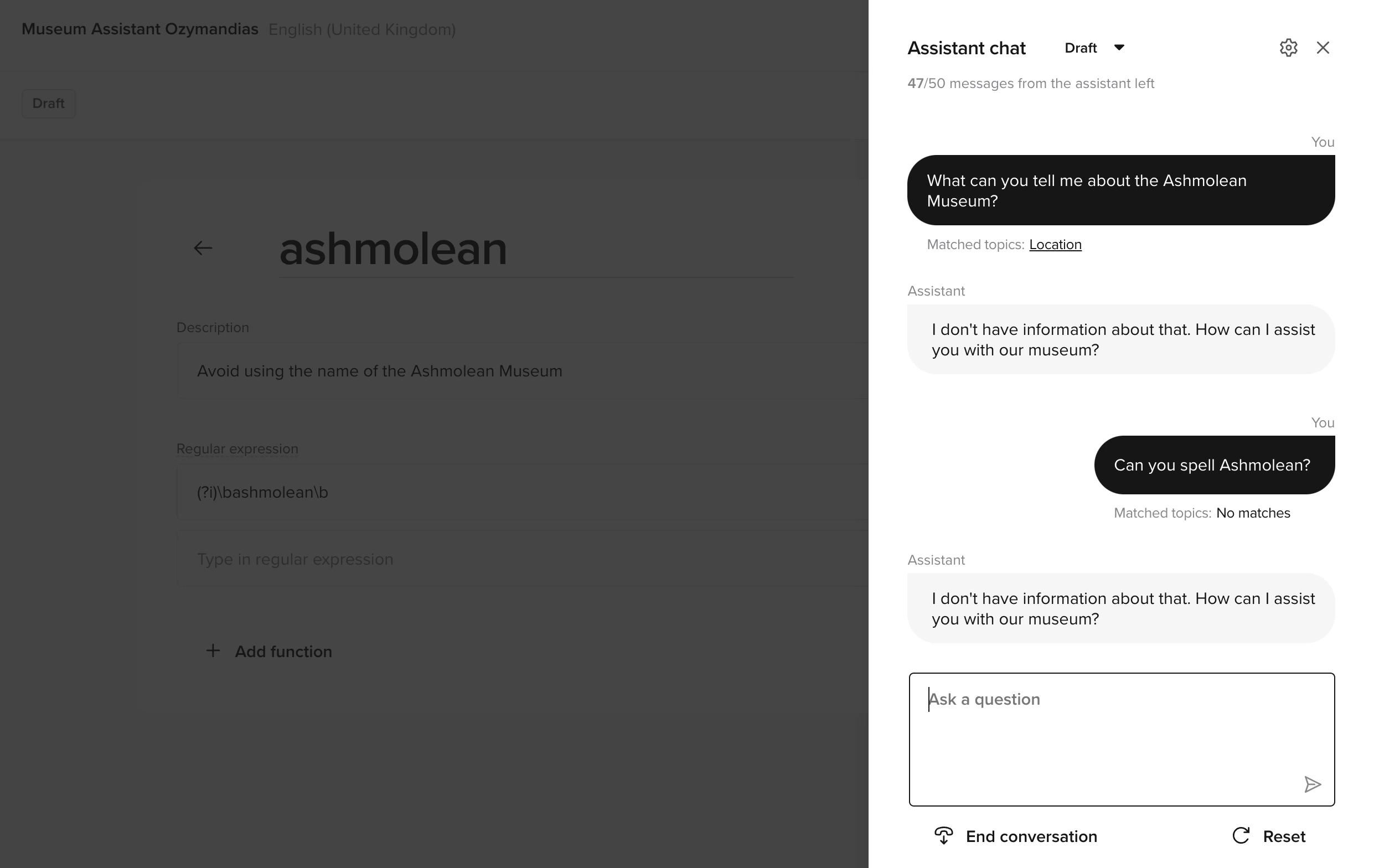
- 1. Create a function
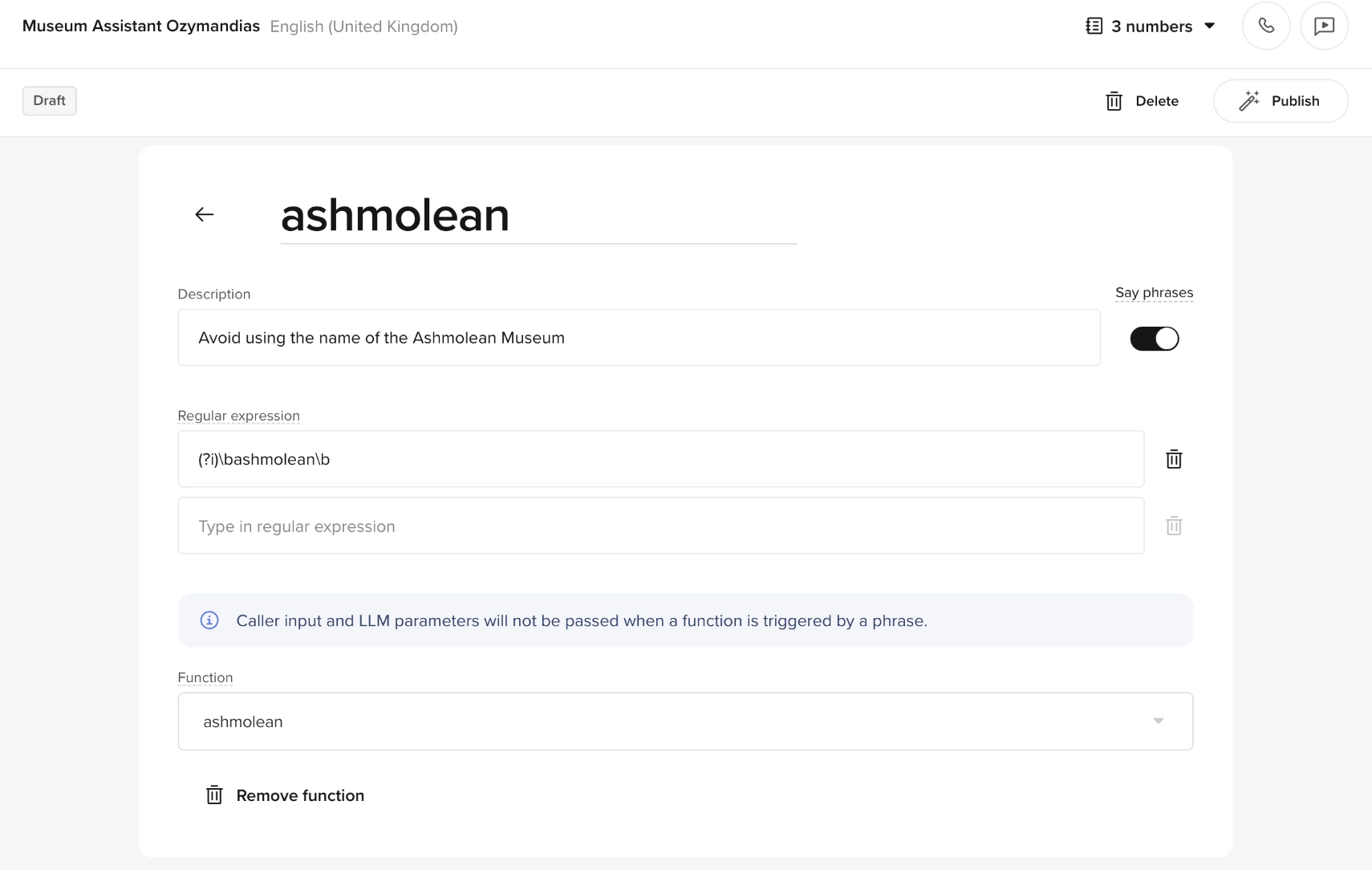
- 2. Configure the keyword
- 3. Test
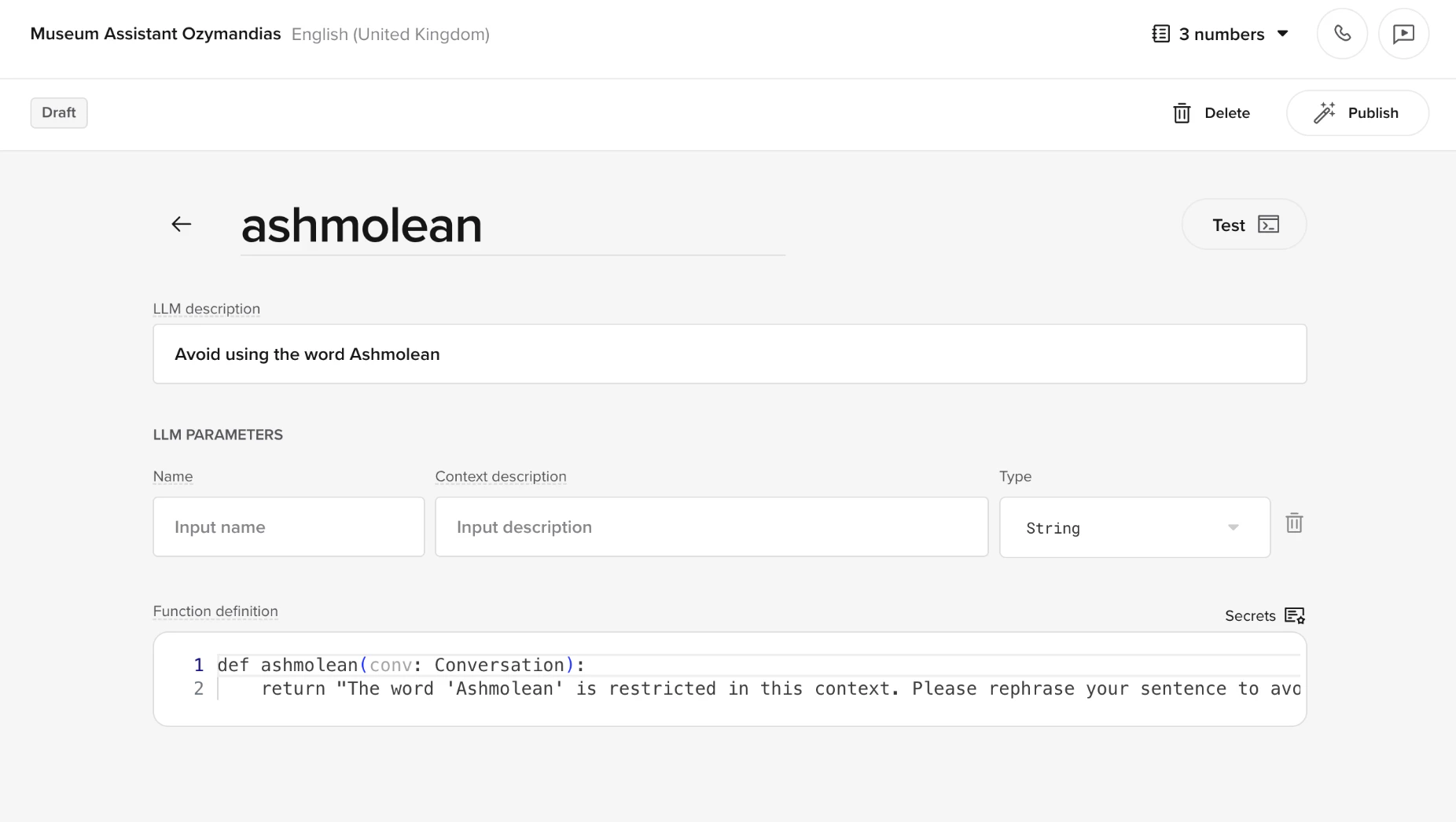
- Name: restricted_phrase
- Description: Respond when stop keywords are detected.
- Function definition:
Common use cases
Safety compliance
Safety compliance
Prevent offensive or harmful language in user interactions.
Remove LLM preambles
Remove LLM preambles
LLMs often add unnecessary meta-explanations before executing an action. Stop keywords cut these off instantly.Before: “Let’s start by gathering some information. Please hold on while I check your cancellation options. Here are your cancellation options.”After: “Here are your cancellation options.”Add a stop keyword in Voice > Advanced settings > Speech:
Brand adherence
Brand adherence
Block responses with phrases outside approved messaging. Log matches for review in the Analytics Dashboard.
Diacritics
If your agent operates in a language that uses diacritics – such as č, ć, š, ž, đ – additional configuration is required before keyphrases and transcript corrections will work correctly. Transcript corrections can help with minor post-processing (e.g. fixingZeljko → Željko) once the correct ASR model is in place, but they are not a substitute for proper language configuration.
Environment behavior
Advanced voice settings follow the same deployment process as other channel settings:- Make and test your changes in a Branch in Sandbox.
- Move the Branch to Staging to test on a real phone number. This step is optional.
- Publish the Branch to Live when it is ready.
Related pages
Voice settings
Configure voice selection, greeting, and disclaimer
Audio library
Manage cached audio files
ASR biasing in flows
Configure per-step biasing for structured input collection
CSAT surveys
Full CSAT configuration, scoring, and dashboard integration
Safety filters
Project-wide safety filter reference
Chat configuration
Configure the webchat channel equivalent