Build, test, debug, and analyze your agent in natural language from the Agent Studio home screen.
Studio Assistant is PolyAI’s natural-language builder for Agent Studio. Describe what you want — it reads your project, proposes a plan, and applies changes when you approve. Every edit lands on a branch, not on the live agent.
Studio Assistant is available to all users on a project. What you can do depends on your role: users with edit access can build and apply changes, while read-only users can ask questions and analyze conversations.
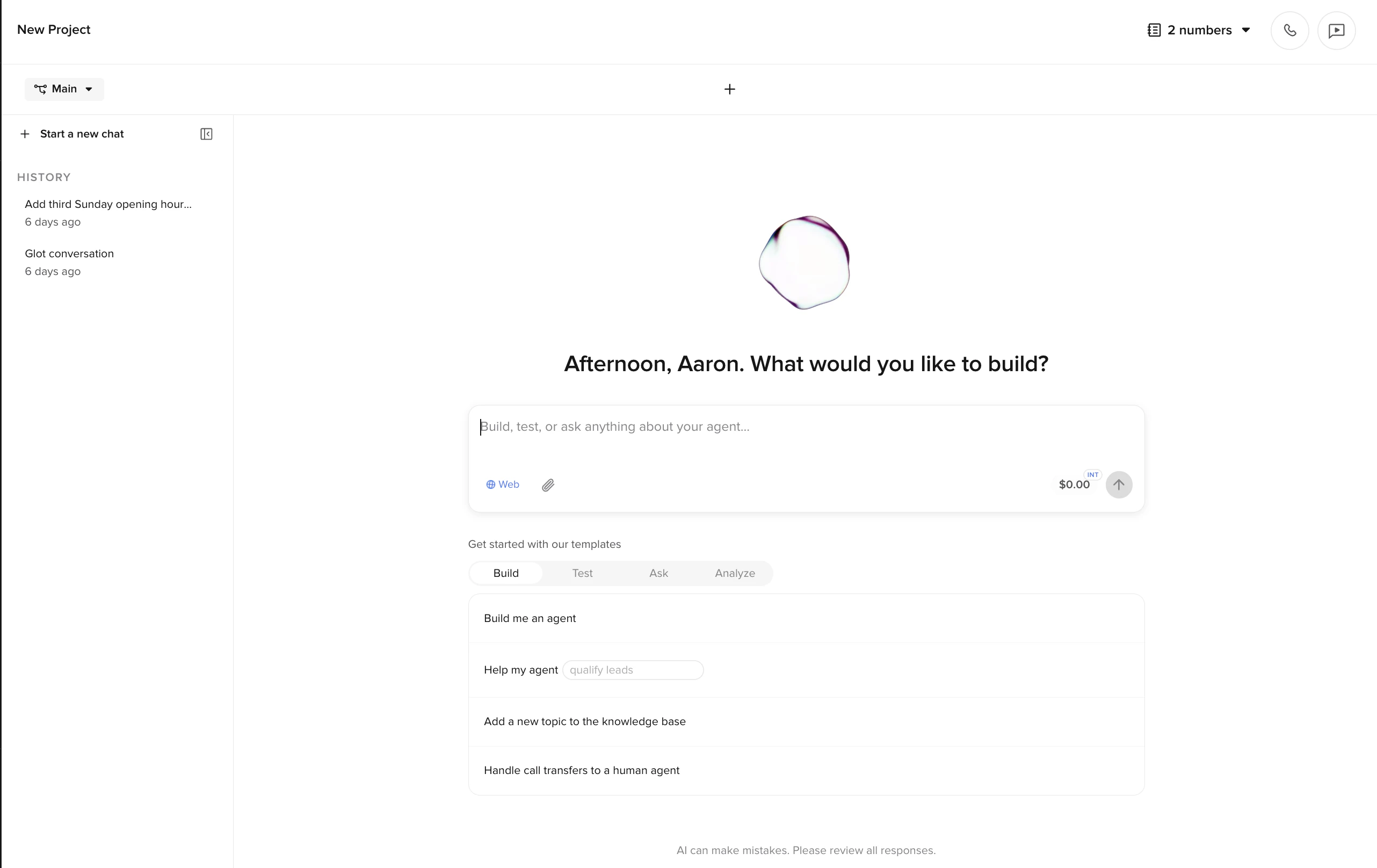
Home screen — the full chat panel is the Agent Studio home screen, with prompt templates grouped by Build, Test, Ask, and Analyze. Best for starting a build session.
Side panel — open Studio Assistant as a side panel from anywhere in Agent Studio to start a new conversation or pick up an existing one without leaving the page you’re on. Useful for asking a question or making a quick change while you’re working in Flows, Testing, or any other section.
Both share the same conversation history: a chat you start in the side panel is there when you return to the home screen, and the other way around.
Studio Assistant side panel open over another Studio section, showing how to open it
Studio Assistant operates on the same building blocks you’d edit by hand. For any of these, it can read your current config, propose changes, and write them to a branch.
Building block
Examples
Flows
Create new flows; restructure steps, transitions, and conditions; rewrite step prompts
Topics
Create knowledge-base topics from a description or a URL; update wording or scope
Entities
Define entities and their values; update entity definitions used by flows
Functions
Wire flows to existing functions; describe and create new function specs
Integrations
Configure integrations and connect them to flows
Handoffs
Add transfer-to-human steps with the right conditions and metadata
Behavior
Set or update purpose, role, and personality
Simulation tests
Author, run, and maintain testing for flows and topics and watch coverage in-step as the agent changes
The Agent wizard (under Build templates) bootstraps a brand-new agent from a single company URL — it scrapes the site, creates topics, sets up behavior, and gives you a working draft in minutes.Studio Assistant is channel-aware: on chat projects it pulls in chat-specific guidance (message length, formatting, async turn-taking); on voice projects it stays voice-first. The plan-and-approve workflow is identical across channels.
Studio Assistant can author, run, and manage simulation tests directly from chat. Ask it to generate test scenarios for a flow, and the cases land in the Simulation tests workspace alongside anything you’ve saved by hand. It updates test cases as the underlying flows and topics change.
“Add simulation tests for the refund flow, including the 30-day cutoff.”
“Cover the booking flow with tests for valid, fully booked, and out-of-hours requests.”
“Run the existing simulation tests against the current draft and summarize any regressions.”
Beyond answering questions about your project (“what does this flow do?”, “which functions reference account_lookup?”), Studio Assistant can debug production conversations. Give it a conversation ID or describe a caller issue, and it walks through:
Step-by-step timings for each turn
Latency breakdown and model behavior
Tool calls and their responses
Where and why calls dropped or handed off
This is the fastest way to investigate a single problematic call without digging through logs manually.
The Analyze category is powered by Smart Analyst. Ask natural-language questions about your agent’s conversations — “What’s causing handoffs?”, “How did my agent perform this week?” — and get answers backed by transcript sampling of up to 500 conversations. Charts and visualizations are generated inline.You can also launch Smart Analyst from the Home dashboard by clicking Generate insights or Create analysis on any chart.
You can speak to Studio Assistant instead of typing. Click the microphone icon next to the message input to dictate your request. This is useful for longer prompts or when you want to describe a flow in natural language without typing it out.
When you ask for a change, Studio Assistant proposes a plan. Nothing is written until you approve. You can expand the plan to see the full breakdown, provide feedback to revise it, or reject it entirely.
Mode
What it does
When to use it
Agent
Plans a change, then applies it on approval.
Default for build work.
Plan
Plans a change but doesn’t apply it.
Comparing approaches before committing.
Ask
Read-only questions about your project.
”What does this flow do?”, “Why did containment drop yesterday?”
The first time you ask for a change, Studio Assistant creates a branch automatically and names it after the request. Main stays untouched. When you’re ready, merge the branch back to Main and promote through the normal Sandbox → Live pipeline.Every applied edit produces a tracked-changes summary you can inspect, tweak, or revert before merging.
Invent business knowledge. Prices, hours, policies, names — if these aren’t in your existing configuration or your message, the plan surfaces them as questions.
Edit anything other than your draft. It never publishes or promotes between environments.
Access other projects. Studio Assistant is scoped to the project you’re in.
Handle telephony, SMS, or handoff configuration. These are managed through dedicated settings pages.
Studio Assistant has a fair-use limit so usage stays predictable. The size and reset cadence are managed by PolyAI on your account. Current usage shows next to the message input.When you hit the limit, the assistant pauses until the next reset. Manual editing in Studio still works normally.Usage and limits →
The full tour: chat → ask → branch → plan → approve → merge
The steps you’ll repeat for most build work, with screenshots from a real session.
1
Start from the home screen
The chat panel opens with a prompt input and templates grouped by intent: Build, Test, Ask, and Analyze. Pick a suggestion, edit it, or type your own request. The Agent wizard entry under Build kicks off a guided builder for brand-new agents from a company URL. The usage indicator next to the send button shows your current spend.
Home screen with Build, Test, Ask, and Analyze templates
2
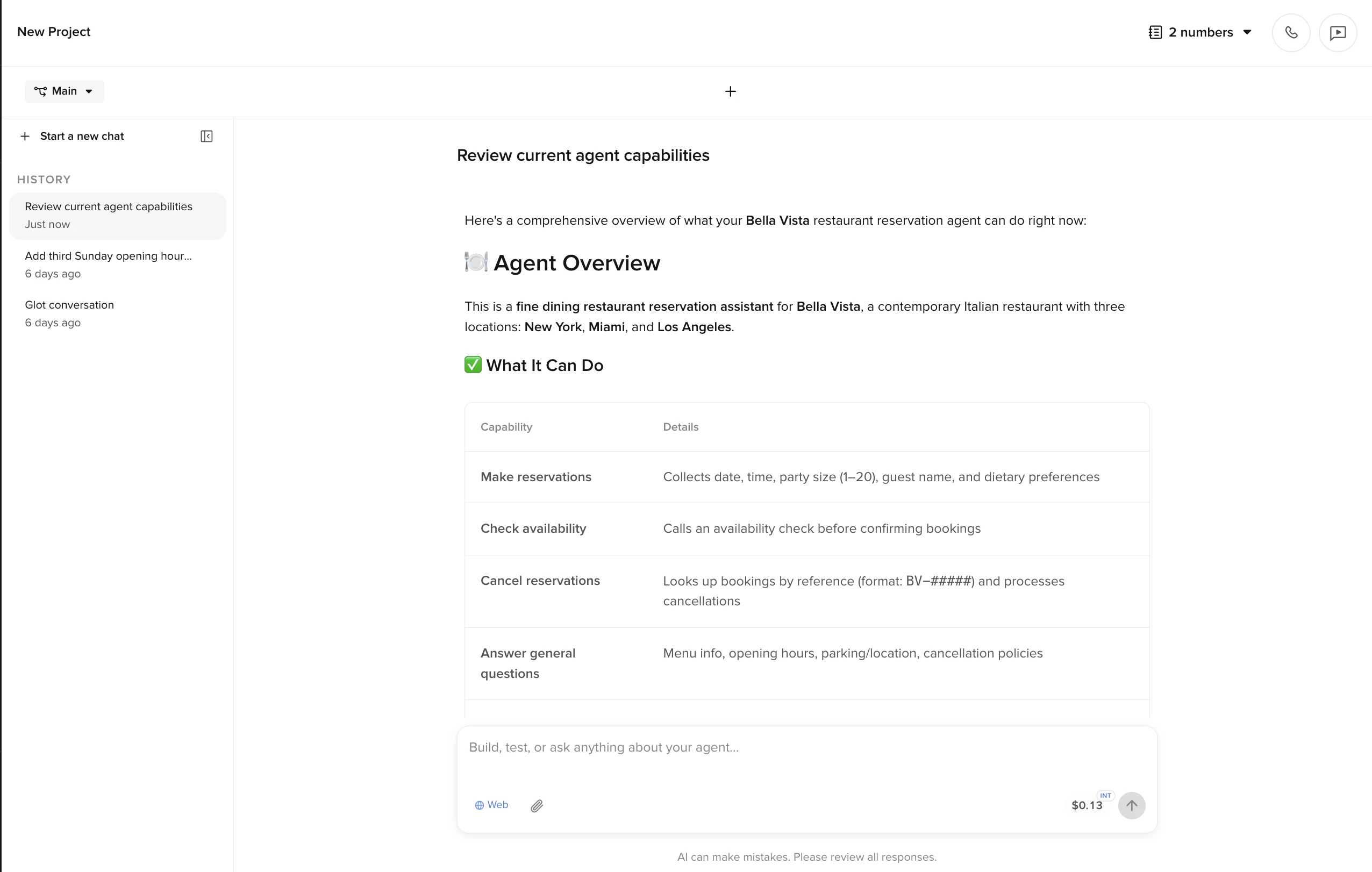
Ask about your agent
For exploration, the assistant reads your agent settings, flows, topics, entities, and functions, then replies with answers grounded in your project. The tools it runs (read, explore, and so on) appear inline before the final message.
Ask mode — answers grounded in your project
3
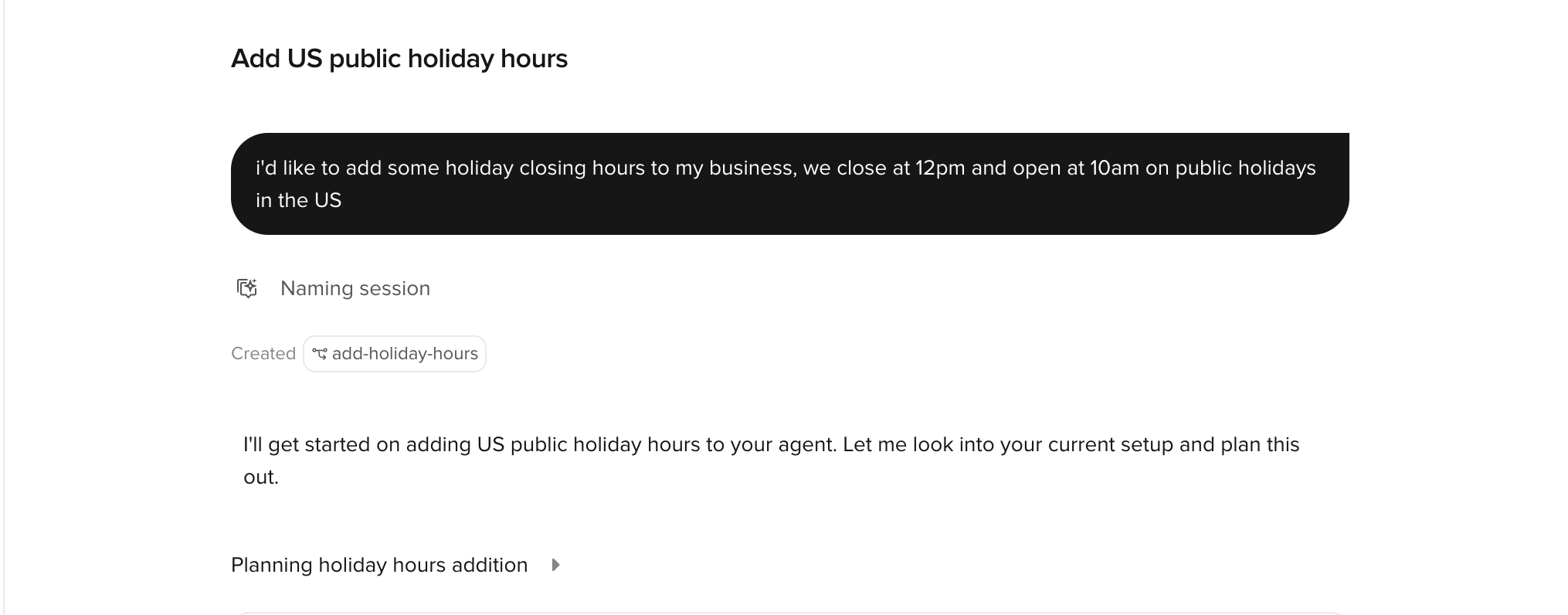
Make a change on a branch
The first time you ask for a change, Studio Assistant creates a branch automatically and names it after the request. Main stays untouched while the assistant works on the branch. The branch chip replaces Main in the top-left for the rest of the session.
A new branch is created automatically — Main stays untouched
4
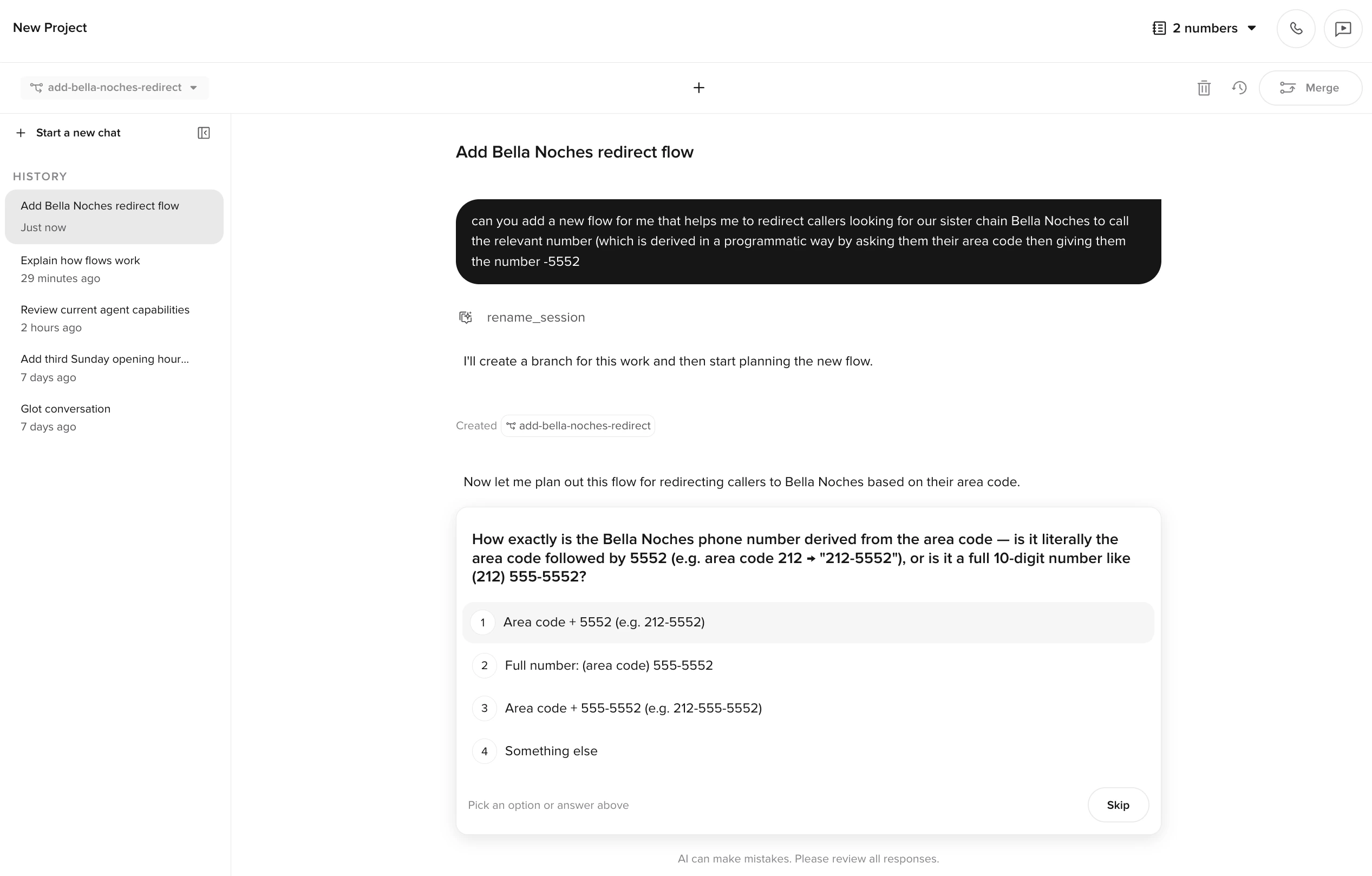
Answer any clarifying questions
If your request is ambiguous, the assistant asks a clarifying multiple-choice question before it starts planning. Pick an option, type your own answer, or Skip to let the assistant choose.
Pick an option, type your own answer, or Skip
5
Approve or revise the plan
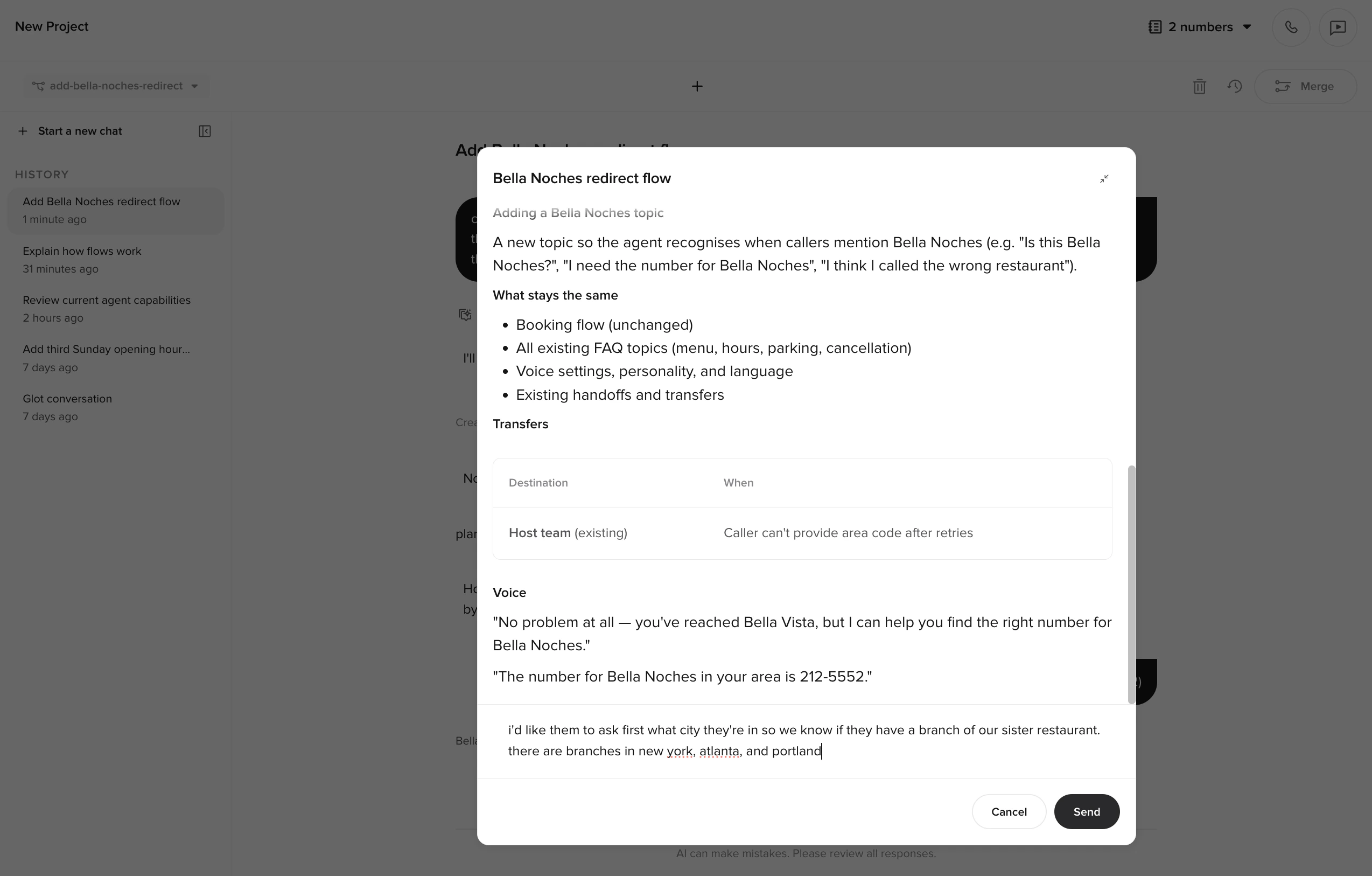
Once it has enough context, the assistant presents a plan card with Approve and Reject buttons. Nothing is written until you approve. Click the plan card to expand the full breakdown. From the expanded view you can write feedback for the assistant to revise the plan, then Send to re-plan.
Expand the plan to review details or write feedback
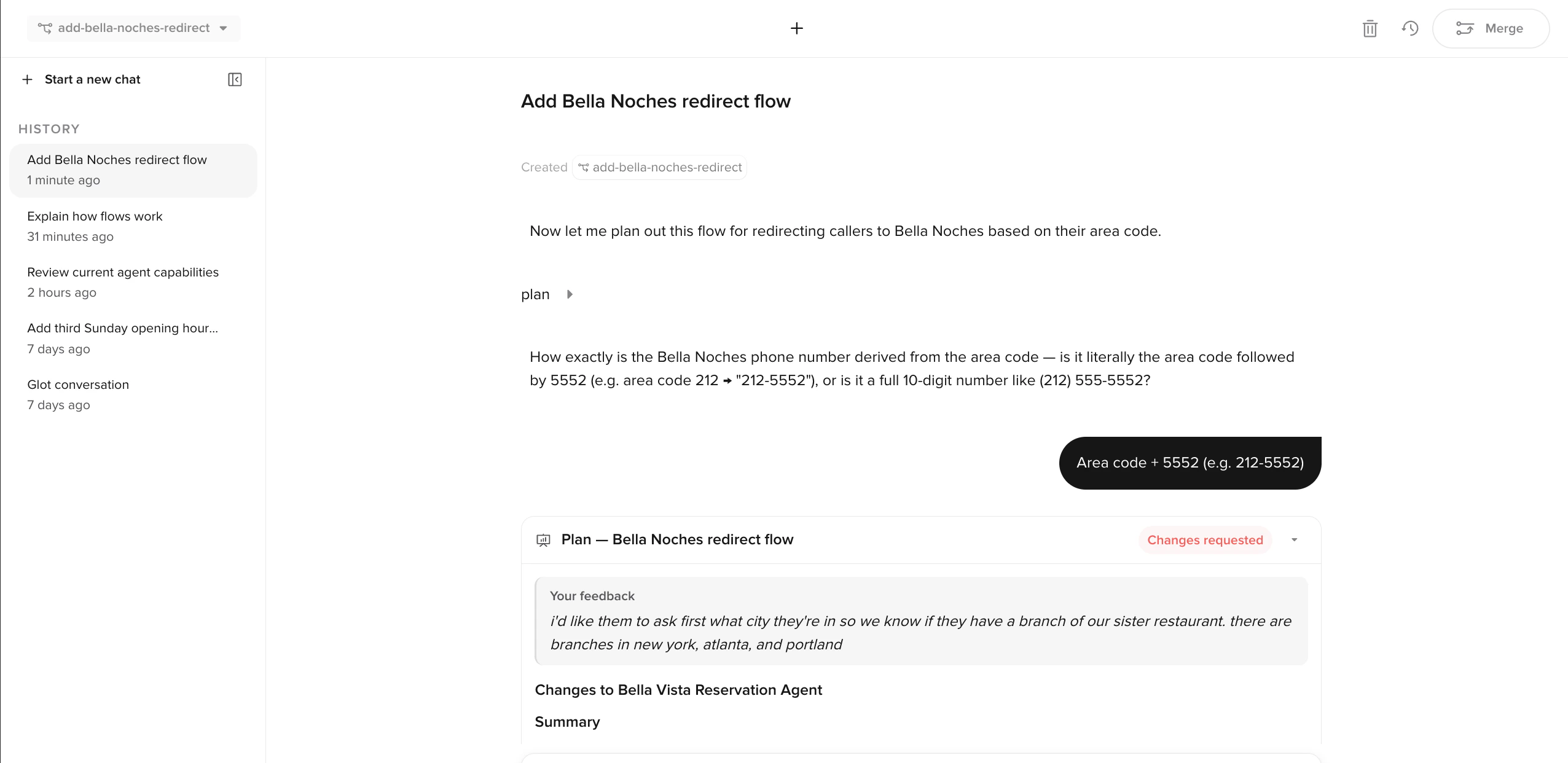
After you send revisions, the plan is marked Changes requested and your feedback is shown above the regenerated plan.
Your feedback is shown above the regenerated plan
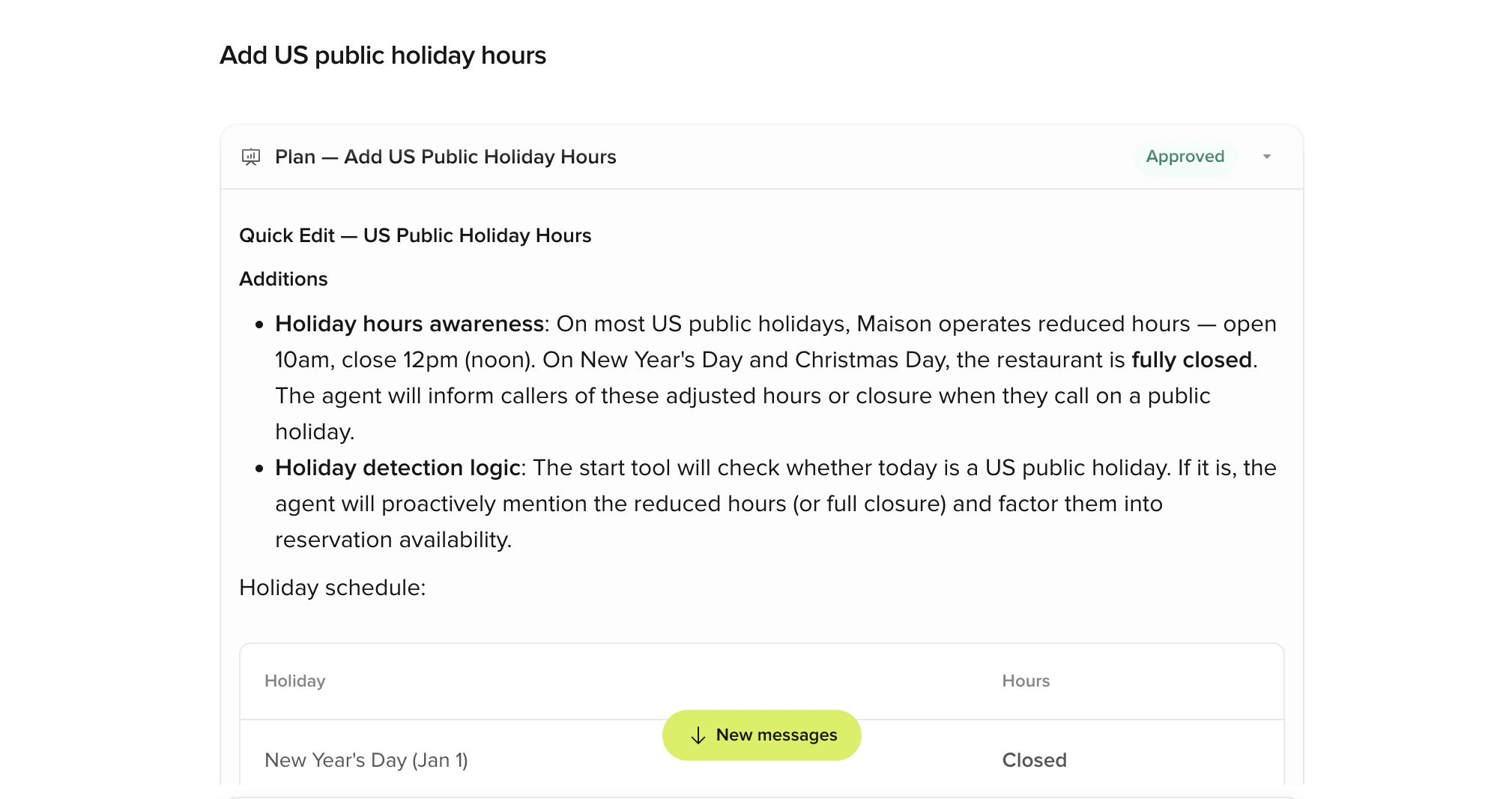
When you Approve, the changes apply to your branch. Every applied edit is summarized in a changes made card.
Changes applied to the branch with a summary of additions
6
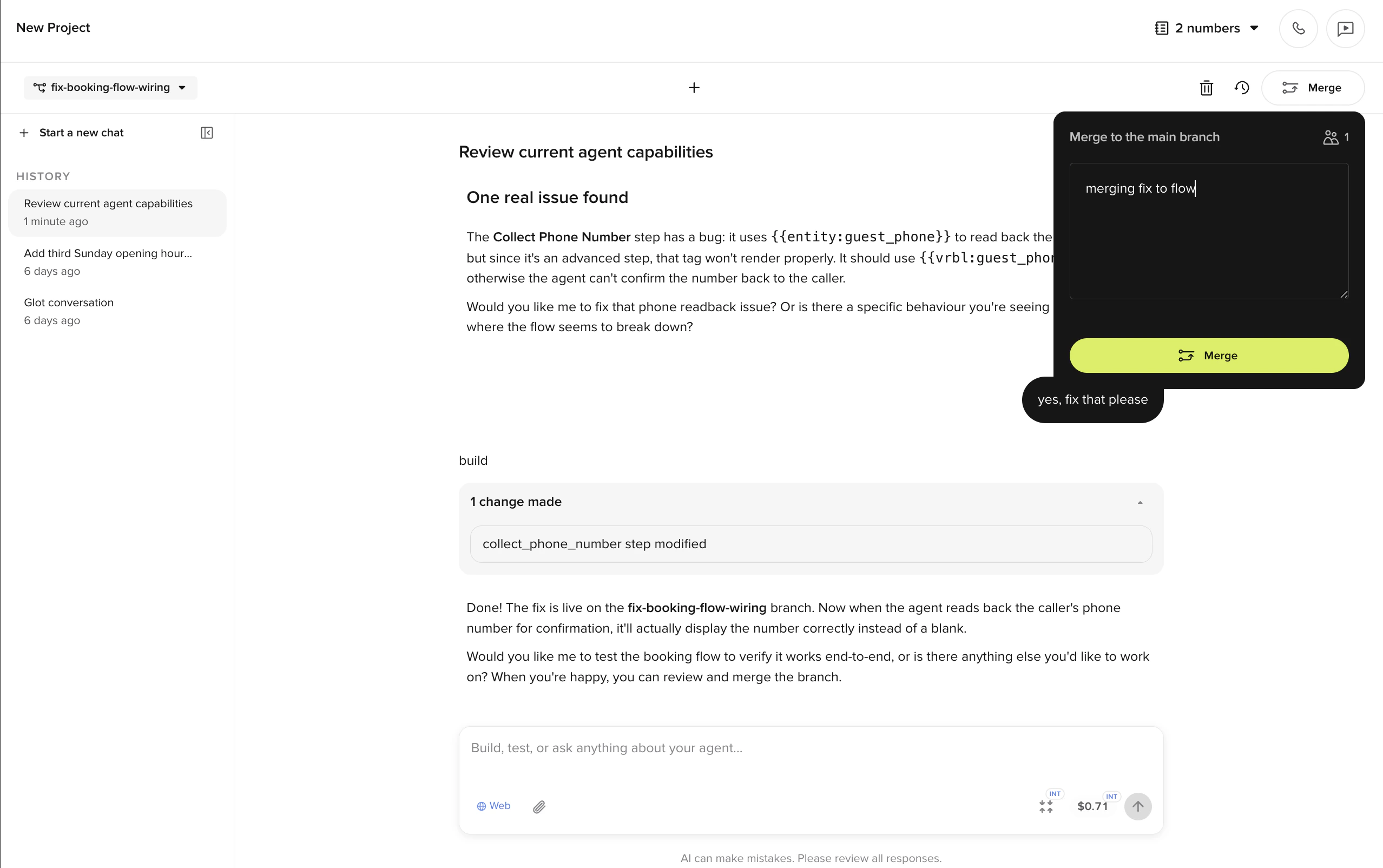
Merge to main
The Merge button in the top-right opens a dialog where you can add an optional message, then ship the branch back to Main. From there, your changes flow through the normal Sandbox → Live pipeline.
Chats are saved in the History panel on the left, scoped to the project. You can resume any past chat, switch between concurrent ones, or archive what you’re not using.The assistant remembers everything in the current chat. Follow-ups like “now do the same for the cancellation flow” work without repeating context. Drag in transcripts, policy docs, or screenshots to attach files; the assistant reads them as part of the request.Start a new chat when switching to unrelated work. Each chat carries its full history as context, so very long chats can slow responses or trigger automatic summarization.