

How it works
Configuration Builder separates structure (schema) from values (data).
The schema enforces structure and validation. The data defines what the agent uses at runtime.
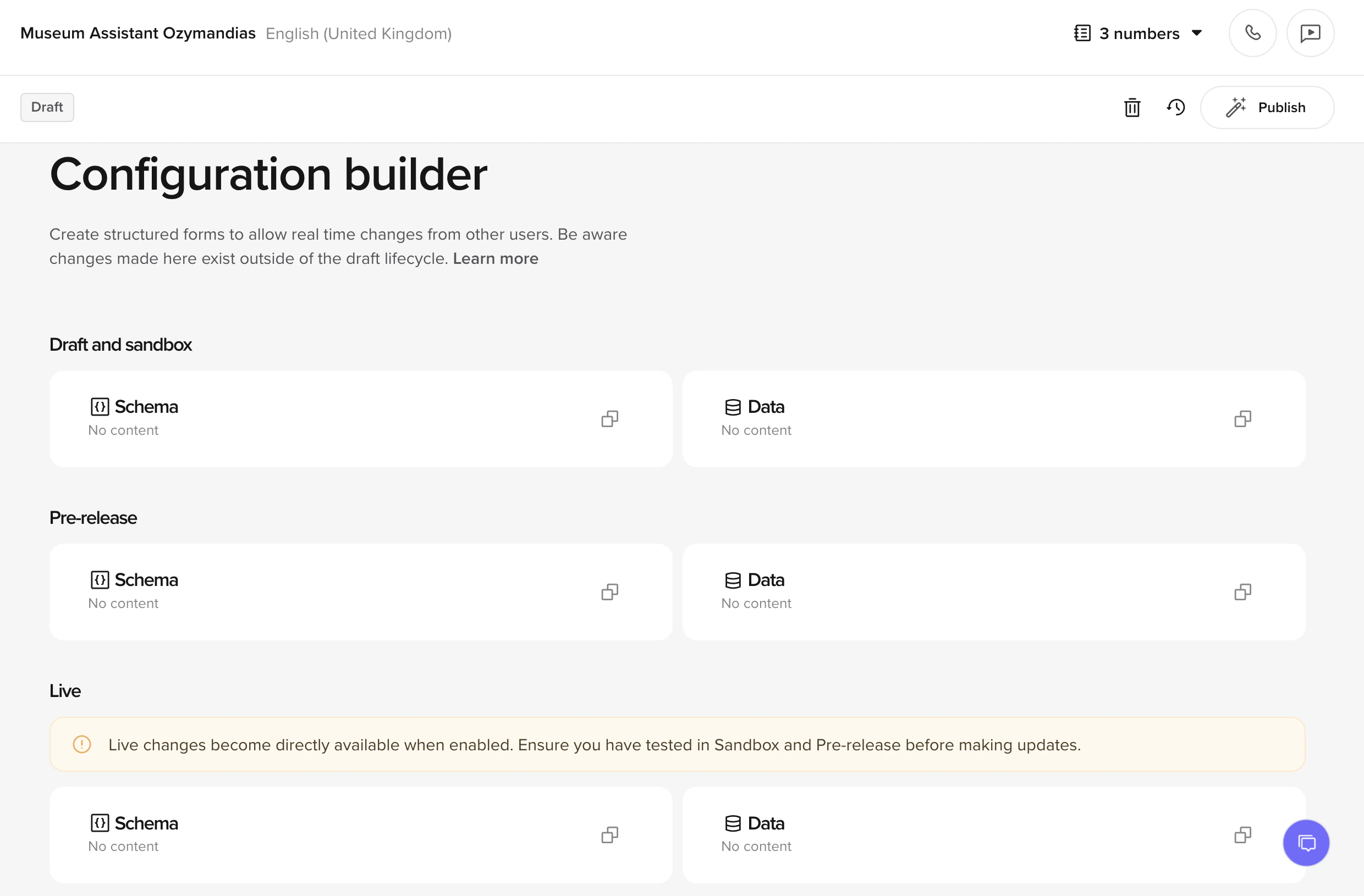
Two tasks: schema definition and value entry
This page covers both schema definition (requires Python familiarity) and value entry (UI only). If you only need to fill in runtime values, skip to step 2. For the full technical setup including Python code, continue reading from the top. The Configuration Builder serves two different tasks:- Schema definition – Define the structure and wire up
conv.real_time_configin functions. This requires Python familiarity and is done in the Configuration Builder tab. - Value entry – Fill in runtime values via the Real Time Configuration UI. No code required.
Step-by-step
1. Create a schema
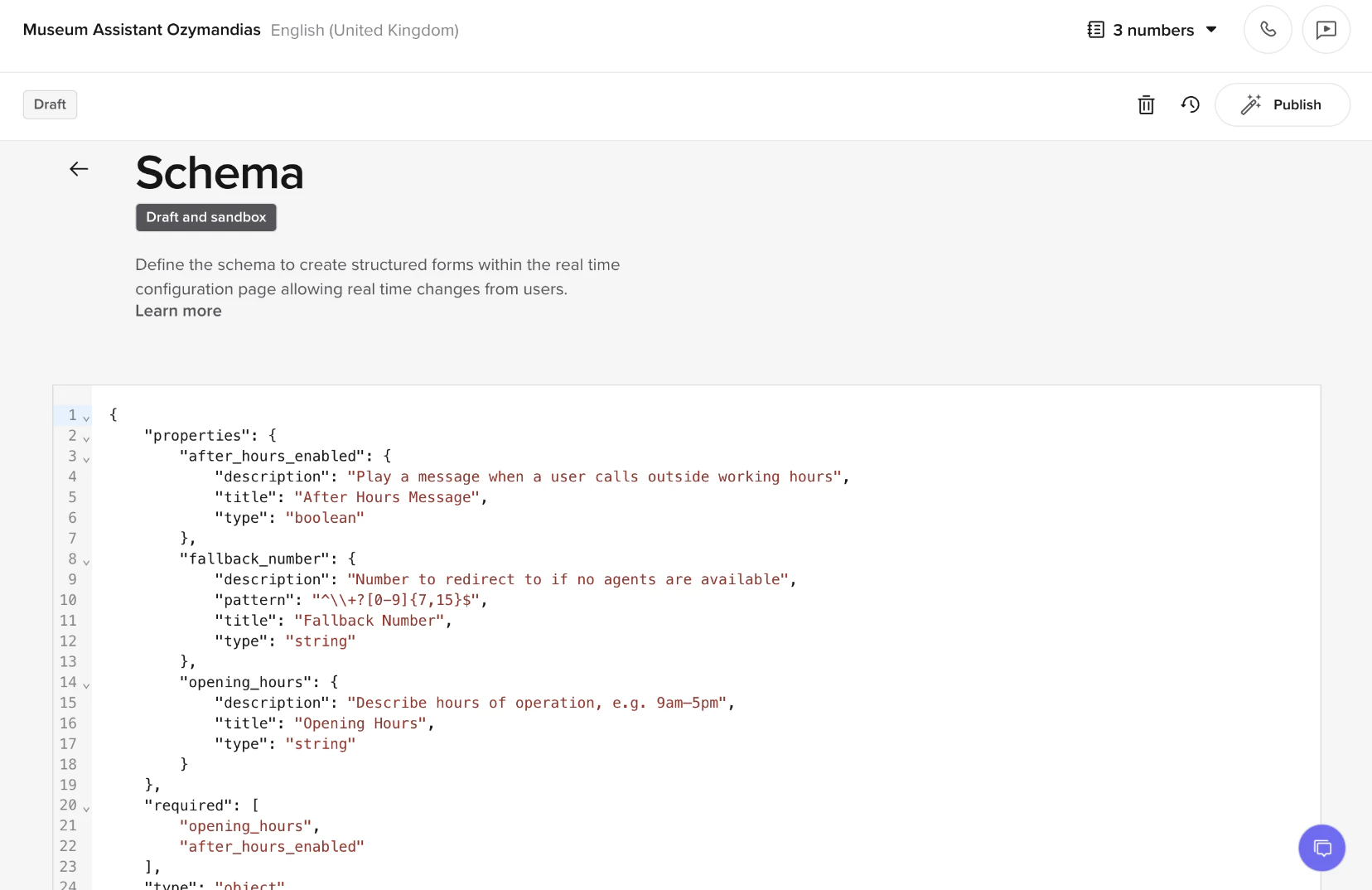
- A text field for
opening_hours - A toggle for
after_hours_enabled - A validated phone number for
fallback_number
title values – these labels will be visible in the real-time UI.
transfer_enabled toggle to control whether the agent offers call transfers.
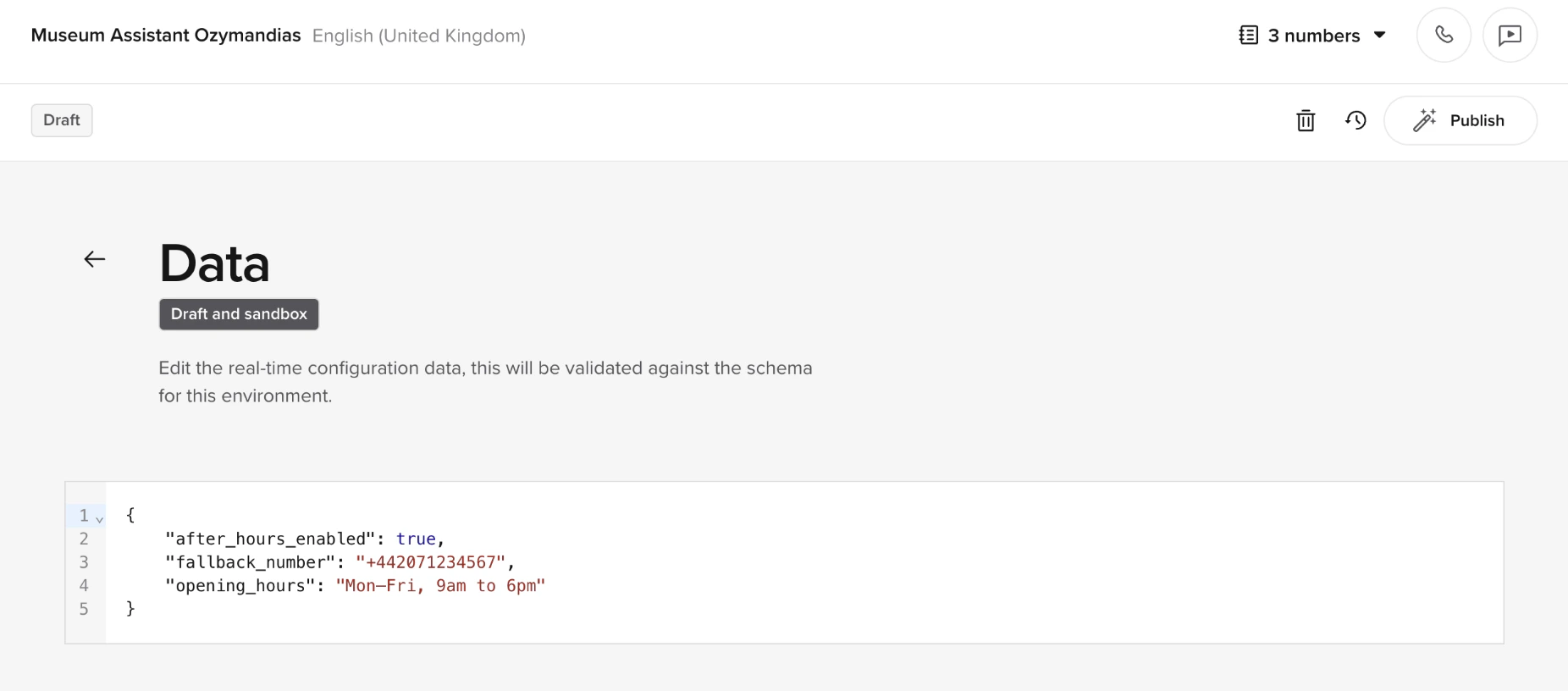
2. (Optional) Add environment-specific values
3. Publish
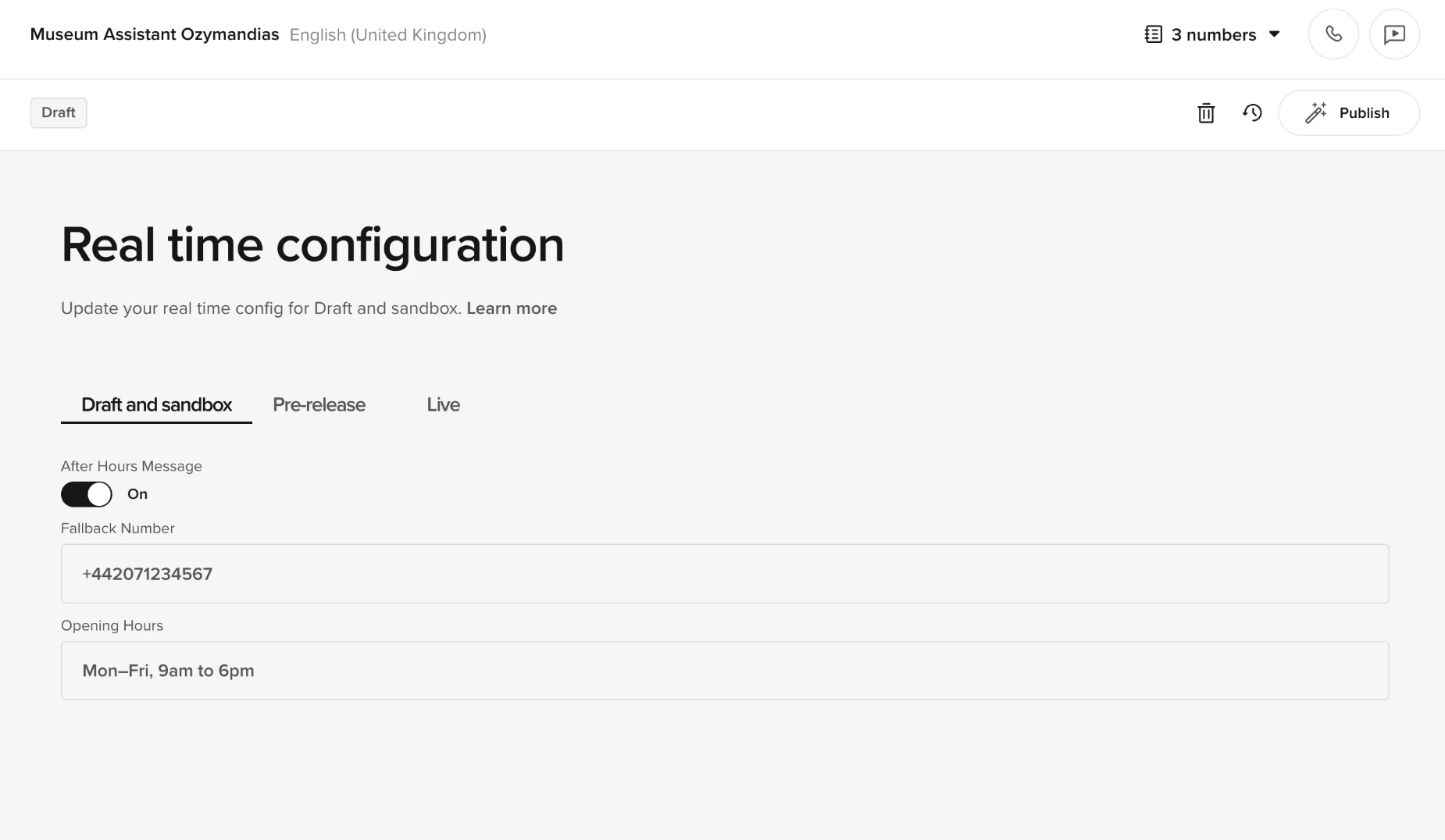
You do not need to publish your agent for configuration changes to take effect. Once your schema is added, the Real Time Configuration tab becomes available:- Sandbox
- Staging
- Live
4. Add the read config in your functions
Use the conv.real_time_config helper to read real-time values..get("key") to safely access fields.
Working with nested and complex schemas
The Configuration Builder supports arrays and nested objects in addition to flat fields. This is useful for projects that manage per-site settings, employee directories, or structured data. For example, a schema might define an array of site-specific hours:Programmatic management via API
For deployments managing configuration across many locations, the Agents API exposes the same real-time config surface the UI uses:
This is especially useful when customers need to update settings themselves at scale, rather than editing values manually in the UI.
Example: sync real-time config from an external source of truth
Example: sync real-time config from an external source of truth
Python
Best practices
Design schemas for clarity. Labels help non-technical users navigate the configuration UI. Validate critical fields (like phone numbers) with regex. Test behavior across all environments before publishing to Live. Keep track of which flows and functions use which configuration fields. Set up the schema in every environment where you need the config UI – schemas are not shared across environments. Standard JSON Schema features including arrays, nested objects, and validation patterns are supported.What happens if the schema changes?
If the schema is edited in a way that invalidates existing data, the system will prevent publishing until all environments are valid again.Can each environment have different values?
Yes. For example, you can test one phone number in Staging while using a different one in Live.Related pages
Environments
Understand Sandbox, Staging, and Live.
Functions
Access configuration data in your agent logic with conv.real_time_config.
Real-time config endpoints
Manage schema and variables per environment via the Agents API.