

You must complete the SMS setup (connect Twilio, create templates) before you can add SMS actions to topics.
How SMS actions work
When a topic with an SMS action is matched, the agent follows your prompt to determine when to send the message. Typically, you instruct the agent to ask for consent before sending – the SMS is not sent automatically just because the topic matches.Adding an SMS trigger
Add an SMS trigger to a topic’s Actions field using any of these methods:- Type
/in the Actions field to open the insert menu and choose your template from the SMS group (e.g.booking_confirmation,cancellation_confirmation) - Right-click in the Actions field and choose a template from the SMS group
- Click the + icon on the right side of the field and select a template from the SMS group
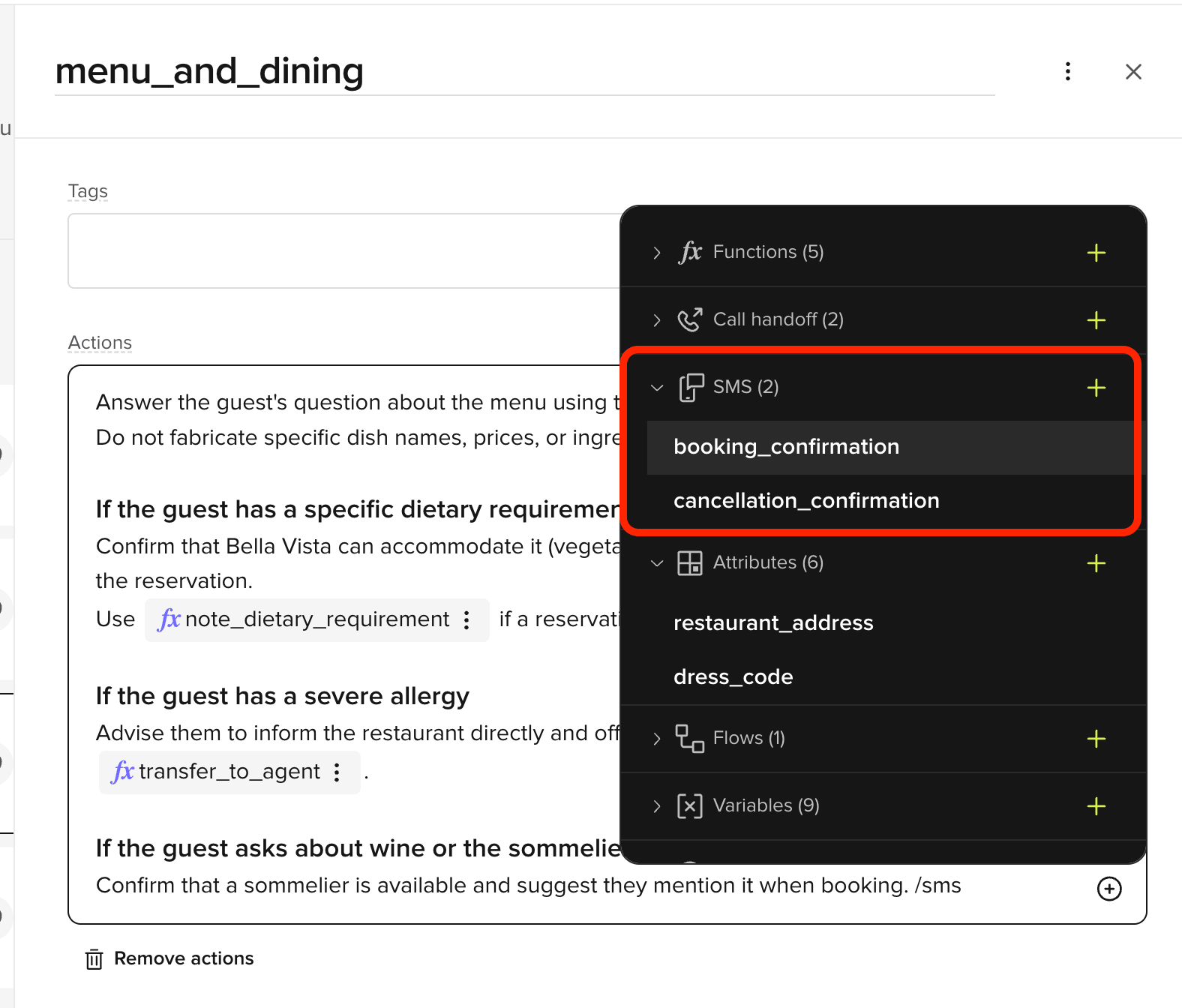
Selecting the SMS template
- In the SMS group of the insert menu, choose an existing template.
- To create a new template, click + Add SMS template. This opens the Add SMS template modal (also reachable from Knowledge), where you define the message content and phone number. Once saved, the template can be used in your knowledge base or rules and is managed under Voice > Message templates.
Writing the action prompt
The prompt tells the agent when and how to trigger the SMS. Always include a consent step so the agent asks before sending. Example prompt:Related pages
Handoff actions
Transfer callers to live agents from FAQs.
Function invocation
Call custom functions from topic actions.