



Watch it
Branches mode walkthrough (7 min)
What a Branch is
A Branch is your own separate copy of the agent. Anything you change in your Branch stays in your Branch until you publish. Your colleagues each have their own, and none of them can see or affect yours. All Branches live in Sandbox, the environment where you build and test. A Branch saves as you go. Test it at any time by running simulation tests, or by talking to your agent over an in-app call or chat. Your API and app connections work here too. To test the way a customer would experience it, for example by calling a real phone number, move the Branch to Staging. When you are ready, publish your Branch. Its changes are added onto Live and become the newest version in Live’s history.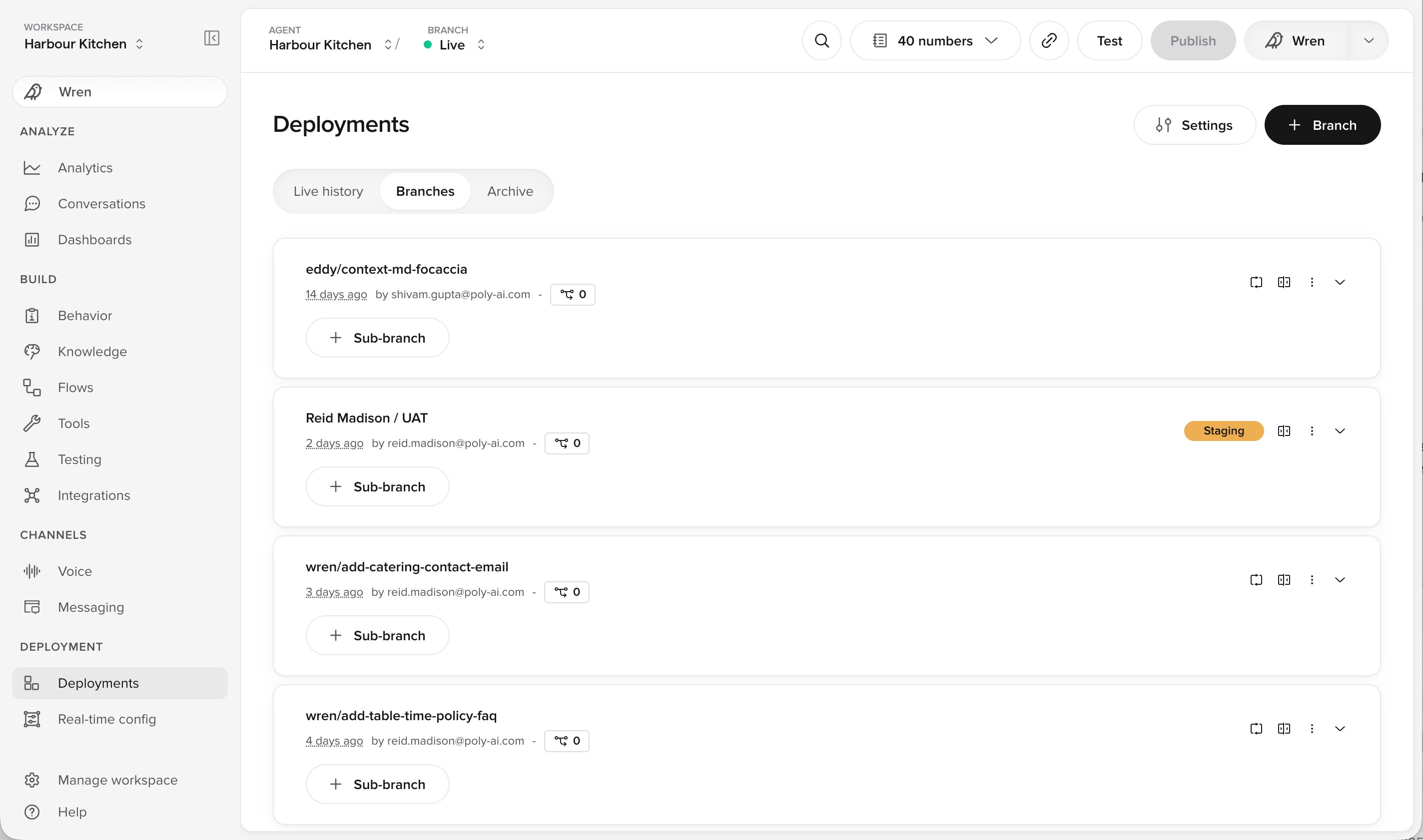
Every open Branch on the Deployments page, with one of them in Staging
Making a change
The everyday case: a knowledge update, a settings change, a behaviour prompt tweak.1
Create a Branch from Live
It starts as a copy of the current Live version, so you are working from what customers actually hear.
2
Make your change
It saves as you go.
3
Test it
Run simulation tests on the Branch, or talk to the agent yourself over an in-app call or chat.
4
Move to Staging (optional)
Move the Branch to Staging from its actions menu on the Deployments page, then test it the way a customer would.
5
Publish
The changes in your Branch are added onto Live and become the newest version in Live’s history.
Handling an out of sync Branch
Your Branch started as a copy of Live. If a colleague publishes while you are still working, Live has moved on and your Branch is now out of sync. Publishing is blocked until you catch up, so that your publish cannot undo their change.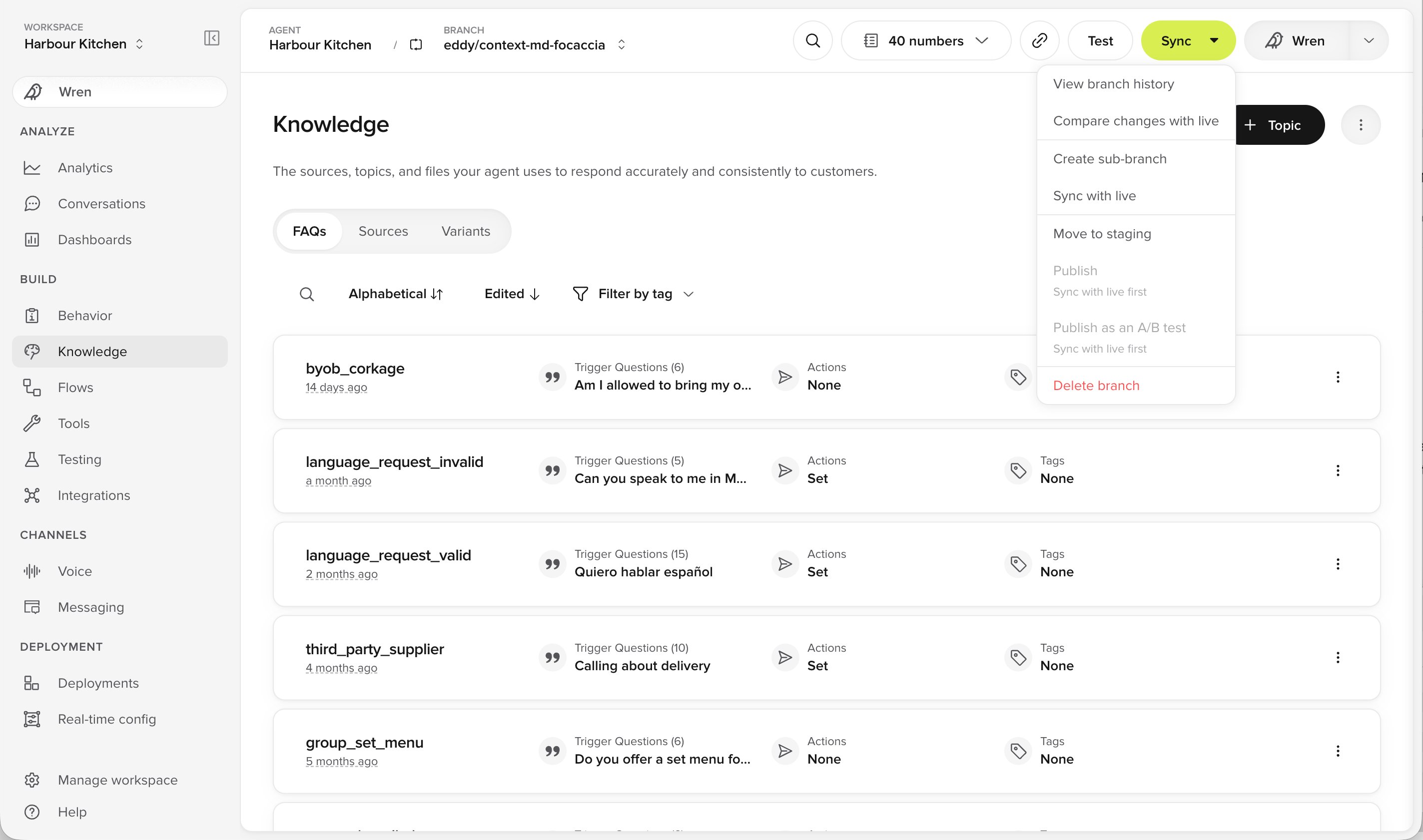
Publishing is unavailable until the Branch is synced with Live
1
Your Branch is marked Out of sync
This is expected, not an error. It just means Live has changed since you started.
2
Sync
This pulls the latest Live changes into your Branch, alongside your own.
3
Resolve any conflicts
If you and your colleague both changed the same thing, a screen asks which version to keep. Everything else merges on its own.
4
Test, then publish
Check the combined result before you publish.
Checking what will change before you publish
Open the Publish menu and choose Compare changes to see your Branch against Live side by side, and confirm only the change you intended is there. You can also compare any two Branches, or two versions in Live’s history.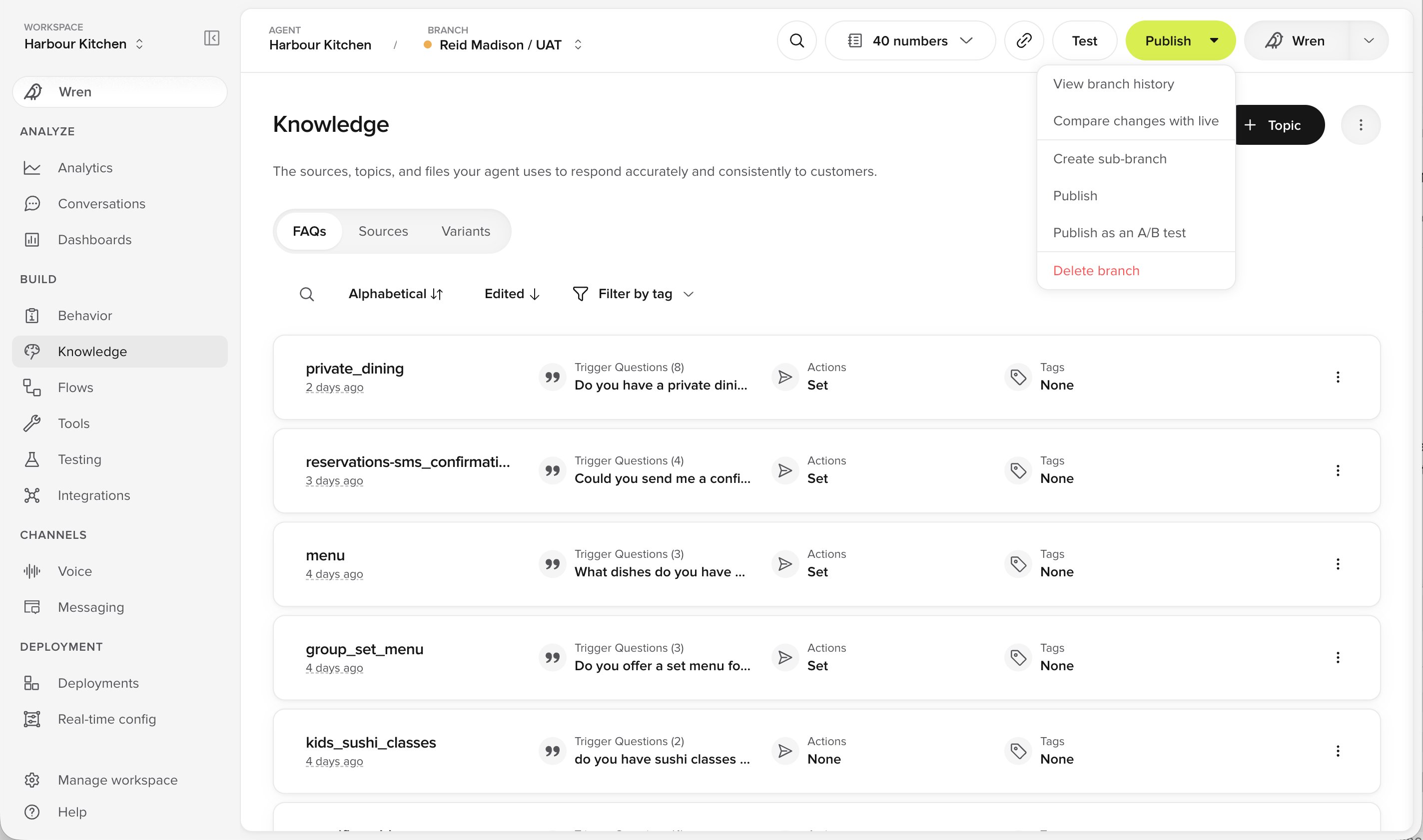
The Publish menu on a Branch