



What a Sub-branch is
A Sub-branch is a copy made from a Branch, rather than from Live. Each person on the team takes their own Sub-branch, works in it, and merges it back into the shared Branch when their piece is done. Once every piece is in, the team tests the whole Branch together and publishes it. Everything lands on Live at once. Sub-branches follow the same rules with their Branch that Branches follow with Live. They live in Sandbox, save as they go, and can be tested at any time. A Sub-branch cannot be split into further Sub-branches or moved to Staging. To test its changes in Staging, merge it into its Branch and move the Branch instead.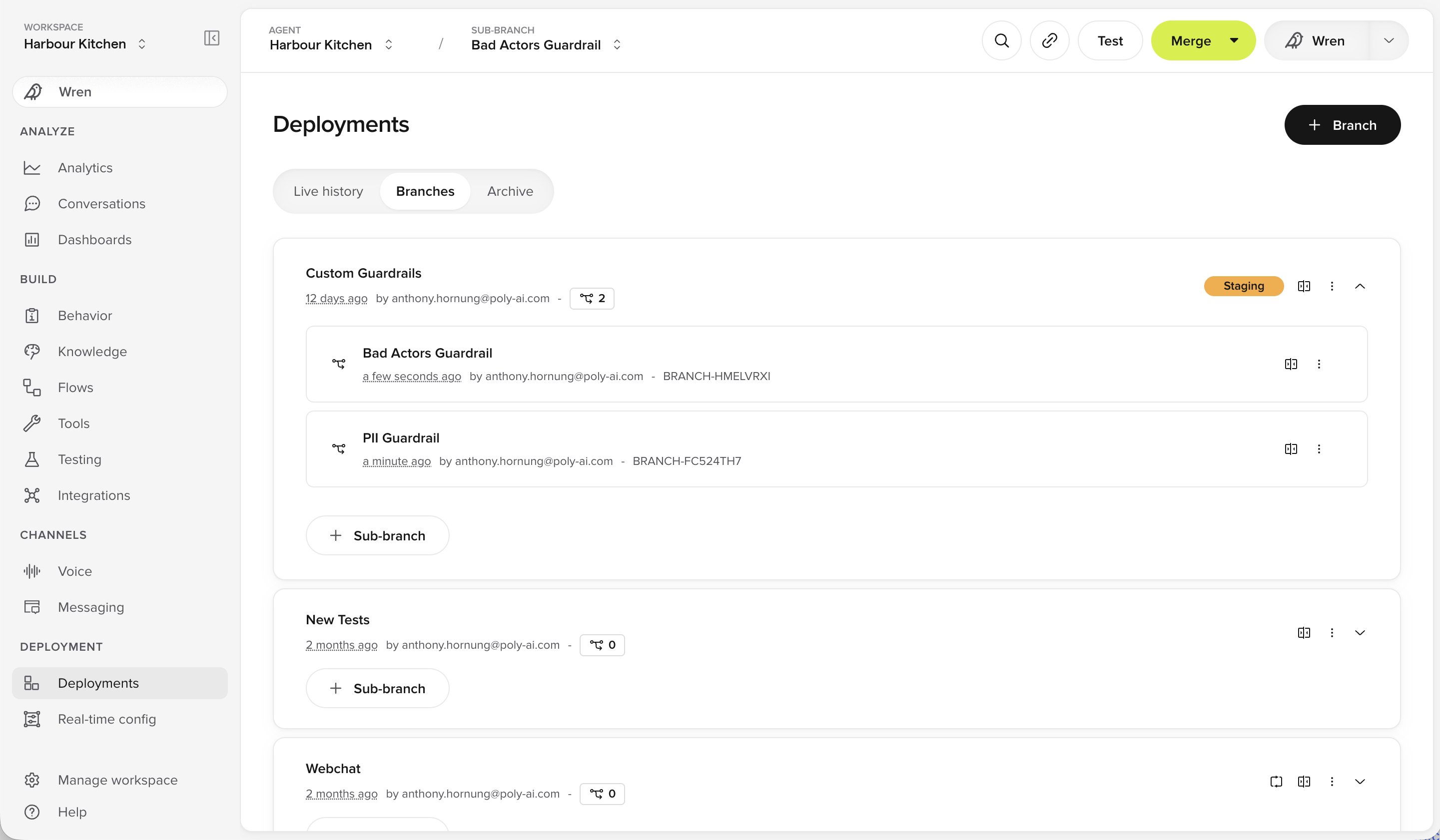
A Branch expanded to show its Sub-branches, on the Deployments page
Working on an update with several people
1
Create one shared Branch
One Branch for the whole piece of work.
2
Each person creates a Sub-branch
Every Sub-branch comes off that shared Branch.
3
Make your changes
Each person works in their own Sub-branch. It saves as you go.
4
Test each Sub-branch
Run tests on a Sub-branch to check its changes on their own before merging.
5
Merge each Sub-branch back
Merge into the shared Branch as each piece is finished.
6
Test the Branch
Test all the changes together.
7
Move to Staging (optional)
Move the Branch to Staging from its actions menu on the Deployments page, then test it the way a customer would.
8
Publish
Publish the Branch. Everything lands on Live at once.