

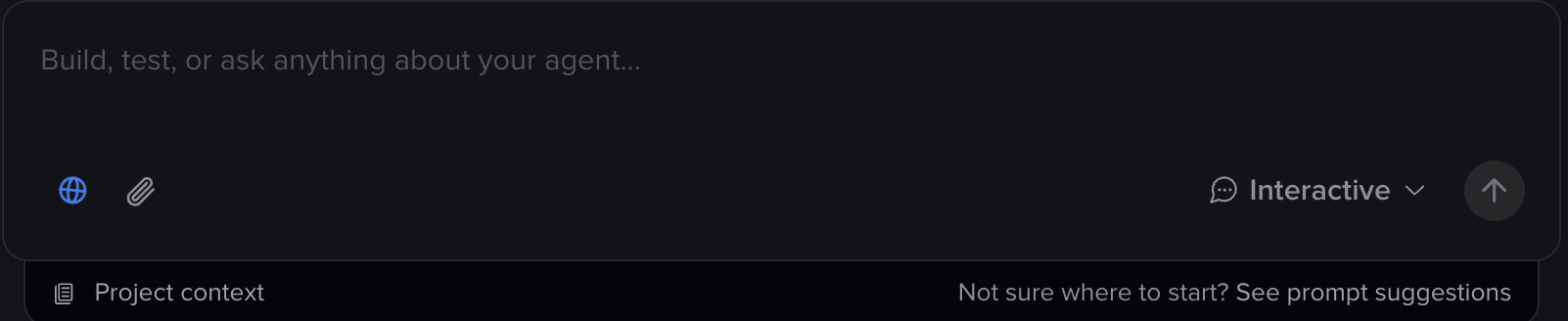
The composer: web search, attachments, project context, and the mode selector
Conversations and history
Chats are saved to the History panel, scoped to the project you’re in. You can resume any past chat, switch between concurrent ones, or archive what you’re not using. Open history with ⌘+., or start a fresh chat with ⌘+/. History is grouped by when you last touched a chat (Today, Yesterday, Last 7 Days, Last 30 Days, and Older) and scrolls back as far as you need.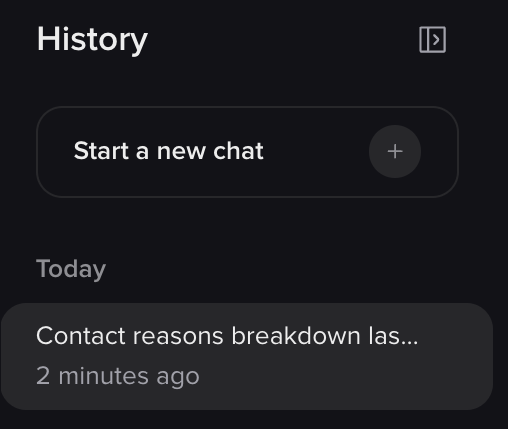
Chat history, grouped by when you last used each conversation
Picking up where you left off
Resuming a chat restores more than the transcript. Wren re-syncs your project, restores the working state it had built up, and tells you what it’s picking up on, including if you’ve since switched branches. If a run is interrupted, because you closed the tab or your connection dropped, the work keeps going server-side. Reopening the chat rejoins it.Past Smart Analyst chats
Analyses you ran in Smart Analyst before it was retired appear in your history alongside your Wren chats. They’re read-only: you can read them back, but you can’t continue them. Start a new chat to ask a follow-up.Sharing a chat
Copy a link to a conversation from the chat’s ⋯ menu and send it to a teammate with access to the project. They’ll see the full conversation with a read-only banner. They can read it, but they can’t continue it or act on it. This is the only way to show someone a chat, since history only ever lists your own.Attachments
Drag in transcripts, policy documents, spreadsheets, or screenshots and Wren reads them as part of your request. You can attach up to 10 files per message, each up to 10 MB.
Images are read directly. Everything else is converted to text first, so a scanned PDF with no text layer gives Wren nothing to work with, and it’ll tell you so rather than guessing at the contents.
Large files aren’t truncated away: Wren keeps a full copy it can page through, so a long transcript stays usable even when only a preview appears in the message itself.
Voice input
You can speak to Wren instead of typing. Hold the microphone button, or hold ⌥+Space (Ctrl+Space on Windows), and talk. Release to drop the transcript into the composer, where you can edit it before sending. Press Esc while recording to discard it. You can also click the microphone to toggle recording on and off rather than holding. A few things to know:- The keyboard shortcut only works once you’ve granted microphone access by clicking the button at least once.
- Sessions stop automatically after 5 minutes, or after 15 seconds of silence.
- Safari isn’t supported. Use Chrome, Edge, or Firefox for voice input.
- Dictation counts toward your usage allowance, at a small fraction of the cost of a message.
Web search
Wren can search the web and read public pages, which is what makes “add topics fromhttps://example.com/faq” work.
The globe icon in the composer toggles this per conversation. Turn it off if you want Wren working strictly from your project and your own messages. Web searches count toward your usage allowance.
Project context
If you find yourself explaining the same background in every chat (your domain, your house style, rules the agent must always follow), write it down once instead. Project context is a document Wren reads at the start of every conversation in the project. Open it from the composer or the sidebar. It’s a good place for:- Prompt style: how you want the agent’s wording to read
- Business context: what your company does, and the vocabulary that goes with it
- Agent structure: conventions you want new flows and topics to follow
- Rules for Wren: anything it should always or never do in this project
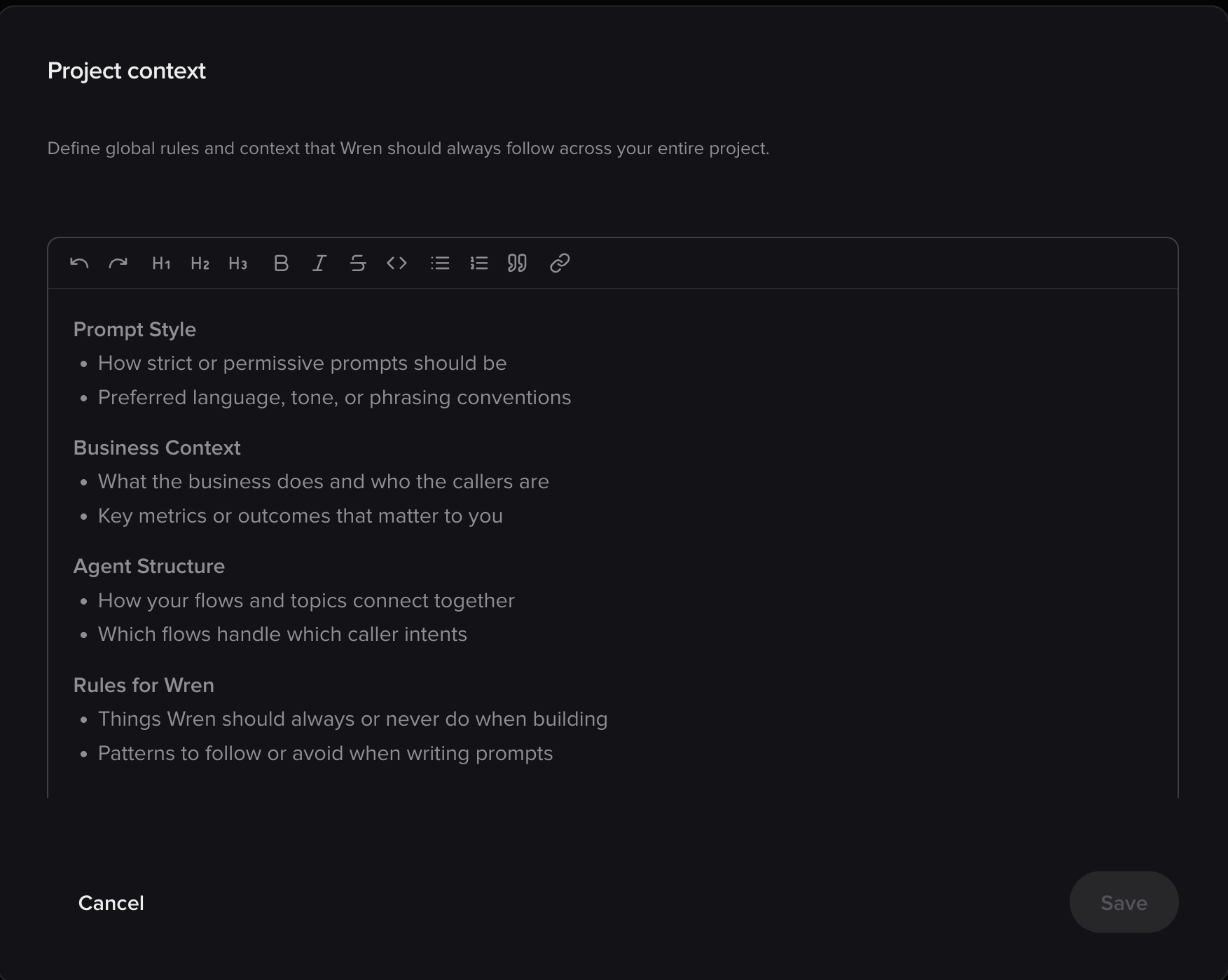
Project context: written once, read at the start of every chat
Long chats
Wren remembers everything in the current chat. Follow-ups like “now do the same for the cancellation flow” work without repeating context. When a chat gets long enough to strain that memory, Wren summarizes the earlier part and keeps going. You’ll see a Compacting context… line in the transcript when it happens, followed by a note of how many messages were summarized. Nothing is lost from the transcript you can read; it’s the working memory that gets condensed. Compaction is automatic and safe, but a summarized chat is still less sharp than a fresh one. Start a new chat when you switch to unrelated work. It’s faster, cheaper, and keeps Wren focused on the thing you’re actually doing.Related pages
Prompting guide
Patterns for getting good results in fewer turns.
Usage and limits
What counts toward your allowance.
Overview
Modes, plans, branches, and keyboard shortcuts.