

Your sidebar may look different depending on your role and permissions. Some items are feature-flagged or permission-gated - if a section is missing, ask your admin to check your access level.
Interface layout
Agent Studio uses a consistent three-panel layout across all sections:- Left sidebar - Navigate between the five main sections (Analytics, Build, Channels, Configure, Deployments) and their sub-sections
- Main area - The working area where you view and edit content
- Right panel - Contextual details, previews, or settings related to what you’ve selected
Navigation sections
Analytics
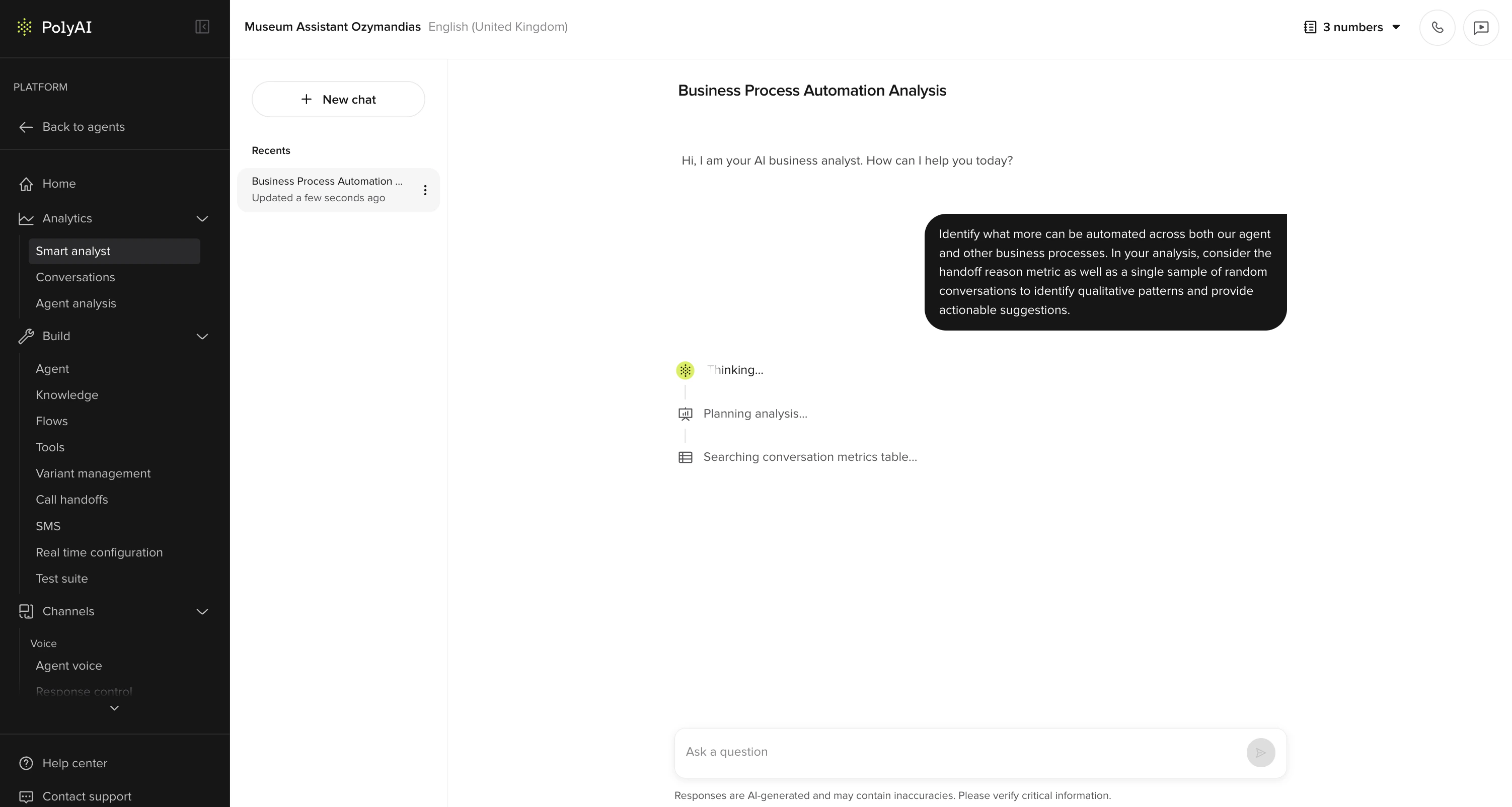
| Sub-section | What it does |
|---|---|
| Smart analyst | Ask questions about your agent’s performance in natural language |
| Conversations | Browse call transcripts, listen to recordings, and review individual interactions |
| Agent analysis | View performance metrics, trends, and aggregate insights |
Analytics docs
Learn more about reviewing conversations and tracking performance.
Build
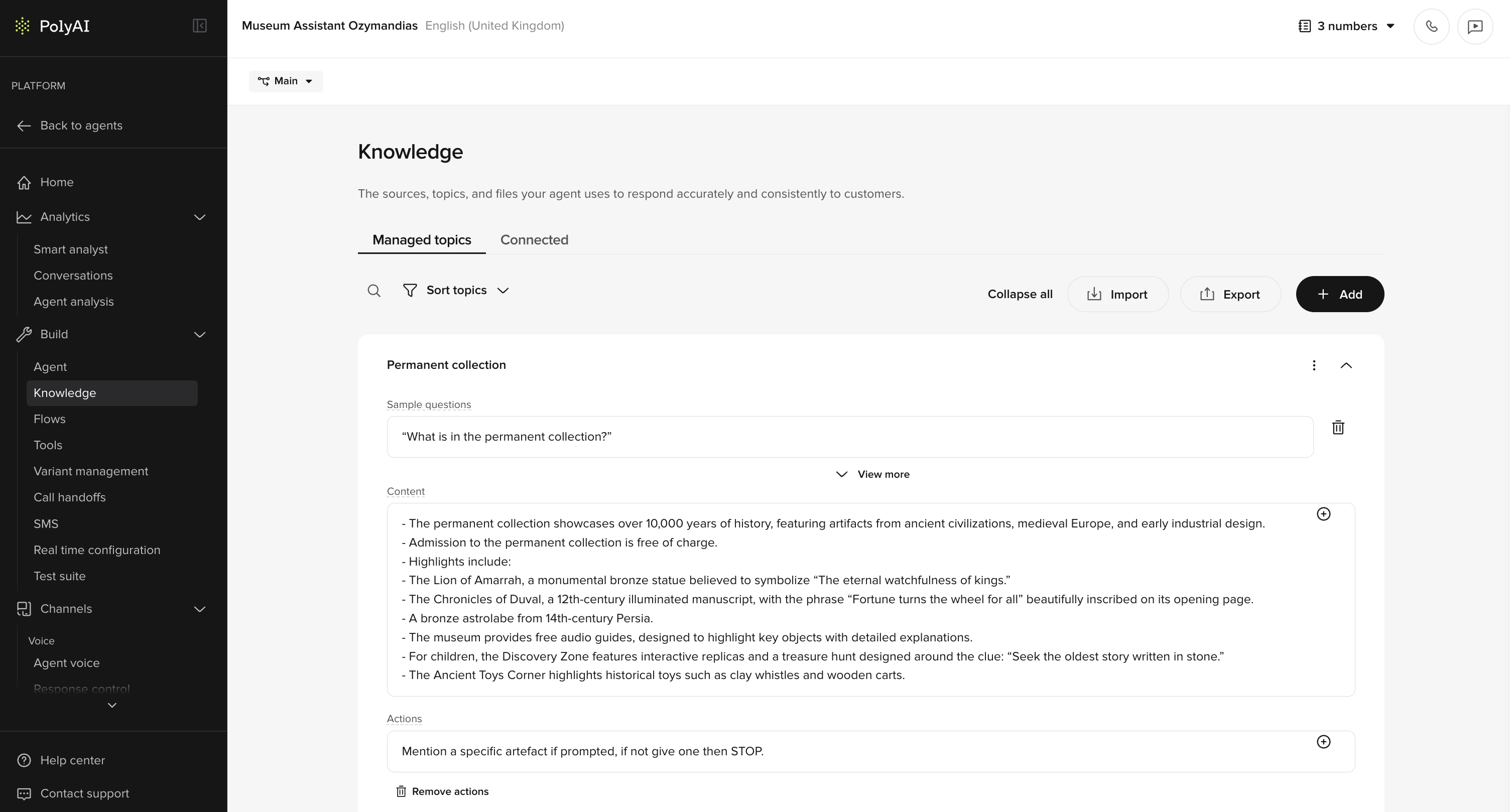
| Sub-section | What it does |
|---|---|
| Agent | Set your agent’s personality, greeting, model, and behavioral rules |
| Knowledge | Add managed topics and connect external data sources. May appear as separate Knowledge base and Connected knowledge items |
| Flows | Design multi-step conversation workflows |
| Tools | Write Python functions and manage code-level integrations |
| Variant management | Configure multi-site or multi-brand variations |
| Call handoffs | Set up transfer destinations and routing rules |
| SMS | Configure text messaging actions |
| Real time configuration | Manage runtime configuration values per environment |
| Test suite | Run automated tests against your agent |
Build docs
Start with agent settings, then explore knowledge, flows, and tools.
Channels
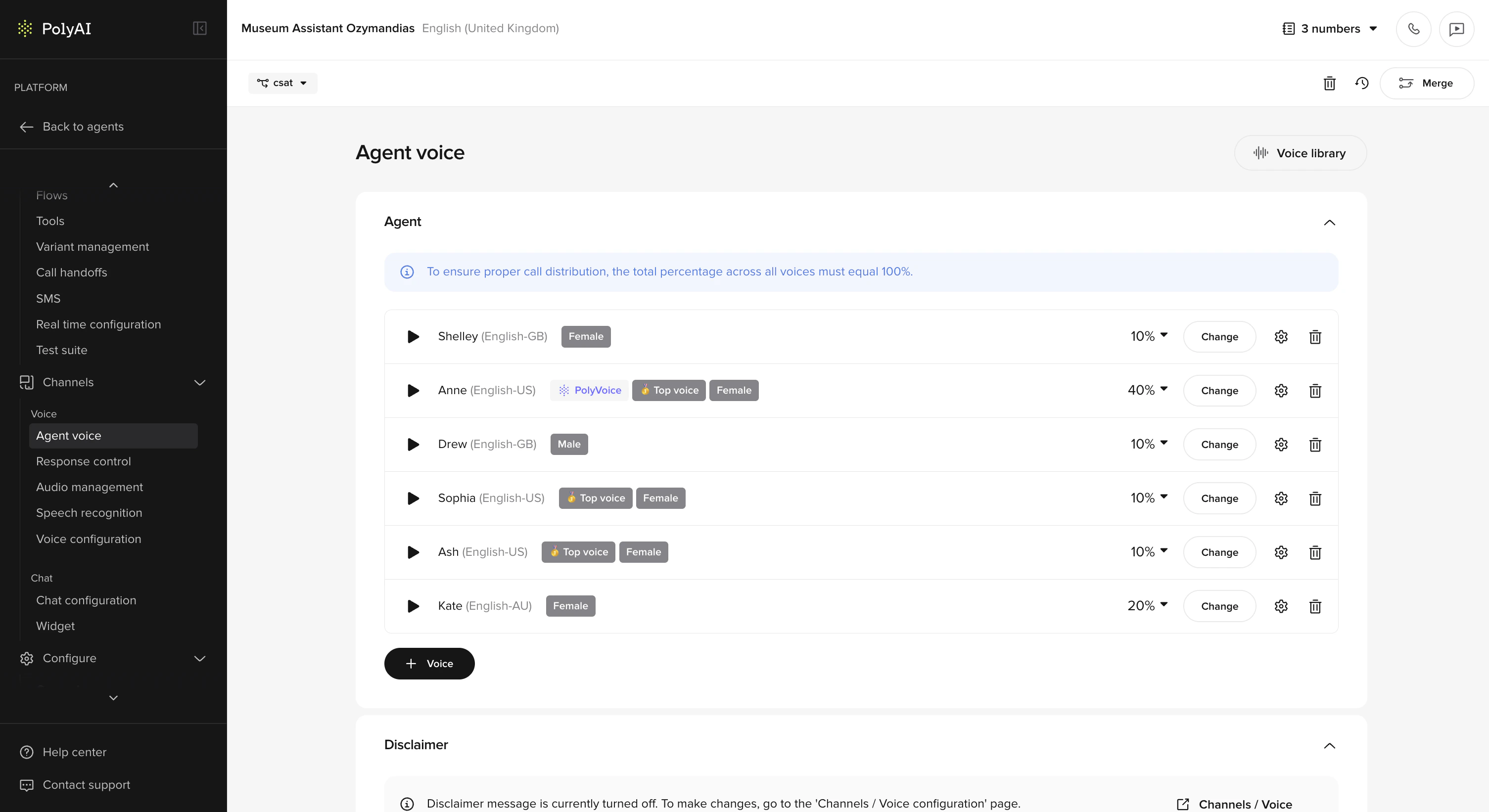
Voice
| Sub-section | What it does |
|---|---|
| Agent voice | Choose and customize your agent’s voice, including TTS settings |
| Response control | Manage stop keywords and pronunciation overrides |
| Audio management | Configure hold music, IVR prompts, and other audio |
| Speech recognition | Tune how your agent interprets spoken input |
| Voice configuration | Advanced voice channel settings |
Chat
| Sub-section | What it does |
|---|---|
| Chat configuration | Configure chat-specific agent behavior |
| Widget | Set up and customize the web chat widget |
Channels docs
Start with voice setup, then explore chat and advanced audio settings.
Configure
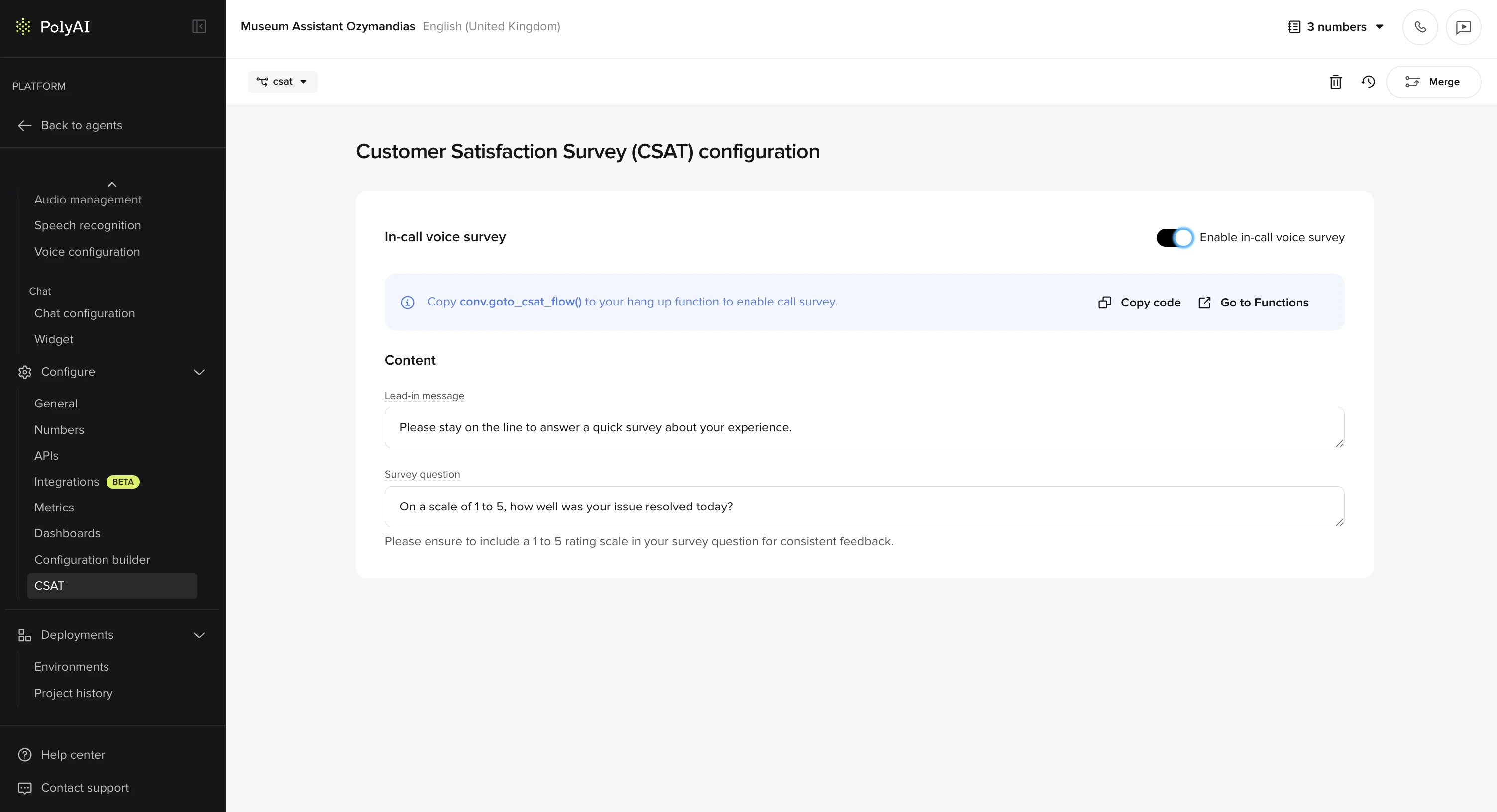
| Sub-section | What it does |
|---|---|
| General | Project-wide settings and preferences |
| Numbers | Buy, manage, and configure phone numbers |
| APIs | Manage API connections and configurations |
| Integrations | Connect third-party services (CRM, telephony, etc.) - currently in beta |
| Metrics | Define custom metrics for tracking |
| Dashboards | Manage analytics dashboard configurations |
| Configuration builder | Build and manage real-time configuration schemas |
| CSAT | Configure customer satisfaction surveys |
Configure docs
Start with general settings, then set up numbers, integrations, and dashboards.
Deployments
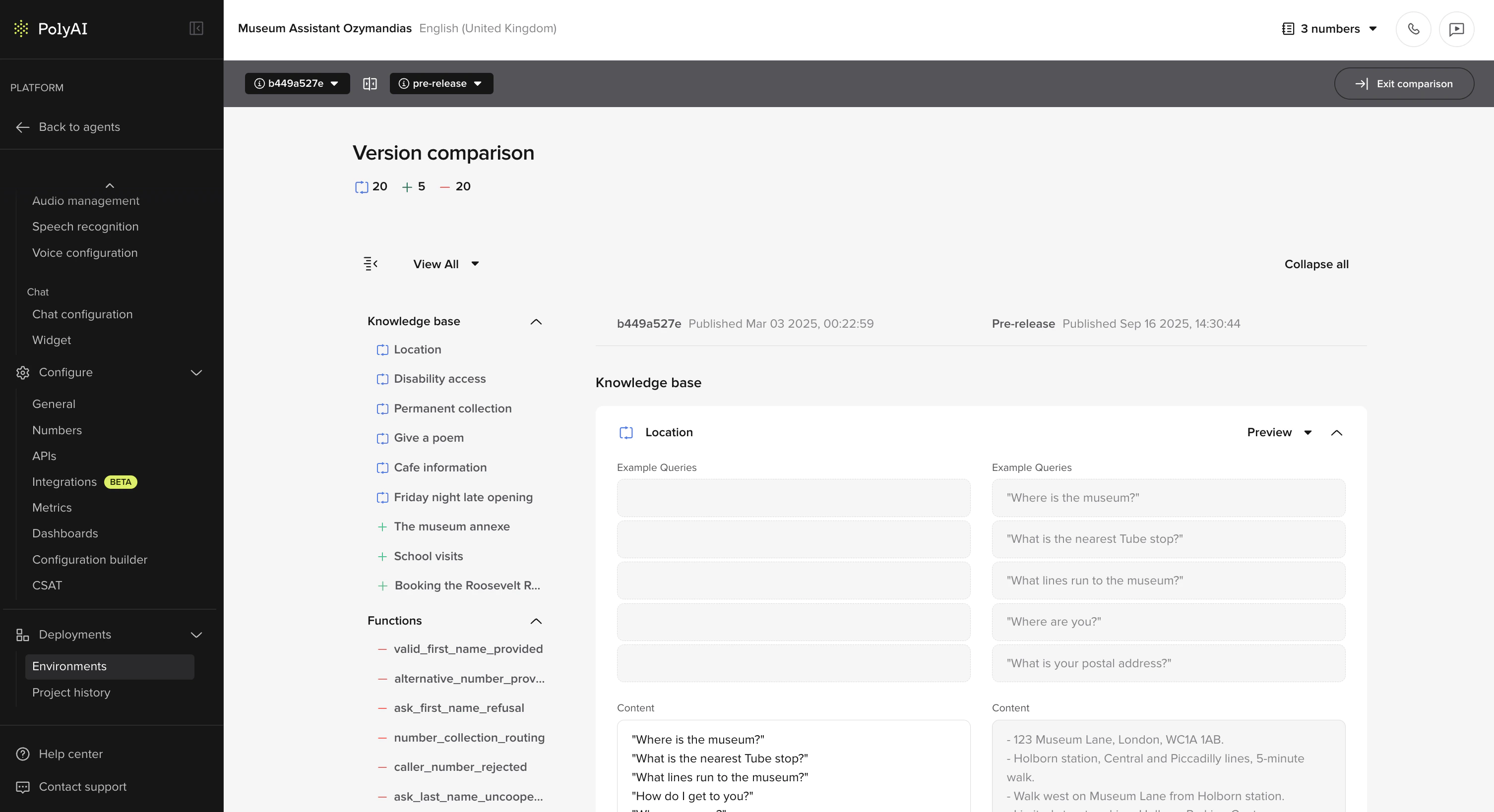
| Sub-section | What it does |
|---|---|
| Environments | Move your agent from Sandbox to Pre-release to Live |
| Project history | View past versions, compare changes, and roll back if needed |
Deployments docs
Learn how to promote agents across environments.
Next steps
Quickstart
Build and deploy your first agent in minutes
Role permissions
Understand what each role can access in each section