

Create and deploy chat widgets in Channels > Chat. Configure chat first.Documentation Index
Fetch the complete documentation index at: https://docs.poly.ai/llms.txt
Use this file to discover all available pages before exploring further.
Prerequisites
Before installing the widget, ensure you have:- The web domain where you’ll embed the agent
- Access to your website’s HTML templates or your tag manager (e.g., Google Tag Manager)
- Chat configuration completed in Agent Studio
Creating a widget
If no widgets exist, you’ll see an empty state with a Create chat widget button. Click Create chat widget to open the creation modal:A name to identify this widget (e.g., “Main website”, “Support portal”).
The URL where this widget will be deployed. The widget will only load on this domain.
Select the deployment environment: Sandbox, Pre-release, or Live.
Widget editor
After creating a widget, use the editor to configure its appearance and behavior. The editor has three tabs: Styling, Content, and Embed. A live preview panel on the right shows your changes in real-time.Header controls
- Widget selector - Dropdown to switch between widgets
- Settings icon - Access widget settings
- Save and publish - Deploy changes to the selected environment
Styling tab
Customize the visual appearance of your widget.Header
The title shown in the widget header. Use your brand name or agent name.Example: “PolyAI Agent”
Upload a logo or image for the widget header.
Agent
The name displayed for the agent in chat messages.Example: “Support Agent”
Upload an avatar image for the agent.
Color
Sets the color for the header and action elements. Enter a hex code or use the color picker.Example:
#161617Content tab
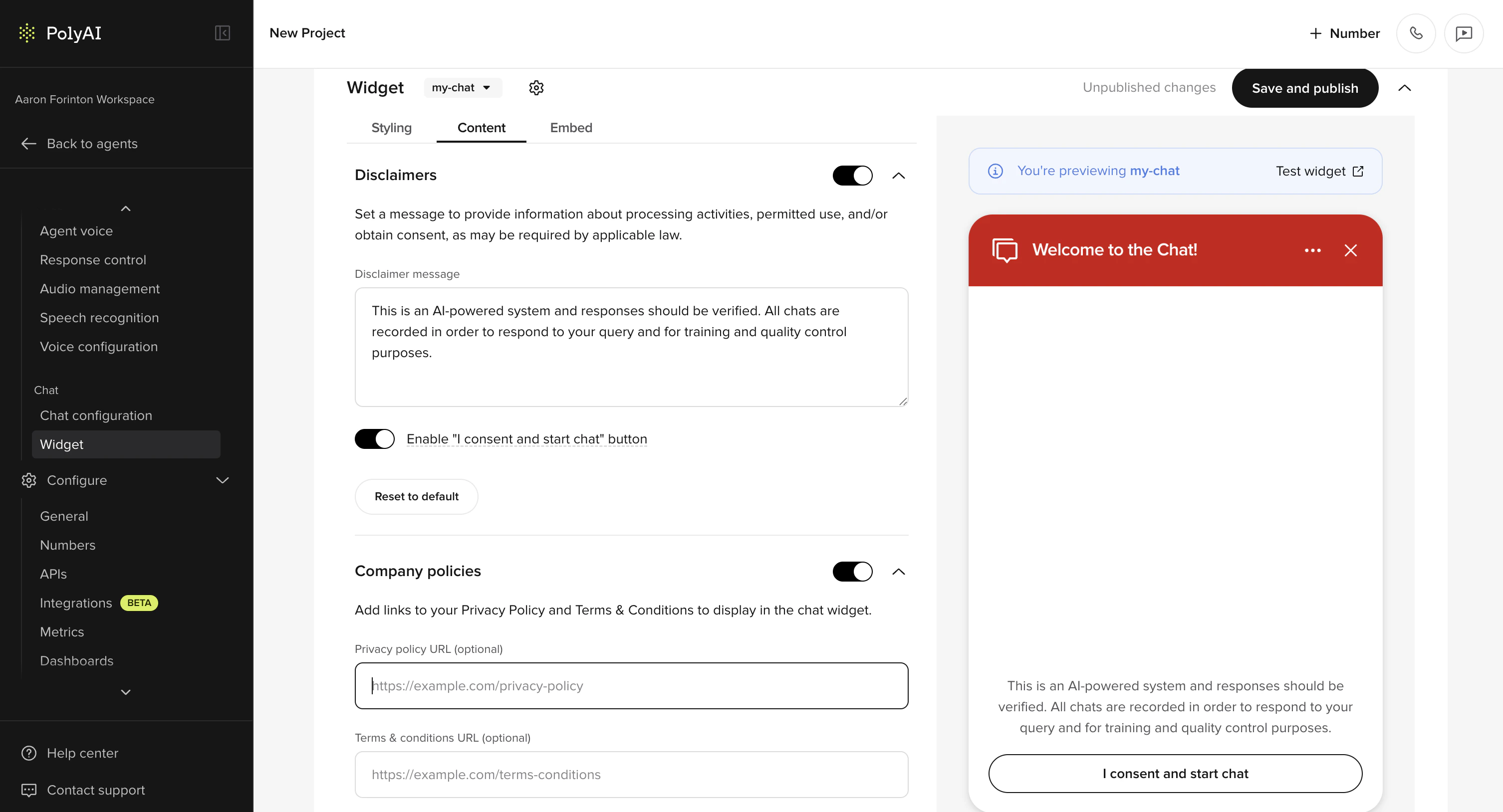
Configure disclaimers and consent requirements.Disclaimers
Toggle to show a disclaimer message before users can start chatting.
The message shown to users before they begin chatting.Example: “This is an AI-powered system. All chats are recorded for quality and training purposes.”
When enabled, users must click “I consent and start chat” before the conversation begins.
Restore the disclaimer message to its default text.
Company policies
Toggle to show links to your Privacy Policy and Terms & Conditions below the consent button.
Example:
https://example.com/privacy-policyExample:
https://example.com/terms-conditionsEmbed tab
Deploy your widget to production.Instructions
The embed tab provides step-by-step instructions for adding the widget to your website.Widget status
Each widget displays:- Widget name - The name you assigned
- Status badge - Shows “Live” when published, or the current state
- Script tag - The code to copy and embed on your site
- Last published - Timestamp of the most recent deployment
Live preview
The preview panel on the right side of the editor shows:- “You’re previewing [widget name]” banner
- Test widget link to interact with the widget
- Real-time updates as you adjust settings
Managing multiple widgets
You can create multiple widgets for different use cases:- Different websites or domains
- Different variants for location-specific experiences
- Different environments for testing vs. production
Next steps
Installation
Embed the widget script on your website using direct HTML or Tag Manager.
Troubleshooting
Widget not appearing? CSP issues? Best practices and fixes.