

Multi-language support
Multi-language support
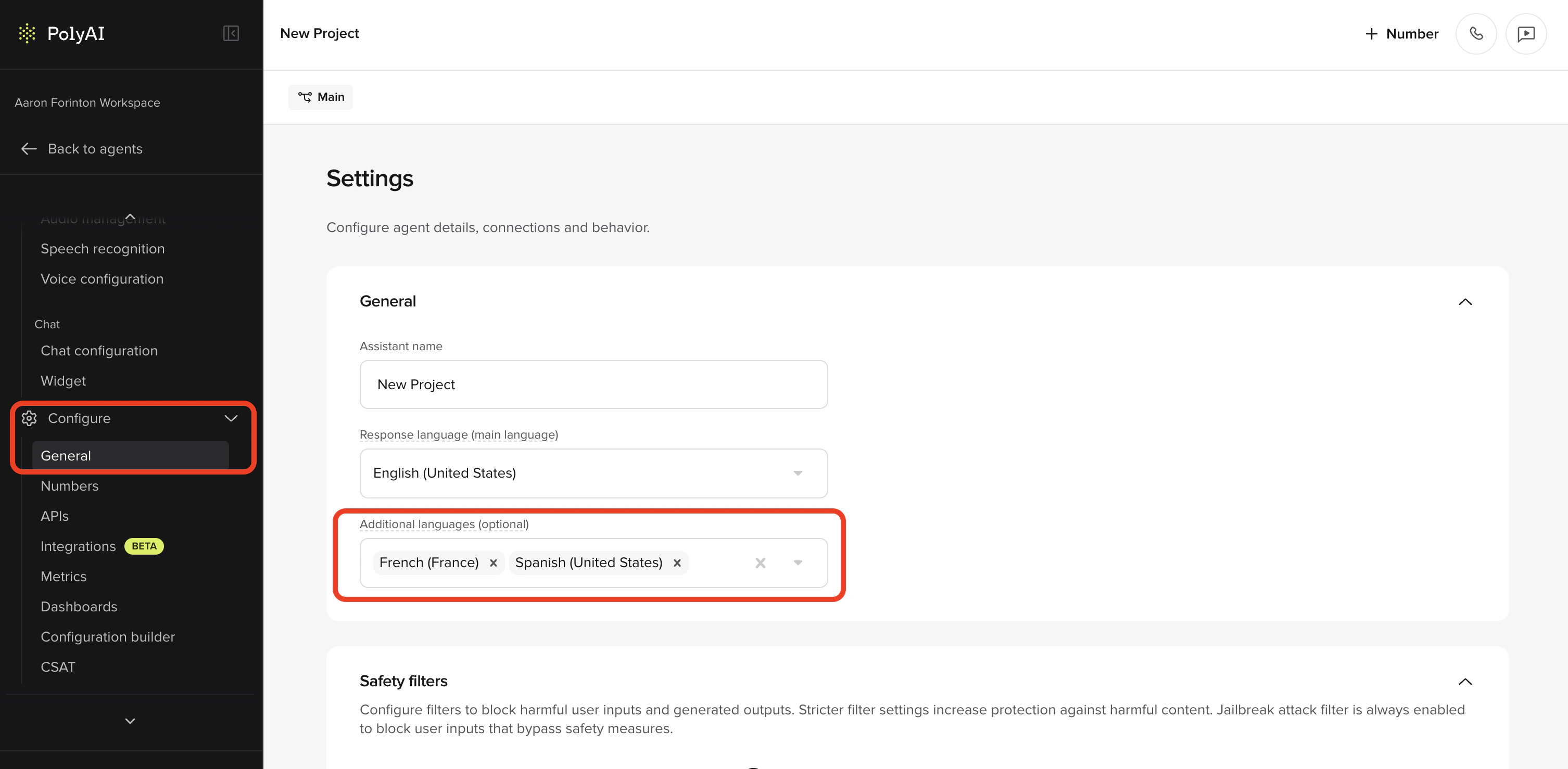
start_function workarounds. The new Multi-language settings page lets you configure everything from the UI.What’s new:- Add languages in the UI — go to Configure > General and add up to 10 additional languages with a couple of clicks.
- Per-language voices — assign a dedicated Agent voice and Disclaimer voice for each language under Channels > Voice > Agent Voice, with multi-voice support per language. The agent switches voice automatically when the conversation language changes.
- Test in any language — a new language dropdown in Agent Chat lets you start conversations in a specific language to verify behavior before going live.
- Conditional content tags — wrap language-specific content in
<language:en>/<language:es>tags to serve the right version from a single prompt. - Test in any language — a new language dropdown in Agent Chat lets you start conversations in a specific language to verify behavior before going live.
- Language metadata — see which language was used for each conversation in Conversation Review (list and detail), and manage language-tagged audio in Audio Management.
Translations
Translations
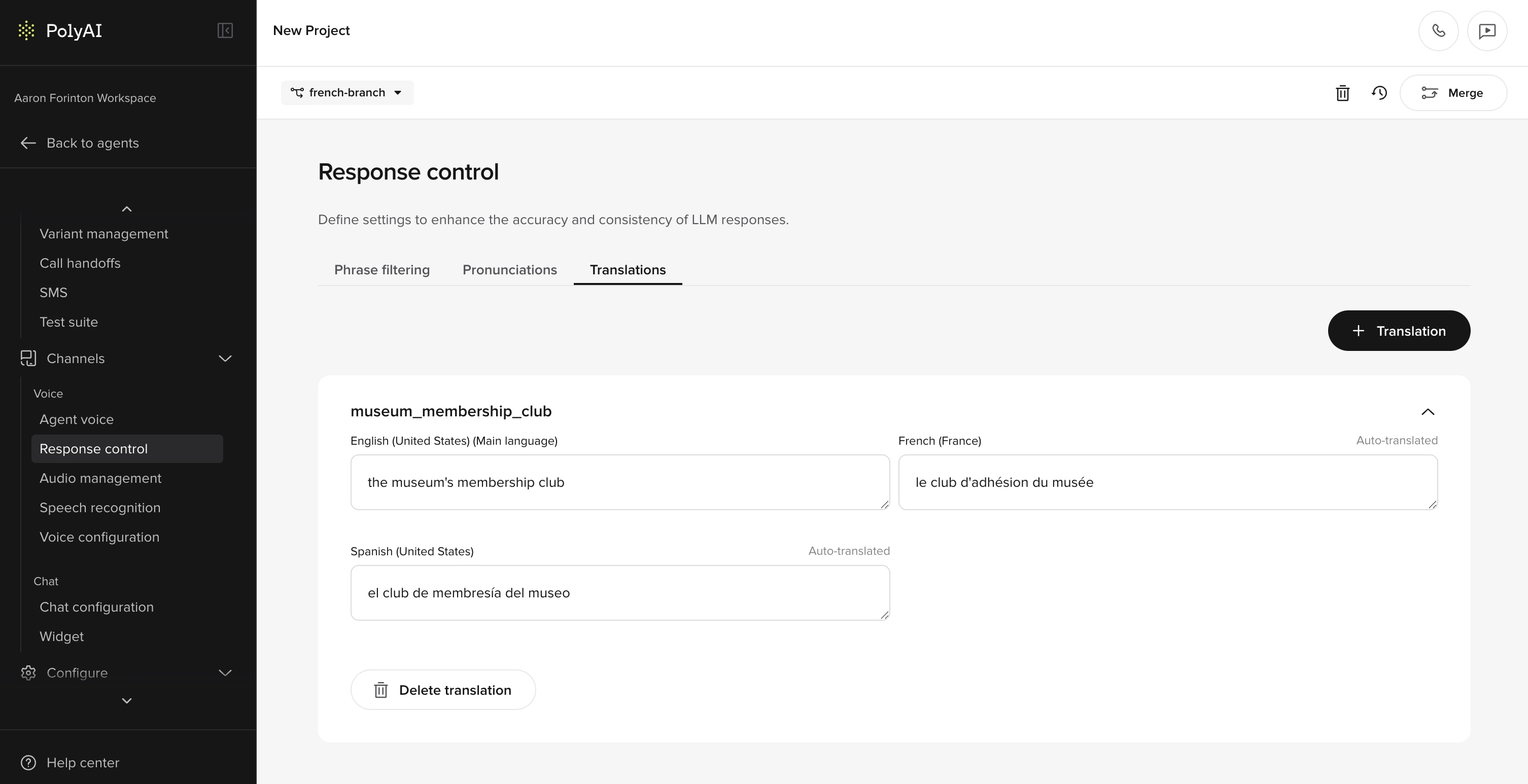
- Translation cards — each card holds a piece of content (like a greeting or confirmation message) with versions for every configured language.
- Automatic translation — when you save a card, all configured languages are translated instantly. Cards that haven’t been manually reviewed are marked as “Auto Translated”.
- Manual overrides — edit any translation to fix awkward phrasing, adjust formality, or handle idioms that don’t carry over. Overridden entries are marked as “Manually Translated”.
- Insert anywhere — reference translation cards via the action menu in greetings, disclaimers, behavior rules, prompts, delay control responses, and SMS templates.
- Access in functions — use
conv.translations.your_keyto pull the right translation programmatically for hard-coded utterances.
MCP integrations
MCP integrations
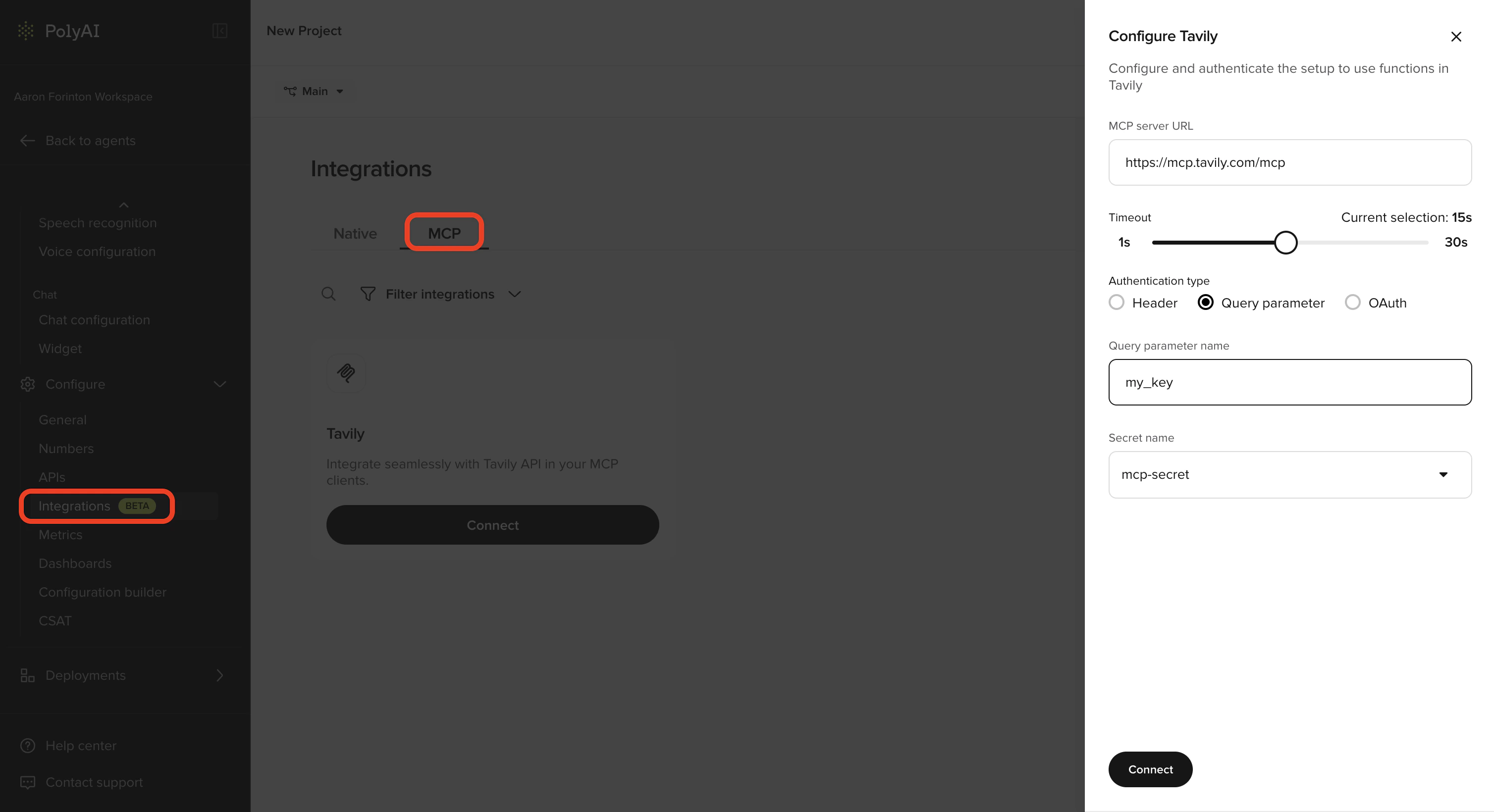
- A dedicated MCP tab is now available under Configure > Integrations.
- Add an MCP server by providing a URL, authentication details (Header, Query parameter, or OAuth), and an optional timeout.
- Agent Studio auto-discovers the tools available on the connected server and displays them in a configuration panel.
- Toggle individual tools on or off to control which functions are exposed to the agent, helping manage context window usage.
- Supports Header, Query parameter, and OAuth authentication methods using secrets from the Secrets Vault.
Projects that previously configured MCP through experimental config will continue to work — the old MCP tab is hidden once the feature is enabled, but existing servers keep running in the background. The old config only stops being used if you add a new MCP server through the new UI. See MCP integrations for setup instructions.