

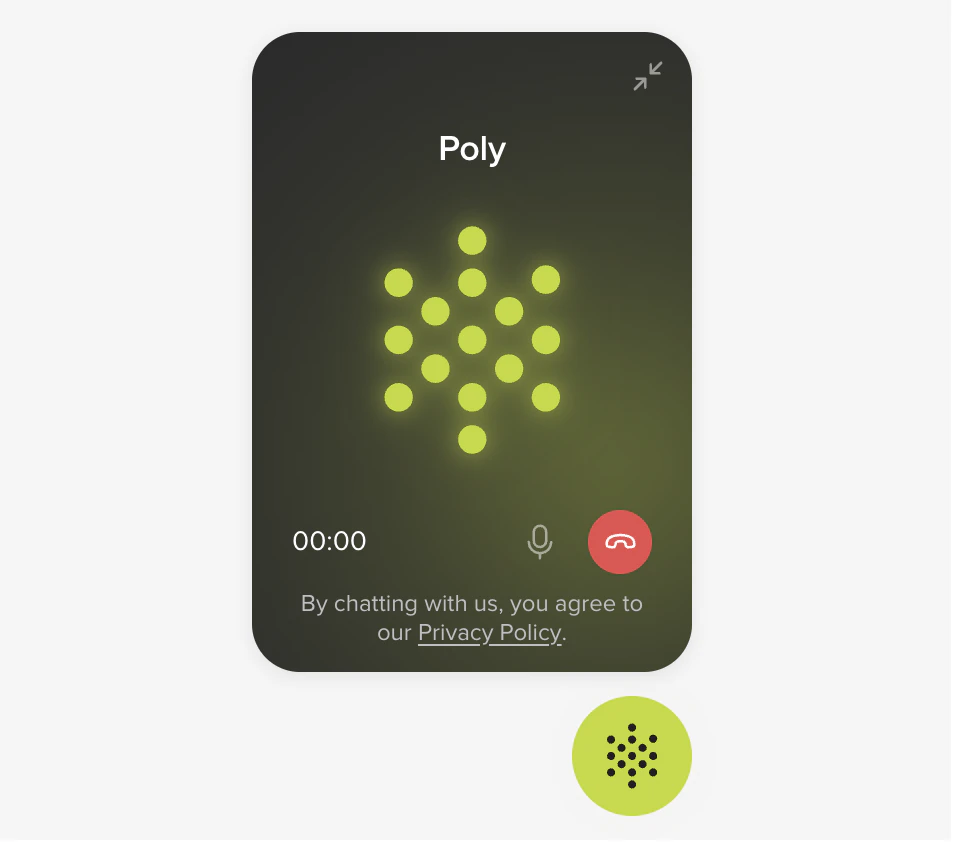
Embed it
The install is a single script tag, generated for you under Configure > Web Calling > Embed. Paste it just before</body> on your site:The agent’s voice
Web Calling uses whichever voice you’ve set under Configure > Agent voice. The same voice plays whether someone reaches you through the embedded widget or a shareable page link.Web Calling in the channel mix
Web Calling is a voice channel, just like a phone number. The only thing that changes between them is how the audio gets to PolyAI.| Web Calling | Numbers (telephony) | Chat (webchat) | Voice (TTS settings) | |
|---|---|---|---|---|
| What customers do | Click a button on your site | Dial a phone number | Type in a widget on your site | (configures how your agent sounds) |
| Modality | Voice | Voice | Text | Shared by all voice channels |
| Where you set it up | Configure > Web Calling | Channels > Numbers | Configure > Web Calling | Channels > Voice |
| Docs | This section | Numbers | Webchat | Voice |
What the widget does
A consent step before the mic opens. Mute and end-call controls. The usual connecting / in-call / ended / error states. Only one call active per visitor across tabs. You can lock the widget to specific domains, run multiple variants per brand or region, and surface whichever languages your agent speaks.Compliance
Privacy and consent controls are off by default. Turn them on under Widget configuration.Before you embed
| Need | Notes |
|---|---|
| An Agent Studio project with a published variant | Sandbox is fine for testing; promote to Live for real traffic. |
| The domain(s) the widget will load on | Used for the domain allow-list. |
| Access to your site’s HTML or tag manager | One script tag goes just before </body>. |
| HTTPS on the host page | Browsers block mic access on insecure origins. |
Reference pages
Widget
Create, style, and configure a Web Calling widget in Agent Studio.
Installation
Embed the script tag on your website with HTML or Tag Manager.
Test widget
Walk through a real call from the editor preview link.
Troubleshooting
Mic permissions, ICE failures, cross-tab lock, and more.
Technical details
How a call connects
How a call connects
Web Calling is loaded by a single
<script> tag on your site. The script injects an iframe pinned to the bottom-right of the page. When a visitor clicks the launcher, the widget requests microphone access, opens a WebSocket to PolyAI’s WebRTC gateway, and starts an Opus 48 kHz audio call with your agent.Two endpoints are involved:- HTTPS to PolyAI’s widget script endpoint, which loads the widget JS.
- WSS to the WebRTC gateway, which carries signaling and Opus audio to your agent.
Web Calling vs. telephony, side by side
Web Calling vs. telephony, side by side
| Web Calling | Telephony | |
|---|---|---|
| Transport | WebRTC over the browser | Phone network (PSTN / SIP) |
| Visitor sees | A widget on your website | A phone number to dial |
| Latency / quality | Opus 48 kHz over WebRTC | Carrier-dependent |
| Setup | Embed a script tag | Provision a number, configure SIP |
| Best for | Web-first journeys, support deflection | Inbound call centers, omnichannel routing |
Programmatic control (JavaScript SDK)
Programmatic control (JavaScript SDK)
The widget script also exposes a Available commands:
window.PolyphoneAPI object that lets your page drive the call programmatically, useful when you want to trigger Web Calling from a custom button, an in-app event, or an existing chat experience.connect, disconnect, startCall, endCall, connectAndCall, mute, unmute, sendInfo, isConnected, getCurrentSession, destroy. Event registration uses dedicated methods: onReady, onConnecting, onConnected, onDisconnected, onRegistered, onUnregistered, onRinging, onAnswered, onEnded, onFailed, onMuted, onUnmuted, onCaptureAudio, onAudioEnded, onInfoSent, onInfoReceived, onTranscription, onError. Use off(eventName, handler) to remove a registered handler.Browser support
Browser support
Web Calling uses standard WebRTC primitives. Verified browsers:
Visitors on unsupported browsers see a disabled call button with a brief explanation. Mobile-browser and in-app-webview behavior can vary, so test in your intended deployment environment before launch.
| Browser | Minimum version |
|---|---|
| Chrome / Chromium | 72 |
| Firefox | 60 |
| Safari (macOS) | 14.1 |
| Safari (iOS) | 16 |
| Edge | 79 |
Related pages
- Voice, pick the voice your agent speaks with
- Agent Builder, ask it to adjust Web Calling behavior in plain language
- Install on your site, Tag Manager and HTTPS notes
- Configure, styling, language, consent
- Voice, the agent’s TTS voice, shared by Web Calling and telephony
- Numbers (telephony), the phone-network route into the same voice agent
- Webchat, the text channel that uses the same widget framework
- Variant management, per-domain or per-region widget configuration
- WebRTC gateway API, the underlying transport (advanced)