

Stop keyword fields
| Field | Type | Description |
|---|---|---|
| Title | String | Unique name for the stop keyword rule (max 100 characters) |
| Description | String | Optional note clarifying the keyword’s purpose |
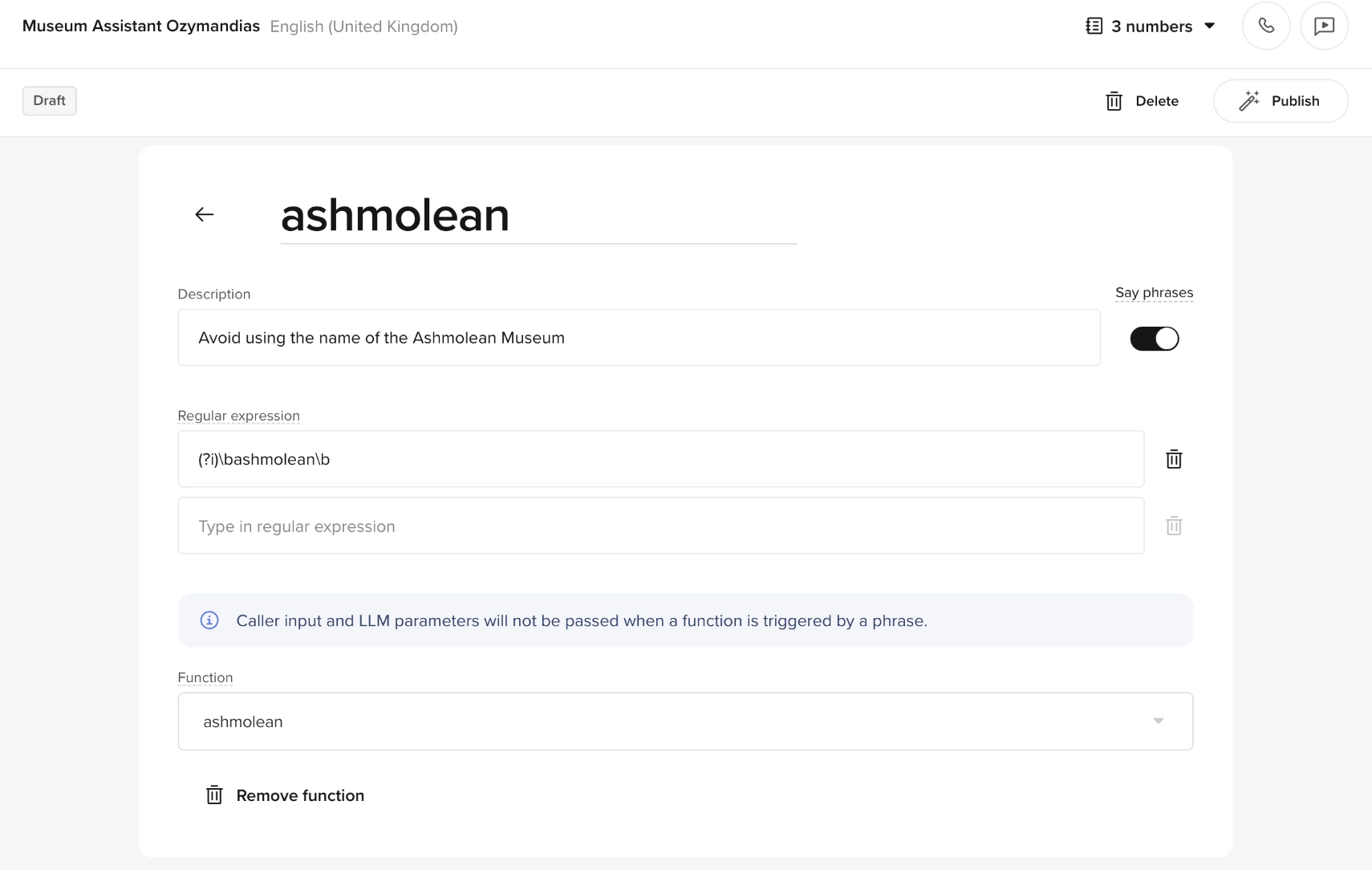
| Regular Expression | String | One or more regex patterns that identify phrases to control |
| Say Phrases | Boolean | TRUE – the agent speaks the text up to the matched phrase, then stops. FALSE – the agent is interrupted before speaking the phrase. |
| Language | String | Which language this rule applies to. Defaults to “All languages”. Only visible for multilingual agents. |
| Function | Reference | Optional – a function to call when the phrase is detected |
Creating a stop keyword
- 1. Create a function
- 2. Configure the keyword
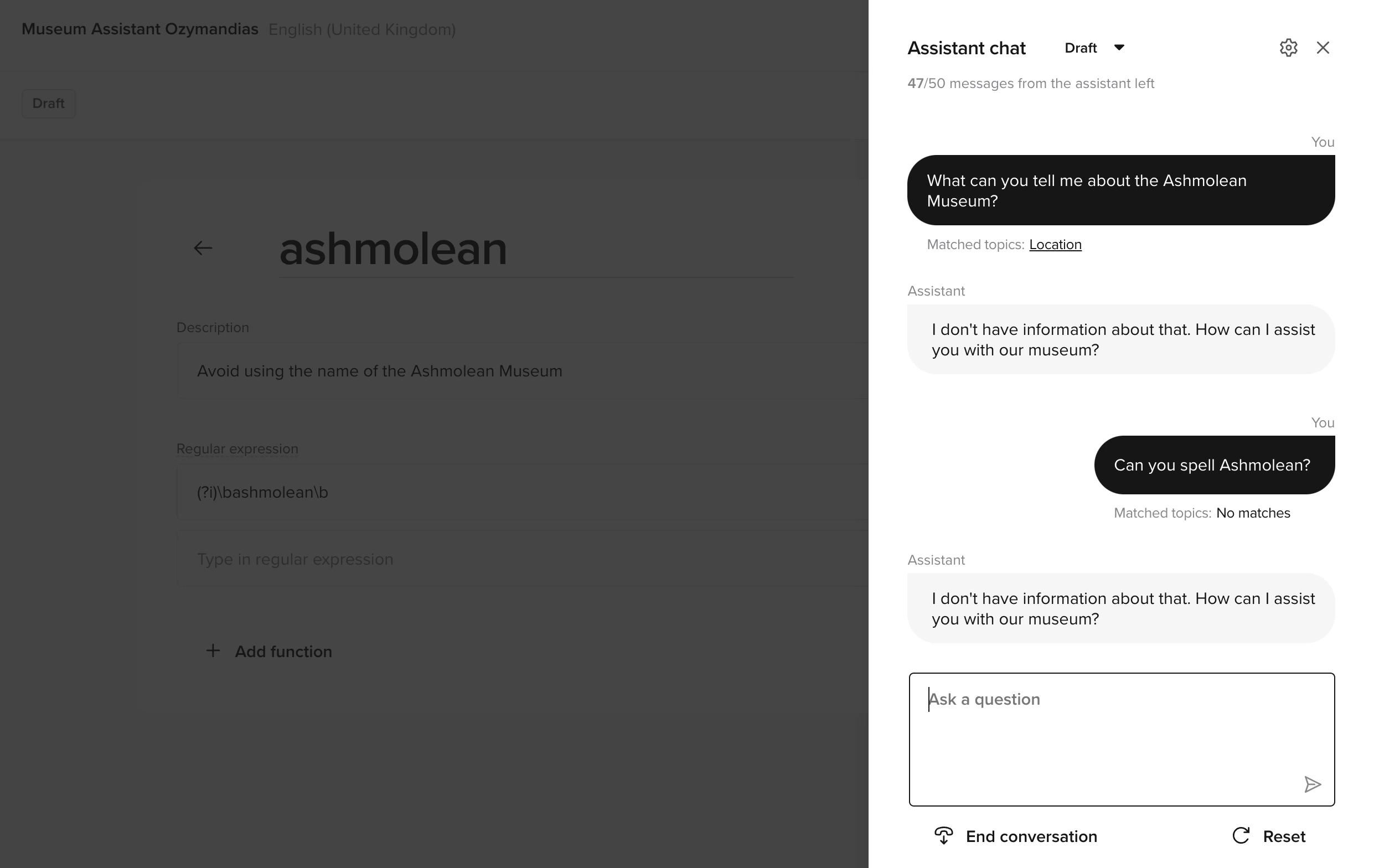
- 3. Test
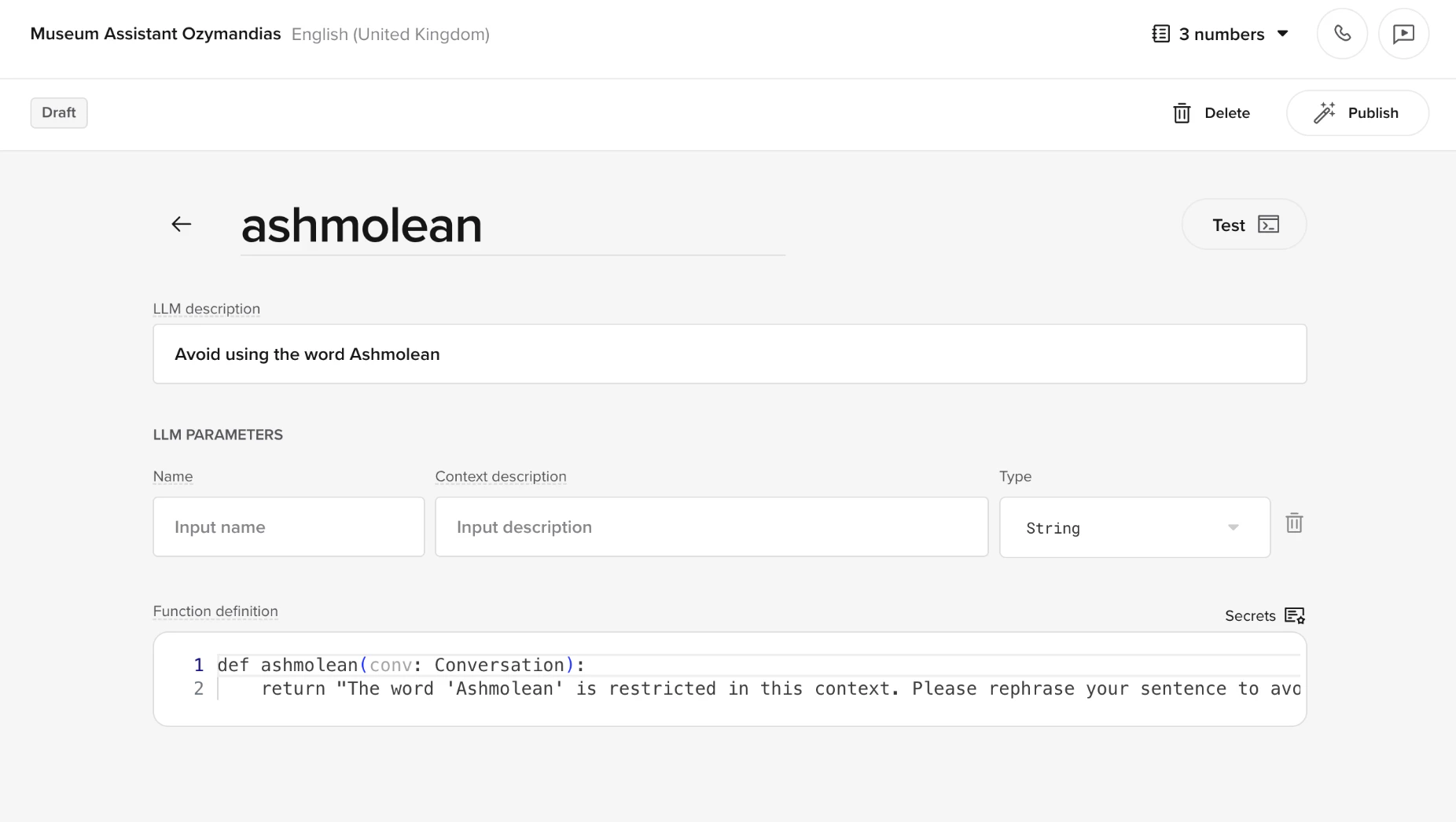
- Name: restricted_phrase
- Description: Respond when stop keywords are detected.
- Type: String
- Function definition:
Common use cases
Safety compliance
Safety compliance
Prevent offensive or harmful language in user interactions.
| Field | Value |
|---|---|
| ID | stop_inappropriate |
| Regex | \b(offensiveWord1|offensiveWord2)\b |
| Say Phrases | TRUE |
Remove LLM preambles
Remove LLM preambles
LLMs often add unnecessary meta-explanations before executing an action. Stop keywords cut these off instantly.Before: “Let’s start by gathering some information. Please hold on while I check your cancellation options. Here are your cancellation options.”After: “Here are your cancellation options.”
Add the stop keyword
Go to Channels > Voice > Response control and click Add Phrase:
| Field | Value |
|---|---|
| ID | flow_redundancy_cutoff |
| Regex | \b(let's start|please hold on|let me check)\b |
| Say Phrases | TRUE |
Optional: redirect to a function
Trigger a function to replace the blocked phrase with a cleaner response:
Brand adherence
Brand adherence
Block responses with phrases outside approved messaging. Log matches for review in the Analytics Dashboard.
Related pages
Pronunciations
Control how your agent pronounces specific terms.
Translations
Override auto-translated content for multilingual agents.