

PolyAI’s MCP servers authenticate with the same workspace-scoped API key used across PolyAI’s APIs, sent in the X-API-KEY header.

Get an API key

1

Open the API Keys page

Go to the API Keys tab on your workspace homepage in Agent Studio. See API keys for details.
2

Create a key

Select API key, name it, choose the agents it can access, and set its permissions. Scope it to the least it needs — see Security & safe use.
3

Copy the value

The full key is shown only once. Copy it immediately and store it in your client’s secret settings — never paste it into a chat prompt.
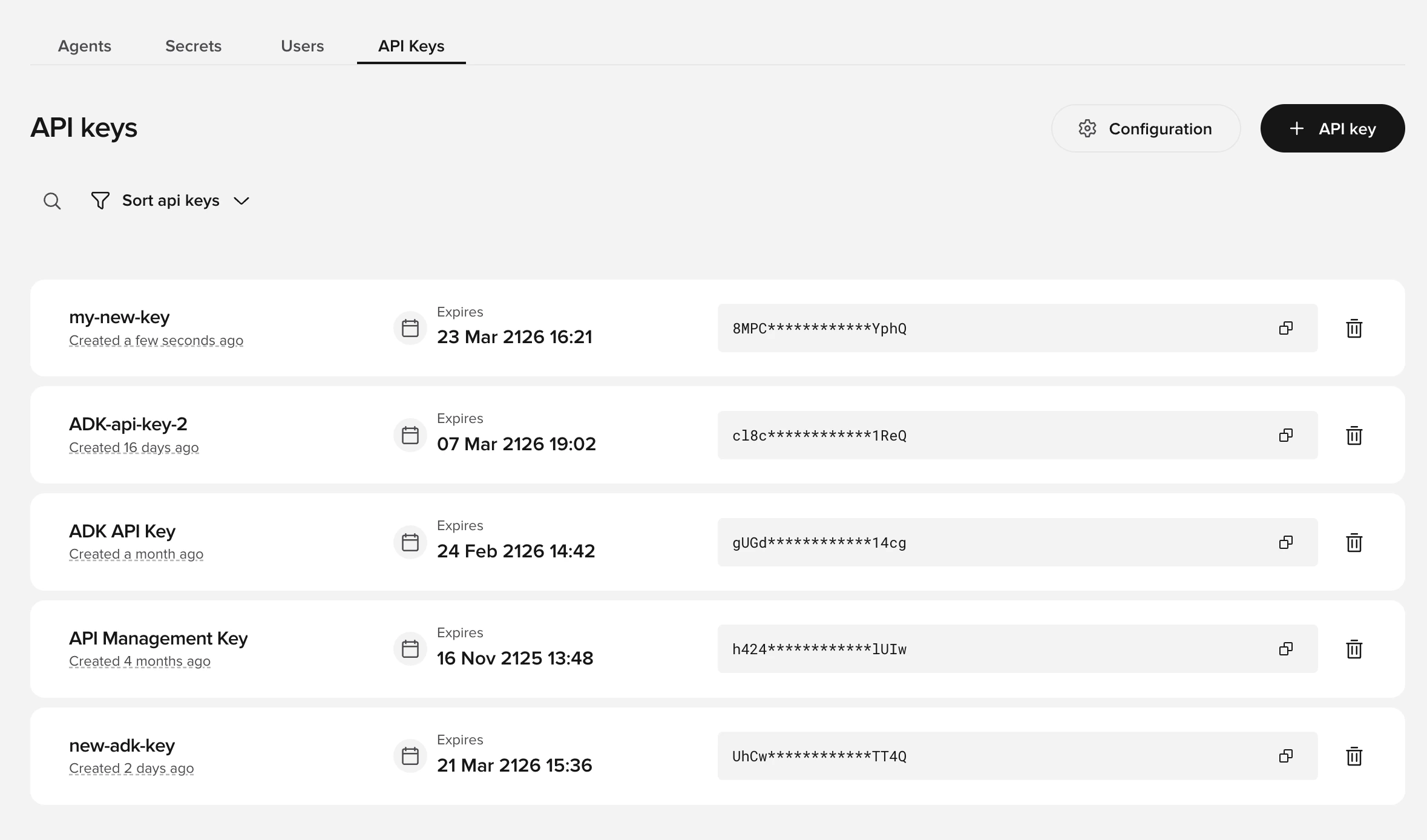
The API Keys tab in Agent Studio, showing the list of keys and the 'API key' button to create a new one

Configure your client

Pass the key in the X-API-KEY header. The MCP server uses the streamable HTTP transport, so clients also send an Accept header:
HeaderValue
X-API-KEYYour workspace-scoped API key
Acceptapplication/json, text/event-stream
Most clients set Accept automatically. See Quickstart for per-client configuration.

Pick your region

PolyAI runs the MCP server in every region, on the same host family as the platform APIs. Your API key is scoped to a workspace, and each workspace lives in one region — connect to the matching endpoint.
RegionEndpoint
UShttps://api.us.poly.ai/builder-mcp
UKhttps://api.uk.poly.ai/builder-mcp
EUhttps://api.eu.poly.ai/builder-mcp
Studiohttps://api.studio.poly.ai/builder-mcp

OAuth (coming soon)

Browser-based OAuth is on the roadmap — you’ll be able to authorize a client without manually creating and pasting a key. At launch, use API-key authentication as described above. This page will cover OAuth once it ships.
Last modified on July 9, 2026