

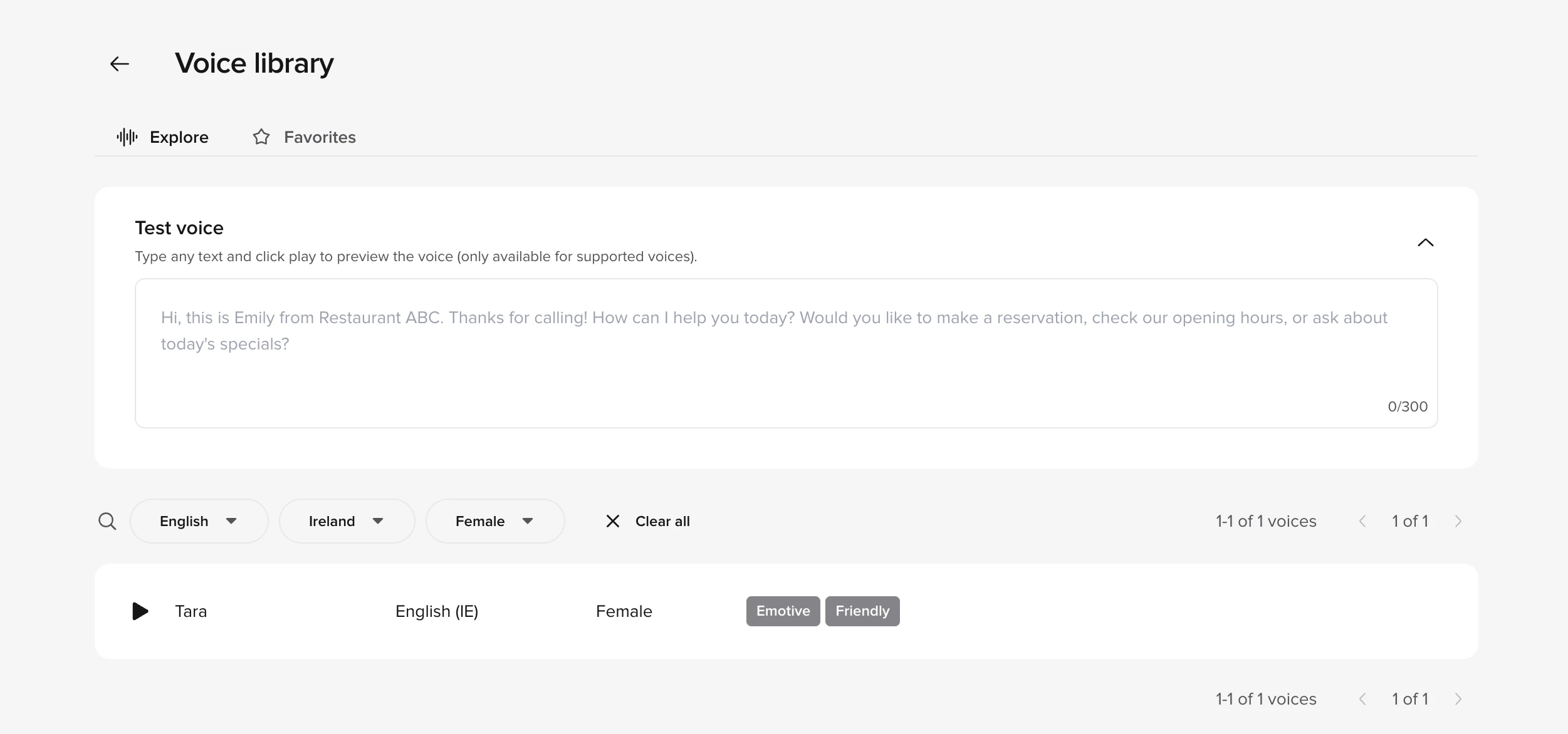
The Voice library includes filters, favorites, and custom text preview.
Accessing the Voice library
- Go to Channels > Voice > Agent Voice in the sidebar.
- Click Change next to either the Agent or Disclaimer voice section.
- The Voice library opens with two tabs: Explore and Favorites.
Explore tab
Browse all available voices with filtering options:| Filter | Description |
|---|---|
| Language | Filter by supported language (e.g., English, Spanish, French) |
| Region | Filter by accent or regional variant (e.g., US, UK, Australian) |
| Gender | Filter by voice gender |
Voice cards
Each voice displays:- Voice name and provider
- Language and region flags
- Style tags describing the voice characteristics
- Play button to preview the voice
Previewing voices
- Click the play button on any voice card to hear a sample
- Enter custom text in the preview field to hear your own content
- Compare multiple voices before selecting
Favorites tab
Save voices you frequently use or want to evaluate later.- Click the heart icon on any voice card to add it to Favorites.
- Access your saved voices quickly from the Favorites tab.
- Remove voices from Favorites by clicking the heart icon again.
Selecting a voice
- Find a voice using Explore or Favorites.
- Click the voice card to select it.
- Click Select to apply the voice to your agent.
Voice settings
After selecting a voice, fine-tune its Stability, Clarity, and Style parameters. See Agent Voice – voice settings for full details on each slider.Separate voice management
The Voice library supports separate voice selection for Agent (main voice) and Disclaimer (legal/informational). See Agent Voice for details on each section.Publishing changes
After selecting and configuring voices, click Publish in the top right corner to apply changes. See Agent Voice – publishing for details.Related pages
Agent Voice
Configure voice settings and fine-tuning
Choosing a good voice
Guidelines for voice selection and matching
Voice configuration
Channel-specific voice and call handling settings
Multi-voice
Use multiple voices in a single agent