

This integration is in beta. Contact your PolyAI account manager to check availability for your org.
Prerequisites
- Admin access to the Zoom App Marketplace
- Admin access to Zoom Phone System Management or Zoom Contact Center Management, depending on which product you’re connecting
- Confirmation from your PolyAI account manager that the integration is enabled for your org
Quick setup
Installing the app is shared across both Zoom Phone and Zoom Contact Center.1
Install the PolyAI App
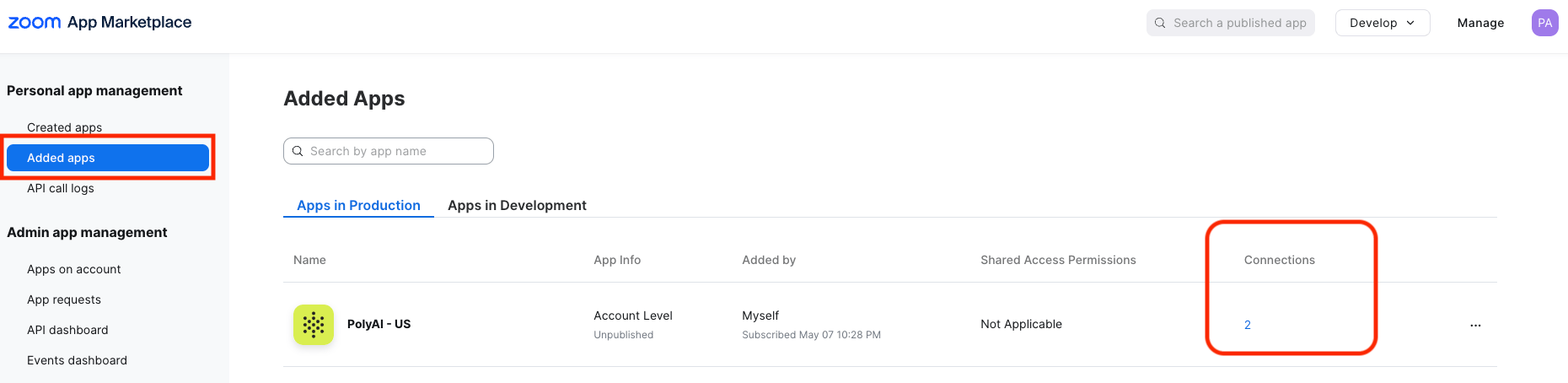
Go to Advanced > App Marketplace and install the PolyAI App.
2
Create connections
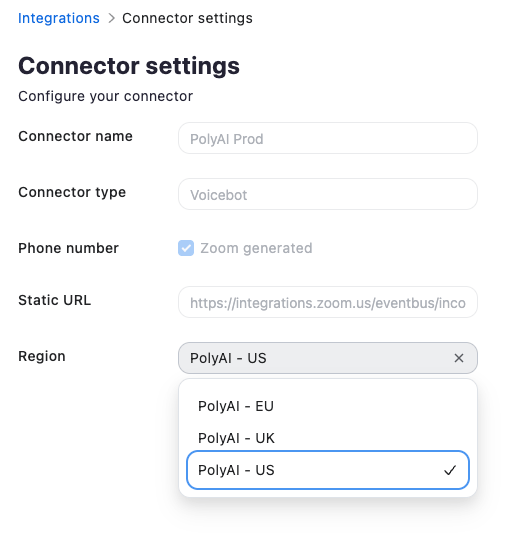
Under the installed app, click the number shown under Connections (defaults to 1). You typically want 2 connections — one for live, one for pre-release — named so it’s obvious which is which.A single connection can serve both Zoom Phone and Zoom Contact Center; each gets its own “To Number”.
Setup
- Zoom Phone
- Zoom Contact Center
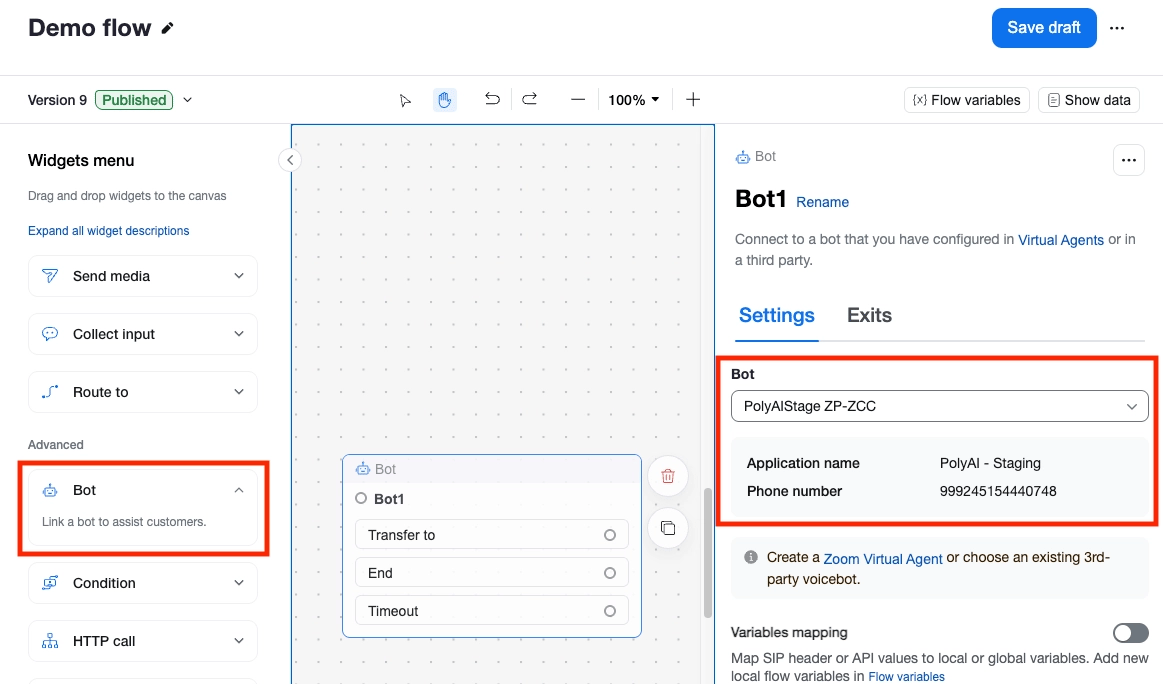
Virtual Agent setup
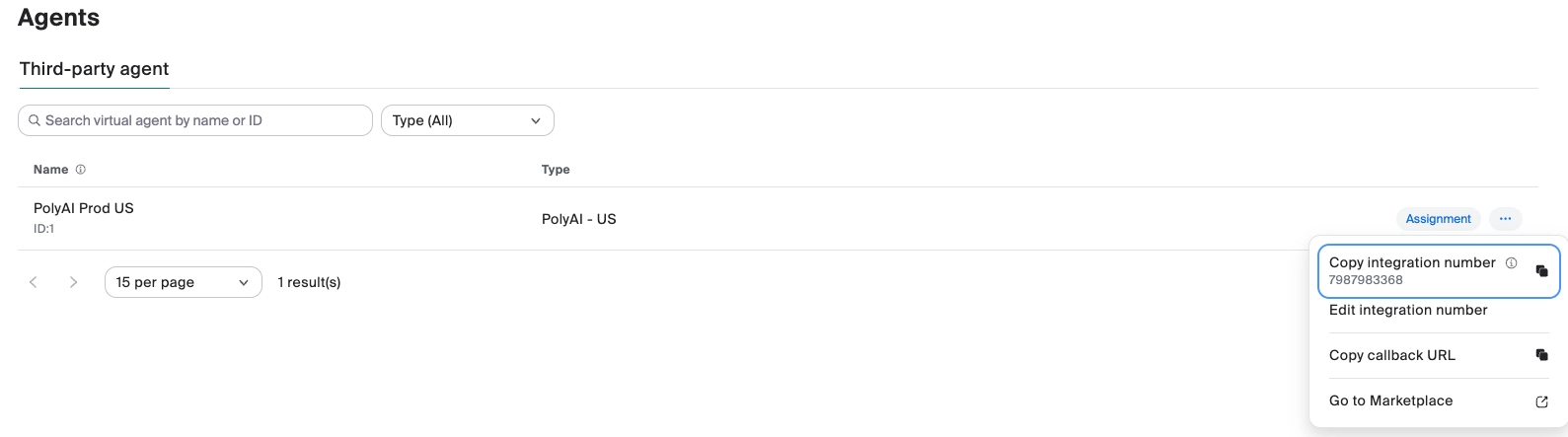
- Go to Phone System Management > Agents.
- Open the agent to view the number that will be passed to PolyAI.
- Provide the numbers to PolyAI and specify which is live and which is pre-release.
The Callback URL field is only needed if PolyAI passes data directly back to Zoom Phone. You can skip it if you’re using the PolyAI Screen Pop app.
Add the Virtual Agent to an Auto Receptionist
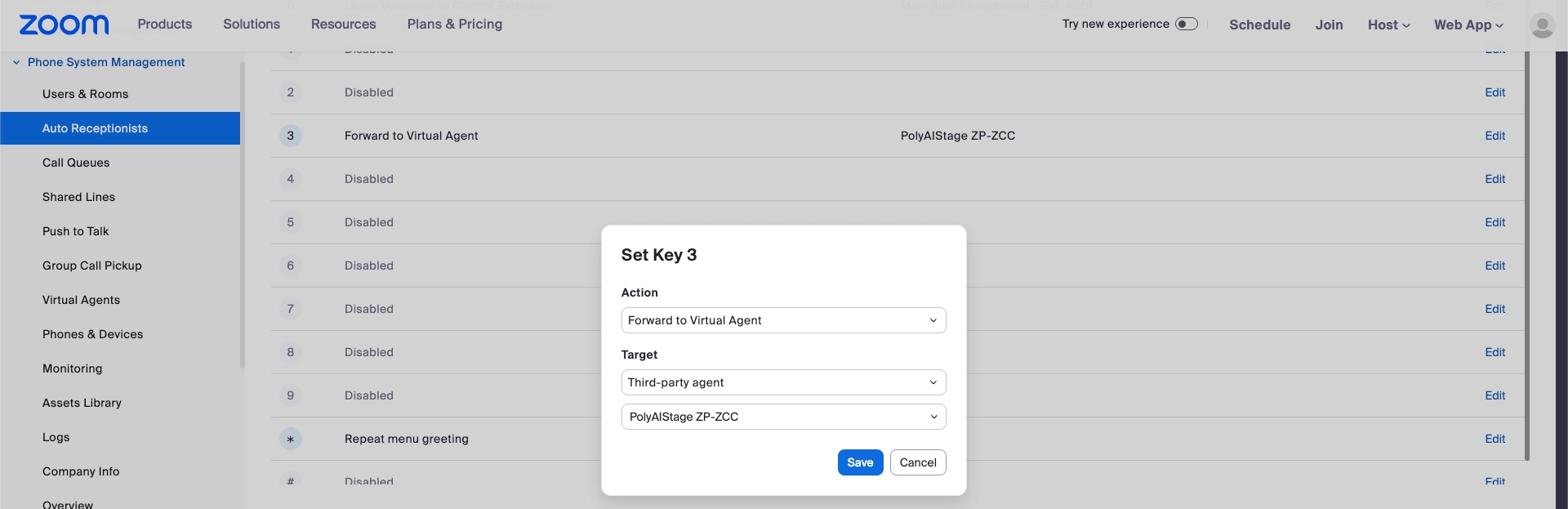
Under the appropriate key press:- Select Virtual Agent.
- Select Third-party Agent.
- Choose the agent named after the connection you created above.
Data Zoom Phone passes to PolyAI
Zoom Phone sends anX-ZOOM-Call-SID header (also sent by ZCC, so you can use it to distinguish the two call sources).Returning calls from PolyAI to Zoom Phone
PolyAI hands calls back via SIP REFER/transfer to the appropriate Zoom extension, then drops off the call. The refer target format is<extension>@<SBC IP>:5061.Screen pop / handoff data
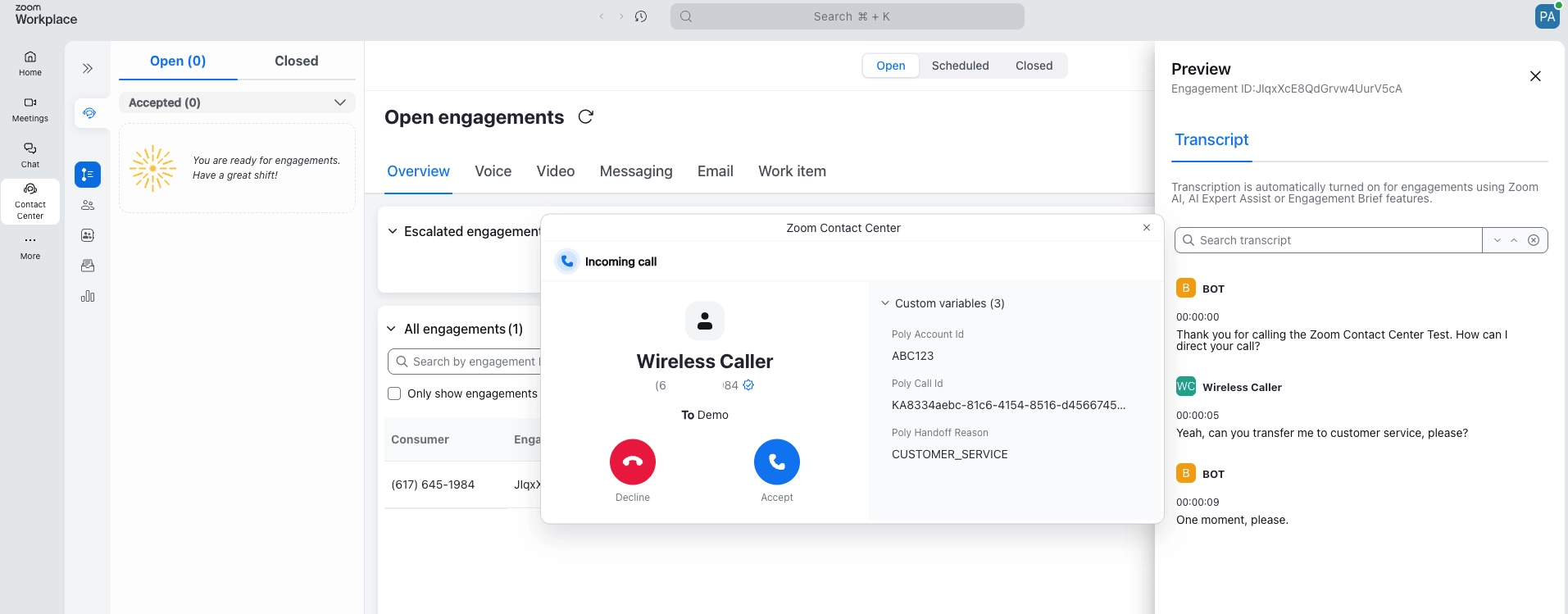
Two options for presenting handoff data to the receiving Zoom Phone user:- PolyAI Zoom Handoff App — a Zoom app that acts as a screen-pop facility, securely surfacing PolyAI handoff data to the agent.
- Zoom Webhook — Zoom Phone can pass data back via webhook. Viewing this data may require a Power Pack license, and the payload format is pre defined.
Testing the integration
- Make a test call to your Zoom Phone or Zoom Contact Center number.
- Verify the call routes to your PolyAI agent.
- Test a handoff scenario to confirm transfers back to a human agent work.
- Review the call in Conversations, filtered to Voice.
Troubleshooting
Related pages
Custom SIP
General SIP trunk integration reference.
Call handoffs
Configure call transfers back to a human agent.
Voice integrations
Other voice platform integrations.