

Overview
RCS (Rich Communication Services) is a messaging channel that lets your agent send and receive rich, interactive content (images, videos, graphs and location pins) over the same phone number used for SMS. PolyAI supports RCS through Twilio, alongside standard SMS. If a customer’s device or carrier doesn’t support RCS, messages automatically fall back to SMS, so no conversation is ever lost.Learn more about RCS from Twilio directly: RCS overview and RCS onboarding.
How it works
Starting and holding a conversation
Your customers can reach your agent over RCS in a few ways:- Deep link or QR code. A customer clicks a link or scans a QR code that opens their device’s messaging app with a chat to your agent already started. See Twilio’s guide and Google’s deep link guide.
- Existing contact. If a customer already has your agent’s RCS contact saved, they can start a conversation at any time.
- SMS fallback. If a customer texts your fallback number over plain SMS, that conversation stays on SMS for its entire duration; it won’t switch to RCS mid-conversation.
Handoff
Handoff is supported on RCS, in the same way as SMS. See Chat handoff integrations.Media transfer from the user to the live agent will soon be enabled alongside text communication.
Sending messages to customers (outbound)
Outbound RCS messages work the same way as outbound SMS, with two differences:- You must pass the Twilio Messaging Service SID for your RCS sender in the
messaging_service_sidfield. - The recipient’s number in
user_numbermust be prefixed withrcs:.
Getting started
SMS must be set up on your agent, and via Twilio before RCS can be enabled. RCS uses the same phone number as SMS and relies on SMS as its automatic fallback channel.
- An agent number managed by PolyAI’s Twilio account. This number is used as the SMS fallback whenever RCS isn’t available.
- A registered Twilio RCS sender. This must be submitted to Google for RCS registration. While registration is pending, the sender can be tested using a developer’s test number.
- A defined list of languages. These are used to provision the message templates that render components correctly in each language. Currently supported:
en,fr,es,de.
Sending and receiving rich content in Agent Studio
Sending attachments to users
Your agent can send rich media to customers, including images, links, suggested responses and hosted videos, using the same attachments mechanism as other channels.Image
An image is visualised within a Twilio’s media widget which is a frame that contains the image and a caption:
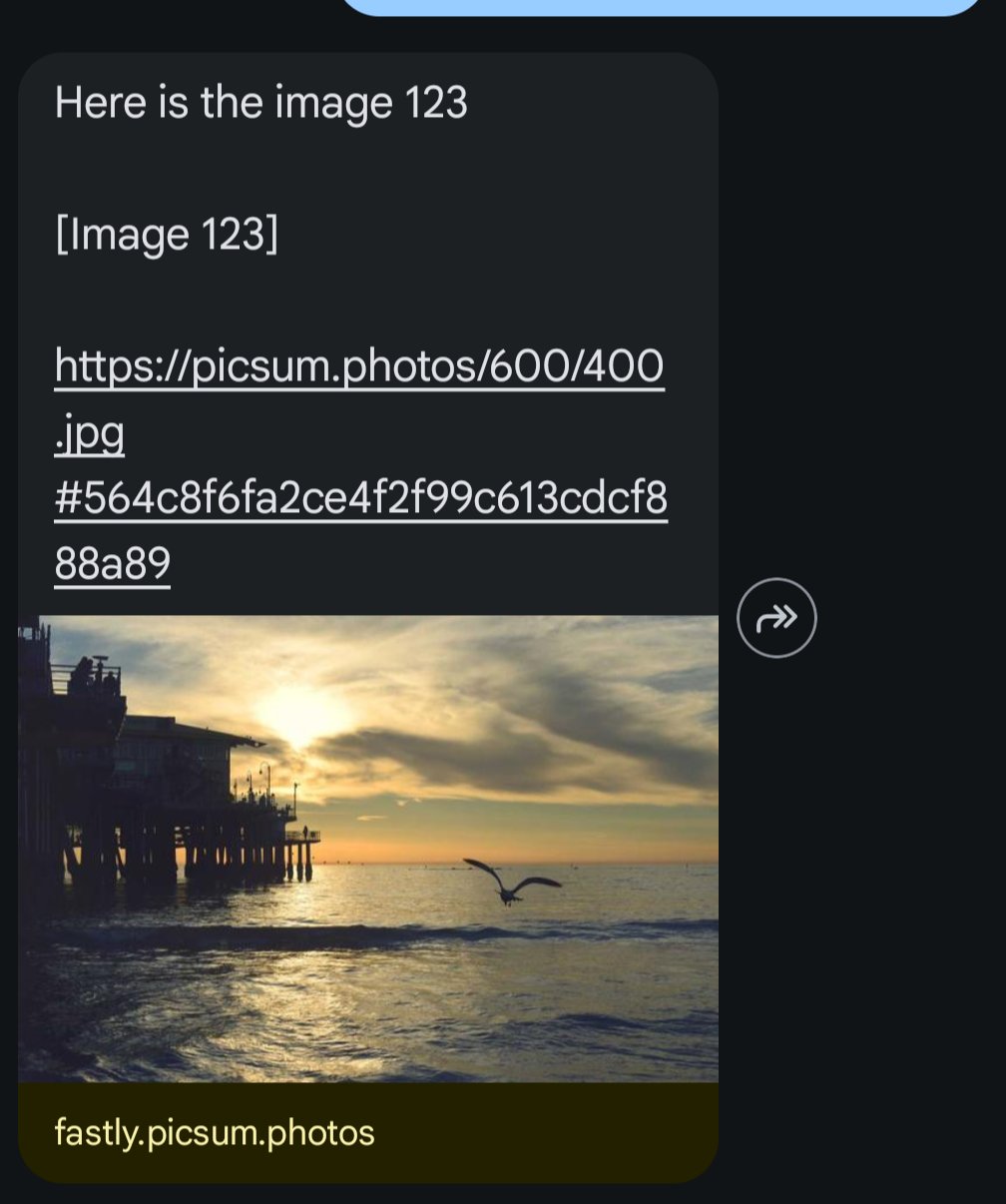
image.
Tool example
Name:show_image
LLM description: Returns an image attachment
Video
A video is visualised within a Twilio’s media widget which is a frame that contains the video and a caption: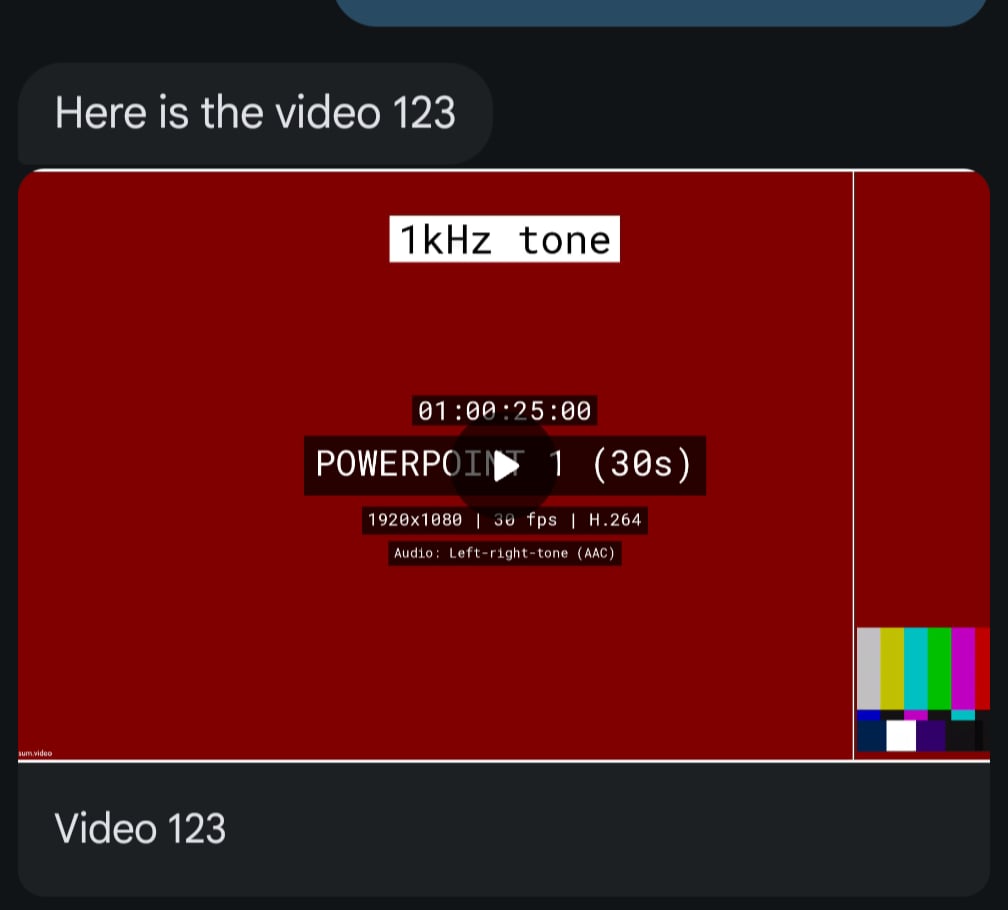
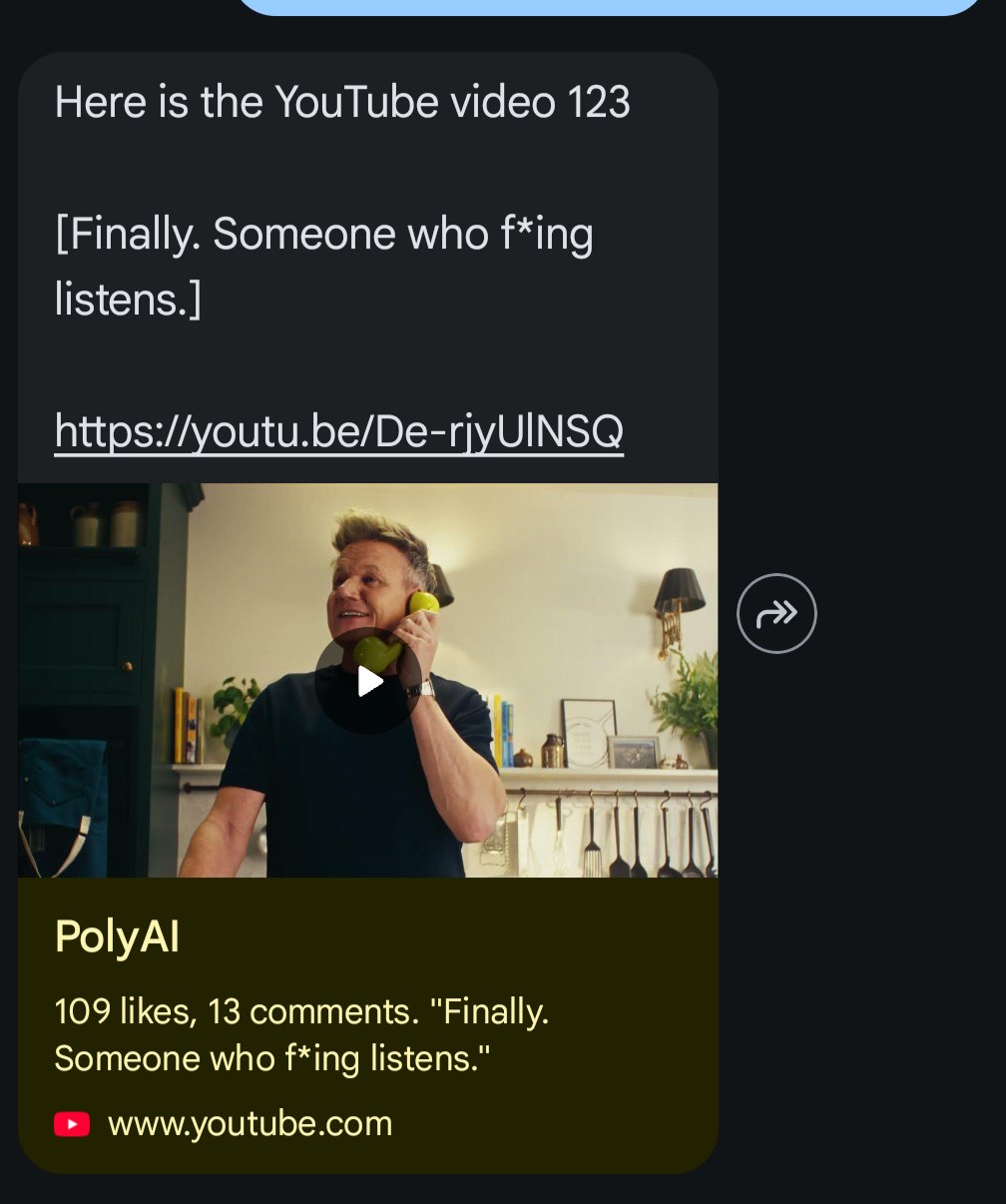
video.
Tool example
Name:show_video
LLM description: Returns a video attachment
Carousel
A carousel widget is a sliding sequence of rich cards, each containing an image to show, a text and a CTA leading the user to an external link. Depending on the number of items in the list, the RCS client will render the followings:- A carousel if we have from 2 to 10 cards to show (Please note, carousels incur a significant cost to serve - do contact your Twilio rep to support forecast in spend.)
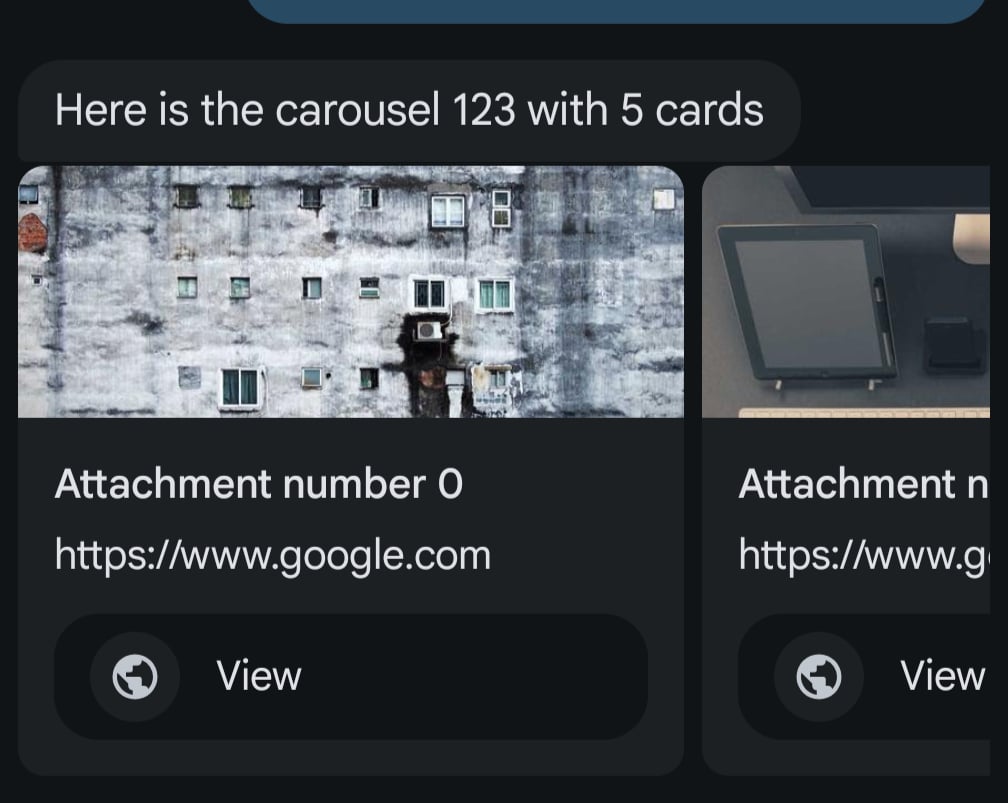
- A single rich card if there’s only one attachment
- Both fall back to plain text automatically if the customer’s device doesn’t support RCS
weblink.
Attachments sent to the user are not visible in Conversation Review.
Tool example
Name:show_carousel
LLM description: Returns a carousel
Suggesting responses
The agent is able to suggest a maximum of 3 responses which will render as chips in the RCS UI: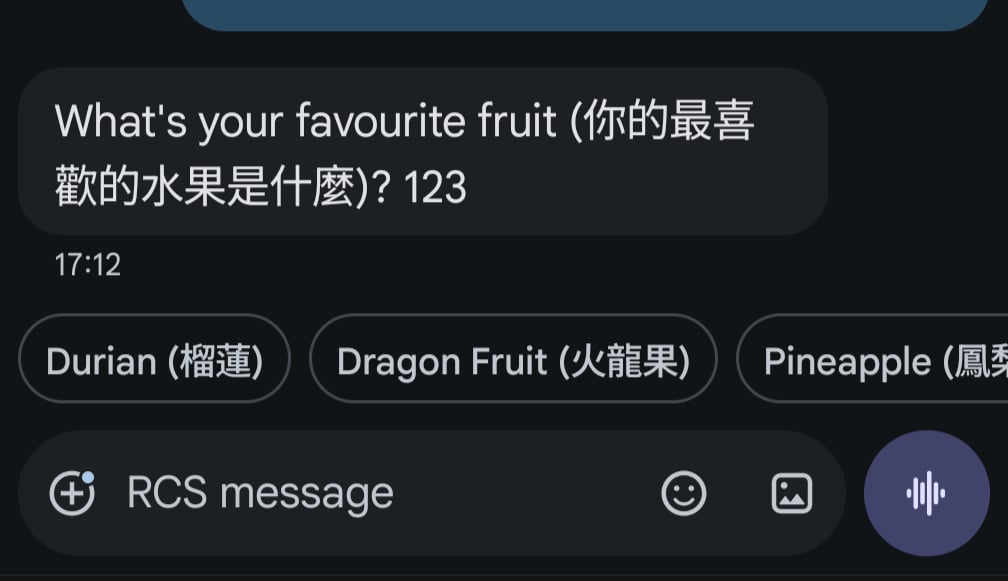
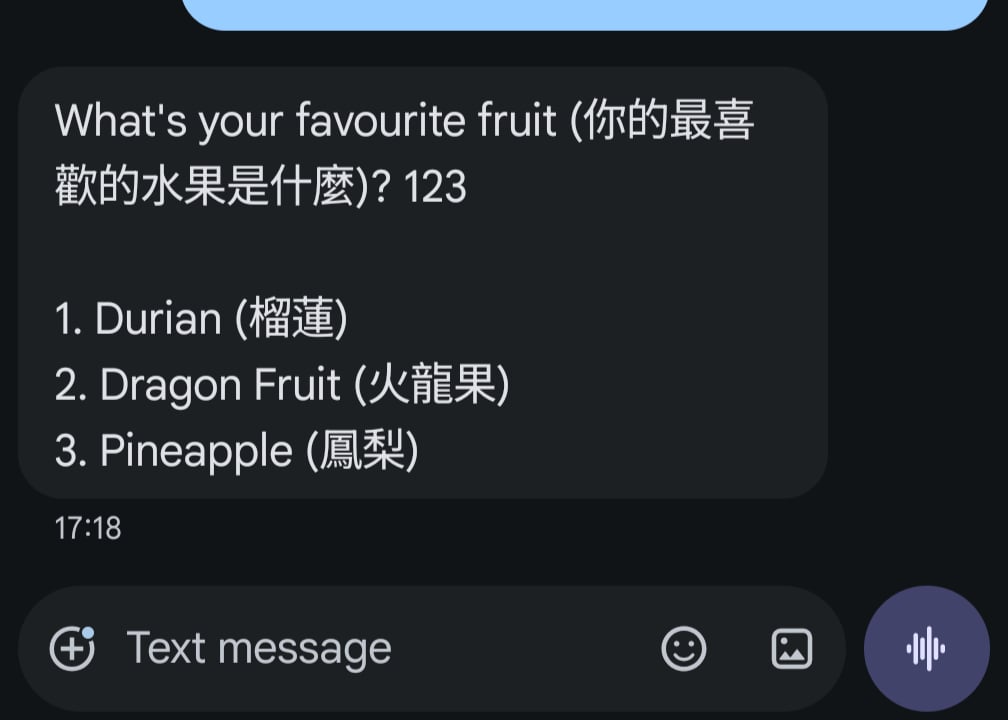
set_response_suggestions of the Conversation object (see here).
Tool example
Name:show_response_suggestions
LLM description: Returns a list of response suggestions
More advanced UI components (for example, interactive cards, or richer layouts) are possible but incur an additional cost from Twilio. Speak to your PolyAI representative if this is required.
Receiving attachments from users
Customers can send your agent images, videos, voice notes, location pins, and button taps. Attachments reach the agent in various shapes (see below). The agent can access them and handle them accordingly. When media is shared, the user selects the media and, at the moment of sending, the carrier stores it in a bucket and returns a URL pointer. That URL is what the agent sees and can relay upstream or open. These attachments aren’t shown in Conversation Review directly. Instead, a marker is inserted into the conversation to tell the LLM that attachments were sent:<media/>— the user sent an image, video, or audio file.<location/>— the user sent a location pin (latitude/longitude).<button/>— the user tapped a call-to-action button on a rich card or carousel.
Conversation object at conv.integration_attributes.get("metadata"), keyed by metadata type.
Examples
<media/>
<location/>
<button/>
<metadata><media/><location/><button/></metadata> would map to:
Tool example: parse_metadata
LLM description: Parse user message when a metadata tag is passed.
Request parameters:
Opt-in and opt-out
Users can opt in or out of RCS communication. For RCS, PolyAI enables Twilio’s advanced configuration, which allows the agent to receive notifications when the user sends aSTOP or START keyword. By adding specific knowledge or tools, you can customise the agent’s behaviour for these cases. The agent always receives the strings STOP and START, regardless of the actual word used by the user (which must be defined in Twilio, along with any localisation).
The possible cases are:
- Opt-out. The user receives the default info message defined in Twilio. The agent receives
STOP, and any reply from the agent is not forwarded to the user, but is recorded in Conversation Review. - Opt-in. The user receives the default info message defined in Twilio. The agent receives
START, and any reply from the agent is forwarded to the user and recorded in Conversation Review. You may want to trigger a tool that drops the utterance so the user does not receive a duplicate message. - Between opt-out and opt-in. Any message sent by the user does not reach either the agent or Conversation Review.
- Help. When the user asks for
HELP, they receive the default info message defined in Twilio. This message does not reach either the agent or Conversation Review.