Use user management to control who can access, edit, and deploy your agent. Without proper permissions, anyone on the team can push changes to production or access sensitive conversation data.
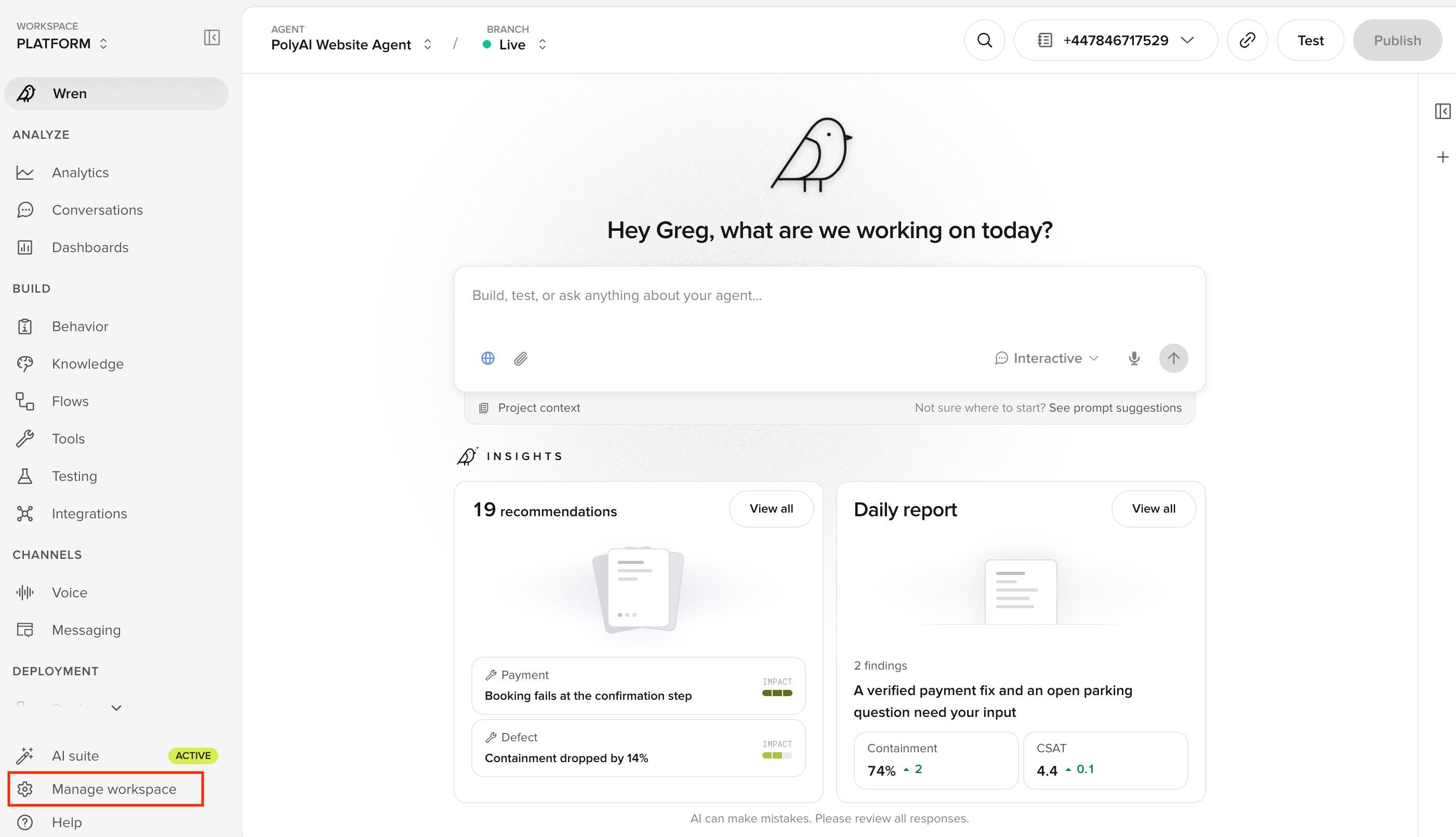
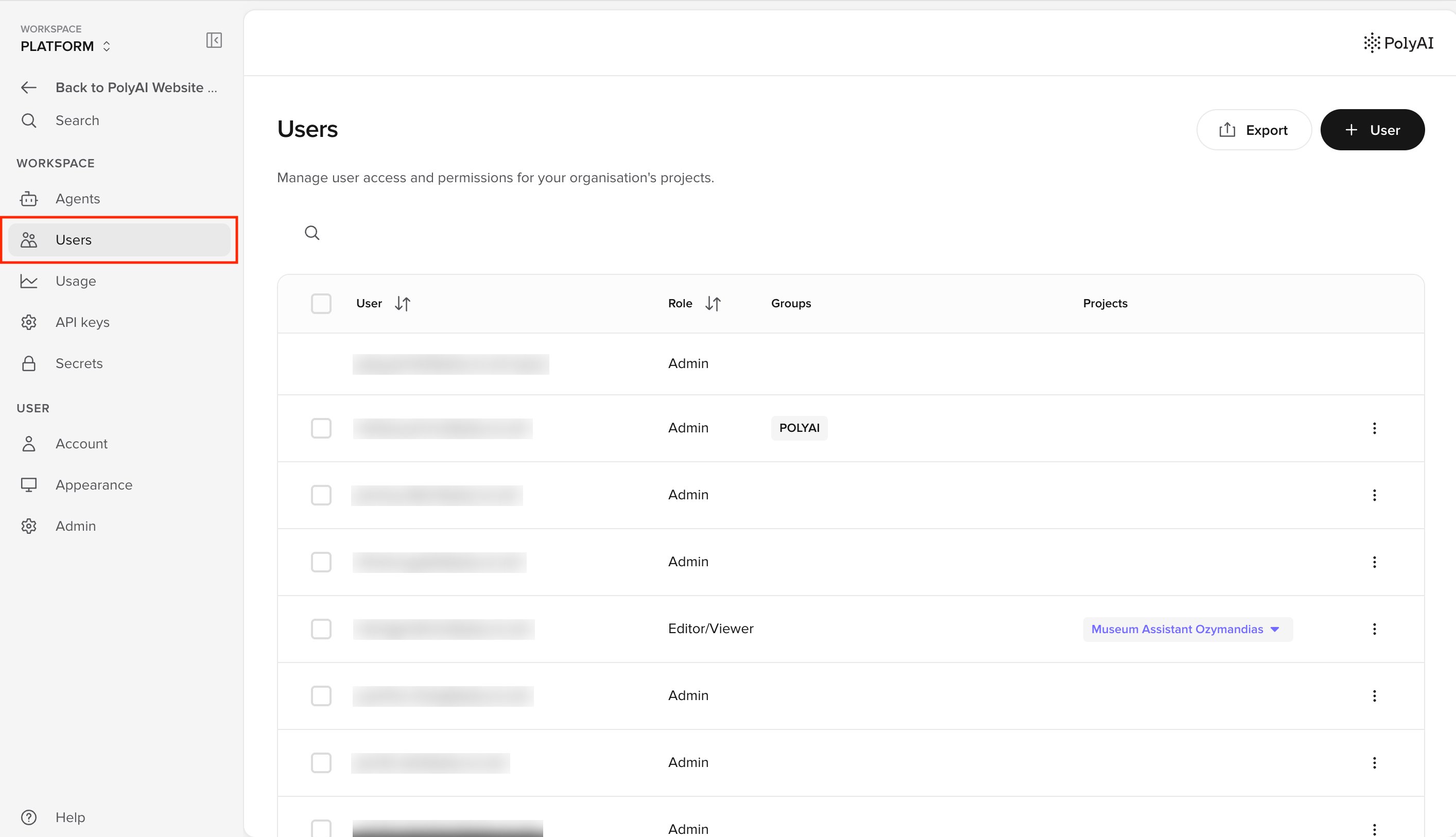
Access user management from the Users tab on the workspace homepage (next to Agents, Secrets, and Data access).
Inviting users
Add colleagues to your account to collaborate on building and managing agents. Each user can be assigned permissions that determine their level of access to different areas of Agent Studio.
See Invite users for step-by-step instructions.
Granular permissions
Agent Studio supports mixed permissions across different navigation areas. Give users edit access where they build, and restrict access where they only need visibility.
Permission levels
Each navigation area can be set to one of three access levels:
| Level | Description |
|---|
| None | User cannot see or access this area |
| Read | User can view content but cannot make changes |
| Edit | User can view and modify content |
Navigation areas
Set permissions for each major section of Agent Studio:
| Area | What it controls |
|---|
| Analytics | Smart analyst, Conversations, Agent analysis |
| Build | Agent, Knowledge, Flows, Tools, Variant management, Call handoffs, SMS, Real-time configuration, Configuration builder, Test suite |
| Channels | Voice configuration, Chat (Chat configuration and Widget share a single permission) |
| Configure | General, Numbers, APIs, Integrations, Metrics, Dashboards, CSAT |
| Deployments | Environments, Project history |
Expandable sections
For more specific control, expand any section to set permissions on individual items. For example:
- Expand Analytics to set separate permissions for Conversations vs Smart analyst
- Expand Build to allow Edit on Knowledge but Read-only on Tools
Use granular permissions to give QA teams read access to Conversations while restricting access to Build areas.
Example permission configurations
Content editor
QA analyst
Voice specialist
| Area | Permission |
|---|
| Analytics | Read |
| Build > Knowledge | Edit |
| Build > Tools | Read |
| Channels | Read |
| Configure | None |
| Deployments | None |
| Area | Permission |
|---|
| Analytics | Edit |
| Build | Read |
| Channels | Read |
| Configure > Dashboards | Edit |
| Deployments | Read |
| Area | Permission |
|---|
| Analytics | Read |
| Build | Read |
| Channels > Voice | Edit |
| Channels > Chat | None |
| Configure | Read |
| Deployments | Read |
Account-level roles
In addition to granular permissions, users have an account-level role:
| Role | Description |
|---|
| Admin | Full access to all features, including user management and billing |
| Member | Access determined by assigned permissions |
Admins can manage other users and configure account-wide settings. Members’ access is controlled by the granular permission settings described above.
Security
- User permissions are scoped to your account
- Sensitive data is only accessible to authorized users based on their assigned permissions
- Permission changes take effect immediately
- Audit logs track permission modifications (for Enterprise accounts)
SSO does not control permissions. If your account uses Google SSO for sign-in, it only handles authentication. User roles and granular permissions must still be managed manually in the Users tab on the workspace homepage. SSO sign-in does not automatically assign Admin or Member roles, nor does it set navigation area permissions. If you notice unexpected changes to user permissions, contact your PolyAI representative for assistance.
Related pages