> ## Documentation Index
> Fetch the complete documentation index at: https://docs.poly.ai/llms.txt
> Use this file to discover all available pages before exploring further.
# Wren
> Build, test, debug, and analyze your agent in natural language, from anywhere in Agent Studio.
Wren is PolyAI's natural-language assistant for Agent Studio. Describe what you want, and it reads your project, proposes a plan, and applies changes when you approve. Every edit lands on a branch, not on the live agent.
## Where to find it
Wren is available in two places:
* **Full screen:** the Wren home screen, with [prompt suggestions](/wren/prompting) grouped by **Build**, **Test**, **Ask**, and **Analyze**. Best for starting a build session.
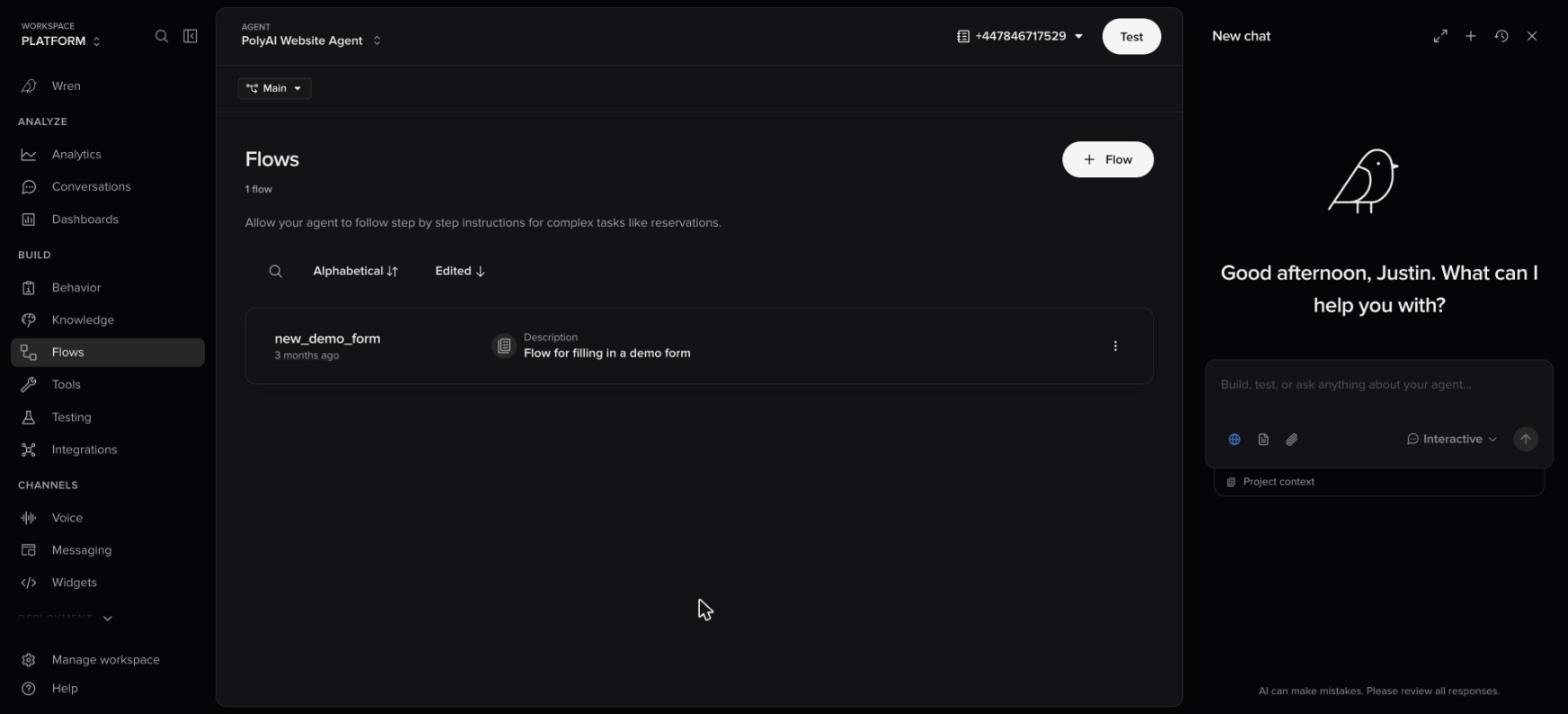
* **Side panel:** open Wren as a side panel from anywhere in Agent Studio to start a new conversation or pick up an existing one without leaving the page you're on. Useful for asking a question or making a quick change while you're working in Flows, Testing, or any other section. Toggle it with ⌘+I (Ctrl+I on Windows).
Both share the same [conversation history](/wren/chats): a chat you start in the side panel is there when you return to the full-screen view, and the other way around.
 ## What you can do
Wren's prompt suggestions are grouped into four intents. They're a good mental model for what to ask.
Create and edit flows, topics, entities, functions, integrations, handoffs, behavior, and agent settings.
Generate simulation test scenarios, write and run test cases, and review results.
Ask questions about your project config, debug production issues, and explore PolyAI concepts.
Investigate performance patterns, conversation trends, and caller behavior across real calls.
### Build and edit
Wren operates on the same building blocks you'd edit by hand: flows, topics, entities, functions, handoffs, behavior, channel settings, and more. It can read your current config, propose changes, and write them to a branch.
[See everything Wren can build →](/wren/building)
Wren is **channel-aware**: on chat projects it pulls in chat-specific guidance (message length, formatting, async turn-taking); on voice projects it stays voice-first. The plan-and-approve workflow is identical across channels.
### Test
Wren can author, run, and manage [simulation tests](/testing/simulation-tests) directly from chat. Ask it to generate test scenarios for a flow, and the cases land in the **Simulation Tests** workspace alongside anything you've saved by hand. It updates test cases as the underlying flows and topics change.
Ask it something like *"Add simulation tests for the refund flow, including the 30-day cutoff"*. See the [prompting guide](/wren/prompting#test) for more examples.
Test cases Wren writes are tagged **Wren Autofix** in your test suite, so you can always tell them apart from cases you wrote yourself.
### Ask and debug
Beyond answering questions about your project ("what does this flow do?", "which functions reference `account_lookup`?"), Wren can debug production conversations. Give it a conversation ID or describe a caller issue, and it walks through:
* Step-by-step timings for each turn
* Latency breakdown and model behavior
* Tool calls and their responses
* Where and why calls dropped or handed off
This is the fastest way to investigate a single problematic call without digging through logs manually. Any conversation ID Wren mentions is clickable. It opens that transcript in a side panel without leaving the chat.
Wren can also look back over your project's own history (past reviews, earlier chats, branch merges, and deployments), so questions like *"what changed last week?"* have real answers behind them.
### Analyze
Ask natural-language questions about your agent's conversations, like *"What's causing handoffs?"* or *"How did my agent perform this week?"*, and get answers backed by transcript sampling across hundreds of real conversations, with charts generated inline.
[Analyze conversations →](/wren/analyze)
## How changes work
### Plan and approve
When you ask for a change, Wren proposes a plan. **Nothing is written until you approve.** Expand the plan to see the full breakdown, or choose **Revise** to send feedback and have it re-planned. Once you approve, every applied edit produces a summary card you can inspect.
### Interactive and Auto
Wren runs in one of two modes, chosen from the composer:
| Mode | What it does | When to use it |
| --------------- | ---------------------------------------------------------- | ------------------------------------------------------- |
| **Interactive** | Asks questions and waits for your approval before acting. | The default, and right for most build work. |
| **Auto** | Handles the whole task start to finish, then reports back. | Well-scoped work you're happy to review after the fact. |
## What you can do
Wren's prompt suggestions are grouped into four intents. They're a good mental model for what to ask.
Create and edit flows, topics, entities, functions, integrations, handoffs, behavior, and agent settings.
Generate simulation test scenarios, write and run test cases, and review results.
Ask questions about your project config, debug production issues, and explore PolyAI concepts.
Investigate performance patterns, conversation trends, and caller behavior across real calls.
### Build and edit
Wren operates on the same building blocks you'd edit by hand: flows, topics, entities, functions, handoffs, behavior, channel settings, and more. It can read your current config, propose changes, and write them to a branch.
[See everything Wren can build →](/wren/building)
Wren is **channel-aware**: on chat projects it pulls in chat-specific guidance (message length, formatting, async turn-taking); on voice projects it stays voice-first. The plan-and-approve workflow is identical across channels.
### Test
Wren can author, run, and manage [simulation tests](/testing/simulation-tests) directly from chat. Ask it to generate test scenarios for a flow, and the cases land in the **Simulation Tests** workspace alongside anything you've saved by hand. It updates test cases as the underlying flows and topics change.
Ask it something like *"Add simulation tests for the refund flow, including the 30-day cutoff"*. See the [prompting guide](/wren/prompting#test) for more examples.
Test cases Wren writes are tagged **Wren Autofix** in your test suite, so you can always tell them apart from cases you wrote yourself.
### Ask and debug
Beyond answering questions about your project ("what does this flow do?", "which functions reference `account_lookup`?"), Wren can debug production conversations. Give it a conversation ID or describe a caller issue, and it walks through:
* Step-by-step timings for each turn
* Latency breakdown and model behavior
* Tool calls and their responses
* Where and why calls dropped or handed off
This is the fastest way to investigate a single problematic call without digging through logs manually. Any conversation ID Wren mentions is clickable. It opens that transcript in a side panel without leaving the chat.
Wren can also look back over your project's own history (past reviews, earlier chats, branch merges, and deployments), so questions like *"what changed last week?"* have real answers behind them.
### Analyze
Ask natural-language questions about your agent's conversations, like *"What's causing handoffs?"* or *"How did my agent perform this week?"*, and get answers backed by transcript sampling across hundreds of real conversations, with charts generated inline.
[Analyze conversations →](/wren/analyze)
## How changes work
### Plan and approve
When you ask for a change, Wren proposes a plan. **Nothing is written until you approve.** Expand the plan to see the full breakdown, or choose **Revise** to send feedback and have it re-planned. Once you approve, every applied edit produces a summary card you can inspect.
### Interactive and Auto
Wren runs in one of two modes, chosen from the composer:
| Mode | What it does | When to use it |
| --------------- | ---------------------------------------------------------- | ------------------------------------------------------- |
| **Interactive** | Asks questions and waits for your approval before acting. | The default, and right for most build work. |
| **Auto** | Handles the whole task start to finish, then reports back. | Well-scoped work you're happy to review after the fact. |
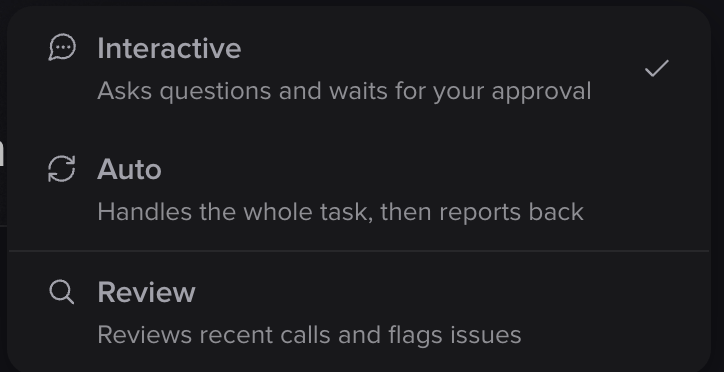 In **Auto**, Wren answers its own clarifying questions rather than stopping to ask. It doesn't hide them: the answers it chose collapse into a **Decisions** card you can expand and review. Two things stay off-limits in Auto: Wren will never ask for a secret, and it will never publish a dashboard. If a task needs either, it leaves the work as a draft and tells you what it couldn't finish.
### Branches
The first time you ask for a change, Wren creates a branch automatically and names it after the request, prefixed `wren/`. `Main` stays untouched. Branches are always cut from `Main`, so Wren finishes one piece of work before starting the next.
**Wren never merges or publishes.** When you're ready, you merge the branch back to `Main` yourself and promote it through the normal [Sandbox → Live](/environments-and-versions/introduction) pipeline.
### What it won't do
* **Edit anything other than your draft.** It never publishes or promotes between [environments](/environments-and-versions/introduction), and it can't change `Main` directly.
* **Access other projects.** Wren is scoped to the project you're in.
## Who can use it
Wren is available to everyone with access to a project. What you can do depends on your [permissions](/user-management/access-control-scope):
* **Edit access:** build, modify, test, branch, and apply changes.
* **Read-only access:** ask questions, explore the project, investigate calls, and analyze conversations. Wren won't start a build or write to a branch, and will say so rather than working around it.
Permissions are per area, so a user with edit access to Knowledge but read-only access to Flows gets exactly that from Wren too.
Wren is available on all projects.
## Limits
Wren has a fair-use limit so usage stays predictable. If you reach it, Wren pauses until the next reset and tells you when that is. Manual editing in Studio still works normally.
[Usage and limits →](/wren/usage-and-limits)
## See it in action
New to Wren? The walkthrough runs one build end to end, from first prompt to merged branch, with screenshots at every step.
Describe a change, answer the questions, approve the plan, review what changed, merge.
## Keyboard shortcuts
| Shortcut | Action |
| ----------------------------------------------------------------------- | --------------------------------- |
| ⌘+I / Ctrl+I | Open or close the Wren side panel |
| ⌘+/ / Ctrl+/ | Start a new chat |
| ⌘+. / Ctrl+. | Show or hide chat history |
| ⌥+Space / Ctrl+Space (hold) | Push to talk |
| Enter / Shift+Enter | Send / new line |
## Disclaimer
> AI can make mistakes. Please review all responses.
Every change Wren makes appears on your draft just like a manual edit. Inspect it, tweak it, or revert it before promoting to a higher environment.
## Related pages
Patterns for getting consistently good results.
Every building block Wren can create and edit.
Ask questions about real calls and get answers backed by transcripts.
History, attachments, voice input, and project context.
Your fair-use allowance, reset cadence, and what to do when you hit it.
In **Auto**, Wren answers its own clarifying questions rather than stopping to ask. It doesn't hide them: the answers it chose collapse into a **Decisions** card you can expand and review. Two things stay off-limits in Auto: Wren will never ask for a secret, and it will never publish a dashboard. If a task needs either, it leaves the work as a draft and tells you what it couldn't finish.
### Branches
The first time you ask for a change, Wren creates a branch automatically and names it after the request, prefixed `wren/`. `Main` stays untouched. Branches are always cut from `Main`, so Wren finishes one piece of work before starting the next.
**Wren never merges or publishes.** When you're ready, you merge the branch back to `Main` yourself and promote it through the normal [Sandbox → Live](/environments-and-versions/introduction) pipeline.
### What it won't do
* **Edit anything other than your draft.** It never publishes or promotes between [environments](/environments-and-versions/introduction), and it can't change `Main` directly.
* **Access other projects.** Wren is scoped to the project you're in.
## Who can use it
Wren is available to everyone with access to a project. What you can do depends on your [permissions](/user-management/access-control-scope):
* **Edit access:** build, modify, test, branch, and apply changes.
* **Read-only access:** ask questions, explore the project, investigate calls, and analyze conversations. Wren won't start a build or write to a branch, and will say so rather than working around it.
Permissions are per area, so a user with edit access to Knowledge but read-only access to Flows gets exactly that from Wren too.
Wren is available on all projects.
## Limits
Wren has a fair-use limit so usage stays predictable. If you reach it, Wren pauses until the next reset and tells you when that is. Manual editing in Studio still works normally.
[Usage and limits →](/wren/usage-and-limits)
## See it in action
New to Wren? The walkthrough runs one build end to end, from first prompt to merged branch, with screenshots at every step.
Describe a change, answer the questions, approve the plan, review what changed, merge.
## Keyboard shortcuts
| Shortcut | Action |
| ----------------------------------------------------------------------- | --------------------------------- |
| ⌘+I / Ctrl+I | Open or close the Wren side panel |
| ⌘+/ / Ctrl+/ | Start a new chat |
| ⌘+. / Ctrl+. | Show or hide chat history |
| ⌥+Space / Ctrl+Space (hold) | Push to talk |
| Enter / Shift+Enter | Send / new line |
## Disclaimer
> AI can make mistakes. Please review all responses.
Every change Wren makes appears on your draft just like a manual edit. Inspect it, tweak it, or revert it before promoting to a higher environment.
## Related pages
Patterns for getting consistently good results.
Every building block Wren can create and edit.
Ask questions about real calls and get answers backed by transcripts.
History, attachments, voice input, and project context.
Your fair-use allowance, reset cadence, and what to do when you hit it.