> ## Documentation Index
> Fetch the complete documentation index at: https://docs.poly.ai/llms.txt
> Use this file to discover all available pages before exploring further.
# Add Wren to Gemini Enterprise
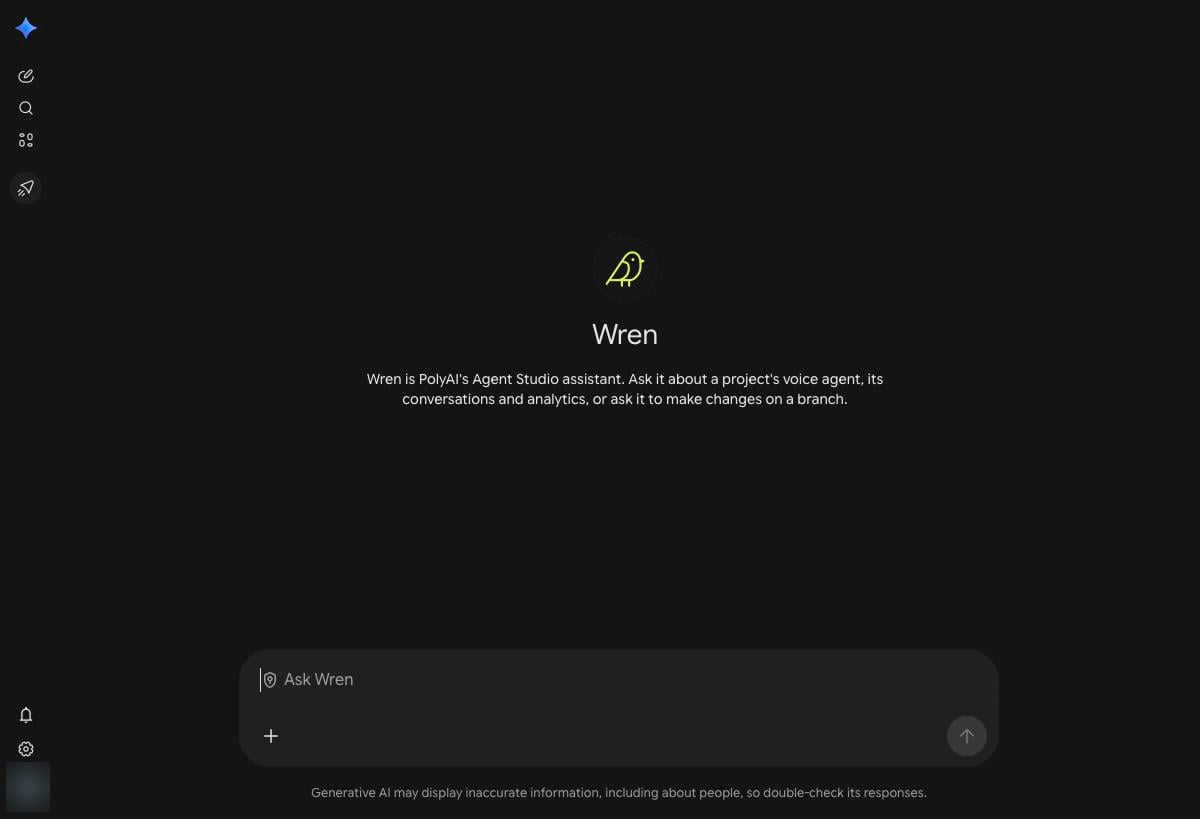
> Connect Wren to your Gemini Enterprise app, so your team can work on their PolyAI agents from Gemini.
Wren connects to Gemini Enterprise as a custom A2A agent. Once it's set up, your team can ask Wren about their PolyAI agents, and have it make changes, without leaving Gemini.
Wren for Gemini Enterprise is currently available to US customers only. In the UK or EU, contact your PolyAI representative.
 ## Before you start
You need the Gemini Enterprise Admin role on the Google Cloud project that holds your app.
Your PolyAI team sends these to you separately. Keep the secret private.
Each person who uses Wren signs in with the login they use for Agent Studio.
## Set up Wren
Setup takes about ten minutes, all in the Google Cloud console.
Go to **Gemini Enterprise**, open your app, then **Agents** › **Add agents** › **Custom agent via A2A**.
## Before you start
You need the Gemini Enterprise Admin role on the Google Cloud project that holds your app.
Your PolyAI team sends these to you separately. Keep the secret private.
Each person who uses Wren signs in with the login they use for Agent Studio.
## Set up Wren
Setup takes about ten minutes, all in the Google Cloud console.
Go to **Gemini Enterprise**, open your app, then **Agents** › **Add agents** › **Custom agent via A2A**.
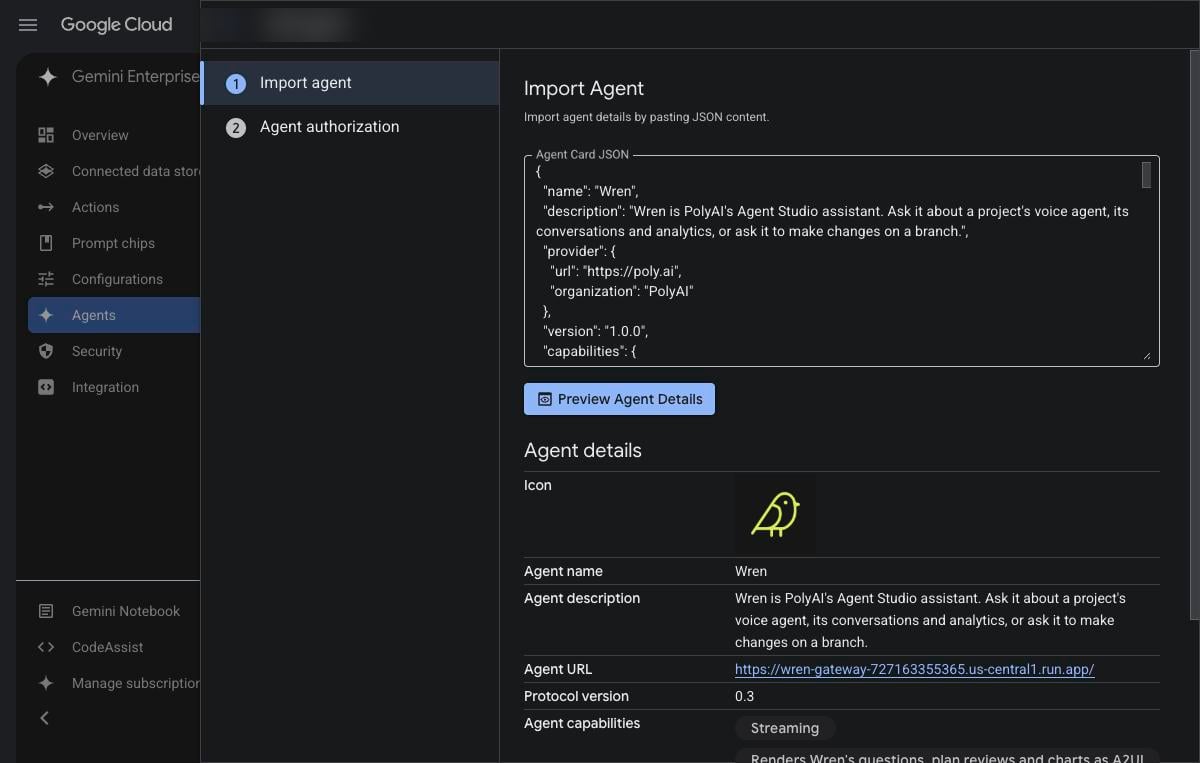
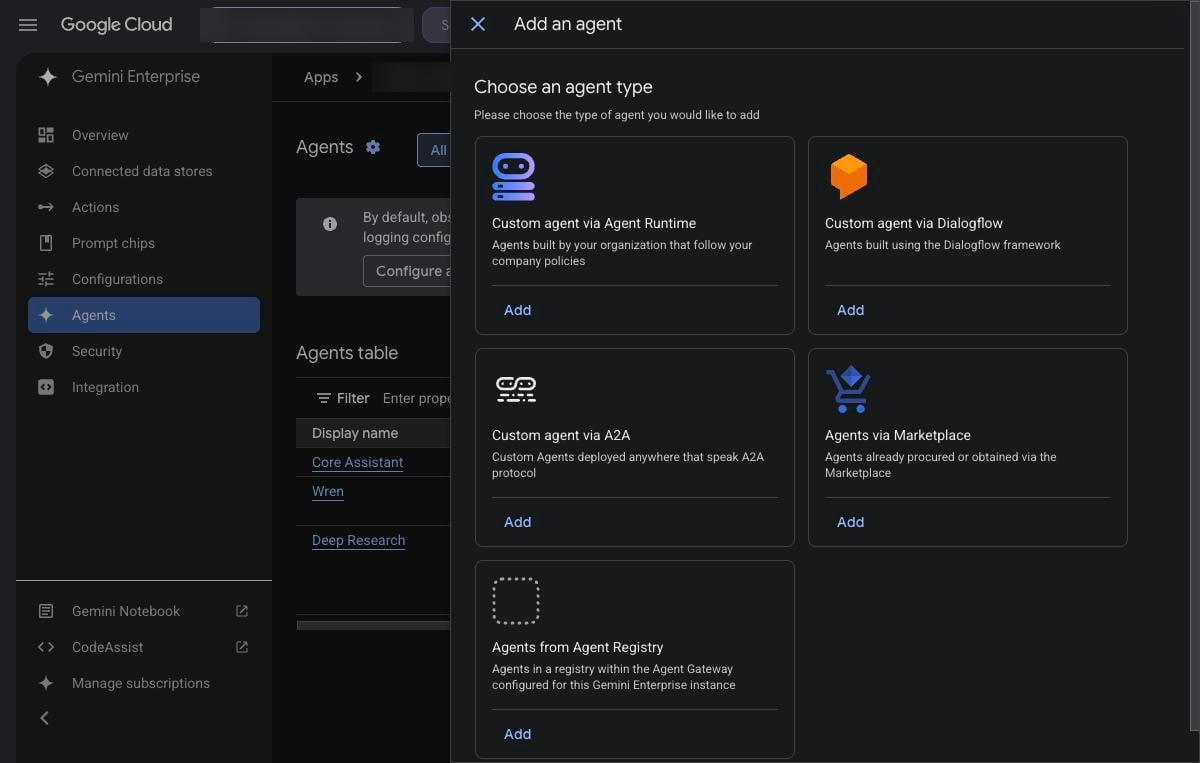 Open this link in your browser. It shows Wren's agent card, which is a block of JSON text. Copy all of it and paste it into the **Agent Card JSON** field, then select **Preview Agent Details**.
```text theme={"theme":{"light":"github-light","dark":"github-dark"}}
https://wren-gateway-727163355365.us-central1.run.app/.well-known/agent-card.json
```
Open this link in your browser. It shows Wren's agent card, which is a block of JSON text. Copy all of it and paste it into the **Agent Card JSON** field, then select **Preview Agent Details**.
```text theme={"theme":{"light":"github-light","dark":"github-dark"}}
https://wren-gateway-727163355365.us-central1.run.app/.well-known/agent-card.json
```
 Select **Next**, then fill in the authorization fields:
| Field | Value |
| - | - |
| Client ID | From your PolyAI team |
| Client secret | From your PolyAI team |
| Authorization URL | `https://login.us.poly.ai/authorize?audience=https%3A%2F%2Fplatform.polyai.app%2Fapi&response_type=code` |
| Token URL | `https://login.us.poly.ai/oauth/token` |
| Scopes | `openid email offline_access` |
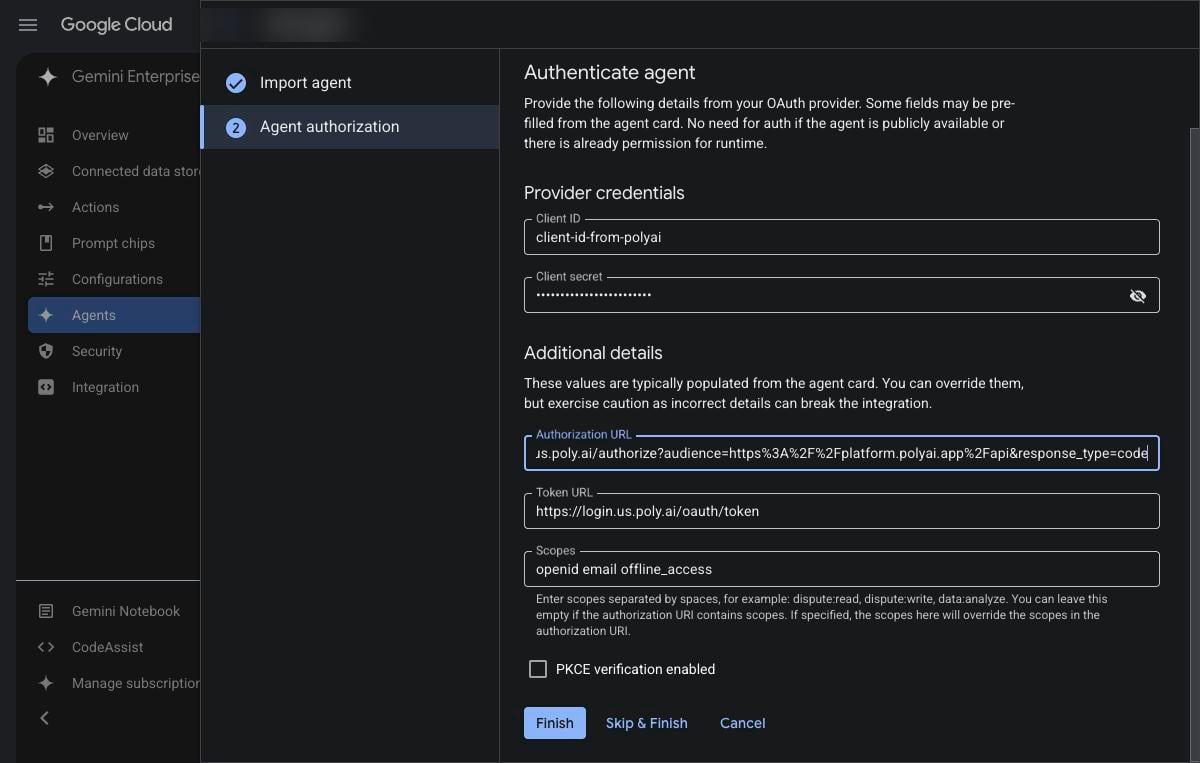
The console fills in the Authorization URL, Token URL and Scopes from the agent card. Check they match, and add `&response_type=code` to the end of the Authorization URL if it's missing. Then select **Finish**.
Don't select **Skip & Finish**. Without sign-in, Wren can't reach your PolyAI agents.
Select **Next**, then fill in the authorization fields:
| Field | Value |
| - | - |
| Client ID | From your PolyAI team |
| Client secret | From your PolyAI team |
| Authorization URL | `https://login.us.poly.ai/authorize?audience=https%3A%2F%2Fplatform.polyai.app%2Fapi&response_type=code` |
| Token URL | `https://login.us.poly.ai/oauth/token` |
| Scopes | `openid email offline_access` |
The console fills in the Authorization URL, Token URL and Scopes from the agent card. Check they match, and add `&response_type=code` to the end of the Authorization URL if it's missing. Then select **Finish**.
Don't select **Skip & Finish**. Without sign-in, Wren can't reach your PolyAI agents.
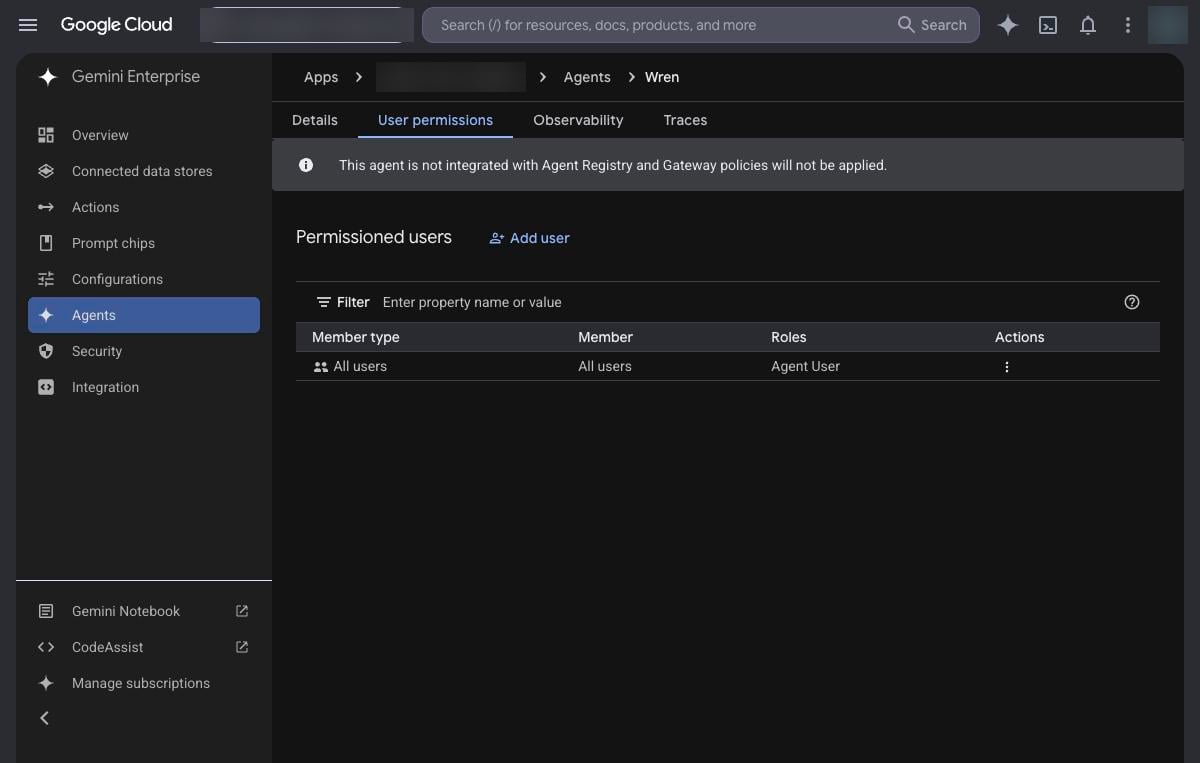
 Go to **Agents** › **Wren** › **User permissions**, then add people, or add **All users** with the **Agent User** role.
New custom agents are visible to nobody until you share them.
Go to **Agents** › **Wren** › **User permissions**, then add people, or add **All users** with the **Agent User** role.
New custom agents are visible to nobody until you share them.
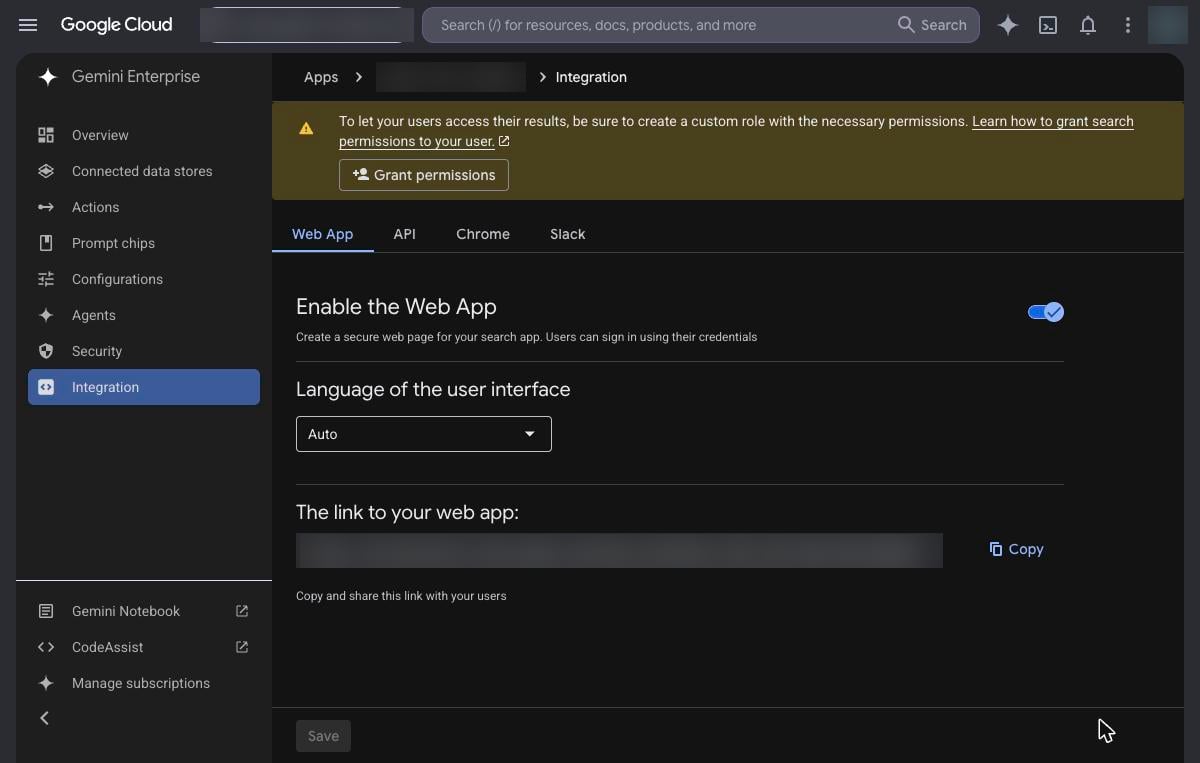
 Open your app's **Integration** page, turn on **Enable the Web App**, then copy the link. Skip this if your team already uses the web app and it's enabled.
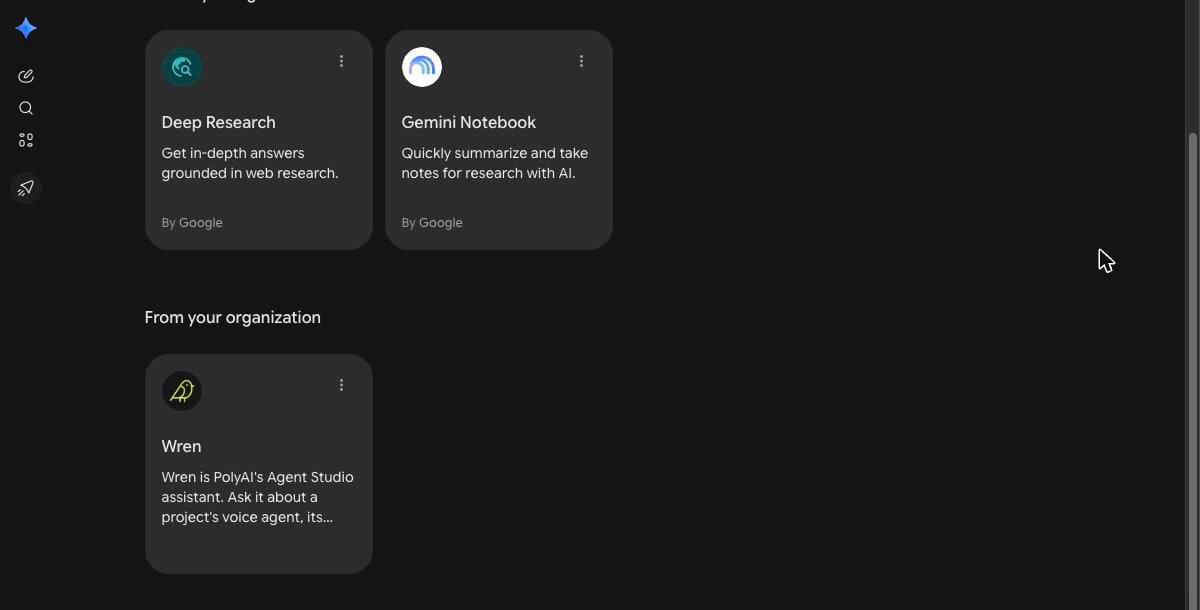
 Open the web app, go to **Agents**, choose **Wren** and send a message. The first time, you're asked to authorize PolyAI: sign in with your Agent Studio login. Wren then asks which workspace and agent to work on.
 ## Good to know
* **One agent per chat.** Wren asks for a workspace and agent at the start of each chat. To switch agents, start a new chat.
* **Some changes stay in Agent Studio.** Entering secrets or API credentials, and confirming configuration changes, still happen in Agent Studio. Wren tells you when that's needed.
* **Sign in again daily.** Expect to reauthorize PolyAI about once a day.
## Good to know
* **One agent per chat.** Wren asks for a workspace and agent at the start of each chat. To switch agents, start a new chat.
* **Some changes stay in Agent Studio.** Entering secrets or API credentials, and confirming configuration changes, still happen in Agent Studio. Wren tells you when that's needed.
* **Sign in again daily.** Expect to reauthorize PolyAI about once a day.