> ## Documentation Index
> Fetch the complete documentation index at: https://docs.poly.ai/llms.txt
> Use this file to discover all available pages before exploring further.
# Audio library
> Manage cached audio files to reduce voice latency.
Use the audio library to reduce voice latency and control how your agent sounds during key moments – greetings, transfer messages, and other frequently spoken phrases. Caching these responses means callers hear them faster and with consistent quality, instead of waiting for real-time TTS generation on every call.
Open the Voice page and select the **Audio library** tab.
 ## Managing cached audio
1. Open the **Audio library** tab.
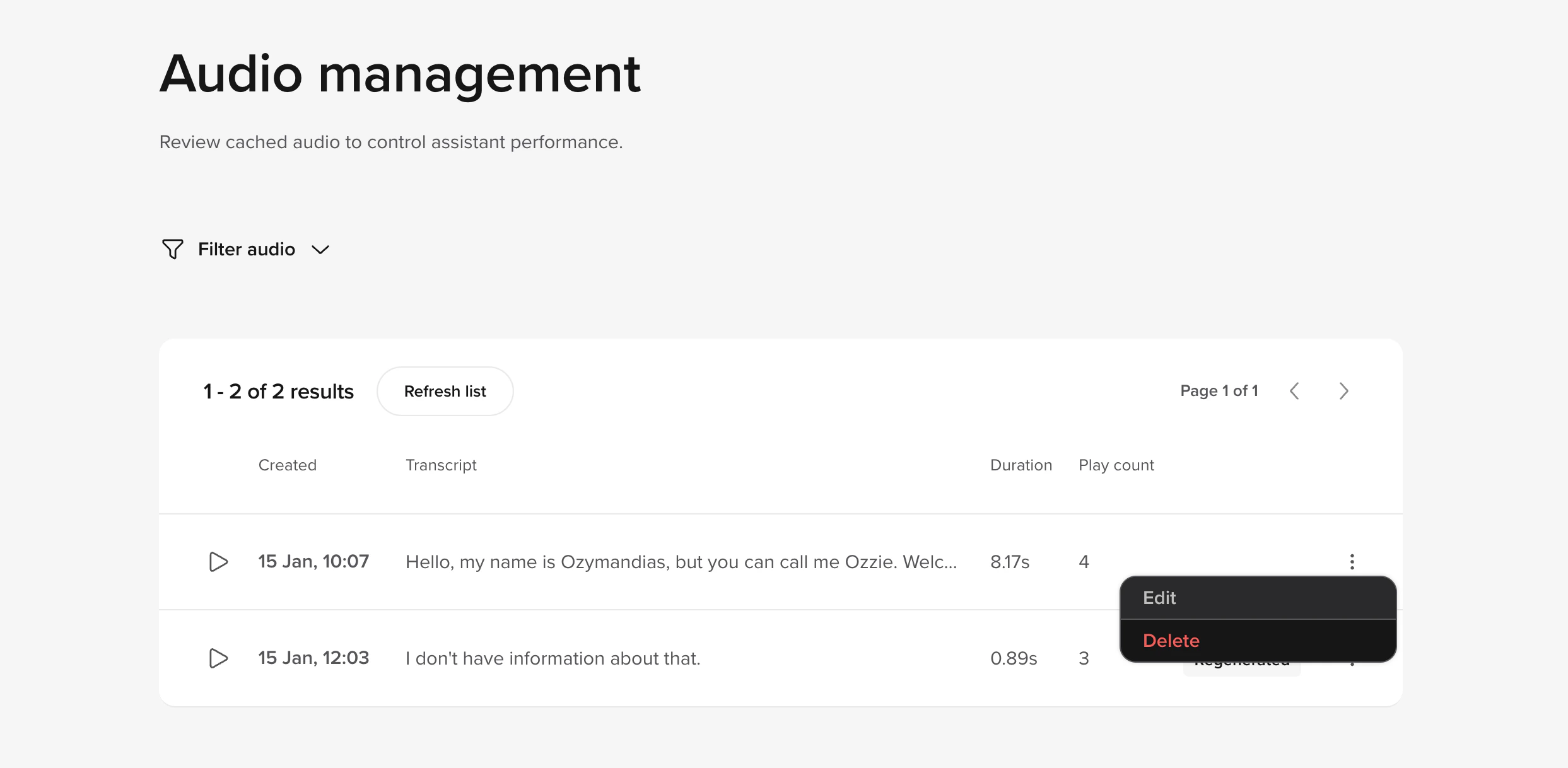
2. Review all audio saved to the cache and monitor how often it has been used by the agent.
3. You can delete cached files and upload new ones to overwrite existing audio.
You can edit the **stability** and **clarity** of the agent's voice specifically for this utterance. The edit tab also includes sync and play buttons so you can test changes live in the edit panel.
## Managing cached audio
1. Open the **Audio library** tab.
2. Review all audio saved to the cache and monitor how often it has been used by the agent.
3. You can delete cached files and upload new ones to overwrite existing audio.
You can edit the **stability** and **clarity** of the agent's voice specifically for this utterance. The edit tab also includes sync and play buttons so you can test changes live in the edit panel.
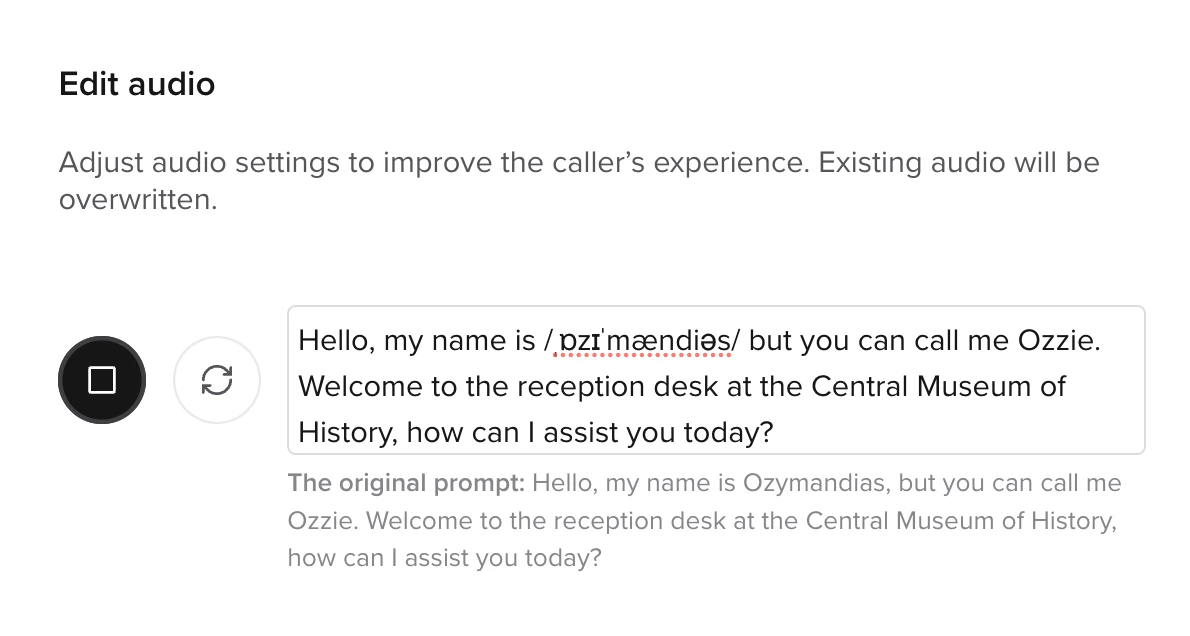
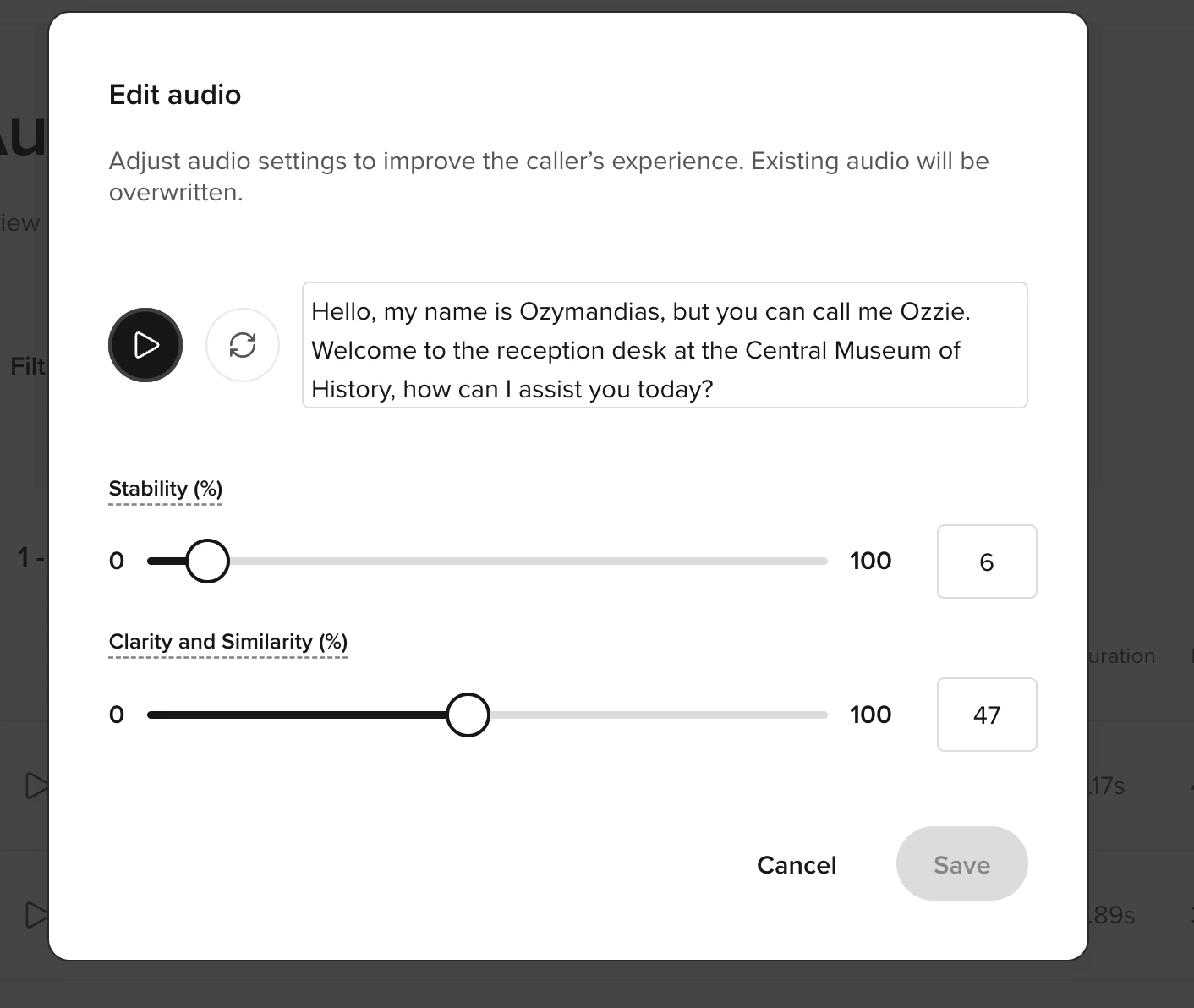 You can add [IPA syntax](https://en.wikipedia.org/wiki/International_Phonetic_Alphabet) (International Phonetic Alphabet) to ensure your agent precisely pronounces industry-specific or non-traditionally pronounced terms, names, or domain-specific language.
 **Why am I only seeing a few cached audios?**
The audio cache stores a file only if the same TTS is generated **at least twice within a 24-hour window**. This helps manage cache size and performance. If a particular utterance isn't used multiple times within that period, it won't persist in the cache and may appear missing.
To ensure key audios remain cached, consider generating them repeatedly or uploading static versions manually.
## Manage audio cache via API
You can also manage the audio cache programmatically with the [Agents API](/api-reference/agents/introduction). The audio cache endpoints let you list cached entries, download or replace audio files, synthesize previews, and bulk-delete entries.
Common use cases:
* **CI workflows** — verify that critical prompts are cached, and fail the build if they aren't.
* **Scripted refreshes** — regenerate cached audio after changing voice or tuning settings without going through the UI.
* **Migrating audio between agents** — list entries on a source agent, download the WAV files, and re-upload them under matching transcripts on a target agent.
* **Previewing tuning changes** — call [Synthesize audio preview](/api-reference/agents/endpoint/audio-cache/synthesize-audio-preview) to hear how new text or `VoiceTuningConfig` settings will sound before committing them to the cache.
Audio cache endpoints are gated by the `audio_cache` resource permission on the API key. `read` is required to list, download, or synthesize previews; `write` is required to delete, bulk-delete, replace an audio file, or update audio and settings. Entry IDs are numeric — requests with non-numeric IDs return `400 Invalid ID`. Audio files are limited to 6 MB.
## Related pages
Configure model, barge-in, and speech recognition settings
Select voices and configure greeting and disclaimer
Control how your agent pronounces specific terms
**Why am I only seeing a few cached audios?**
The audio cache stores a file only if the same TTS is generated **at least twice within a 24-hour window**. This helps manage cache size and performance. If a particular utterance isn't used multiple times within that period, it won't persist in the cache and may appear missing.
To ensure key audios remain cached, consider generating them repeatedly or uploading static versions manually.
## Manage audio cache via API
You can also manage the audio cache programmatically with the [Agents API](/api-reference/agents/introduction). The audio cache endpoints let you list cached entries, download or replace audio files, synthesize previews, and bulk-delete entries.
Common use cases:
* **CI workflows** — verify that critical prompts are cached, and fail the build if they aren't.
* **Scripted refreshes** — regenerate cached audio after changing voice or tuning settings without going through the UI.
* **Migrating audio between agents** — list entries on a source agent, download the WAV files, and re-upload them under matching transcripts on a target agent.
* **Previewing tuning changes** — call [Synthesize audio preview](/api-reference/agents/endpoint/audio-cache/synthesize-audio-preview) to hear how new text or `VoiceTuningConfig` settings will sound before committing them to the cache.
Audio cache endpoints are gated by the `audio_cache` resource permission on the API key. `read` is required to list, download, or synthesize previews; `write` is required to delete, bulk-delete, replace an audio file, or update audio and settings. Entry IDs are numeric — requests with non-numeric IDs return `400 Invalid ID`. Audio files are limited to 6 MB.
## Related pages
Configure model, barge-in, and speech recognition settings
Select voices and configure greeting and disclaimer
Control how your agent pronounces specific terms