> ## Documentation Index
> Fetch the complete documentation index at: https://docs.poly.ai/llms.txt
> Use this file to discover all available pages before exploring further.
# Voice settings
> Configure your agent's voice, greeting, disclaimer, and style prompt.
The **Settings** tab on the Voice page is where you configure how your agent sounds — the TTS voice it uses, the greeting callers hear, the disclaimer, and the style prompt that shapes tone and delivery.
Open the Voice page and select the **Settings** tab.
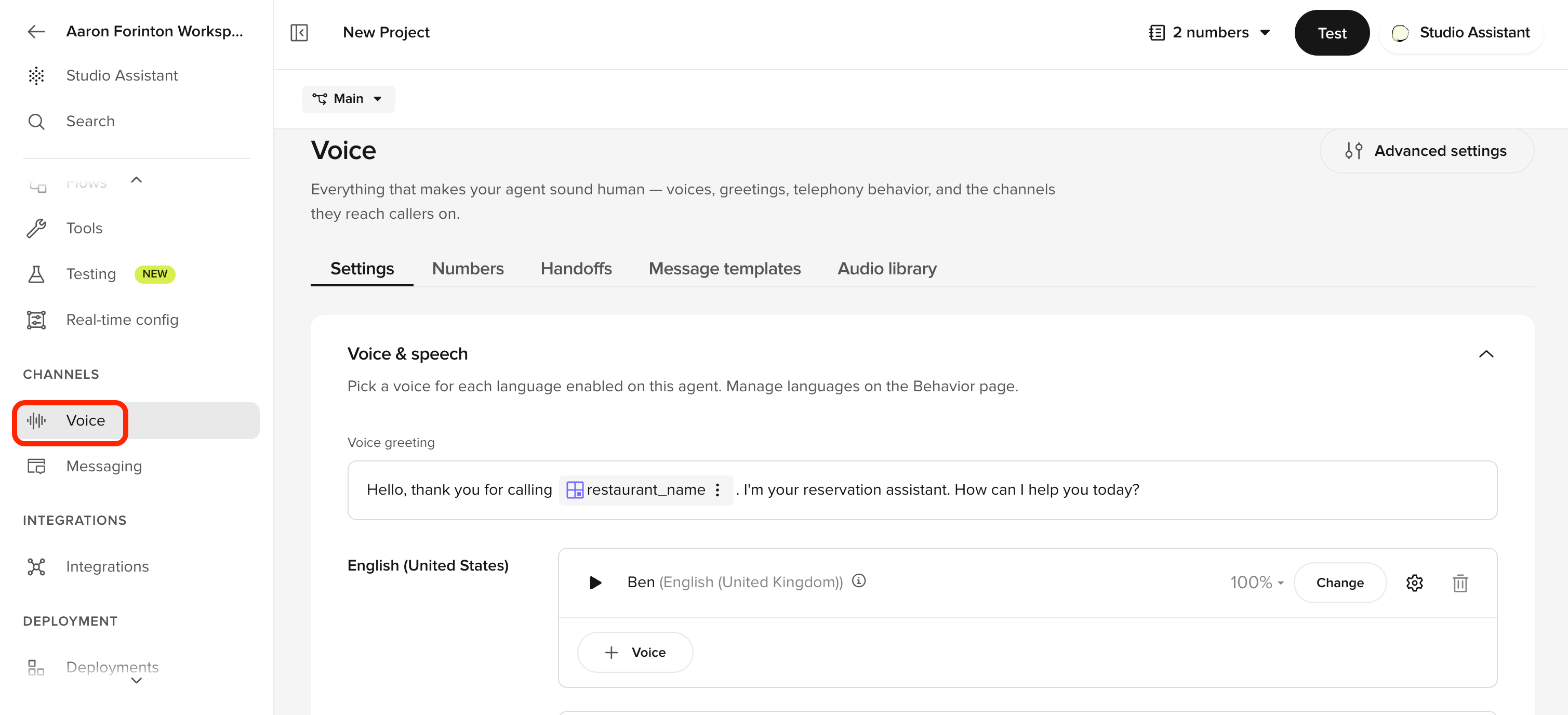 ## Voice & speech
Pick a voice for each language enabled on the agent. The main language card is tagged as "Main language". Each language gets its own voice and tuning, and the agent switches automatically when the conversation language changes.
### Selecting a voice
1. Click **Change** next to the voice you want to update.
2. The **[Voice library](/voice-channel/voice-library)** opens.
3. Browse voices using the **Explore** tab or access saved voices in **Favorites**.
4. Filter by **language**, **region**, and **gender**.
5. Preview voices with custom text before selecting.
6. Click **Select** to apply the voice.
Use the Voice library's preview feature with text that matches your agent's typical responses to ensure the voice fits your use case.
### Voice tuning
Fine-tune the selected voice's parameters by clicking the **Settings** icon next to the voice:
Controls how consistent the voice sounds over time. Higher values keep tone and delivery more uniform across responses.
**Recommended:** Set to 0.7 or above for reliable performance.
Adjusts how closely the generated voice matches the original recording. Higher values sound more realistic and detailed, but may be less resilient to unexpected prompts. Lower values smooth the voice slightly, making it better suited for dynamic or ASR-driven content.
Controls stylistic expressiveness of the voice (0.0–1.0). Higher values produce more expressive speech with varied intonation. Lower values keep delivery more neutral and consistent. Only supported by certain TTS providers and voice models.
### Voice greeting
The first thing your agent says when answering a call. Configure it in the **Voice greeting** field.
**Example:** "Thank you for calling. How can I help you today?"
Keep your greeting concise. Long greetings can frustrate callers who want to get to the point quickly.
## Style prompt
Tailor tone, format, and etiquette for your voice agent. The style prompt gives the LLM high-level guidance on how to respond — formal vs casual, verbose vs terse, and any brand-specific phrasing rules.
## Disclaimer
A message read once at the start of every call — typically a recording or AI-disclosure notice.
Toggle on to play a disclaimer before the greeting.
Use a separate voice for the disclaimer to distinguish it from the main agent voice. Each language can have its own disclaimer voice.
The text read aloud at the start of the call.
**Example:** "This call may be recorded for quality and training purposes."
## Ringing tone
A sound that plays after the disclaimer text and before the agent begins speaking. Gives the caller an audible signal that the call is about to start.
## Publishing changes
After updating voice settings:
1. Review your configuration on the Settings tab.
2. Click **Publish** in the top right corner to apply changes to your live agent.
Voice changes only take effect after publishing. Test your agent after publishing to confirm the new voice sounds as expected.
## Related pages
Browse and select voices
Guidelines for voice selection and matching
Configure model, barge-in, safety filters, and speech recognition
Configure custom voices programmatically
## Voice & speech
Pick a voice for each language enabled on the agent. The main language card is tagged as "Main language". Each language gets its own voice and tuning, and the agent switches automatically when the conversation language changes.
### Selecting a voice
1. Click **Change** next to the voice you want to update.
2. The **[Voice library](/voice-channel/voice-library)** opens.
3. Browse voices using the **Explore** tab or access saved voices in **Favorites**.
4. Filter by **language**, **region**, and **gender**.
5. Preview voices with custom text before selecting.
6. Click **Select** to apply the voice.
Use the Voice library's preview feature with text that matches your agent's typical responses to ensure the voice fits your use case.
### Voice tuning
Fine-tune the selected voice's parameters by clicking the **Settings** icon next to the voice:
Controls how consistent the voice sounds over time. Higher values keep tone and delivery more uniform across responses.
**Recommended:** Set to 0.7 or above for reliable performance.
Adjusts how closely the generated voice matches the original recording. Higher values sound more realistic and detailed, but may be less resilient to unexpected prompts. Lower values smooth the voice slightly, making it better suited for dynamic or ASR-driven content.
Controls stylistic expressiveness of the voice (0.0–1.0). Higher values produce more expressive speech with varied intonation. Lower values keep delivery more neutral and consistent. Only supported by certain TTS providers and voice models.
### Voice greeting
The first thing your agent says when answering a call. Configure it in the **Voice greeting** field.
**Example:** "Thank you for calling. How can I help you today?"
Keep your greeting concise. Long greetings can frustrate callers who want to get to the point quickly.
## Style prompt
Tailor tone, format, and etiquette for your voice agent. The style prompt gives the LLM high-level guidance on how to respond — formal vs casual, verbose vs terse, and any brand-specific phrasing rules.
## Disclaimer
A message read once at the start of every call — typically a recording or AI-disclosure notice.
Toggle on to play a disclaimer before the greeting.
Use a separate voice for the disclaimer to distinguish it from the main agent voice. Each language can have its own disclaimer voice.
The text read aloud at the start of the call.
**Example:** "This call may be recorded for quality and training purposes."
## Ringing tone
A sound that plays after the disclaimer text and before the agent begins speaking. Gives the caller an audible signal that the call is about to start.
## Publishing changes
After updating voice settings:
1. Review your configuration on the Settings tab.
2. Click **Publish** in the top right corner to apply changes to your live agent.
Voice changes only take effect after publishing. Test your agent after publishing to confirm the new voice sounds as expected.
## Related pages
Browse and select voices
Guidelines for voice selection and matching
Configure model, barge-in, safety filters, and speech recognition
Configure custom voices programmatically