> ## Documentation Index
> Fetch the complete documentation index at: https://docs.poly.ai/llms.txt
> Use this file to discover all available pages before exploring further.
# Test suite
> Save conversations as test cases and re-run them to check for regressions.
The **Test suite** lets you save real conversations as test cases and re-run them against Draft or Sandbox to check for behavioral drift. Each case captures the full conversation — user messages, agent replies, and tool calls — so you can verify the agent still handles the scenario correctly after changes.
## Create a test case from a conversation
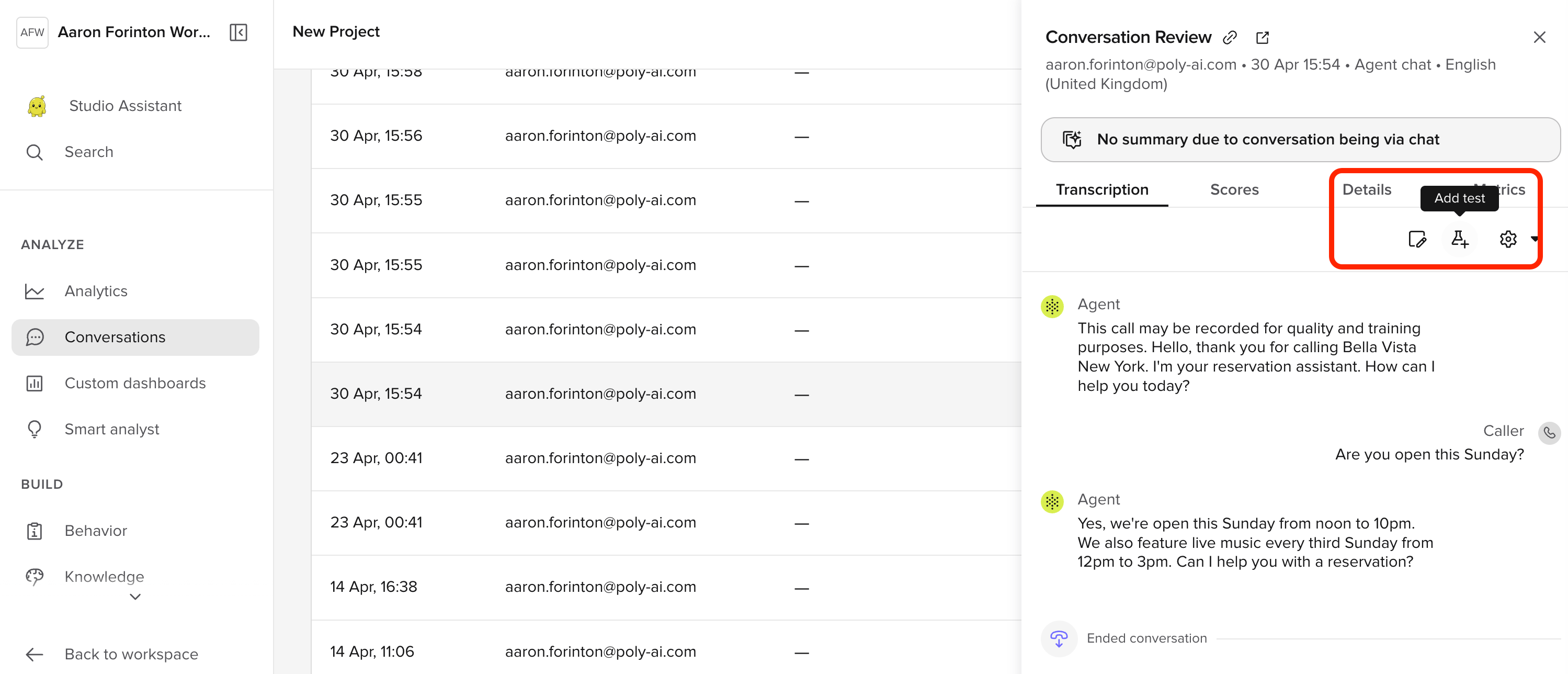
Go to **Analytics > Conversations** and select a conversation. In the side panel, click the **Add test** button.
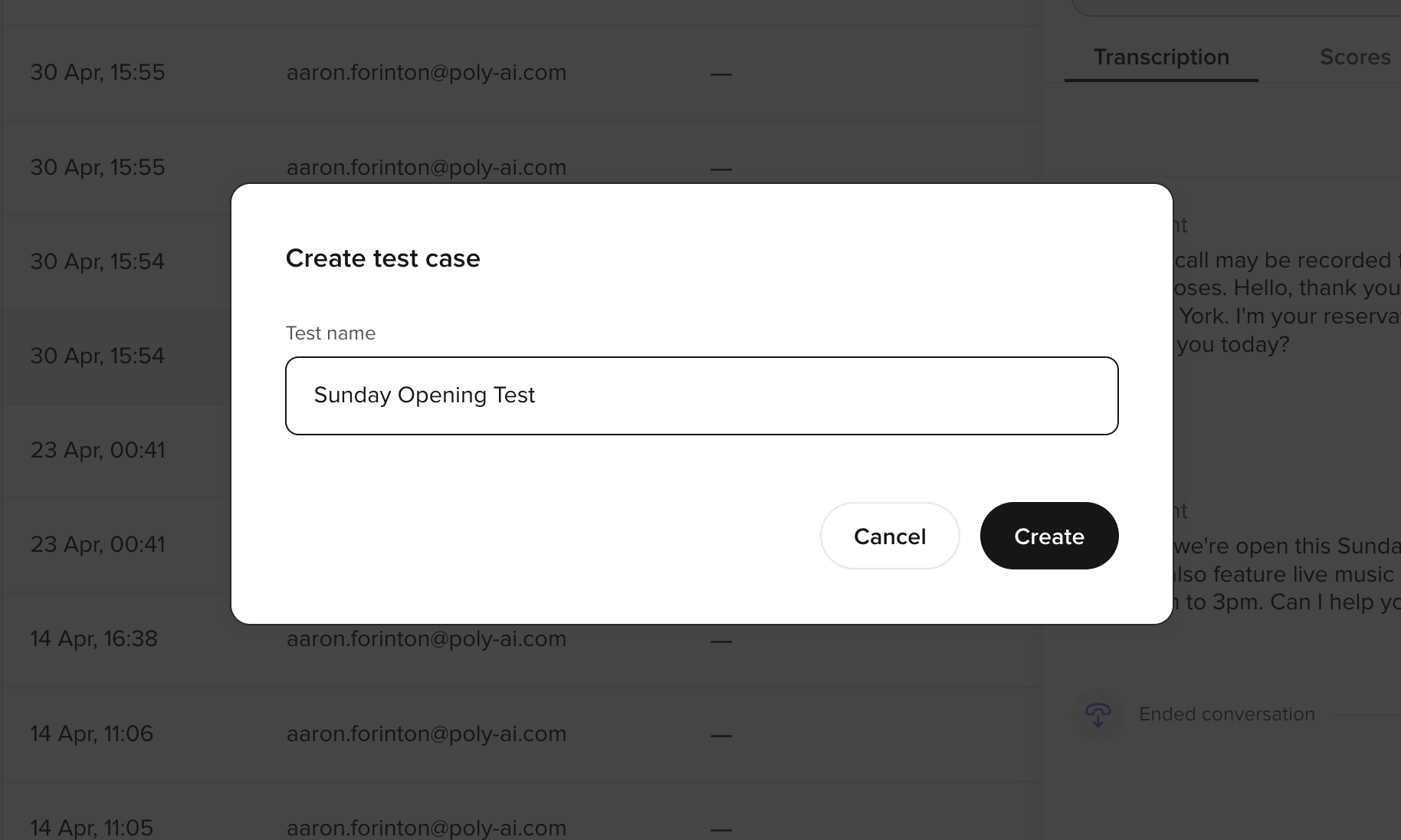
 In the **Create test case** modal, give the case a descriptive name (for example, "Sunday Opening Test") and click **Create**.
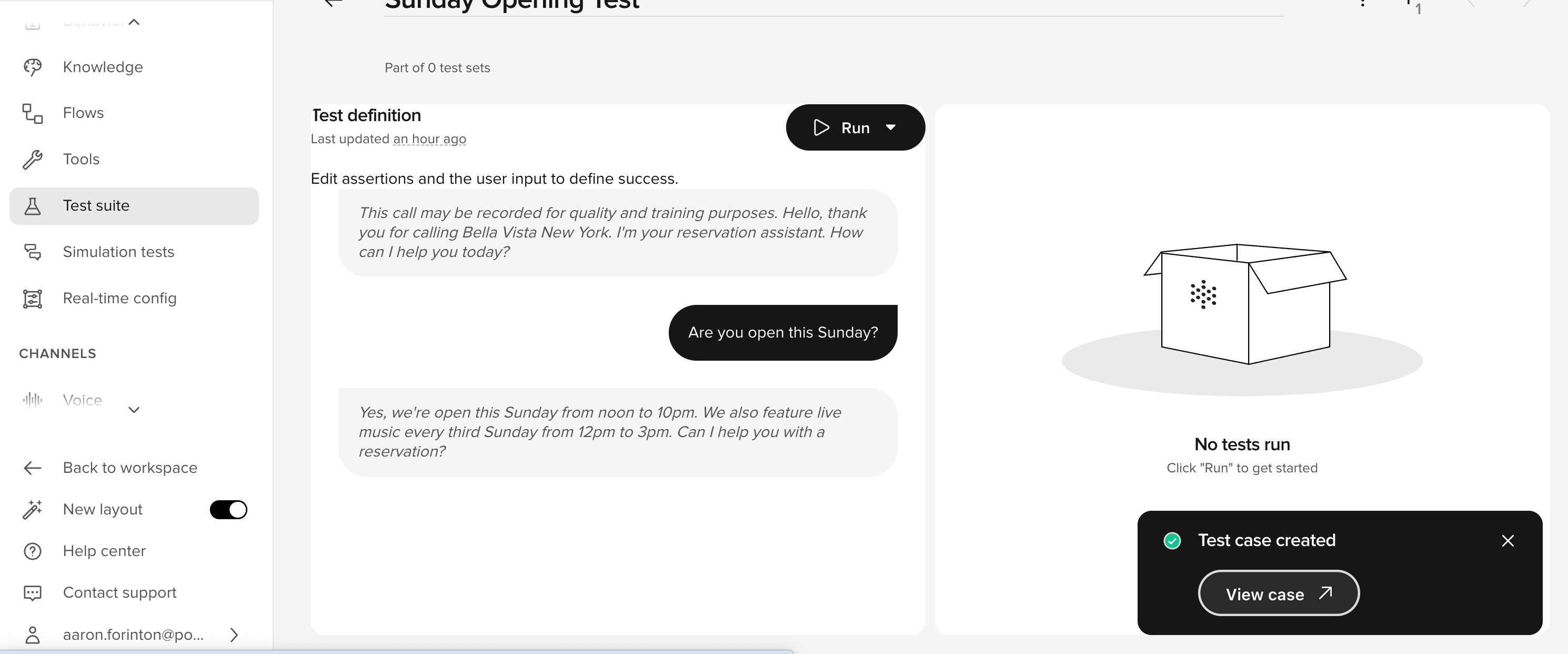
 The test case opens with the full conversation transcript. Edit assertions and user input to define what counts as a successful run.
 ## Edit test case parameters
Each test case stores the function call values from the original conversation. You can edit these to test variations of the same scenario without creating a new case.
1. Open the test case from **Test suite**.
2. Select the parameters you want to modify.
3. Adjust values to simulate a different scenario — for example, change a date, customer ID, or location.
4. Save the case.
Editing parameters is useful for testing edge cases. For example, duplicate a booking test case and change the party size to test large-group handling.
## Best practices
* **Save tests from real conversations** — cases from [Conversation Review](/analytics/conversations/review) capture real-world scenarios your agent has already encountered.
* **Name cases descriptively** — use names that describe the scenario, not the expected outcome (for example, "Sunday Opening Test" rather than "Test 1").
* **Cover edge cases** — duplicate a case and tweak parameters to test boundary conditions without re-recording a conversation.
## Edit test case parameters
Each test case stores the function call values from the original conversation. You can edit these to test variations of the same scenario without creating a new case.
1. Open the test case from **Test suite**.
2. Select the parameters you want to modify.
3. Adjust values to simulate a different scenario — for example, change a date, customer ID, or location.
4. Save the case.
Editing parameters is useful for testing edge cases. For example, duplicate a booking test case and change the party size to test large-group handling.
## Best practices
* **Save tests from real conversations** — cases from [Conversation Review](/analytics/conversations/review) capture real-world scenarios your agent has already encountered.
* **Name cases descriptively** — use names that describe the scenario, not the expected outcome (for example, "Sunday Opening Test" rather than "Test 1").
* **Cover edge cases** — duplicate a case and tweak parameters to test boundary conditions without re-recording a conversation.