> ## Documentation Index
> Fetch the complete documentation index at: https://docs.poly.ai/llms.txt
> Use this file to discover all available pages before exploring further.
# Run and review
> Execute simulation tests, inspect results, and organize tests into sets.
## Test sets
A test set is a named collection of test cases. Use sets to cover a feature area or release scope (for example, "Payments," "Shipping," "Core intents"). A test case can belong to **multiple** sets.
To create a set:
1. Go to **Testing > Test Sets** and select **New set**.
2. Give the set a **name** and add cases from the picker.
Create focused sets ("Refunds," "Shipping address changes," "Escalations") so failures point straight to the right area.
## Run tests
Tests run against non-production versions. Select **Draft** or **Sandbox** when you start a run.
You can run a **single case** or an entire **set**.
1. Open the case in **Test Cases**.
2. Choose **Draft** or **Sandbox**.
3. Select **Run** to execute just this scenario.
The case shows **Outcome** and **Last run** after completion.
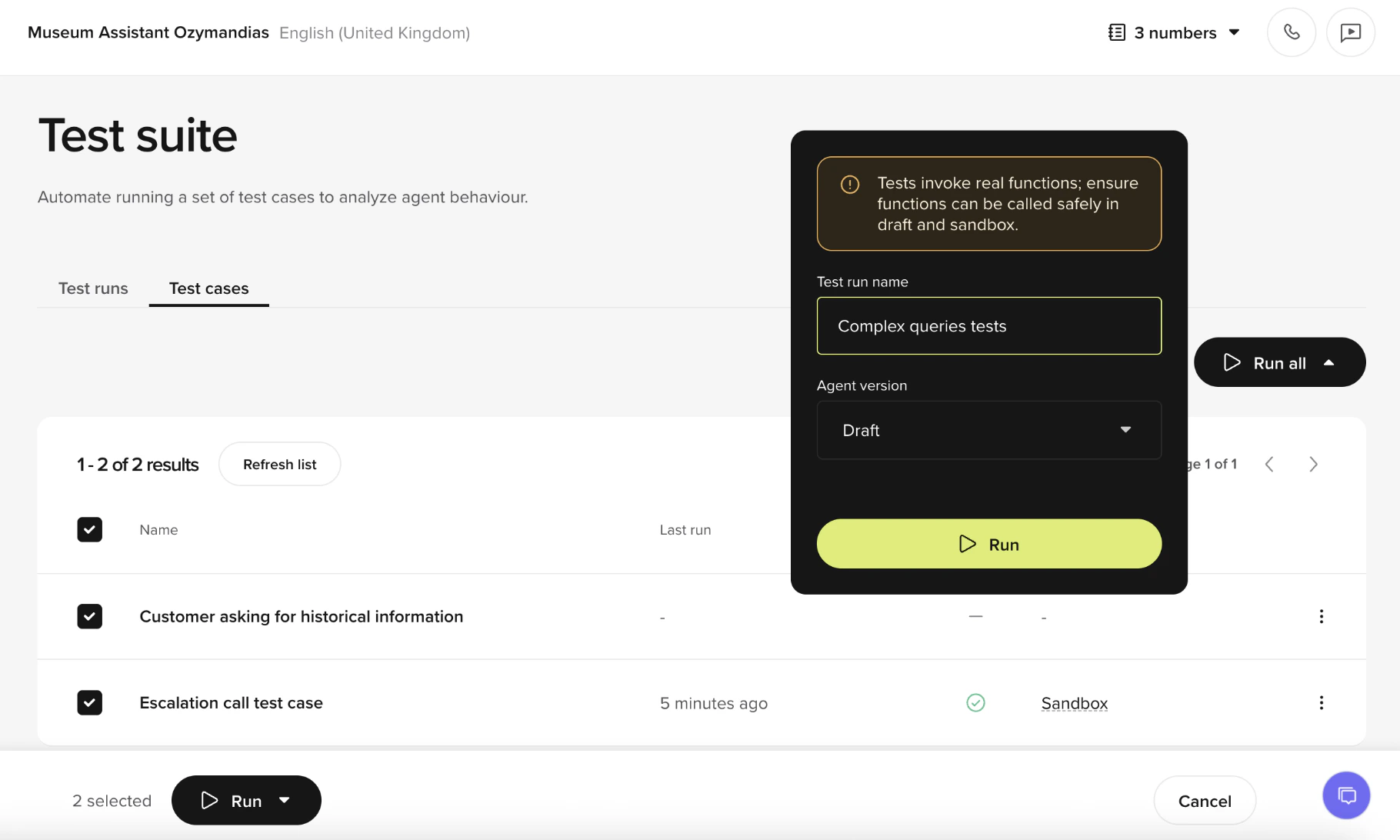 1. Open the set in **Test Sets** and select **Run set**.
2. Choose **Draft** or **Sandbox**.
3. Start the run to execute all member cases together.
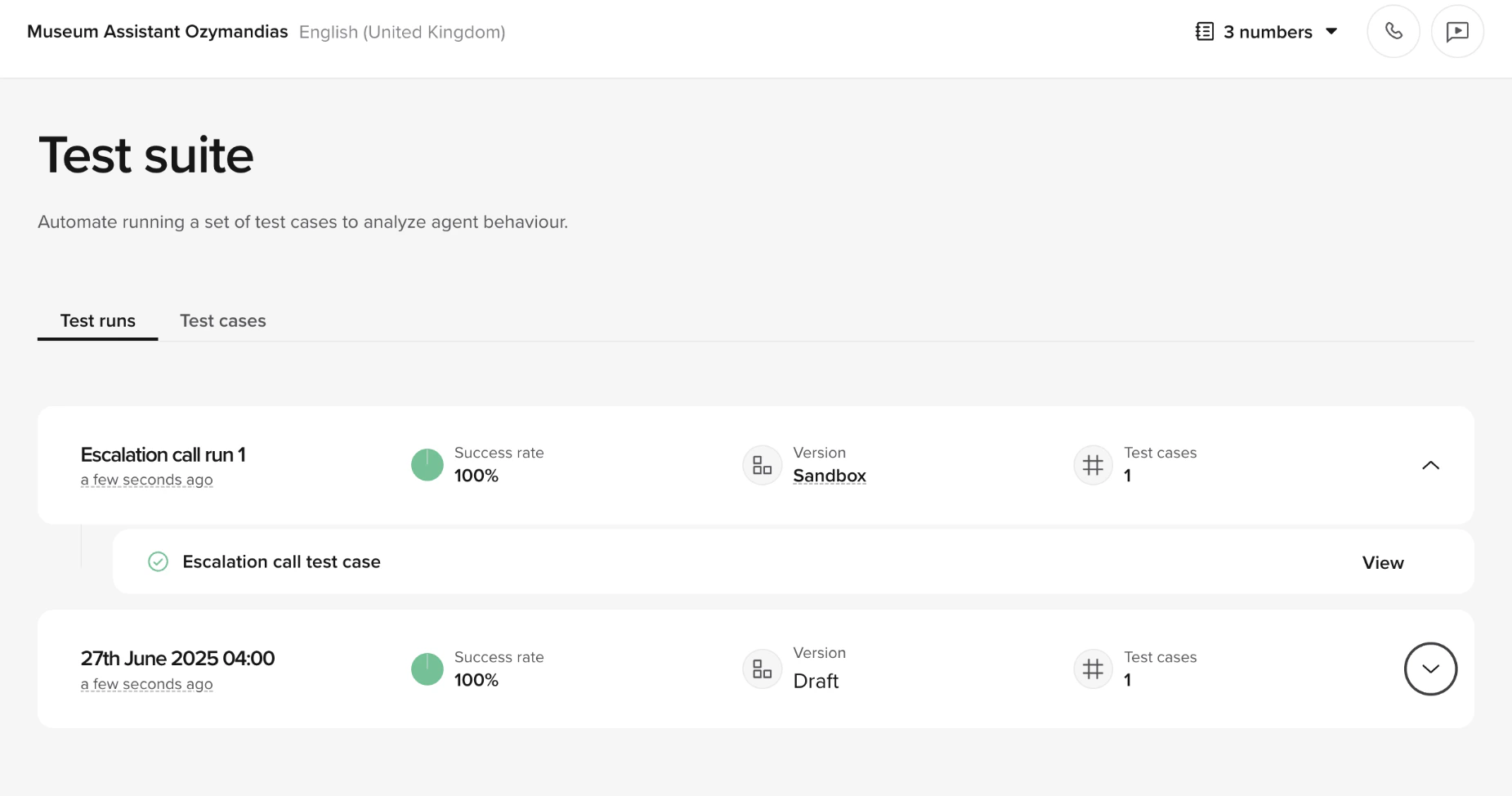
The set displays an aggregated view with pass/fail counts and trend charts.
1. Open the set in **Test Sets** and select **Run set**.
2. Choose **Draft** or **Sandbox**.
3. Start the run to execute all member cases together.
The set displays an aggregated view with pass/fail counts and trend charts.
 ## Review results
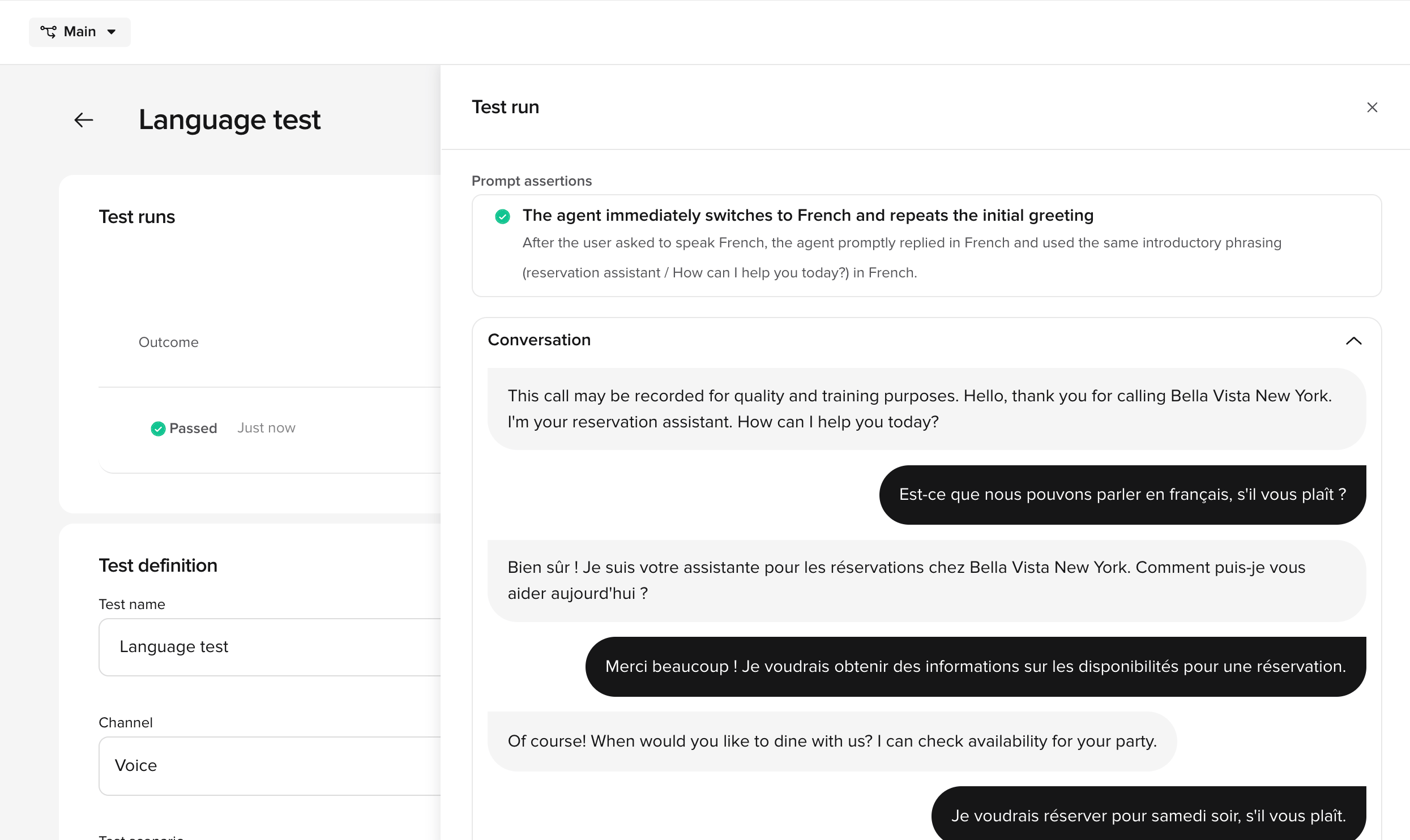
When a run completes, select it to open the **Test run** panel. The panel shows:
* **Prompt assertions** — each assertion with a pass/fail indicator and a short explanation of why it passed or failed.
* **Conversation** — the full transcript of the simulated conversation, showing both caller and agent turns.
## Review results
When a run completes, select it to open the **Test run** panel. The panel shows:
* **Prompt assertions** — each assertion with a pass/fail indicator and a short explanation of why it passed or failed.
* **Conversation** — the full transcript of the simulated conversation, showing both caller and agent turns.
 For test sets, the set view provides:
* **Pass/fail counts** – how many cases succeeded vs. failed in the run.
* **Trend charts** – historical pass/fail rates across multiple runs, so you can spot regressions over time.
If a previously passing test case fails after a change, review the conversation transcript to identify what broke. Common causes include:
* Knowledge topic changes that altered routing
* Function logic updates that changed return values
* Flow modifications that skipped or reordered steps
## Edit test case parameters
Each test case stores the function call values from the original conversation. You can edit these to test variations of the same scenario without creating a new case.
1. Open the test case from **Test Cases**.
2. Select the parameters you want to modify.
3. Adjust values to simulate a different scenario – for example, change a date, customer ID, or location.
4. Save the case.
Editing parameters is useful for testing edge cases. For example, duplicate a booking test case and change the party size to test large-group handling.
## Best practices
* **Create focused sets** – group cases by feature area so failures point to the right area.
* **Re-run after knowledge changes** – topic edits can silently break other flows. Test sets catch this.
* **Run after every significant change to Draft** – catching regressions early saves time and prevents issues from reaching Sandbox or Live.
For test sets, the set view provides:
* **Pass/fail counts** – how many cases succeeded vs. failed in the run.
* **Trend charts** – historical pass/fail rates across multiple runs, so you can spot regressions over time.
If a previously passing test case fails after a change, review the conversation transcript to identify what broke. Common causes include:
* Knowledge topic changes that altered routing
* Function logic updates that changed return values
* Flow modifications that skipped or reordered steps
## Edit test case parameters
Each test case stores the function call values from the original conversation. You can edit these to test variations of the same scenario without creating a new case.
1. Open the test case from **Test Cases**.
2. Select the parameters you want to modify.
3. Adjust values to simulate a different scenario – for example, change a date, customer ID, or location.
4. Save the case.
Editing parameters is useful for testing edge cases. For example, duplicate a booking test case and change the party size to test large-group handling.
## Best practices
* **Create focused sets** – group cases by feature area so failures point to the right area.
* **Re-run after knowledge changes** – topic edits can silently break other flows. Test sets catch this.
* **Run after every significant change to Draft** – catching regressions early saves time and prevents issues from reaching Sandbox or Live.