> ## Documentation Index
> Fetch the complete documentation index at: https://docs.poly.ai/llms.txt
> Use this file to discover all available pages before exploring further.
# Studio Assistant
> Build, test, debug, and analyze your agent in natural language from the Agent Studio home screen.
Studio Assistant is the chat panel on the Agent Studio home screen. Describe what you want — it reads your project, proposes a plan, and applies changes when you approve. Every edit lands on a branch, not on the live agent.
Studio Assistant is available to **all users** on a project. What you can do depends on your [role](/user-management/access-control-scope): users with edit access can build and apply changes, while read-only users can ask questions and analyze conversations.
## What you can do
Studio Assistant groups its capabilities into four categories. The home screen surfaces prompt suggestions for each one.
Create and edit flows, topics, entities, functions, integrations, handoffs, behavior, and agent settings.
Generate simulation test scenarios, write and run test cases, and review results.
Ask questions about your project config, debug production issues, and explore PolyAI concepts.
Investigate performance patterns, conversation trends, and caller behavior with Smart Analyst.
### Build and edit
Studio Assistant operates on the same building blocks you'd edit by hand. For any of these, it can read your current config, propose changes, and write them to a branch.
| Building block | Examples |
| -------------------- | ----------------------------------------------------------------------------------------------------------------------------------- |
| **Flows** | Create new flows; restructure steps, transitions, and conditions; rewrite step prompts |
| **Topics** | Create knowledge-base topics from a description or a URL; update wording or scope |
| **Entities** | Define entities and their values; update entity definitions used by flows |
| **Functions** | Wire flows to existing functions; describe and create new function specs |
| **Integrations** | Configure integrations and connect them to flows |
| **Handoffs** | Add transfer-to-human steps with the right conditions and metadata |
| **Behavior** | Set or update purpose, role, and personality |
| **Simulation tests** | Author, run, and maintain [testing](/testing/simulation-tests) for flows and topics and watch coverage in-step as the agent changes |
The **Agent wizard** (under Build templates) bootstraps a brand-new agent from a single company URL — it scrapes the site, creates topics, sets up behavior, and gives you a working draft in minutes.
Studio Assistant is **channel-aware**: on chat projects it pulls in chat-specific guidance (message length, formatting, async turn-taking); on voice projects it stays voice-first. The plan-and-approve workflow is identical across channels.
### Test
Studio Assistant can author, run, and manage [simulation tests](/testing/simulation-tests) directly from chat. Ask it to generate test scenarios for a flow, and the cases land in the **Simulation tests** workspace alongside anything you've saved by hand. It updates test cases as the underlying flows and topics change.
* *"Add simulation tests for the refund flow, including the 30-day cutoff."*
* *"Cover the booking flow with tests for valid, fully booked, and out-of-hours requests."*
* *"Run the existing simulation tests against the current draft and summarize any regressions."*
### Ask and debug
Beyond answering questions about your project ("what does this flow do?", "which functions reference account\_lookup?"), Studio Assistant can debug production conversations. Give it a conversation ID or describe a caller issue, and it walks through:
* Step-by-step timings for each turn
* Latency breakdown and model behavior
* Tool calls and their responses
* Where and why calls dropped or handed off
This is the fastest way to investigate a single problematic call without digging through logs manually.
### Analyze
The **Analyze** category is powered by [Smart Analyst](/smart-analyst/introduction). Ask natural-language questions about your agent's conversations — *"What's causing handoffs?"*, *"How did my agent perform this week?"* — and get answers backed by transcript sampling of up to 500 conversations. Charts and visualizations are generated inline.
You can also launch Smart Analyst from the **Home** dashboard by clicking **Generate insights** or **Create analysis** on any chart.
## Voice input
You can speak to Studio Assistant instead of typing. Click the microphone icon next to the message input to dictate your request. This is useful for longer prompts or when you want to describe a flow in natural language without typing it out.
## How changes work
### Plan and approve
When you ask for a change, Studio Assistant proposes a plan. **Nothing is written until you approve.** You can expand the plan to see the full breakdown, provide feedback to revise it, or reject it entirely.
| Mode | What it does | When to use it |
| --------- | -------------------------------------------- | -------------------------------------------------------------------- |
| **Agent** | Plans a change, then applies it on approval. | Default for build work. |
| **Plan** | Plans a change but doesn't apply it. | Comparing approaches before committing. |
| **Ask** | Read-only questions about your project. | *"What does this flow do?"*, *"Why did containment drop yesterday?"* |
### Branches
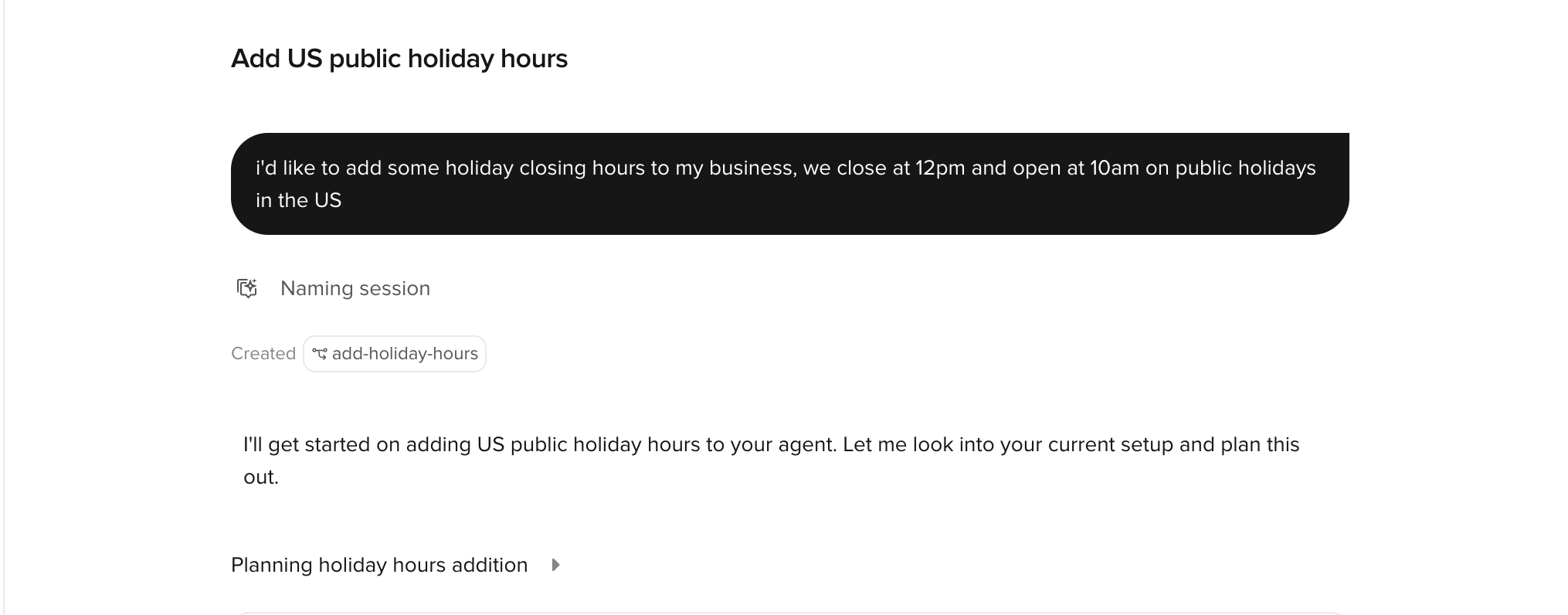
The first time you ask for a change, Studio Assistant creates a branch automatically and names it after the request. `Main` stays untouched. When you're ready, merge the branch back to `Main` and promote through the normal [Sandbox → Live](/environments-and-versions/introduction) pipeline.
Every applied edit produces a tracked-changes summary you can inspect, tweak, or revert before merging.
### What it won't do
* **Invent business knowledge.** Prices, hours, policies, names — if these aren't in your existing configuration or your message, the plan surfaces them as questions.
* **Edit anything other than your draft.** It never publishes or promotes between [environments](/environments-and-versions/introduction).
* **Access other projects.** Studio Assistant is scoped to the project you're in.
* **Handle telephony, SMS, or handoff configuration.** These are managed through dedicated settings pages.
## Availability
Studio Assistant is available on all flow-based projects. It is **not available on intent-based projects**.
## Limits
Studio Assistant has a fair-use limit so usage stays predictable. The size and reset cadence are managed by PolyAI on your account. Current usage shows next to the message input.
When you hit the limit, the assistant pauses until the next reset. Manual editing in Studio still works normally.
[Usage and limits →](/studio-assistant/usage-and-limits)
## A full session, step by step
The steps you'll repeat for most build work, with screenshots from a real session.
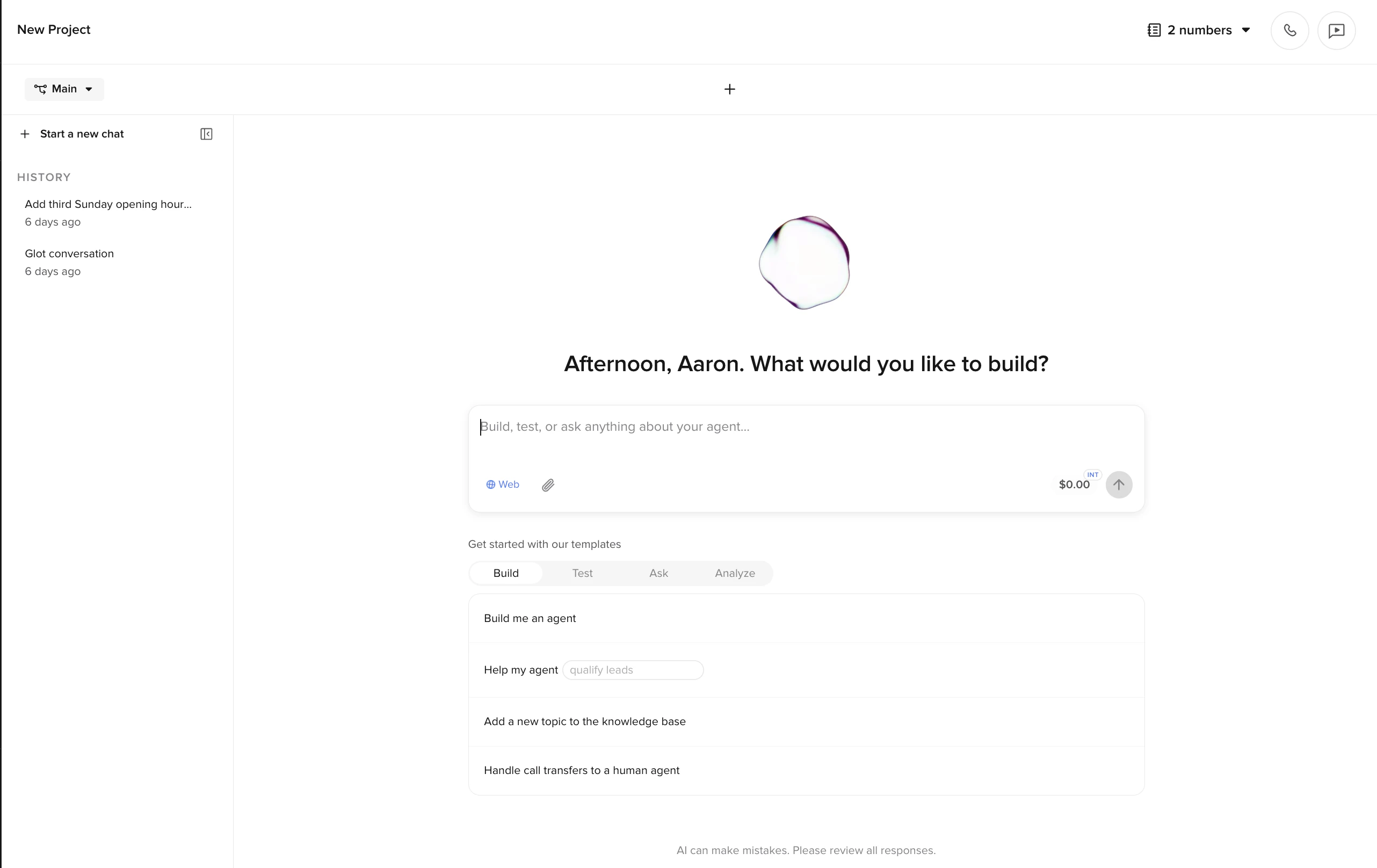
The chat panel opens with a prompt input and templates grouped by intent: **Build**, **Test**, **Ask**, and **Analyze**. Pick a suggestion, edit it, or type your own request. The **Agent wizard** entry under Build kicks off a guided builder for brand-new agents from a company URL. The usage indicator next to the send button shows your current spend.
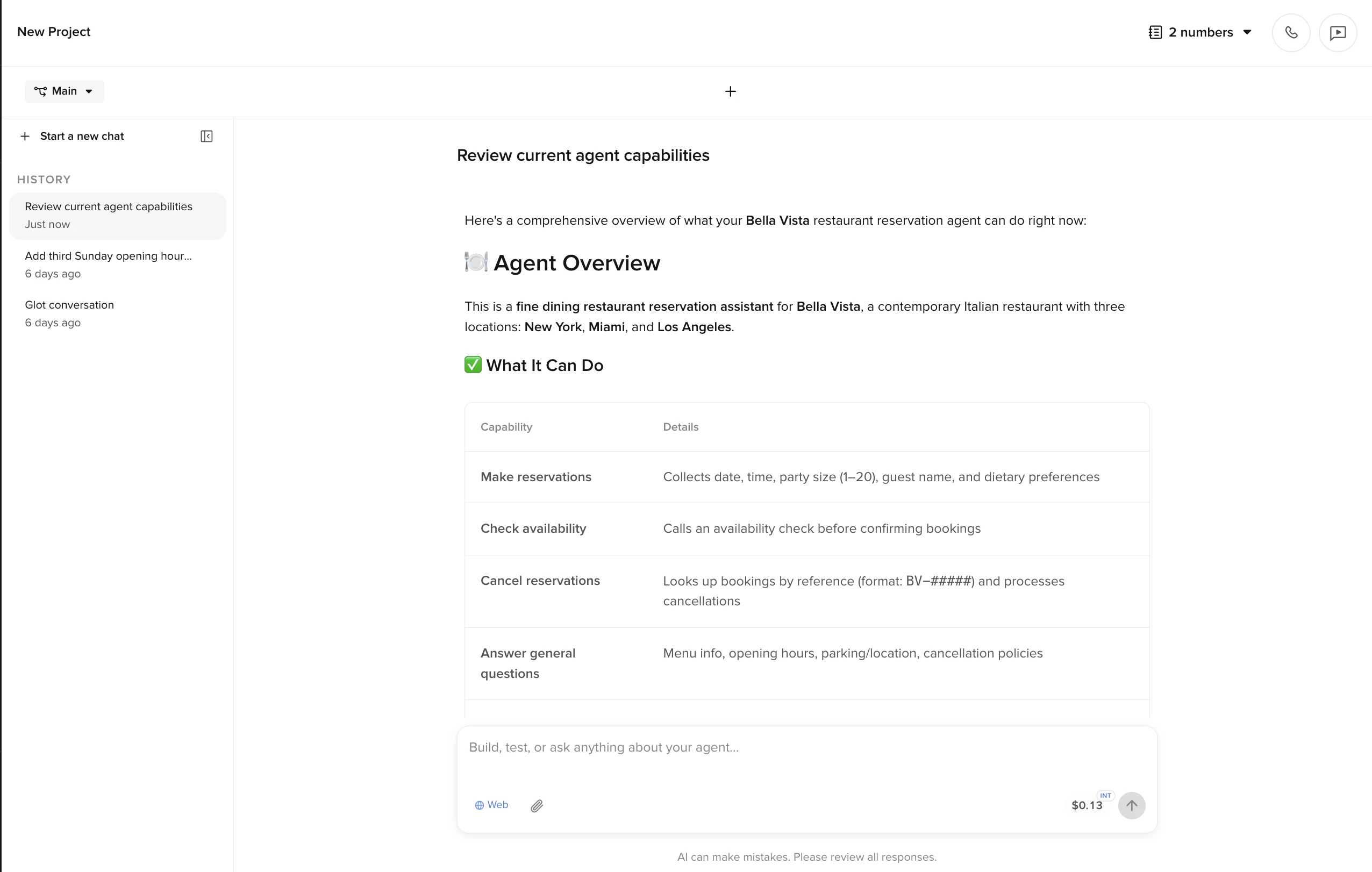
 For exploration, the assistant reads your agent settings, flows, topics, entities, and functions, then replies with answers grounded in your project. The tools it runs (`read`, `explore`, and so on) appear inline before the final message.
 The first time you ask for a change, Studio Assistant creates a branch automatically and names it after the request. `Main` stays untouched while the assistant works on the branch. The branch chip replaces `Main` in the top-left for the rest of the session.
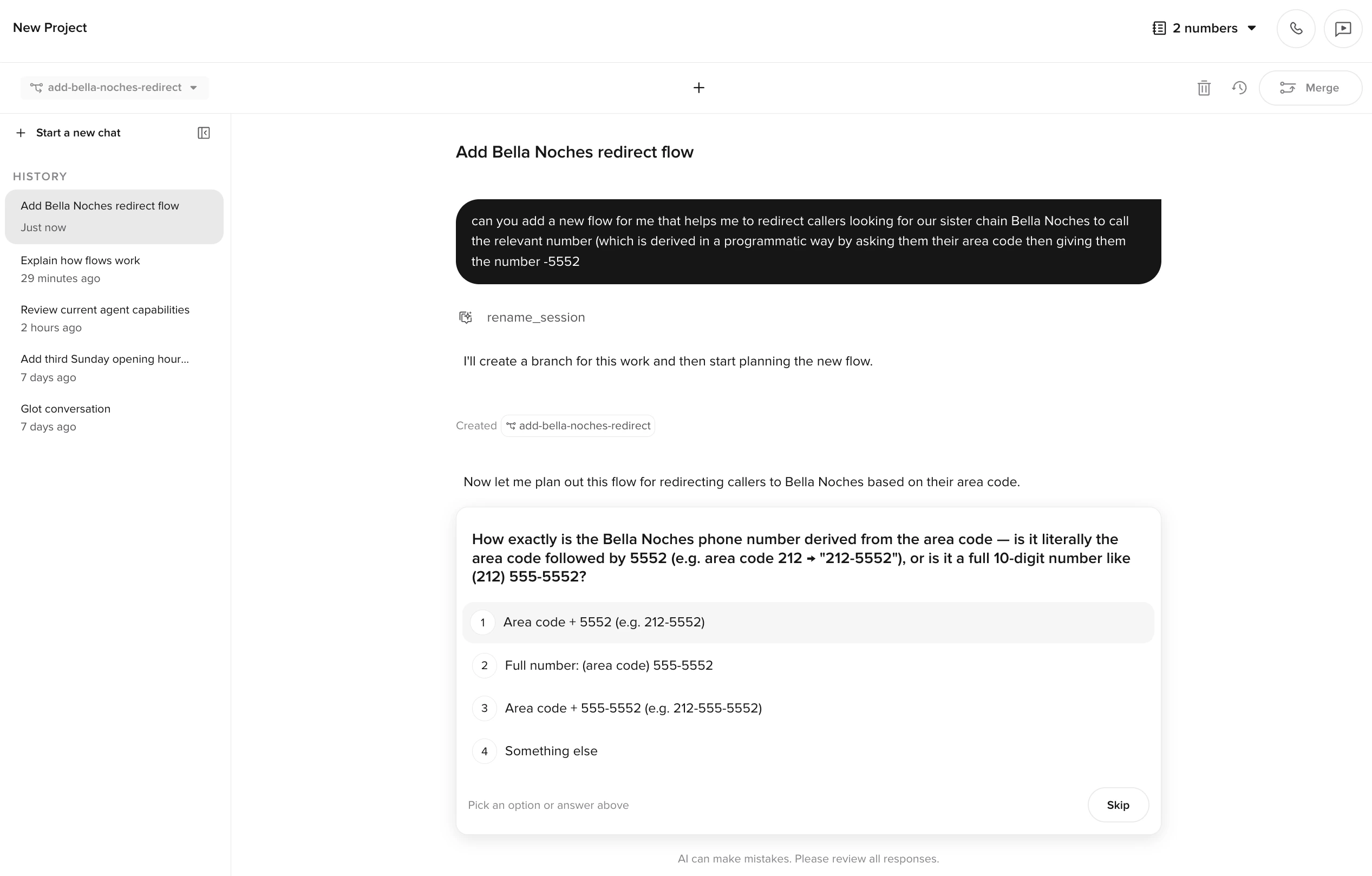
 If your request is ambiguous, the assistant asks a clarifying multiple-choice question before it starts planning. Pick an option, type your own answer, or **Skip** to let the assistant choose.
 Once it has enough context, the assistant presents a plan card with **Approve** and **Reject** buttons. **Nothing is written until you approve.** Click the plan card to expand the full breakdown. From the expanded view you can write feedback for the assistant to revise the plan, then **Send** to re-plan.
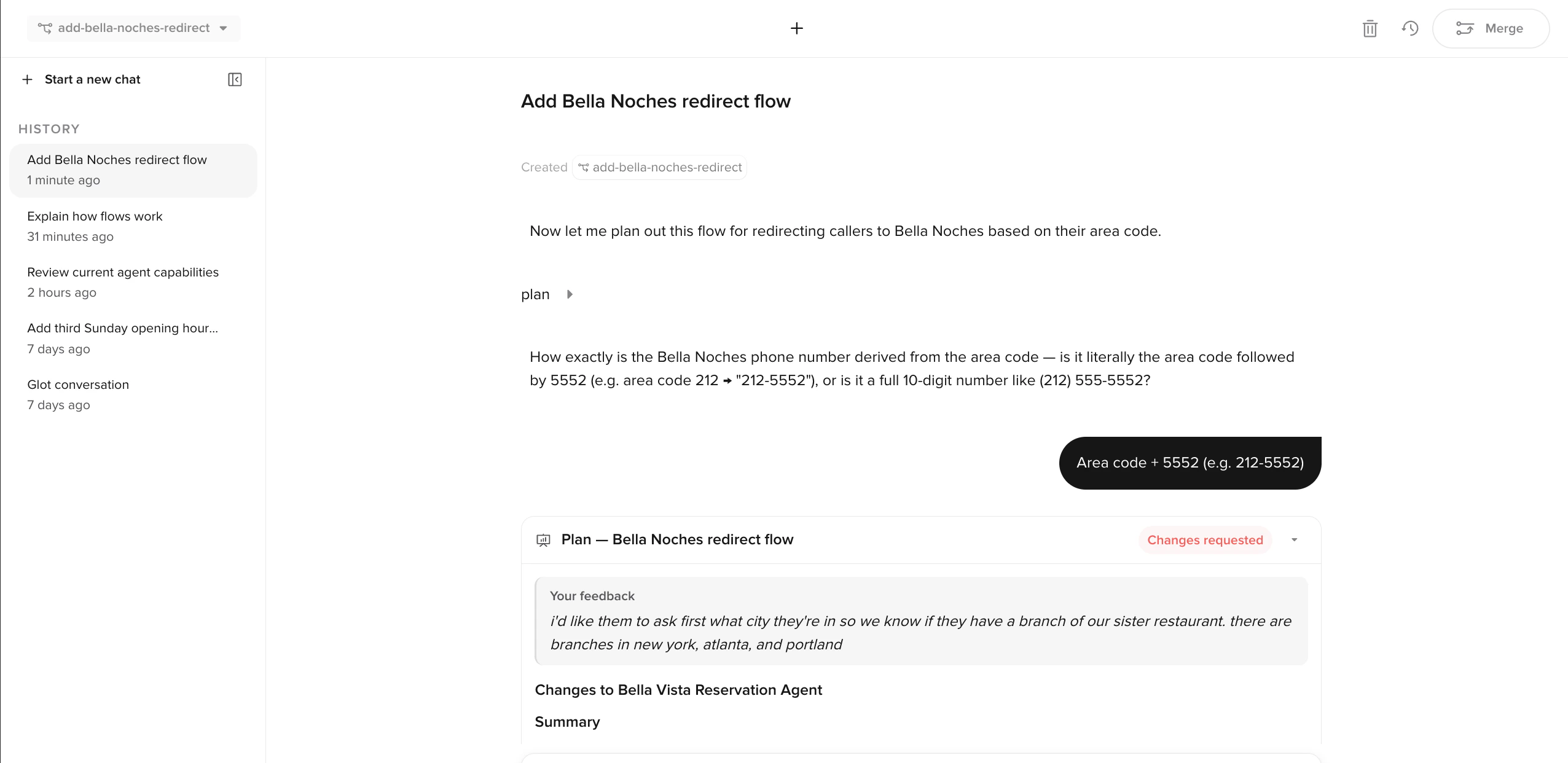
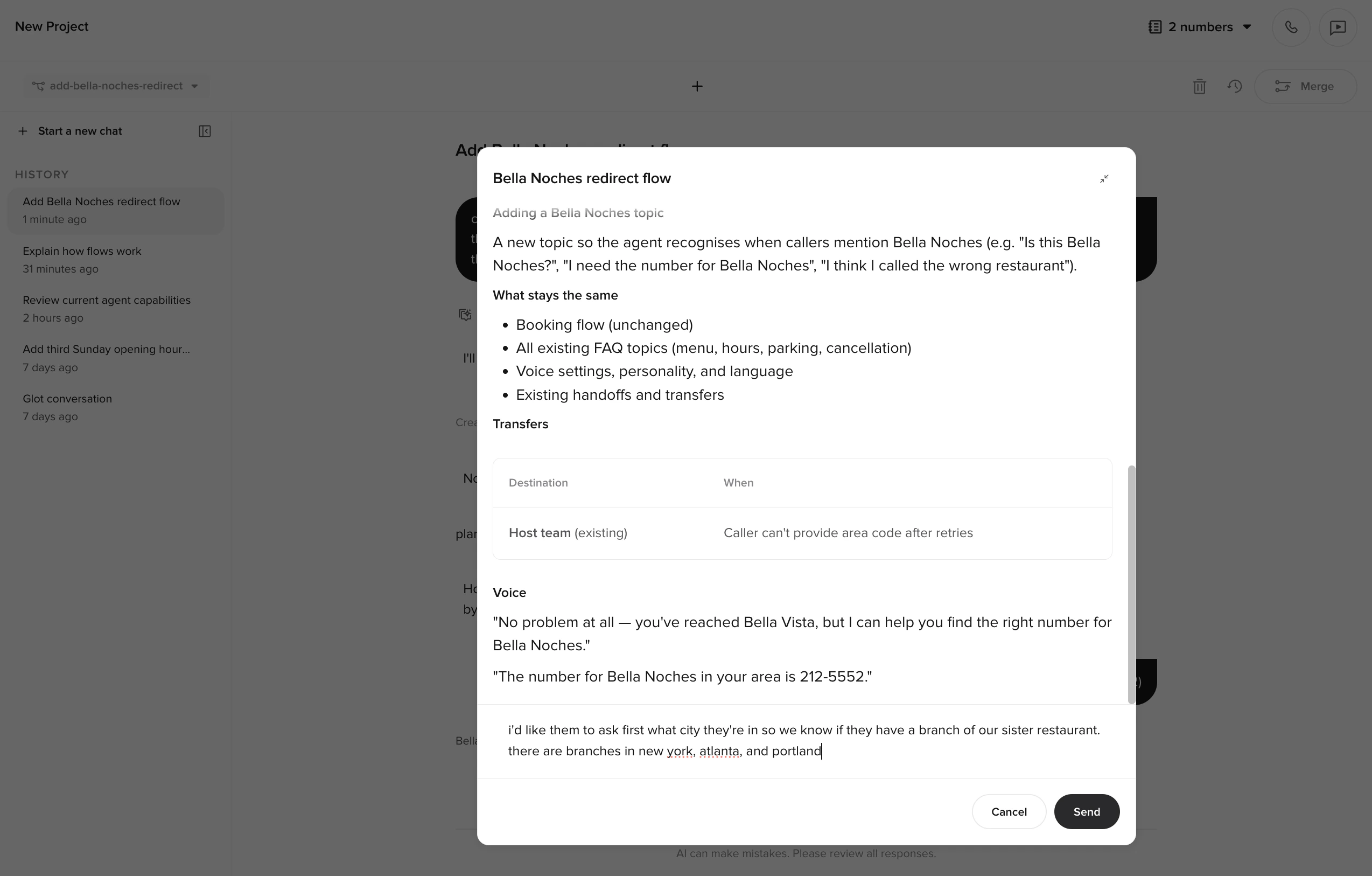 After you send revisions, the plan is marked **Changes requested** and your feedback is shown above the regenerated plan.
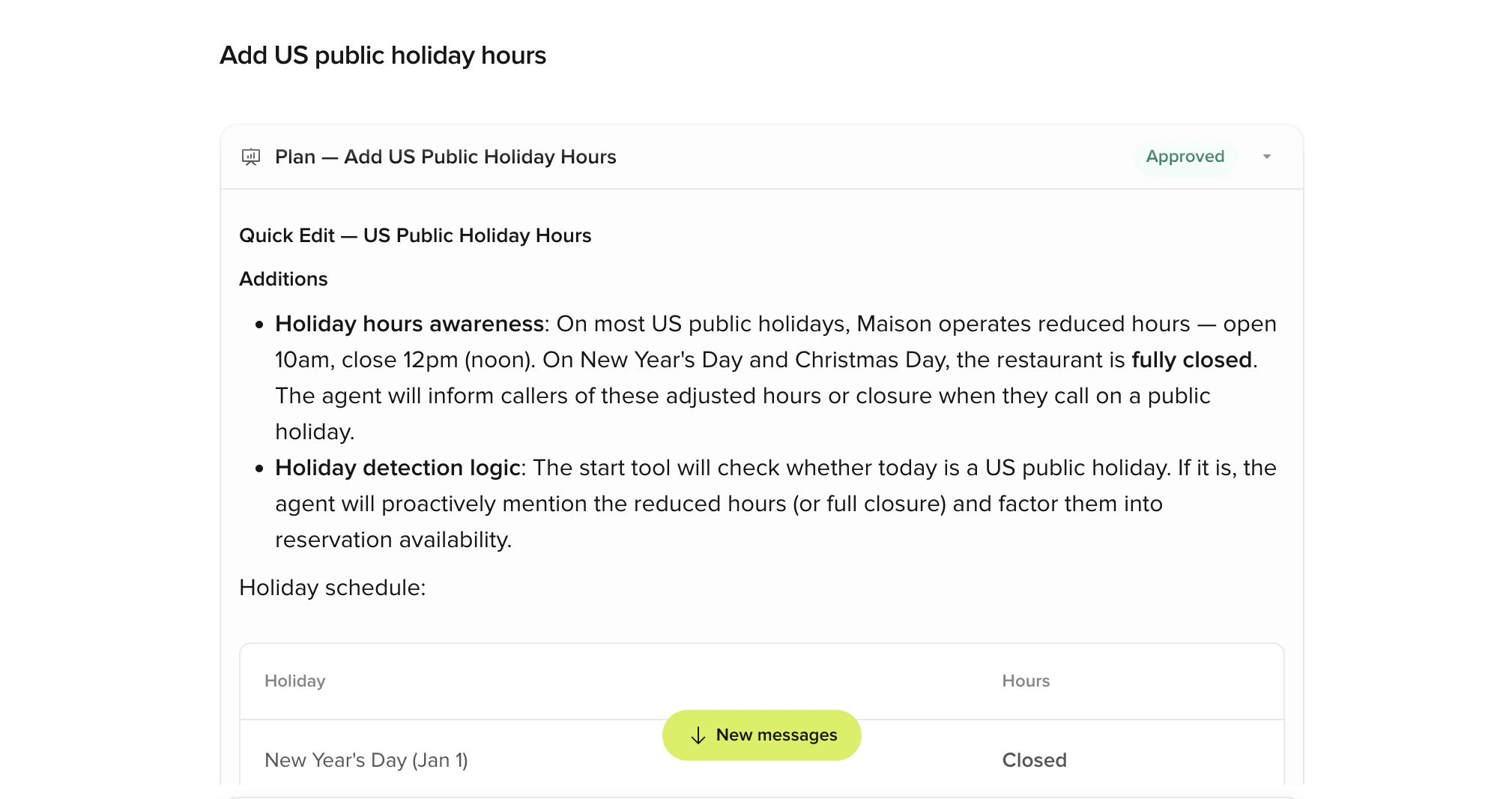
 When you **Approve**, the changes apply to your branch. Every applied edit is summarized in a **changes made** card.
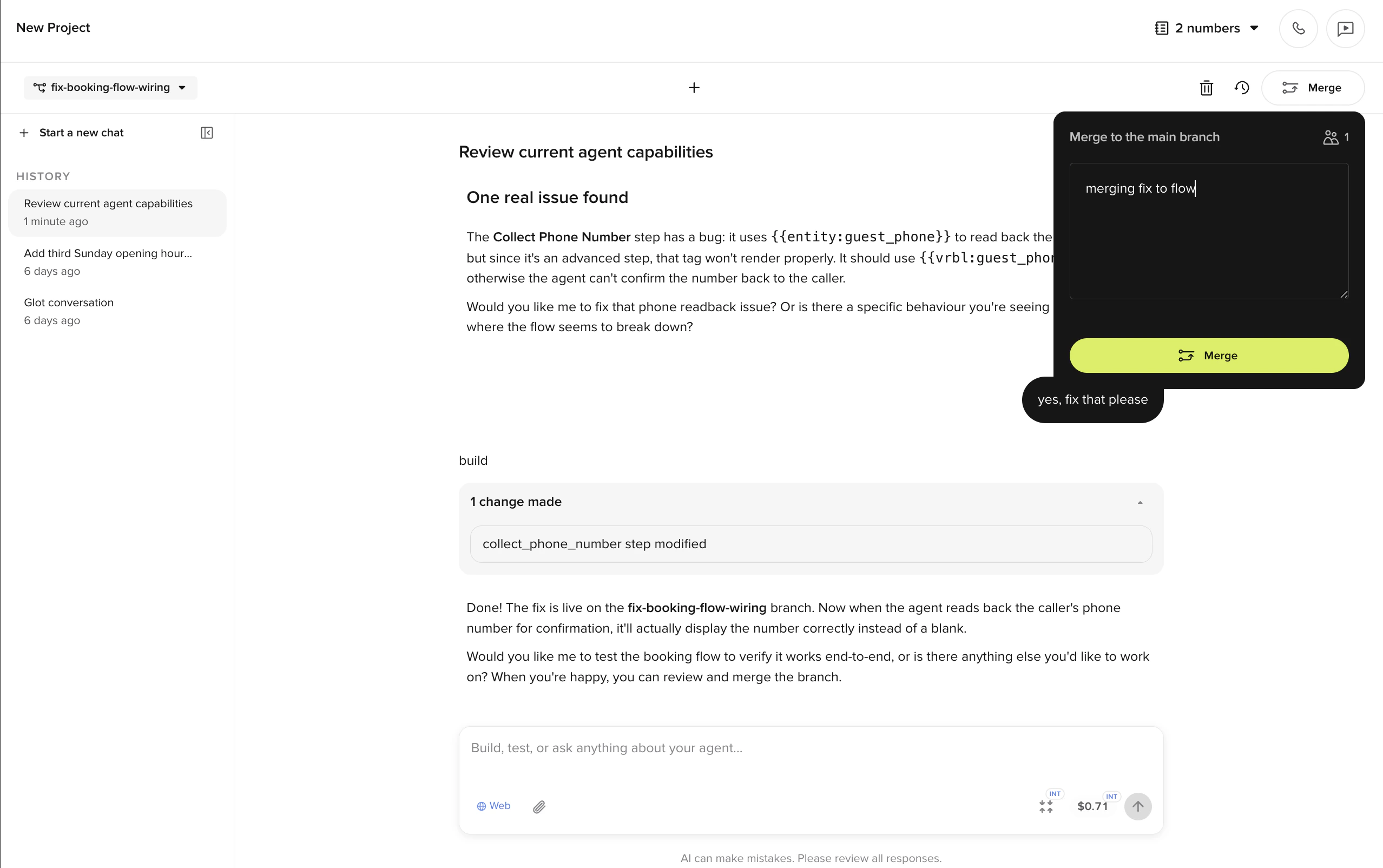
 The **Merge** button in the top-right opens a dialog where you can add an optional message, then ship the branch back to `Main`. From there, your changes flow through the normal [Sandbox → Live](/environments-and-versions/introduction) pipeline.
 ## Conversations and history
Chats are saved in the **History** panel on the left, scoped to the project. You can resume any past chat, switch between concurrent ones, or archive what you're not using.
The assistant remembers everything in the current chat. Follow-ups like *"now do the same for the cancellation flow"* work without repeating context. Drag in transcripts, policy docs, or screenshots to attach files; the assistant reads them as part of the request.
Start a new chat when switching to unrelated work. Each chat carries its full history as context, so very long chats can slow responses or trigger automatic summarization.
## Related pages
Patterns for getting consistently good results.
Analyze conversations with natural-language queries.
Author and run test cases for your agent.
Your fair-use allowance, reset cadence, and what to do when you hit it.
Promote branches from `Main` to Live.
## Conversations and history
Chats are saved in the **History** panel on the left, scoped to the project. You can resume any past chat, switch between concurrent ones, or archive what you're not using.
The assistant remembers everything in the current chat. Follow-ups like *"now do the same for the cancellation flow"* work without repeating context. Drag in transcripts, policy docs, or screenshots to attach files; the assistant reads them as part of the request.
Start a new chat when switching to unrelated work. Each chat carries its full history as context, so very long chats can slow responses or trigger automatic summarization.
## Related pages
Patterns for getting consistently good results.
Analyze conversations with natural-language queries.
Author and run test cases for your agent.
Your fair-use allowance, reset cadence, and what to do when you hit it.
Promote branches from `Main` to Live.