> ## Documentation Index
> Fetch the complete documentation index at: https://docs.poly.ai/llms.txt
> Use this file to discover all available pages before exploring further.
# API keys
> Create and manage API keys for accessing PolyAI's external APIs.
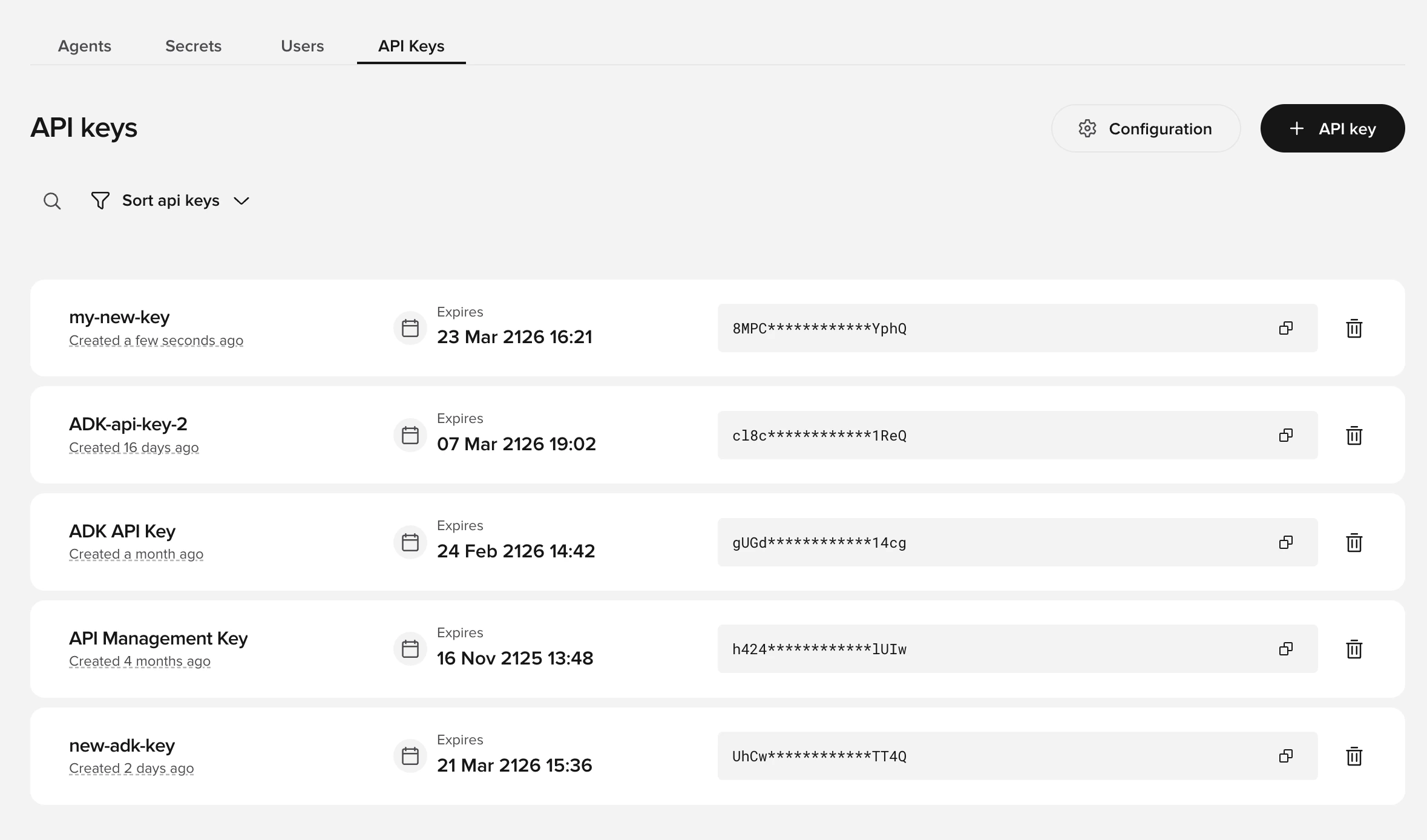 API keys control access to PolyAI's external APIs – including the [Agents API](/api-reference/agents/introduction), [Conversations API](/api-reference/conversations/introduction), [Handoff API](/api-reference/handoff/introduction), and [External Events API](/api-reference/external-events/introduction). Create and manage keys from the **API Keys** page in Agent Studio.
API keys require the [Conversations API v3](/api-reference/conversations/introduction). If you are using v1, contact your PolyAI representative to migrate to v3 first.
## Creating an API key
1. Go to the **API Keys** tab on the workspace homepage in Agent Studio
2. Select **API key**
3. Configure the key:
* **Name** – a label to identify this key
* **Agents** – choose "All agents" or select specific agents (this cannot be changed after creation)
* **Permissions** – select which APIs the key can access:
| Permission | Grants access to |
| ---------------------- | --------------------------------------------------------------------------------------------------------------- |
| **Conversations data** | [Conversations API](/api-reference/conversations/introduction) – retrieve conversation transcripts and metadata |
| **Handoff** | [Handoff API](/api-reference/handoff/introduction) – read handoff details |
| **External events** | [External Events API](/api-reference/external-events/introduction) – send events to active conversations |
4. Select **Create** to generate the key
Copy your API key immediately after creation. The full key value is only shown once.
## Viewing and managing keys
Your API keys appear on the **API Keys** page. Each entry shows:
* Key name and scope (which agents it covers)
* Expiry date
* A masked key value with a copy button
* Edit and delete options
Keys are independent – modifying or deleting one does not affect others.
## Configuring metrics
Metrics control what data appears in API responses. Configure them separately from API keys:
1. Select **Configuration** at the top of the **API Keys** page
API keys control access to PolyAI's external APIs – including the [Agents API](/api-reference/agents/introduction), [Conversations API](/api-reference/conversations/introduction), [Handoff API](/api-reference/handoff/introduction), and [External Events API](/api-reference/external-events/introduction). Create and manage keys from the **API Keys** page in Agent Studio.
API keys require the [Conversations API v3](/api-reference/conversations/introduction). If you are using v1, contact your PolyAI representative to migrate to v3 first.
## Creating an API key
1. Go to the **API Keys** tab on the workspace homepage in Agent Studio
2. Select **API key**
3. Configure the key:
* **Name** – a label to identify this key
* **Agents** – choose "All agents" or select specific agents (this cannot be changed after creation)
* **Permissions** – select which APIs the key can access:
| Permission | Grants access to |
| ---------------------- | --------------------------------------------------------------------------------------------------------------- |
| **Conversations data** | [Conversations API](/api-reference/conversations/introduction) – retrieve conversation transcripts and metadata |
| **Handoff** | [Handoff API](/api-reference/handoff/introduction) – read handoff details |
| **External events** | [External Events API](/api-reference/external-events/introduction) – send events to active conversations |
4. Select **Create** to generate the key
Copy your API key immediately after creation. The full key value is only shown once.
## Viewing and managing keys
Your API keys appear on the **API Keys** page. Each entry shows:
* Key name and scope (which agents it covers)
* Expiry date
* A masked key value with a copy button
* Edit and delete options
Keys are independent – modifying or deleting one does not affect others.
## Configuring metrics
Metrics control what data appears in API responses. Configure them separately from API keys:
1. Select **Configuration** at the top of the **API Keys** page
 2. Enable the metrics you want available in API responses:
* Response metrics (e.g., `CALL_IN_PROGRESS`, `CALL_COMPLETED`, `HANDOFF_REASON`, `HANDOFF_TO`)
* Conversation transcript access
2. Enable the metrics you want available in API responses:
* Response metrics (e.g., `CALL_IN_PROGRESS`, `CALL_COMPLETED`, `HANDOFF_REASON`, `HANDOFF_TO`)
* Conversation transcript access
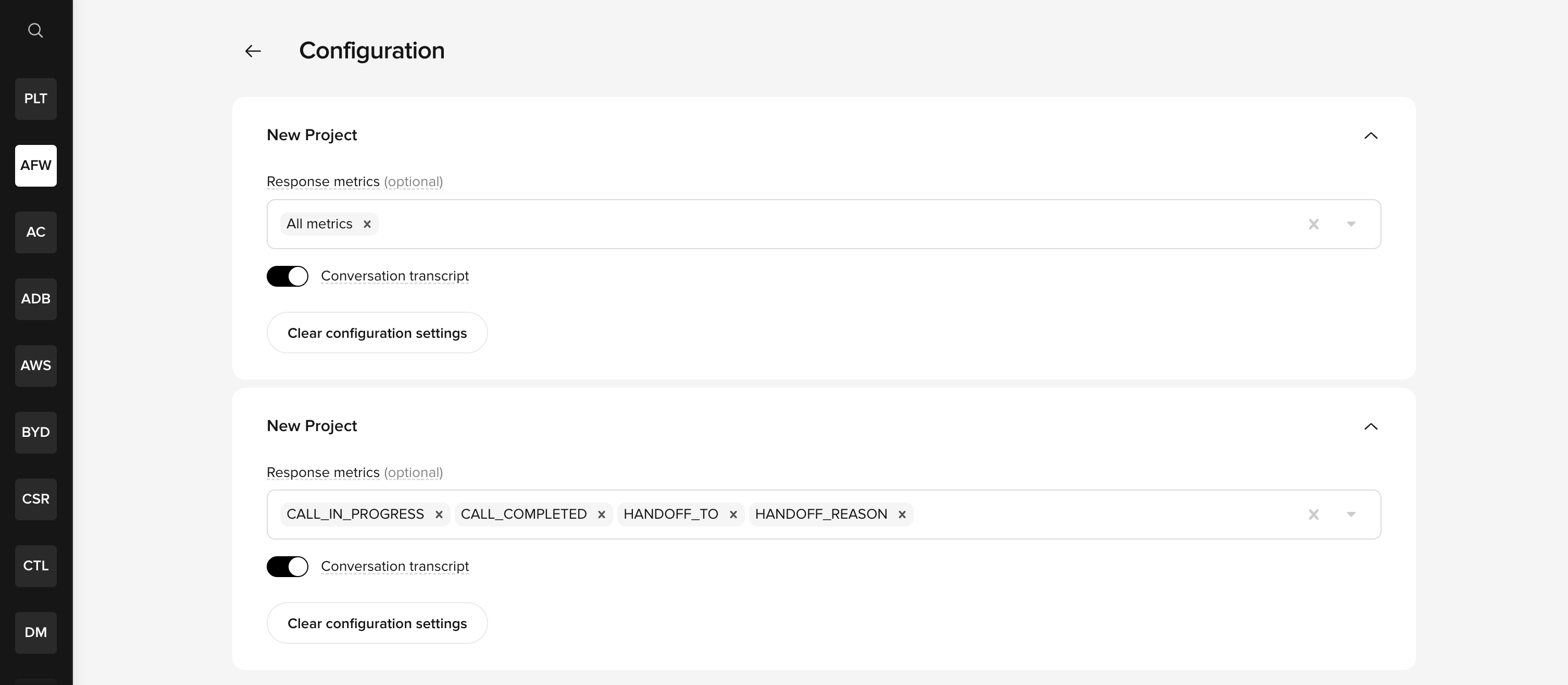 Metrics are configured at the **project level**, not per key. For data to appear in an API response, both conditions must be met: the API key must have the relevant permission **and** the project must have the metric enabled.
## Using your API key
Include the API key in the `x-api-key` header of your requests:
```bash theme={"theme":{"light":"github-light","dark":"github-dark"}}
curl -X GET "https://api.poly.ai/v3/conversations" \
-H "x-api-key: YOUR_API_KEY"
```
For detailed endpoint documentation, see the [API reference](/api-reference/introduction).
## Key lifecycle
* Keys have an **expiry date** set at creation time
* Expired keys stop working immediately
* You can delete keys at any time from the API Keys page
* There is no limit to the number of keys you can create
## Best practices
* Create separate keys for different integrations (e.g., one for your CRM, one for analytics)
* Use the most restrictive permissions needed for each integration
* Rotate keys periodically by creating a new key before deleting the old one
* Monitor key usage through your API response logs
## Related pages
Retrieve conversation metadata and transcripts programmatically.
Access handoff context and manage transitions.
Programmatically configure agents, variants, and deployments.
Send events to active conversations.
Metrics are configured at the **project level**, not per key. For data to appear in an API response, both conditions must be met: the API key must have the relevant permission **and** the project must have the metric enabled.
## Using your API key
Include the API key in the `x-api-key` header of your requests:
```bash theme={"theme":{"light":"github-light","dark":"github-dark"}}
curl -X GET "https://api.poly.ai/v3/conversations" \
-H "x-api-key: YOUR_API_KEY"
```
For detailed endpoint documentation, see the [API reference](/api-reference/introduction).
## Key lifecycle
* Keys have an **expiry date** set at creation time
* Expired keys stop working immediately
* You can delete keys at any time from the API Keys page
* There is no limit to the number of keys you can create
## Best practices
* Create separate keys for different integrations (e.g., one for your CRM, one for analytics)
* Use the most restrictive permissions needed for each integration
* Rotate keys periodically by creating a new key before deleting the old one
* Monitor key usage through your API response logs
## Related pages
Retrieve conversation metadata and transcripts programmatically.
Access handoff context and manage transitions.
Programmatically configure agents, variants, and deployments.
Send events to active conversations.