> ## Documentation Index
> Fetch the complete documentation index at: https://docs.poly.ai/llms.txt
> Use this file to discover all available pages before exploring further.

# Tutorial: Edit voice settings

> PolyAcademy Level 1 – Select a voice, configure tuning, and set up your disclaimer.

export const LessonMeta = ({level, difficulty, time}) => {
  const levelConfig = {
    1: {
      badge: 'bg-green-100 text-green-800 dark:bg-green-900 dark:text-green-200',
      label: 'Level 1'
    },
    2: {
      badge: 'bg-amber-100 text-amber-800 dark:bg-amber-900 dark:text-amber-200',
      label: 'Level 2'
    },
    3: {
      badge: 'bg-red-100 text-red-800 dark:bg-red-900 dark:text-red-200',
      label: 'Level 3'
    }
  };
  const difficultyConfig = {
    Beginner: 'bg-green-100 text-green-800 dark:bg-green-900 dark:text-green-200',
    Intermediate: 'bg-amber-100 text-amber-800 dark:bg-amber-900 dark:text-amber-200',
    Advanced: 'bg-red-100 text-red-800 dark:bg-red-900 dark:text-red-200'
  };
  const lvl = levelConfig[level] || levelConfig[1];
  const diffColor = difficultyConfig[difficulty] || difficultyConfig['Beginner'];
  return <div className="flex flex-wrap items-center gap-2 my-4 not-prose">
      <span className={`inline-flex items-center rounded-full px-2.5 py-0.5 text-xs font-semibold ${lvl.badge}`}>
        {lvl.label}
      </span>
      <span className={`inline-flex items-center rounded-full px-2.5 py-0.5 text-xs font-semibold ${diffColor}`}>
        {difficulty}
      </span>
      {time && <span className="inline-flex items-center gap-1 text-xs text-gray-500 dark:text-gray-400">
          <svg className="w-3.5 h-3.5" fill="none" viewBox="0 0 24 24" stroke="currentColor" strokeWidth={2}>
            <path strokeLinecap="round" strokeLinejoin="round" d="M12 6v6h4.5m4.5 0a9 9 0 11-18 0 9 9 0 0118 0z" />
          </svg>
          {time}
        </span>}
    </div>;
};

export const Quiz = ({questions = []}) => {
  const [selected, setSelected] = useState({});
  const [resetCount, setResetCount] = useState(0);
  const letters = ['A', 'B', 'C', 'D'];
  const handleSelect = (qIdx, optIdx) => {
    if (selected[qIdx] !== undefined) return;
    setSelected(prev => ({
      ...prev,
      [qIdx]: optIdx
    }));
  };
  const handleReset = () => {
    setSelected({});
    setResetCount(c => c + 1);
  };
  if (!questions?.length) return null;
  const getOptionClasses = ({hasAnswered, isThisCorrect, isThisSelected}) => {
    if (!hasAnswered) {
      return {
        btn: 'flex w-full items-center gap-3 py-2.5 px-4 rounded-xl text-sm leading-normal transition-all duration-150 text-left border cursor-pointer border-gray-200 bg-white text-gray-700 hover:border-gray-300 hover:bg-gray-50 hover:shadow-sm dark:border-gray-600 dark:bg-gray-800 dark:text-gray-200 dark:hover:border-gray-500 dark:hover:bg-gray-700',
        badge: 'w-6 h-6 rounded-full text-xs font-bold flex items-center justify-center shrink-0 leading-none transition-all duration-150 bg-gray-100 text-gray-500 dark:bg-gray-700 dark:text-gray-300',
        icon: null
      };
    }
    if (isThisCorrect) {
      return {
        btn: 'flex w-full items-center gap-3 py-2.5 px-4 rounded-xl text-sm leading-normal transition-all duration-150 text-left border cursor-default border-green-400 bg-green-50 text-green-900 font-medium dark:border-green-500 dark:bg-green-950 dark:text-green-100',
        badge: 'w-6 h-6 rounded-full text-xs font-bold flex items-center justify-center shrink-0 leading-none transition-all duration-150 bg-green-500 text-white dark:bg-green-500',
        icon: <svg className="shrink-0 w-4 h-4 text-green-500 dark:text-green-400 ml-auto" fill="none" viewBox="0 0 24 24" stroke="currentColor" strokeWidth={2.5}>
            <path strokeLinecap="round" strokeLinejoin="round" d="M4.5 12.75l6 6 9-13.5" />
          </svg>
      };
    }
    if (isThisSelected) {
      return {
        btn: 'flex w-full items-center gap-3 py-2.5 px-4 rounded-xl text-sm leading-normal transition-all duration-150 text-left border cursor-default border-red-400 bg-red-50 text-red-900 dark:border-red-500 dark:bg-red-950 dark:text-red-100',
        badge: 'w-6 h-6 rounded-full text-xs font-bold flex items-center justify-center shrink-0 leading-none transition-all duration-150 bg-red-500 text-white dark:bg-red-500',
        icon: <svg className="shrink-0 w-4 h-4 text-red-400 dark:text-red-400 ml-auto" fill="none" viewBox="0 0 24 24" stroke="currentColor" strokeWidth={2.5}>
            <path strokeLinecap="round" strokeLinejoin="round" d="M6 18L18 6M6 6l12 12" />
          </svg>
      };
    }
    return {
      btn: 'flex w-full items-center gap-3 py-2.5 px-4 rounded-xl text-sm leading-normal transition-all duration-150 text-left border cursor-default border-gray-100 bg-white text-gray-400 dark:border-gray-700 dark:bg-gray-800 dark:text-gray-500',
      badge: 'w-6 h-6 rounded-full text-xs font-bold flex items-center justify-center shrink-0 leading-none transition-all duration-150 bg-gray-100 text-gray-500 dark:bg-gray-700 dark:text-gray-500',
      icon: null
    };
  };
  return <div key={resetCount} className="my-6">
      {questions.map((q, qIdx) => {
    const answer = selected[qIdx];
    const hasAnswered = answer !== undefined;
    const isCorrect = answer === q.correct;
    return <div key={String(qIdx)} className="mb-8">
            <p className="flex items-start gap-2.5 font-semibold text-sm mb-3 mt-0 leading-relaxed text-gray-900 dark:text-gray-100">
              <span className="inline-flex items-center justify-center w-5 h-5 rounded-full bg-gray-800 dark:bg-gray-200 text-white dark:text-gray-900 text-xs font-bold shrink-0 mt-px leading-none">
                {qIdx + 1}
              </span>
              {q.q}
            </p>

            <div className="flex flex-col gap-2">
              {q.options.map((opt, i) => {
      const isThisCorrect = i === q.correct;
      const isThisSelected = i === answer;
      const {btn, badge, icon} = getOptionClasses({
        hasAnswered,
        isThisCorrect,
        isThisSelected
      });
      return <button key={String(i)} type="button" onClick={() => handleSelect(qIdx, i)} className={btn}>
                    <span className={badge}>{letters[i]}</span>
                    <span className="flex-1">{opt}</span>
                    {icon}
                  </button>;
    })}
            </div>

            {hasAnswered ? <div className={`mt-3 py-3 pl-4 pr-3.5 rounded-r-xl text-sm leading-relaxed border-l-4 ${isCorrect ? 'border-green-500 bg-green-50 dark:bg-green-950 dark:border-green-500' : 'border-red-500 bg-red-50 dark:bg-red-950 dark:border-red-500'}`}>
                <span className={`font-semibold ${isCorrect ? '!text-green-800 dark:!text-green-200' : '!text-red-800 dark:!text-red-200'}`}>
                  {isCorrect ? 'Correct.' : 'Not quite.'}
                </span>{' '}
                <span className="!text-gray-700 dark:!text-gray-300">{q.explanation}</span>
              </div> : null}
          </div>;
  })}

      <button type="button" onClick={handleReset} className="mt-1 text-xs text-gray-400 hover:text-gray-600 dark:hover:text-gray-300 underline underline-offset-2 cursor-pointer transition-colors duration-150">
        Reset quiz
      </button>
    </div>;
};

export const ProgressTracker = ({lessonNum, totalLessons, level}) => {
  const [checked, setChecked] = useState(false);
  return <div onClick={() => setChecked(prev => !prev)} className={checked ? 'flex items-center gap-3 p-4 rounded-lg border-2 border-green-600 bg-green-50 dark:bg-green-950 cursor-pointer select-none transition-all' : 'flex items-center gap-3 p-4 rounded-lg border-2 border-gray-200 dark:border-gray-600 bg-gray-50 dark:bg-gray-800 cursor-pointer select-none transition-all'}>
      <div className={checked ? 'w-5 h-5 rounded border-2 border-green-600 bg-green-600 flex items-center justify-center shrink-0 transition-all' : 'w-5 h-5 rounded border-2 border-gray-400 dark:border-gray-500 bg-white dark:bg-gray-800 flex items-center justify-center shrink-0 transition-all'}>
        {checked ? <svg width="10" height="8" viewBox="0 0 10 8" fill="none">
            <path d="M1 4L3.5 6.5L9 1" stroke="white" strokeWidth="2" strokeLinecap="round" strokeLinejoin="round" />
          </svg> : null}
      </div>
      <div>
        <div className={checked ? 'font-semibold text-sm text-green-700 dark:text-green-300' : 'font-semibold text-sm text-gray-700 dark:text-gray-200'}>
          {checked ? 'Lesson complete' : 'Mark lesson complete'}
        </div>
        {lessonNum && totalLessons ? <div className="text-xs text-gray-500 dark:text-gray-400 mt-0.5">
            {level ? level + ' - ' : ''}Lesson {lessonNum} of {totalLessons}
          </div> : null}
      </div>
    </div>;
};

**Lesson 4 of 6** – Your agent has a personality and knows things – now give it a voice. You'll pick how it sounds and adjust clarity and consistency.

<LessonMeta level={1} difficulty="Beginner" time="10 min" />

Complete this after behavior is stable but before call testing. The voice is what turns your chat-only agent into a real voice assistant.

## Where this lives

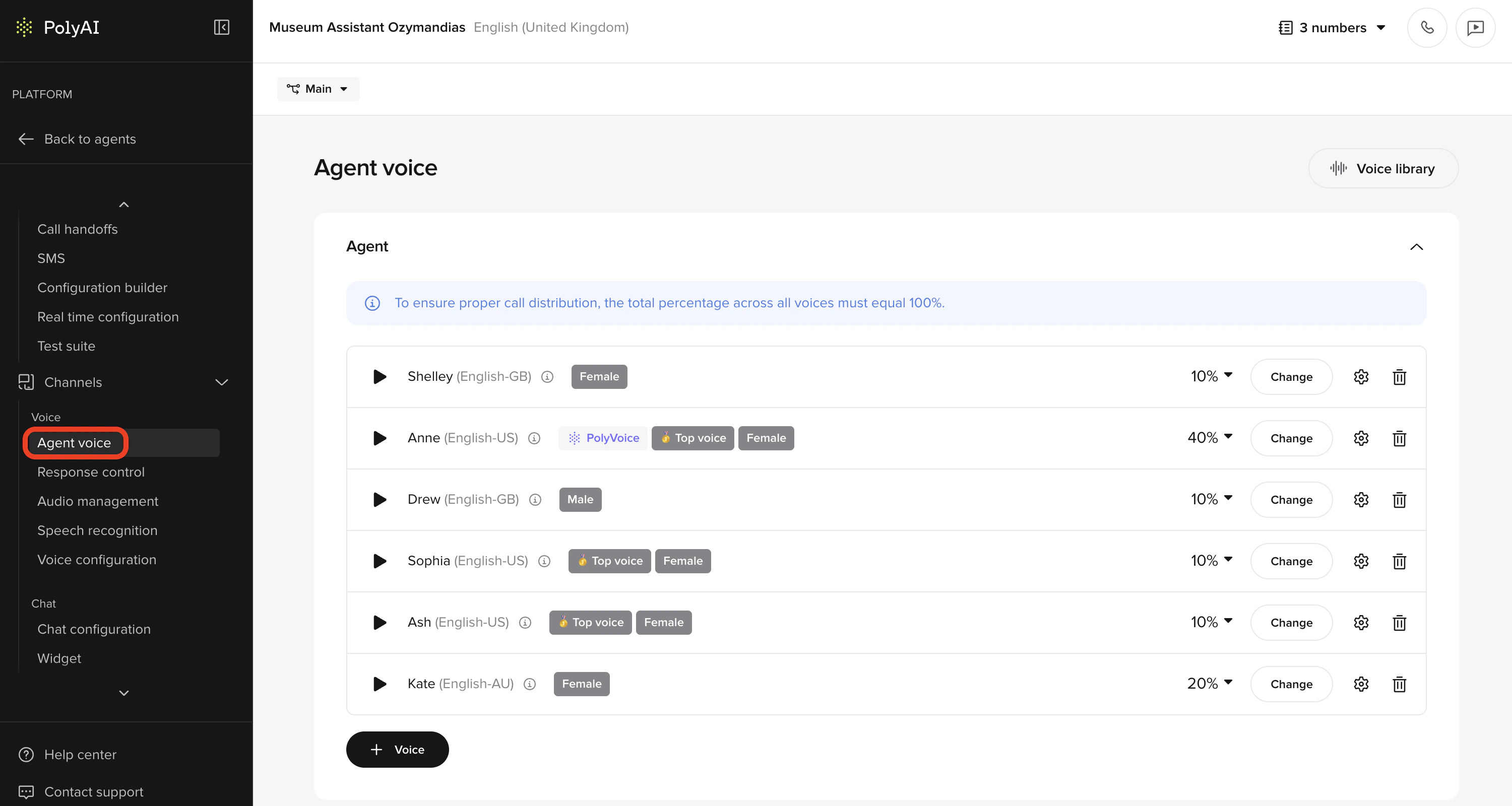
Navigate to **Voice > Agent**

<img src="https://mintcdn.com/polyai/5TqB0Il1JYn5J7QH/images/academy/voice-agentvoice.png?fit=max&auto=format&n=5TqB0Il1JYn5J7QH&q=85&s=8a2529a1e0ea1e07815119fb203cdf35" alt="set-up-project" width="3000" height="1600" data-path="images/academy/voice-agentvoice.png" />

You will see two configurable sections:

<CardGroup cols={2}>
  <Card title="Agent" icon="user">
    The primary speaking voice
  </Card>

  <Card title="Disclaimer" icon="triangle-exclamation">
    Used only for legal or informational disclosures (if enabled)
  </Card>
</CardGroup>

## What you are configuring

Each voice entry has three layers:

<Steps>
  <Step title="Voice selection">
    Who the agent sounds like
  </Step>

  <Step title="Weighting">
    If multiple voices are used, how they're distributed
  </Step>

  <Step title="Voice tuning">
    Stability, clarity, and speed adjustments
  </Step>
</Steps>

## Configure your Agent Voice

<Steps>
  <Step title="Select the Agent Voice">
    In the **Agent** section:

    * Click **Change** to open the [Voice Library](/voice-channel/voice-library)
    * Browse voices using the **Explore** or **Favorites** tabs
    * Filter by **Language**, **Region**, and **Gender**
    * Preview each voice using the play button or enter custom text

    Choose a voice that:

    * Matches your audience's expectations
    * Sounds neutral and professional
    * Remains pleasant over repeated listening

    Once selected, click **Select**.
  </Step>

  <Step title="(Optional) Add multiple agent voices">
    You can add more than one agent voice and split usage between them.

    * Click **New voice**
    * Select an additional voice
    * Assign a percentage weight (for example, 70% / 30%)

    <AccordionGroup>
      <Accordion title="When to use multiple voices" icon="users">
        - You want subtle variation across calls
        - You are testing two voices in parallel
        - Different voices for different scenarios
      </Accordion>
    </AccordionGroup>
  </Step>

  <Step title="Configure voice settings">
    Next to each voice, click the **Settings (gear)** icon to open advanced tuning.

    <Tabs>
      <Tab title="Stability (%)">
        Controls how consistent the voice sounds over time. Higher values keep tone and delivery more uniform across responses.

        * Higher = more predictable, less expressive

        **Recommended:** 0.7 or above for reliable performance.
      </Tab>

      <Tab title="Clarity and similarity (%)">
        Controls how close the generated voice is to the original recording. Higher values sound more realistic but may be less resilient to unexpected content.

        **Recommended ranges:**

        * Dynamic conversations: 80–95
        * Scripted or repetitive content: 95–100
      </Tab>
    </Tabs>

    Click **Done** to save settings.
  </Step>

  <Step title="Configure disclaimer voice (if enabled)">
    If your agent uses a disclaimer:

    * Expand the **Disclaimer** section
    * Select a voice (can be the same or different from the agent)

    **Best practices:**

    * Use a clear, neutral voice
    * Avoid expressive or casual tones
    * Keep speed slightly slower than the main agent

    **Example disclaimer text:**
    "This call may be recorded for quality and training purposes."
  </Step>

  <Step title="Publish changes">
    Once satisfied:

    * Click **Publish**
    * Changes will apply to the selected environment
  </Step>
</Steps>

## Check your understanding

<Quiz
  questions={[
{
q: "Your agent plays a recorded legal disclosure before every call. Which section of the Agent Voice page handles this?",
options: [
  "Agent – it controls all audio played during the call",
  "Disclaimer – it's designed for legal or informational pre-call recordings",
  "Behavior – legal requirements should be enforced there",
  "Environment settings – disclaimers apply per environment",
],
correct: 1,
explanation: "The Disclaimer section is designed for legal or informational recordings separate from the agent's main voice. Configure it only if your agent actually uses a disclaimer – otherwise leave it unconfigured.",
}
]}
/>

## Verify your voice settings

After publishing, make at least one test call and listen to:

<AccordionGroup>
  <Accordion title="Greeting" icon="hand-wave">
    * Voice sounds clear and welcoming
    * Pacing feels natural
    * No awkward pauses
  </Accordion>

  <Accordion title="Mid-call responses" icon="comments">
    * Voice remains consistent across turns
    * Responses flow naturally
    * No sudden changes in tone or speed
  </Accordion>

  <Accordion title="Longer responses" icon="phone-arrow-up-right">
    * Voice maintains professionalism throughout
    * Instructions are clear and easy to follow
    * Pacing allows for comprehension
  </Accordion>
</AccordionGroup>

<Check>
  **Success criteria:**

  * Voice sounds consistent throughout the call
  * No awkward pacing or unnatural pauses
  * Audio matches expectations across all conversation turns

  If the voice quality is not as expected, adjust **stability first**, then speed.
</Check>

## Check your understanding

<Quiz
  questions={[
{
q: "If the voice sounds off after publishing, what should you adjust first?",
options: [
  "Speed, then pitch",
  "Stability first, then speed",
  "Switch to a different voice model",
  "Pitch first, then stability",
],
correct: 1,
explanation: "Stability controls how consistent and predictable the voice sounds – it's the most impactful dial for basic quality issues. Adjust it first, then fine-tune speed if needed.",
}
]}
/>

## Try it yourself

<Steps>
  <Step title="Challenge: Choose settings for a hotel concierge">
    You are configuring voice for a luxury hotel concierge agent. Decide and explain:

    1. Should stability be higher or lower – and why?
    2. What clarity range would you use for natural guest conversations?
    3. Would you use a single voice or multiple voices for this agent?

    <Accordion title="Hint">
      For a luxury hotel, consistency and tone matter a lot. Think about what "professional" sounds like in audio – and what settings support that.
    </Accordion>

    <Accordion title="Example solution">
      1. **Stability:** High (0.8 or above). Luxury guests expect a consistent, predictable tone – not expressive variation.
      2. **Clarity:** 80–90. This range keeps the voice natural and conversational without being brittle to unexpected phrasing.
      3. **Single voice.** Multiple voices introduce inconsistency, which conflicts with a luxury brand expectation. Add a second voice only if you're specifically A/B testing.
    </Accordion>
  </Step>
</Steps>

## Check your understanding

<Quiz
  questions={[
{
q: "When should you configure a disclaimer voice?",
options: [
  "Always – it's a best practice for every agent",
  "Only if your agent uses a disclaimer (e.g. \"This call may be recorded\")",
  "Only on enterprise plans",
  "For each environment separately",
],
correct: 1,
explanation: "Only configure a disclaimer voice if your agent actually uses one. If your agent doesn't include a disclaimer, this section can be ignored entirely.",
}
]}
/>

## Go deeper

The Voice section of the Help Center covers everything from choosing voices to advanced multi-voice setups:

<CardGroup cols={3}>
  <Card title="Voice overview" icon="microphone" href="/voice-channel/introduction">
    Full reference for all voice configuration options
  </Card>

  <Card title="Voice Library" icon="record-vinyl" href="/voice-channel/voice-library">
    Browse and preview all available voices
  </Card>

  <Card title="Choosing a good voice" icon="ear-listen" href="/voice-channel/choosing-a-good-voice">
    Tips for picking the right voice for your use case
  </Card>
</CardGroup>

***

<CardGroup cols={2}>
  <Card title="← Previous: Add a simple topic" icon="arrow-left" href="/learn/guides/get-started/add-kb-topic">
    Lesson 3 of 6
  </Card>

  <Card title="Next: Environments & versions →" icon="arrow-right" href="/learn/guides/get-started/environments">
    Lesson 5 – learn to test safely before going live
  </Card>
</CardGroup>

<ProgressTracker lessonKey="l1-4-voice-settings" lessonNum={4} totalLessons={6} level="Level 1" />
