> ## Documentation Index
> Fetch the complete documentation index at: https://docs.poly.ai/llms.txt
> Use this file to discover all available pages before exploring further.

# Tutorial: Conversation reviews

> PolyAcademy Level 1 – Review transcripts, check topic citations, and diagnose agent behavior.

export const LessonMeta = ({level, difficulty, time}) => {
  const levelConfig = {
    1: {
      badge: 'bg-green-100 text-green-800 dark:bg-green-900 dark:text-green-200',
      label: 'Level 1'
    },
    2: {
      badge: 'bg-amber-100 text-amber-800 dark:bg-amber-900 dark:text-amber-200',
      label: 'Level 2'
    },
    3: {
      badge: 'bg-red-100 text-red-800 dark:bg-red-900 dark:text-red-200',
      label: 'Level 3'
    }
  };
  const difficultyConfig = {
    Beginner: 'bg-green-100 text-green-800 dark:bg-green-900 dark:text-green-200',
    Intermediate: 'bg-amber-100 text-amber-800 dark:bg-amber-900 dark:text-amber-200',
    Advanced: 'bg-red-100 text-red-800 dark:bg-red-900 dark:text-red-200'
  };
  const lvl = levelConfig[level] || levelConfig[1];
  const diffColor = difficultyConfig[difficulty] || difficultyConfig['Beginner'];
  return <div className="flex flex-wrap items-center gap-2 my-4 not-prose">
      <span className={`inline-flex items-center rounded-full px-2.5 py-0.5 text-xs font-semibold ${lvl.badge}`}>
        {lvl.label}
      </span>
      <span className={`inline-flex items-center rounded-full px-2.5 py-0.5 text-xs font-semibold ${diffColor}`}>
        {difficulty}
      </span>
      {time && <span className="inline-flex items-center gap-1 text-xs text-gray-500 dark:text-gray-400">
          <svg className="w-3.5 h-3.5" fill="none" viewBox="0 0 24 24" stroke="currentColor" strokeWidth={2}>
            <path strokeLinecap="round" strokeLinejoin="round" d="M12 6v6h4.5m4.5 0a9 9 0 11-18 0 9 9 0 0118 0z" />
          </svg>
          {time}
        </span>}
    </div>;
};

export const Quiz = ({questions = []}) => {
  const [selected, setSelected] = useState({});
  const [resetCount, setResetCount] = useState(0);
  const letters = ['A', 'B', 'C', 'D'];
  const handleSelect = (qIdx, optIdx) => {
    if (selected[qIdx] !== undefined) return;
    setSelected(prev => ({
      ...prev,
      [qIdx]: optIdx
    }));
  };
  const handleReset = () => {
    setSelected({});
    setResetCount(c => c + 1);
  };
  if (!questions?.length) return null;
  const getOptionClasses = ({hasAnswered, isThisCorrect, isThisSelected}) => {
    if (!hasAnswered) {
      return {
        btn: 'flex w-full items-center gap-3 py-2.5 px-4 rounded-xl text-sm leading-normal transition-all duration-150 text-left border cursor-pointer border-gray-200 bg-white text-gray-700 hover:border-gray-300 hover:bg-gray-50 hover:shadow-sm dark:border-gray-600 dark:bg-gray-800 dark:text-gray-200 dark:hover:border-gray-500 dark:hover:bg-gray-700',
        badge: 'w-6 h-6 rounded-full text-xs font-bold flex items-center justify-center shrink-0 leading-none transition-all duration-150 bg-gray-100 text-gray-500 dark:bg-gray-700 dark:text-gray-300',
        icon: null
      };
    }
    if (isThisCorrect) {
      return {
        btn: 'flex w-full items-center gap-3 py-2.5 px-4 rounded-xl text-sm leading-normal transition-all duration-150 text-left border cursor-default border-green-400 bg-green-50 text-green-900 font-medium dark:border-green-500 dark:bg-green-950 dark:text-green-100',
        badge: 'w-6 h-6 rounded-full text-xs font-bold flex items-center justify-center shrink-0 leading-none transition-all duration-150 bg-green-500 text-white dark:bg-green-500',
        icon: <svg className="shrink-0 w-4 h-4 text-green-500 dark:text-green-400 ml-auto" fill="none" viewBox="0 0 24 24" stroke="currentColor" strokeWidth={2.5}>
            <path strokeLinecap="round" strokeLinejoin="round" d="M4.5 12.75l6 6 9-13.5" />
          </svg>
      };
    }
    if (isThisSelected) {
      return {
        btn: 'flex w-full items-center gap-3 py-2.5 px-4 rounded-xl text-sm leading-normal transition-all duration-150 text-left border cursor-default border-red-400 bg-red-50 text-red-900 dark:border-red-500 dark:bg-red-950 dark:text-red-100',
        badge: 'w-6 h-6 rounded-full text-xs font-bold flex items-center justify-center shrink-0 leading-none transition-all duration-150 bg-red-500 text-white dark:bg-red-500',
        icon: <svg className="shrink-0 w-4 h-4 text-red-400 dark:text-red-400 ml-auto" fill="none" viewBox="0 0 24 24" stroke="currentColor" strokeWidth={2.5}>
            <path strokeLinecap="round" strokeLinejoin="round" d="M6 18L18 6M6 6l12 12" />
          </svg>
      };
    }
    return {
      btn: 'flex w-full items-center gap-3 py-2.5 px-4 rounded-xl text-sm leading-normal transition-all duration-150 text-left border cursor-default border-gray-100 bg-white text-gray-400 dark:border-gray-700 dark:bg-gray-800 dark:text-gray-500',
      badge: 'w-6 h-6 rounded-full text-xs font-bold flex items-center justify-center shrink-0 leading-none transition-all duration-150 bg-gray-100 text-gray-500 dark:bg-gray-700 dark:text-gray-500',
      icon: null
    };
  };
  return <div key={resetCount} className="my-6">
      {questions.map((q, qIdx) => {
    const answer = selected[qIdx];
    const hasAnswered = answer !== undefined;
    const isCorrect = answer === q.correct;
    return <div key={String(qIdx)} className="mb-8">
            <p className="flex items-start gap-2.5 font-semibold text-sm mb-3 mt-0 leading-relaxed text-gray-900 dark:text-gray-100">
              <span className="inline-flex items-center justify-center w-5 h-5 rounded-full bg-gray-800 dark:bg-gray-200 text-white dark:text-gray-900 text-xs font-bold shrink-0 mt-px leading-none">
                {qIdx + 1}
              </span>
              {q.q}
            </p>

            <div className="flex flex-col gap-2">
              {q.options.map((opt, i) => {
      const isThisCorrect = i === q.correct;
      const isThisSelected = i === answer;
      const {btn, badge, icon} = getOptionClasses({
        hasAnswered,
        isThisCorrect,
        isThisSelected
      });
      return <button key={String(i)} type="button" onClick={() => handleSelect(qIdx, i)} className={btn}>
                    <span className={badge}>{letters[i]}</span>
                    <span className="flex-1">{opt}</span>
                    {icon}
                  </button>;
    })}
            </div>

            {hasAnswered ? <div className={`mt-3 py-3 pl-4 pr-3.5 rounded-r-xl text-sm leading-relaxed border-l-4 ${isCorrect ? 'border-green-500 bg-green-50 dark:bg-green-950 dark:border-green-500' : 'border-red-500 bg-red-50 dark:bg-red-950 dark:border-red-500'}`}>
                <span className={`font-semibold ${isCorrect ? '!text-green-800 dark:!text-green-200' : '!text-red-800 dark:!text-red-200'}`}>
                  {isCorrect ? 'Correct.' : 'Not quite.'}
                </span>{' '}
                <span className="!text-gray-700 dark:!text-gray-300">{q.explanation}</span>
              </div> : null}
          </div>;
  })}

      <button type="button" onClick={handleReset} className="mt-1 text-xs text-gray-400 hover:text-gray-600 dark:hover:text-gray-300 underline underline-offset-2 cursor-pointer transition-colors duration-150">
        Reset quiz
      </button>
    </div>;
};

export const ProgressTracker = ({lessonNum, totalLessons, level}) => {
  const [checked, setChecked] = useState(false);
  return <div onClick={() => setChecked(prev => !prev)} className={checked ? 'flex items-center gap-3 p-4 rounded-lg border-2 border-green-600 bg-green-50 dark:bg-green-950 cursor-pointer select-none transition-all' : 'flex items-center gap-3 p-4 rounded-lg border-2 border-gray-200 dark:border-gray-600 bg-gray-50 dark:bg-gray-800 cursor-pointer select-none transition-all'}>
      <div className={checked ? 'w-5 h-5 rounded border-2 border-green-600 bg-green-600 flex items-center justify-center shrink-0 transition-all' : 'w-5 h-5 rounded border-2 border-gray-400 dark:border-gray-500 bg-white dark:bg-gray-800 flex items-center justify-center shrink-0 transition-all'}>
        {checked ? <svg width="10" height="8" viewBox="0 0 10 8" fill="none">
            <path d="M1 4L3.5 6.5L9 1" stroke="white" strokeWidth="2" strokeLinecap="round" strokeLinejoin="round" />
          </svg> : null}
      </div>
      <div>
        <div className={checked ? 'font-semibold text-sm text-green-700 dark:text-green-300' : 'font-semibold text-sm text-gray-700 dark:text-gray-200'}>
          {checked ? 'Lesson complete' : 'Mark lesson complete'}
        </div>
        {lessonNum && totalLessons ? <div className="text-xs text-gray-500 dark:text-gray-400 mt-0.5">
            {level ? level + ' - ' : ''}Lesson {lessonNum} of {totalLessons}
          </div> : null}
      </div>
    </div>;
};

<Info>
  **Lesson 6 of 6** – Last step! You'll learn how to look at real conversations and figure out whether your agent did the right thing – and what to fix if it didn't.
</Info>

<LessonMeta level={1} difficulty="Beginner" time="10 min" />

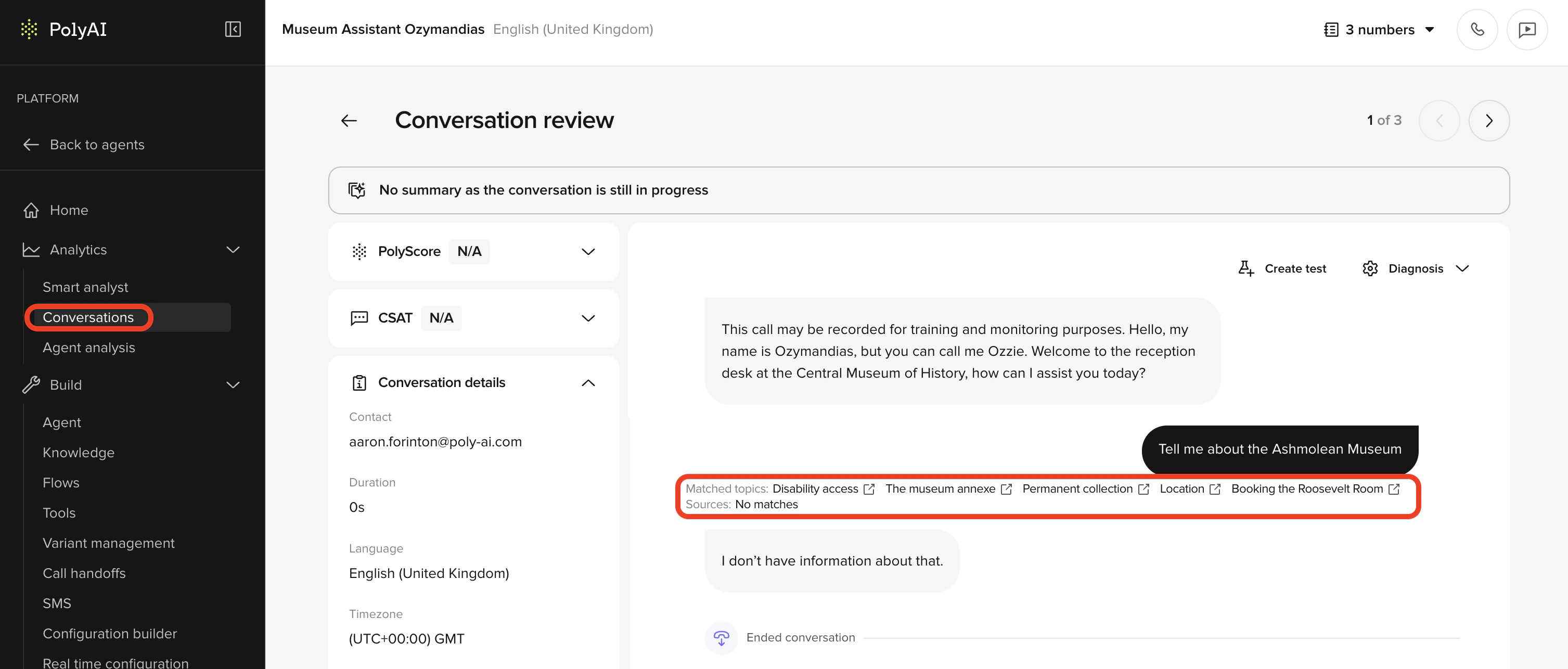
[Conversation Review](/analytics/conversations/review) is where you see exactly what happened: what the user said, how the agent responded, and which topic it used. This is your debugging tool.

## What conversation review is for (level 1)

At this stage, use [Conversation Review](/analytics/conversations/review) to answer simple but critical questions:

<CardGroup cols={2}>
  <Card title="Understanding" icon="brain">
    Did the agent understand the user?
  </Card>

  <Card title="Topic matching" icon="bullseye">
    Did it answer from the right Managed Topic?
  </Card>

  <Card title="Escalation" icon="phone-arrow-up-right">
    Did it escalate or hand off when expected?
  </Card>

  <Card title="Errors" icon="triangle-exclamation">
    Did anything obviously go wrong?
  </Card>
</CardGroup>

<img src="https://mintcdn.com/polyai/5TqB0Il1JYn5J7QH/images/academy/conv-review-citations.png?fit=max&auto=format&n=5TqB0Il1JYn5J7QH&q=85&s=ec1e113631e22f63f1bfcd916064f34d" alt="overview" width="3014" height="1286" data-path="images/academy/conv-review-citations.png" />

<Note>
  You are not tuning behavior yet. You are confirming that the basics work.
</Note>

## Starting in Conversations

Begin on the **Conversations** page.

This table lists all interactions across Chat and Call.

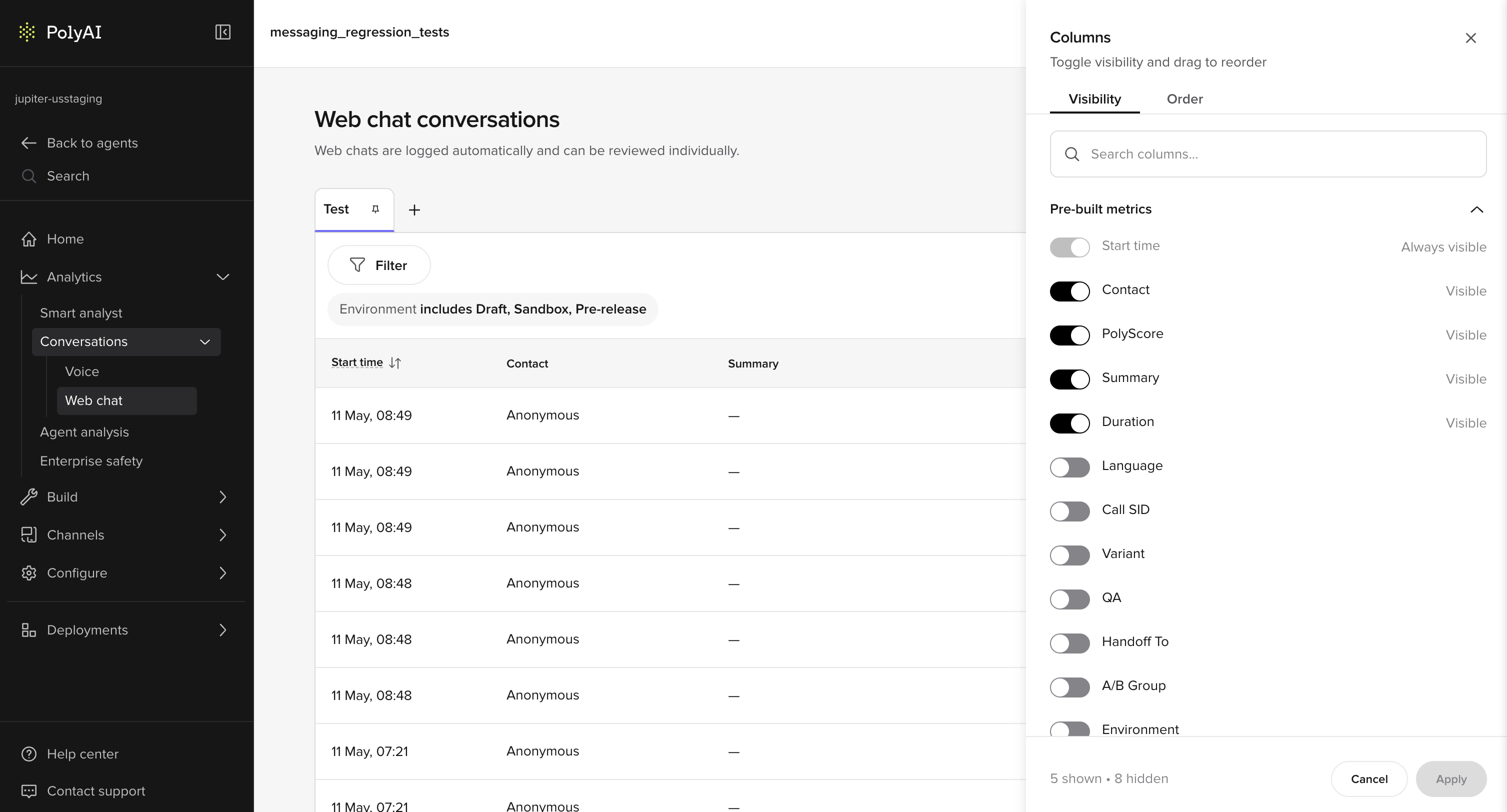
Focus on these columns:

* **Status**: Live or Ended
* **Summary**: High-level intent label
* **Start time**: Helps align with test runs
* **Contact**: Phone number or user identifier
* **Duration**: Longer calls often signal confusion
* **PolyScore** (if enabled): Quick quality indicator

Use **Column** to add helpful columns:

* Environment
* Variant
* Handoff reason
* Tool call

This makes basic issues easier to spot without opening every conversation.

<img src="https://mintcdn.com/polyai/rSFEoR-hN0C8DJ2I/images/analytics/conv-review-columns-visibility.png?fit=max&auto=format&n=rSFEoR-hN0C8DJ2I&q=85&s=f70df791a157d53f0b0adbc6df972003" alt="Columns panel Visibility tab showing toggleable pre-built metric columns" width="3014" height="1624" data-path="images/analytics/conv-review-columns-visibility.png" />

## Filtering during testing

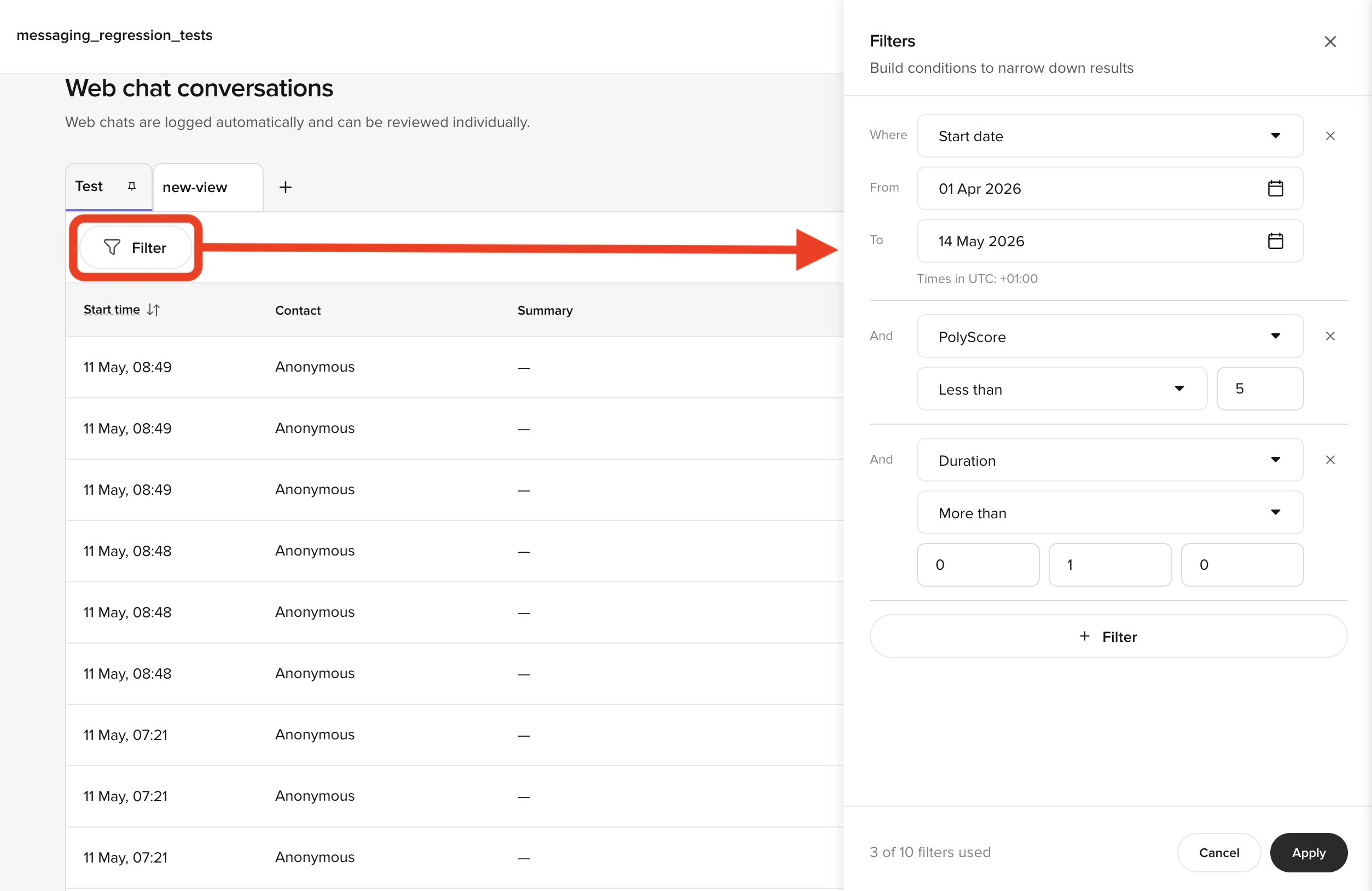
Use **Filter** to narrow your view.

Common Level 1 filters:

* Environment = Sandbox
* Start date = Today
* Duration > 60 seconds
* Status = Ended

> Example:
> Filter to *Sandbox + Duration > 90s* to find conversations where the agent struggled.
<img src="https://mintcdn.com/polyai/rSFEoR-hN0C8DJ2I/images/analytics/conv-review-filters.png?fit=max&auto=format&n=rSFEoR-hN0C8DJ2I&q=85&s=98b8011e1bf4f67b8f8e8e4fc5b9c7fd" alt="Filter builder showing environment, date, and duration conditions" width="2508" height="1628" data-path="images/analytics/conv-review-filters.png" />

## Opening a conversation

Clicking a row opens the **Conversation Review** side panel on the right. The header shows the contact, timestamp, channel type, and language, and the panel has four tabs:

1. **Transcription** — the turn-by-turn transcript, the **Diagnosis** toggle group, and (for voice) the audio waveform.
2. **Scores** — PolyScore and CSAT badges with per-dimension breakdowns.
3. **Details** — call info (environment, variant, duration), pre-built metrics, and links to latency visualization and data logs.
4. **Custom metrics** — any [custom metrics](/analytics/kpis/introduction) configured for your project.

At Level 1, focus primarily on the **transcript** and **matched topics** on the Transcription tab.

<img src="https://mintcdn.com/polyai/rSFEoR-hN0C8DJ2I/images/analytics/conv-review-side-panel.png?fit=max&auto=format&n=rSFEoR-hN0C8DJ2I&q=85&s=06bf93e0259b62e80ef89fdf9169190d" alt="Conversation Review side panel open showing the Transcription tab and agent-caller transcript" width="2490" height="1026" data-path="images/analytics/conv-review-side-panel.png" />

## Reading the transcript

The transcript shows the conversation turn by turn.

For each turn, check:

* What the user said (ASR text)
* How the agent responded
* Which Managed Topic was matched (shown beneath the turn)

> Example:
> User: "late checkout"
>
> Matched topic: `late_checkout_policy`

This is the expected outcome. If the wrong topic appears, the issue is almost always in Managed Topic naming or sample questions.

## Check your understanding

<Quiz
  questions={[
{
q: "The agent answered a question about parking correctly, but you suspect it used the wrong Managed Topic. Where do you check which topic actually triggered?",
options: [
  "In the transcript – matched topics appear beneath each turn, so you can see the exact topic used",
  "On the Details tab of the side panel, which lists all topics accessed",
  "In the agent's Behavior configuration, which logs topic matches",
  "In the Environments page version history, which tracks topic usage",
],
correct: 0,
explanation: "The transcript shows matched topics beneath each turn. If the agent answered correctly but the wrong topic triggered, you need to fix the topic content or retrieval – the answer might break for different phrasings later.",
}
]}
/>

## Matched topics

Matched topics are your primary signal at this level.

Use them to confirm:

* The correct topic was selected
* Similar topics are not competing
* The topic name reflects the intent clearly

> Example:
> The agent answers about billing, but the matched topic is `general_help`.
>
> This indicates a Managed Topic design problem, not a phrasing issue.

## Confirming context on the Details tab

Open the **Details** tab in the side panel to confirm you're reviewing the right conversation.

Check:

* Environment (Sandbox vs Live)
* Channel (Web chat or Voice)
* Language and locale (also visible in the panel header)
* Duration
* Variant (if applicable)

This helps ensure you are reviewing the correct test and not a different version of the agent.

## Basic diagnosis toggles

At Level 1, you only need a small subset of diagnosis tools.

### Topic citations

Use this to confirm which KB topic was used for each response.

If the agent answers correctly but cites the wrong topic, fix the KB before proceeding.

### Tool calls (preview)

<Note>
  Functions, SMS, and handoffs are covered in [Level 2](/learn/guides/advanced/using-tools). At Level 1, you likely don't have any functions yet. If your project does use them, this toggle shows whether actions fired – but you don't need it for basic diagnosis.
</Note>

## Audio playback (Calls only)

For call channels, use audio playback to:

* Confirm ASR quality
* Hear how long responses feel when spoken
* Check whether users interrupt the agent

Split audio is especially useful for hearing the caller clearly.

## Annotations

Annotations let you flag issues directly from the review page.

At Level 1, use:

* **Wrong transcription** → ASR problem
* **Missing topic** → KB gap

Annotations help you build a clear list of fixes instead of relying on memory.

## What good looks like

After a review session you can say:

* The agent selected the correct KB topic
* Responses matched the questions
* Escalation was reasonable
* Any problems trace to KB or ASR

If you can't clearly state *what to fix*, simplify before adding complexity.

## Check your understanding

<Quiz
  questions={[
{
q: "What is your primary diagnostic signal at Level 1?",
options: [
  "The transcript text",
  "The audio recording",
  "Matched topics",
  "Response latency",
],
correct: 2,
explanation: "Matched topics tell you whether the agent selected the right Managed Topic for each response – the most important thing to verify at this stage of your learning.",
}
]}
/>

## Before level 2

* You can explain each response in plain terms
* You can identify KB vs ASR issues
* The agent behaves consistently in Sandbox

## Try it yourself

<Steps>
  <Step title="Challenge: Diagnose a mismatch">
    A user asked "do you accept dogs?" and the matched topic in Conversation Review shows `general_help` instead of `pet_policy`.

    Answer:

    1. What is the most likely cause?
    2. How would you fix it?
    3. How would you verify the fix worked?

    <Accordion title="Hint">
      The agent responded but used the wrong topic. This is a retrieval problem, not an ASR problem – ASR transcribed the question correctly. Think about what drives topic selection.
    </Accordion>

    <Accordion title="Example solution">
      1. **Most likely cause:** The `pet_policy` topic's name is too vague or its sample questions don't include "dogs", "pets", or "animals" – so `general_help` was a closer match.
      2. **Fix:** Rename the topic to `pet_policy` if it isn't already, and add sample questions like "do you accept dogs", "are pets allowed", "can I bring my cat". Ensure `general_help` doesn't have overlapping sample questions.
      3. **Verify:** In Chat, ask "do you accept dogs?" and check that the topic citation now shows `pet_policy`. Test several phrasings and confirm the topic is consistent.
    </Accordion>
  </Step>
</Steps>

## Check your understanding

<Quiz
  questions={[
{
q: "The agent answers a billing question, but the matched topic is 'general_help'. What does this most likely indicate?",
options: [
  "An ASR error – the words were misheard",
  "A phrasing issue – the user used unusual language",
  "A Managed Topic design problem",
  "A network latency spike during retrieval",
],
correct: 2,
explanation: "A Managed Topic design problem – either the billing topic's name is too generic, or its sample questions don't match how users actually phrase billing questions. This is not an ASR or phrasing issue.",
}
]}
/>

## Go deeper

The Analytics section covers conversations, diagnostics, and scoring in full detail:

<CardGroup cols={3}>
  <Card title="Conversation Review" icon="magnifying-glass" href="/analytics/conversations/review">
    Full reference for the review interface and all available tools
  </Card>

  <Card title="Annotations" icon="pen-to-square" href="/analytics/conversations/annotations">
    How to flag and categorize issues you find during review
  </Card>

  <Card title="Diagnosis tools" icon="stethoscope" href="/analytics/conversations/diagnosis">
    Advanced diagnostic toggles – covered in detail in Level 2
  </Card>
</CardGroup>

***

<CardGroup cols={2}>
  <Card title="← Previous: Environments & versions" icon="arrow-left" href="/learn/guides/get-started/environments">
    Lesson 5 of 6
  </Card>

  <Card title="Level 1 complete →" icon="trophy" href="/learn/guides/get-started/finished">
    You made it – recap and next steps
  </Card>
</CardGroup>

<ProgressTracker lessonKey="l1-6-conv-review" lessonNum={6} totalLessons={6} level="Level 1" />
