> ## Documentation Index
> Fetch the complete documentation index at: https://docs.poly.ai/llms.txt
> Use this file to discover all available pages before exploring further.
# Zoom
> Connect your PolyAI agent to Zoom Phone and Zoom Contact Center as a native third-party voice agent.
This integration is in beta. Contact your PolyAI account manager to check availability for your org.
Connect PolyAI to **Zoom Phone** or **Zoom Contact Center (ZCC)** as a native third-party Voice Agent through the **PolyAI App** in the Zoom App Marketplace. The app is built on Zoom's Voice Framework, so there's no shared SIP trunk to negotiate.
## Prerequisites
* Admin access to the Zoom App Marketplace
* Admin access to Zoom Phone System Management or Zoom Contact Center Management, depending on which product you're connecting
* Confirmation from your PolyAI account manager that the integration is enabled for your org
## Quick setup
Installing the app is shared across both Zoom Phone and Zoom Contact Center.
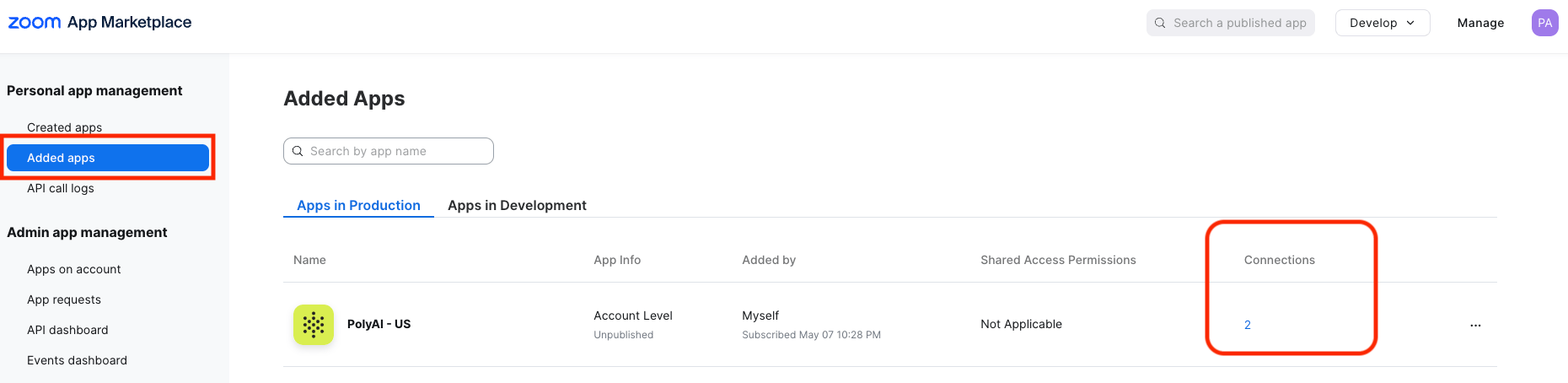
Go to **Advanced > App Marketplace** and install the **PolyAI App**.
Under the installed app, click the number shown under **Connections** (defaults to 1). You typically want **2 connections** — one for **live**, one for **pre-release** — named so it's obvious which is which.
A single connection can serve both Zoom Phone and Zoom Contact Center; each gets its own "To Number".
Recommendation: **one connection per AI Agent, per environment**. You don't need one connection per phone number, and you'll rarely need more than 2 connections total.
 ## Setup
### Virtual Agent setup
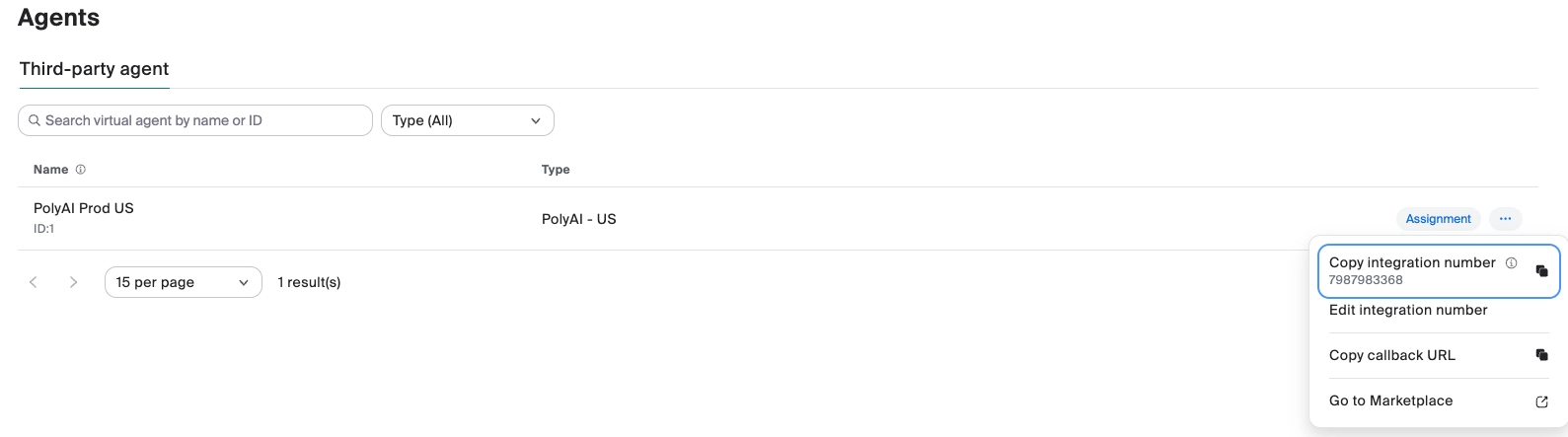
1. Go to **Phone System Management > Agents**.
2. Open the agent to view the number that will be passed to PolyAI.
3. Provide the numbers to PolyAI and specify which is **live** and which is **pre-release**.
The **Callback URL** field is only needed if PolyAI passes data directly back to Zoom Phone. You can skip it if you're using the PolyAI Screen Pop app.
## Setup
### Virtual Agent setup
1. Go to **Phone System Management > Agents**.
2. Open the agent to view the number that will be passed to PolyAI.
3. Provide the numbers to PolyAI and specify which is **live** and which is **pre-release**.
The **Callback URL** field is only needed if PolyAI passes data directly back to Zoom Phone. You can skip it if you're using the PolyAI Screen Pop app.
 ### Add the Virtual Agent to an Auto Receptionist
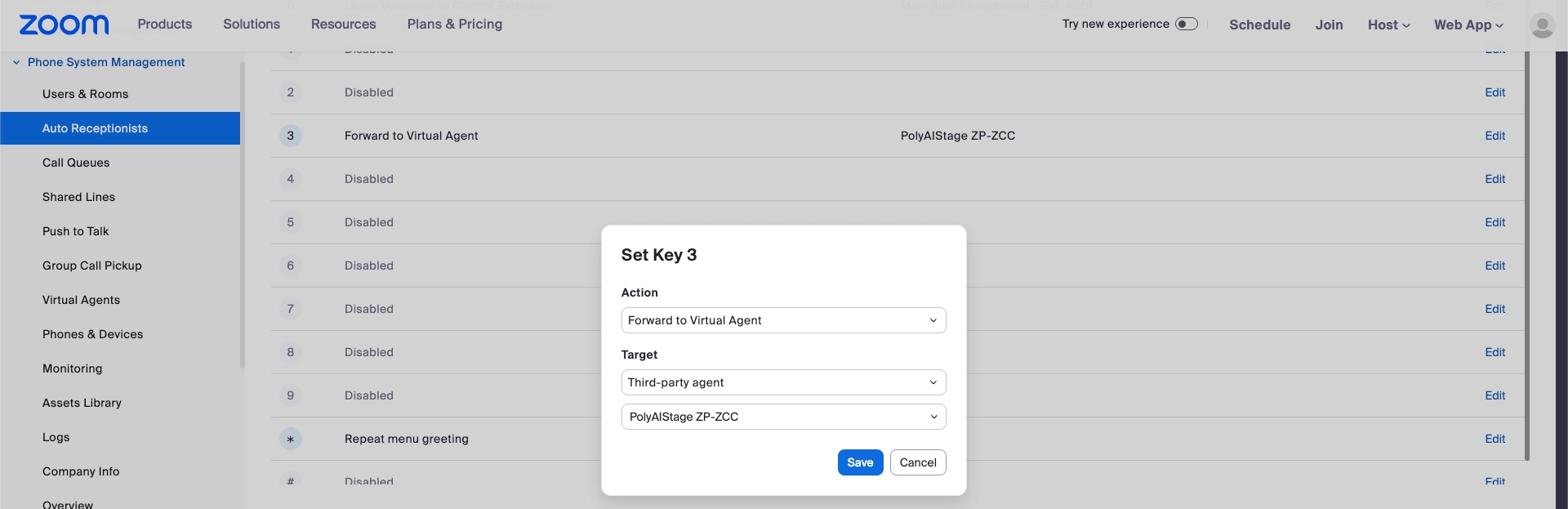
Under the appropriate key press:
1. Select **Virtual Agent**.
2. Select **Third-party Agent**.
3. Choose the agent named after the connection you created above.
### Add the Virtual Agent to an Auto Receptionist
Under the appropriate key press:
1. Select **Virtual Agent**.
2. Select **Third-party Agent**.
3. Choose the agent named after the connection you created above.
 ### Data Zoom Phone passes to PolyAI
Zoom Phone sends an `X-ZOOM-Call-SID` header (also sent by ZCC, so you can use it to distinguish the two call sources).
On Zoom Phone, the `From` number does not carry the original ANI. The original calling number arrives in the `X-ZOOM-ORIGINAL-CALLING-NUMBER` header instead.
| Purpose | Header |
| ----------------------------- | -------------------------------- |
| Call session ID | `X-ZOOM-Call-SID` |
| Original calling number (ANI) | `X-ZOOM-ORIGINAL-CALLING-NUMBER` |
| Forwarding number | `X-ZOOM-FORWARDING-NUMBER` |
| Forwarding extension | `X-ZOOM-FORWARDING-EXTENSION` |
| Transfer number | `X-ZOOM-TRANSFER-NUMBER` |
### Returning calls from PolyAI to Zoom Phone
PolyAI hands calls back via SIP REFER/transfer to the appropriate Zoom extension, then drops off the call. The refer target format is `@:5061`.
### Screen pop / handoff data
Two options for presenting handoff data to the receiving Zoom Phone user:
* **PolyAI Zoom Handoff App** — a Zoom app that acts as a screen-pop facility, securely surfacing PolyAI handoff data to the agent.
* **Zoom Webhook** — Zoom Phone can pass data back via webhook. Viewing this data may require a **Power Pack license**, and the payload format is pre defined.
### Connectors
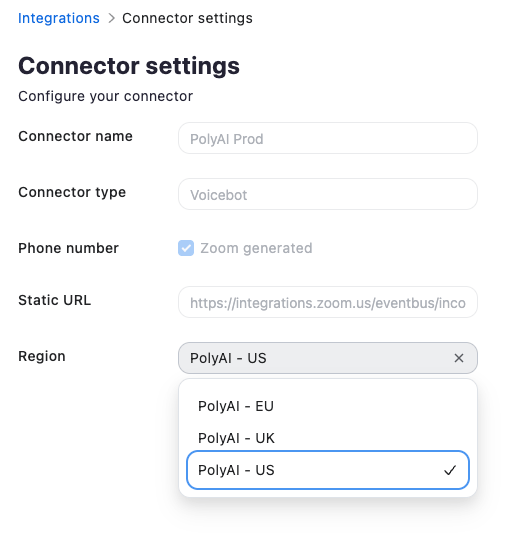
1. Go to **Contact Center Management > Integrations > Connectors**.
2. Click **(...)** next to the connector and select **View connector settings**.
3. Select the correct region for your connector.
4. Copy the **Static URL** — this lets PolyAI pass a rich data payload back to ZCC.
### Data Zoom Phone passes to PolyAI
Zoom Phone sends an `X-ZOOM-Call-SID` header (also sent by ZCC, so you can use it to distinguish the two call sources).
On Zoom Phone, the `From` number does not carry the original ANI. The original calling number arrives in the `X-ZOOM-ORIGINAL-CALLING-NUMBER` header instead.
| Purpose | Header |
| ----------------------------- | -------------------------------- |
| Call session ID | `X-ZOOM-Call-SID` |
| Original calling number (ANI) | `X-ZOOM-ORIGINAL-CALLING-NUMBER` |
| Forwarding number | `X-ZOOM-FORWARDING-NUMBER` |
| Forwarding extension | `X-ZOOM-FORWARDING-EXTENSION` |
| Transfer number | `X-ZOOM-TRANSFER-NUMBER` |
### Returning calls from PolyAI to Zoom Phone
PolyAI hands calls back via SIP REFER/transfer to the appropriate Zoom extension, then drops off the call. The refer target format is `@:5061`.
### Screen pop / handoff data
Two options for presenting handoff data to the receiving Zoom Phone user:
* **PolyAI Zoom Handoff App** — a Zoom app that acts as a screen-pop facility, securely surfacing PolyAI handoff data to the agent.
* **Zoom Webhook** — Zoom Phone can pass data back via webhook. Viewing this data may require a **Power Pack license**, and the payload format is pre defined.
### Connectors
1. Go to **Contact Center Management > Integrations > Connectors**.
2. Click **(...)** next to the connector and select **View connector settings**.
3. Select the correct region for your connector.
4. Copy the **Static URL** — this lets PolyAI pass a rich data payload back to ZCC.
 ### Add the AI Agent to a Flow
1. Go to **Contact Center Management > Flows**.
2. Open the flow you want the AI Agent to serve.
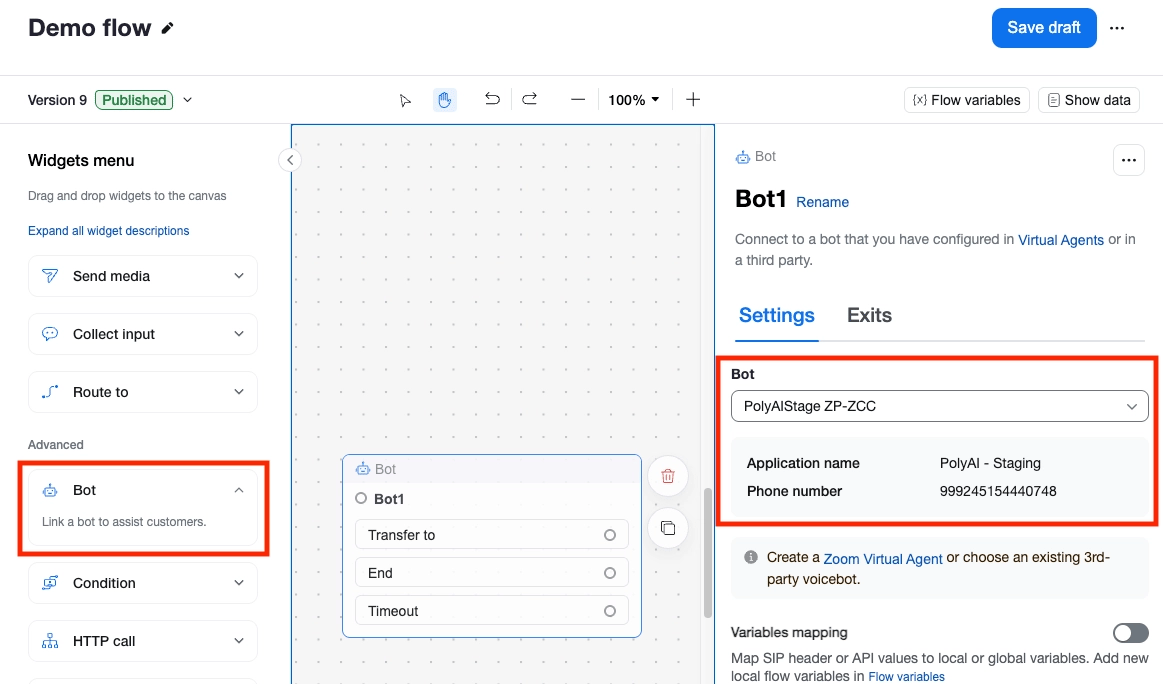
3. From the **Widgets** menu, under **Advanced**, drag a **Bot** widget onto the canvas.
4. Set the **Phone Number** on the widget, and tell PolyAI whether it's the **live** or **pre-release** environment.
Wire the **Timeout** branch to a fallback destination in case the call can't reach PolyAI.
### Add the AI Agent to a Flow
1. Go to **Contact Center Management > Flows**.
2. Open the flow you want the AI Agent to serve.
3. From the **Widgets** menu, under **Advanced**, drag a **Bot** widget onto the canvas.
4. Set the **Phone Number** on the widget, and tell PolyAI whether it's the **live** or **pre-release** environment.
Wire the **Timeout** branch to a fallback destination in case the call can't reach PolyAI.
 ### Passing data to and from PolyAI
Within the Bot configuration, data can be passed via **SIP header mapping** and/or the bot's **Outbound to Bot** / **Inbound from Bot** options.
**Outbound to Bot** (Zoom → PolyAI)
* ZCC already passes `X-ZOOM-Call-Sid` and `From` by default.
* Use SIP header mapping to pass through anything else you need (e.g. the originally dialed number).
**Inbound from Bot** (PolyAI → Zoom)
* Recommended: use the provided **Webhook** to pass data via API. Passing values back via SIP header mapping is also possible.
### Handoff from PolyAI to ZCC
Pass metadata back via custom SIP headers or the **Webhook** (recommended, paired with **Inbound from Bot** above).
The ZCC refer target format is always `HumanAgent@:5061`.
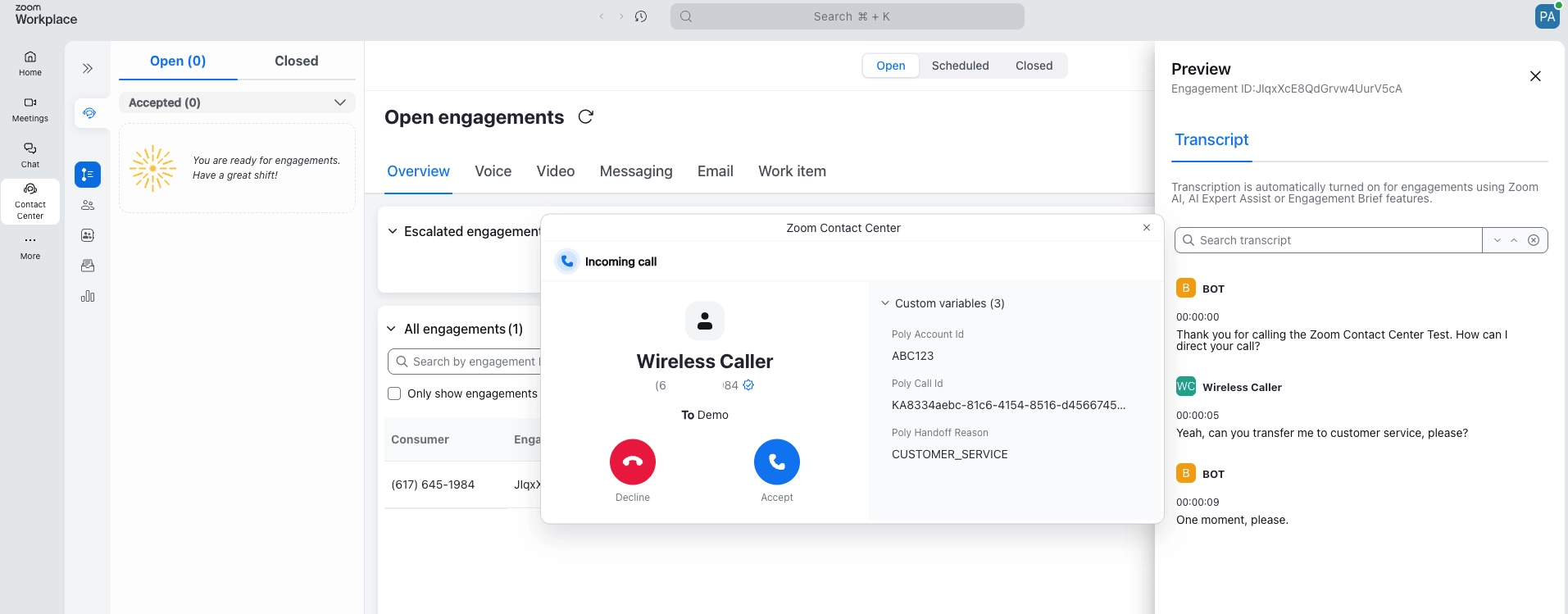
When the call lands with the receiving agent, the handoff data passed via the Webhook appears as a screen pop in the ZCC agent console:
### Passing data to and from PolyAI
Within the Bot configuration, data can be passed via **SIP header mapping** and/or the bot's **Outbound to Bot** / **Inbound from Bot** options.
**Outbound to Bot** (Zoom → PolyAI)
* ZCC already passes `X-ZOOM-Call-Sid` and `From` by default.
* Use SIP header mapping to pass through anything else you need (e.g. the originally dialed number).
**Inbound from Bot** (PolyAI → Zoom)
* Recommended: use the provided **Webhook** to pass data via API. Passing values back via SIP header mapping is also possible.
### Handoff from PolyAI to ZCC
Pass metadata back via custom SIP headers or the **Webhook** (recommended, paired with **Inbound from Bot** above).
The ZCC refer target format is always `HumanAgent@:5061`.
When the call lands with the receiving agent, the handoff data passed via the Webhook appears as a screen pop in the ZCC agent console:
 ## Testing the integration
1. Make a test call to your Zoom Phone or Zoom Contact Center number.
2. Verify the call routes to your PolyAI agent.
3. Test a handoff scenario to confirm transfers back to a human agent work.
4. Review the call in **Conversations**, filtered to Voice.
## Troubleshooting
| Issue | Solution |
| ---------------------------------------------- | ----------------------------------------------------------------------------------------- |
| Calls not reaching PolyAI | Verify the connection's number and environment (live/pre-release) mapping in the Zoom App |
| Missing original caller ANI (Zoom Phone) | Read `X-ZOOM-ORIGINAL-CALLING-NUMBER` instead of `From` |
| Handoff data not appearing | Confirm Screen Pop app install (Zoom Phone) or Webhook + Inbound from Bot mapping (ZCC) |
| Handoff data not visible in Zoom Phone webhook | Check whether a Power Pack license is required for your org |
## Related pages
General SIP trunk integration reference.
Configure call transfers back to a human agent.
Other voice platform integrations.
## Testing the integration
1. Make a test call to your Zoom Phone or Zoom Contact Center number.
2. Verify the call routes to your PolyAI agent.
3. Test a handoff scenario to confirm transfers back to a human agent work.
4. Review the call in **Conversations**, filtered to Voice.
## Troubleshooting
| Issue | Solution |
| ---------------------------------------------- | ----------------------------------------------------------------------------------------- |
| Calls not reaching PolyAI | Verify the connection's number and environment (live/pre-release) mapping in the Zoom App |
| Missing original caller ANI (Zoom Phone) | Read `X-ZOOM-ORIGINAL-CALLING-NUMBER` instead of `From` |
| Handoff data not appearing | Confirm Screen Pop app install (Zoom Phone) or Webhook + Inbound from Bot mapping (ZCC) |
| Handoff data not visible in Zoom Phone webhook | Check whether a Power Pack license is required for your org |
## Related pages
General SIP trunk integration reference.
Configure call transfers back to a human agent.
Other voice platform integrations.