> ## Documentation Index
> Fetch the complete documentation index at: https://docs.poly.ai/llms.txt
> Use this file to discover all available pages before exploring further.
# DTMF
> Collect keypad input in flow steps with configurable digit limits, timeouts, and optional recording opt-out.
**This page includes Python code.** The DTMF configuration UI does not require code, but the transition function examples below require Python familiarity.
Use DTMF when callers need to enter numeric input with their phone keypad – phone numbers, account numbers, confirmation codes, or consent responses (e.g., "Press 1 to opt out of recording"). DTMF is usually more reliable than speech for structured numeric input.
**[Dual-Tone Multi-Frequency](https://en.wikipedia.org/wiki/Dual-tone_multi-frequency_signaling)** (DTMF) converts keypad presses into audio tones that telecom systems detect and process.
DTMF configuration is only available on **Advanced** flow steps. Low-code steps do not support DTMF or custom ASR settings. Additionally, DTMF output is not currently supported with the **realtime model** – if your agent uses the realtime model, DTMF collection will not work.
## Configuring DTMF in a flow step
1. Open your **flow** in the editor.
2. Select the **Advanced** step where you want to collect numeric input.
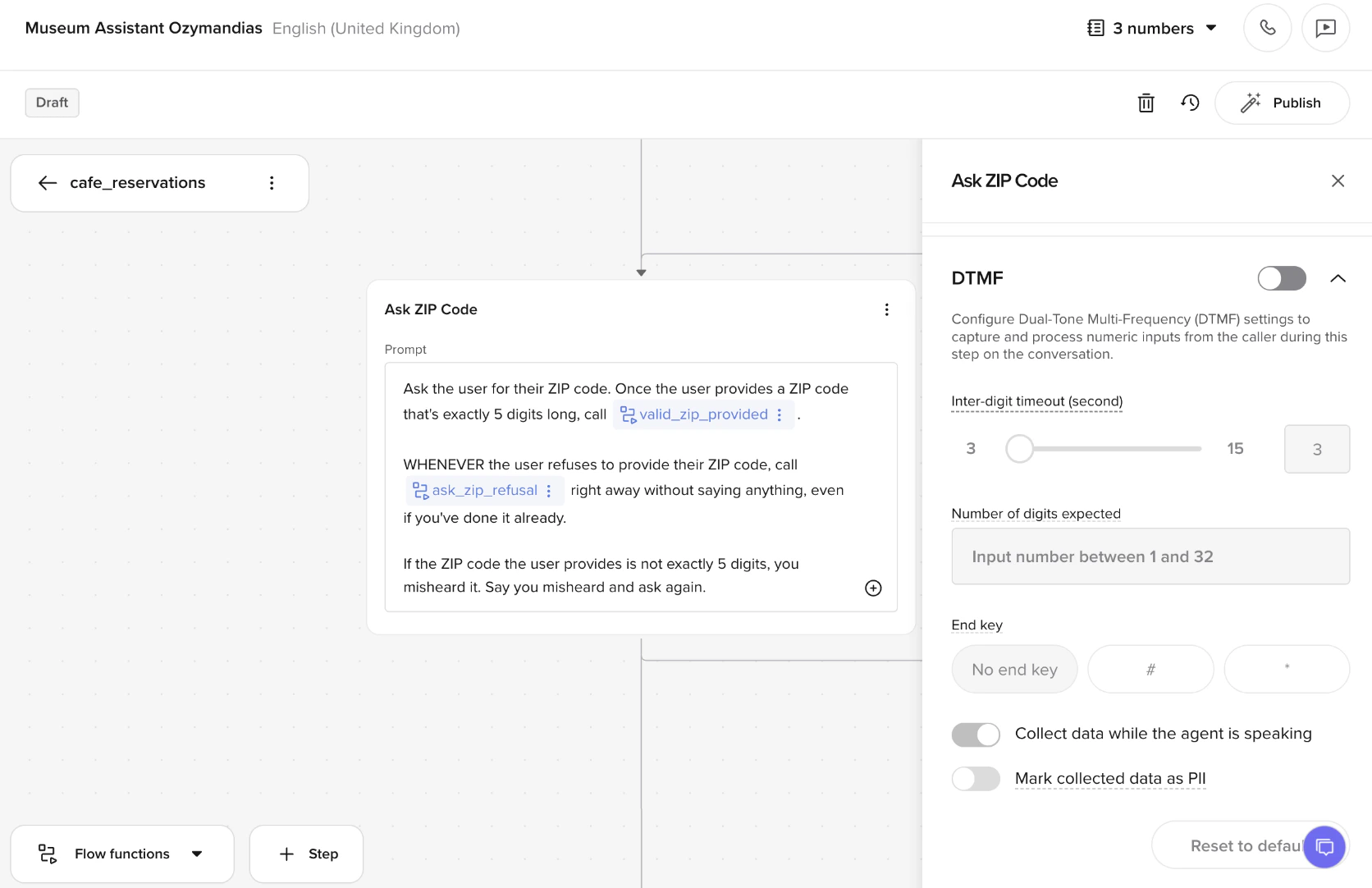
3. On the right-hand configuration panel, toggle **DTMF** on.
4. Configure the following options:
| Setting | Description | Default |
| -------------------------------------------- | --------------------------------------------------------------------------------------------------------------------------------------------------------------------------------------------------------------------------- | ------- |
| **Number of digits expected** | How many digits the caller must enter (1–32). Set to `-1` for unlimited. | – |
| **First digit timeout (seconds)** | How long to wait for the first keypress before timing out. | 5 |
| **Inter-digit timeout (seconds)** | How long to wait between subsequent key presses before timing out. | 2 |
| **End key** | Optional key (such as `#` or `*`) to signal the end of input. | None |
| **Collect data while the agent is speaking** | Allow input collection during speech playback. | Off |
| **Mark collected data as PII** | Flag collected values as **Personally Identifiable Information**. When enabled, the collected DTMF digits are redacted from logs and transcripts, and handled according to your organization's PII data-retention policies. | Off |
To open the DTMF menu quickly, click the **app grid icon** in the step's prompt card.
 ## Behavior and timing
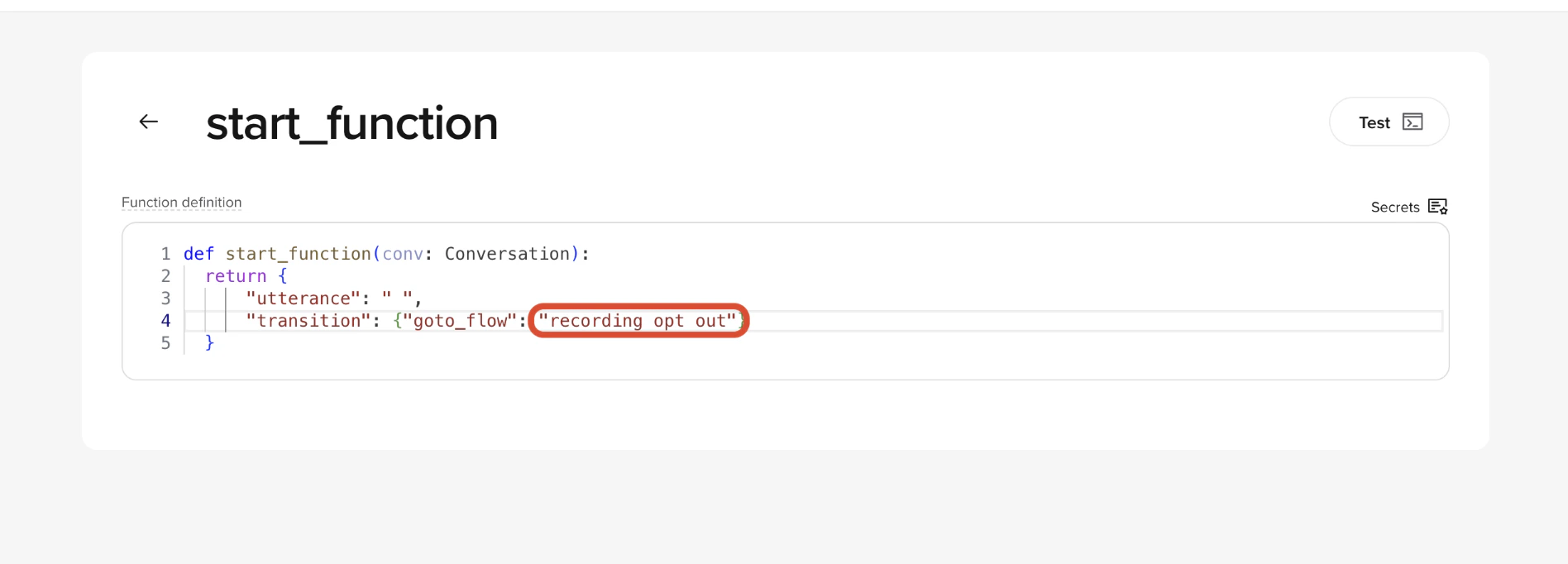
DTMF input is processed **after** the `start` function runs. If your `start` function plays a greeting, that greeting plays before DTMF capture begins. To collect DTMF input before any greeting plays, override the greeting by setting it to an empty string in the `start` function.
Even while a greeting is playing, DTMF input is still captured in the background if **Collect data while the agent is speaking** is enabled. For example, you can say:
> "This call may be recorded. To opt out, press 1. How can I help you today?"
and still capture the caller's keypress while they hear the welcome message.
### ASR and DTMF interaction
When DTMF is enabled, **Automatic Speech Recognition (ASR) remains active**. If the caller speaks instead of pressing a key, the agent processes that speech input normally. This means:
* You should design your flow to handle both spoken and keypad responses.
* If the caller doesn't press a key, there can be a noticeable delay (the inter-digit timeout) before the agent continues.
* Consider adding fallback handling so the agent can prompt the caller again if neither speech nor DTMF input is detected.
### Design considerations
You can use DTMF as either a **fallback** alongside speech or the **primary** input method for a step:
* **Fallback**: The agent asks a question and accepts either a spoken or keypad response. Useful for yes/no confirmations or simple menu selections.
* **Primary input**: The step is dedicated to DTMF collection – for example, entering a credit card number, phone number, or booking reference. In this case, consider creating a **separate step** with DTMF-specific configuration (digit count, end key, timeout) rather than mixing DTMF-heavy collection with speech-primary steps.
## Behavior and timing
DTMF input is processed **after** the `start` function runs. If your `start` function plays a greeting, that greeting plays before DTMF capture begins. To collect DTMF input before any greeting plays, override the greeting by setting it to an empty string in the `start` function.
Even while a greeting is playing, DTMF input is still captured in the background if **Collect data while the agent is speaking** is enabled. For example, you can say:
> "This call may be recorded. To opt out, press 1. How can I help you today?"
and still capture the caller's keypress while they hear the welcome message.
### ASR and DTMF interaction
When DTMF is enabled, **Automatic Speech Recognition (ASR) remains active**. If the caller speaks instead of pressing a key, the agent processes that speech input normally. This means:
* You should design your flow to handle both spoken and keypad responses.
* If the caller doesn't press a key, there can be a noticeable delay (the inter-digit timeout) before the agent continues.
* Consider adding fallback handling so the agent can prompt the caller again if neither speech nor DTMF input is detected.
### Design considerations
You can use DTMF as either a **fallback** alongside speech or the **primary** input method for a step:
* **Fallback**: The agent asks a question and accepts either a spoken or keypad response. Useful for yes/no confirmations or simple menu selections.
* **Primary input**: The step is dedicated to DTMF collection – for example, entering a credit card number, phone number, or booking reference. In this case, consider creating a **separate step** with DTMF-specific configuration (digit count, end key, timeout) rather than mixing DTMF-heavy collection with speech-primary steps.
 ## Recording opt-out
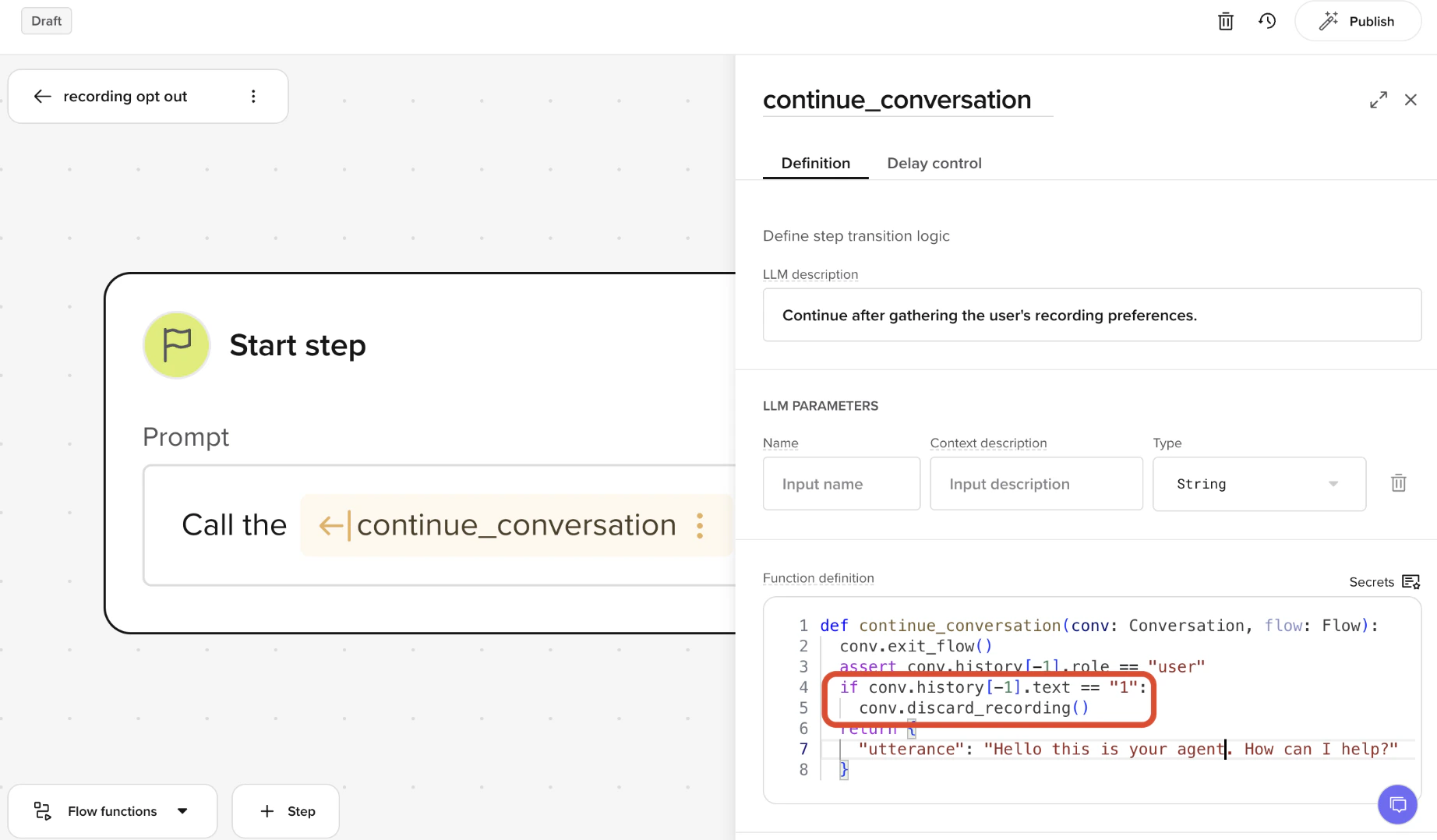
One common use of DTMF is giving callers the option to opt out of call recording. You listen for a specific keypress – such as "Press 1 to opt out" – and then call `conv.discard_recording()` to remove the current call's recording.
### The `discard_recording()` function
`conv.discard_recording()` is a built-in method that deletes the audio recording for the current call. It takes no arguments and can be called at any point during the call **except** in the `end` function. Once called, the conversation record shows no recording for that call, and the recording cannot be recovered.
For reliable behavior, call `conv.discard_recording()` after the `start_function` completes – for example, in a dedicated flow step. If you need to discard recordings at the very start of a call, contact your PolyAI representative for guidance.
### Example
At the start of the call, you might say:
> "This call may be recorded for quality and training purposes. To opt out, press 1."
You can play this message either:
* **Before** the greeting (by routing to a DTMF-enabled flow step before the `start` function), or
* **Alongside** your greeting, since DTMF can still be captured while the agent is speaking.
If you want to collect the opt-out keypress *before* any other audio plays, override the greeting in your `start` function with an empty string.
```python theme={"theme":{"light":"github-light","dark":"github-dark"}}
def continue_conversation(conv: Conversation, flow: Flow):
conv.exit_flow()
assert conv.history[-1].role == "user"
if conv.history[-1].text == "1":
conv.discard_recording()
return {
"utterance": "Hello, thanks for calling. How can I help?"
}
```
## Recording opt-out
One common use of DTMF is giving callers the option to opt out of call recording. You listen for a specific keypress – such as "Press 1 to opt out" – and then call `conv.discard_recording()` to remove the current call's recording.
### The `discard_recording()` function
`conv.discard_recording()` is a built-in method that deletes the audio recording for the current call. It takes no arguments and can be called at any point during the call **except** in the `end` function. Once called, the conversation record shows no recording for that call, and the recording cannot be recovered.
For reliable behavior, call `conv.discard_recording()` after the `start_function` completes – for example, in a dedicated flow step. If you need to discard recordings at the very start of a call, contact your PolyAI representative for guidance.
### Example
At the start of the call, you might say:
> "This call may be recorded for quality and training purposes. To opt out, press 1."
You can play this message either:
* **Before** the greeting (by routing to a DTMF-enabled flow step before the `start` function), or
* **Alongside** your greeting, since DTMF can still be captured while the agent is speaking.
If you want to collect the opt-out keypress *before* any other audio plays, override the greeting in your `start` function with an empty string.
```python theme={"theme":{"light":"github-light","dark":"github-dark"}}
def continue_conversation(conv: Conversation, flow: Flow):
conv.exit_flow()
assert conv.history[-1].role == "user"
if conv.history[-1].text == "1":
conv.discard_recording()
return {
"utterance": "Hello, thanks for calling. How can I help?"
}
```
 You can also design the flow so that different keys trigger different actions – for example:
* Press 1 = opt out of recording
* Press 2 = continue with recording enabled
You can also design the flow so that different keys trigger different actions – for example:
* Press 1 = opt out of recording
* Press 2 = continue with recording enabled