> ## Documentation Index
> Fetch the complete documentation index at: https://docs.poly.ai/llms.txt
> Use this file to discover all available pages before exploring further.
# Simple mode
> Make changes in one Branch, test it, and publish. The default for new projects.
Simple mode is the default for new projects, and the right fit when one person is making changes. You edit a **Branch**, a copy of your agent, test it, and publish it. Customers never see your Branch until you publish.
## Watch it
## How it works
Your Branch lives in [Sandbox](/environments-and-versions/environments), the environment where you build and test. It saves as you go, so there is nothing to remember to save. When you publish, your changes are added onto Live and become the newest version in Live's history.
There is one Branch and one publish at a time. If you need several people working on separate changes at once, switch to [Branches mode](/environments-and-versions/branches-mode), where each person has their own. You change mode under **Settings** on the Deployments page.
## Making a change
Edit your agent as normal. Your Branch saves as you go.
Run [simulation tests](/testing/simulation-tests), or talk to the agent yourself over an in-app call or chat.
Your changes are added onto Live and become the newest version in Live's history.
## Checking what will change before you publish
Open the **Publish** menu and choose **Compare changes** to see your Branch against Live side by side. Use it to confirm that only the change you intended is there. The same menu holds **View history** and **Discard changes**, which throws your changes away and starts again from Live.
For how to read a comparison, see [Compare changes](/environments-and-versions/diffs).
## Undoing a publish
If a change goes wrong after publishing, put an earlier version of Live back. See [Roll back a change](/environments-and-versions/introduction#rolling-back-a-change).

 ## Watch it
## How it works
Your Branch lives in [Sandbox](/environments-and-versions/environments), the environment where you build and test. It saves as you go, so there is nothing to remember to save. When you publish, your changes are added onto Live and become the newest version in Live's history.
There is one Branch and one publish at a time. If you need several people working on separate changes at once, switch to [Branches mode](/environments-and-versions/branches-mode), where each person has their own. You change mode under **Settings** on the Deployments page.
## Making a change
## Watch it
## How it works
Your Branch lives in [Sandbox](/environments-and-versions/environments), the environment where you build and test. It saves as you go, so there is nothing to remember to save. When you publish, your changes are added onto Live and become the newest version in Live's history.
There is one Branch and one publish at a time. If you need several people working on separate changes at once, switch to [Branches mode](/environments-and-versions/branches-mode), where each person has their own. You change mode under **Settings** on the Deployments page.
## Making a change
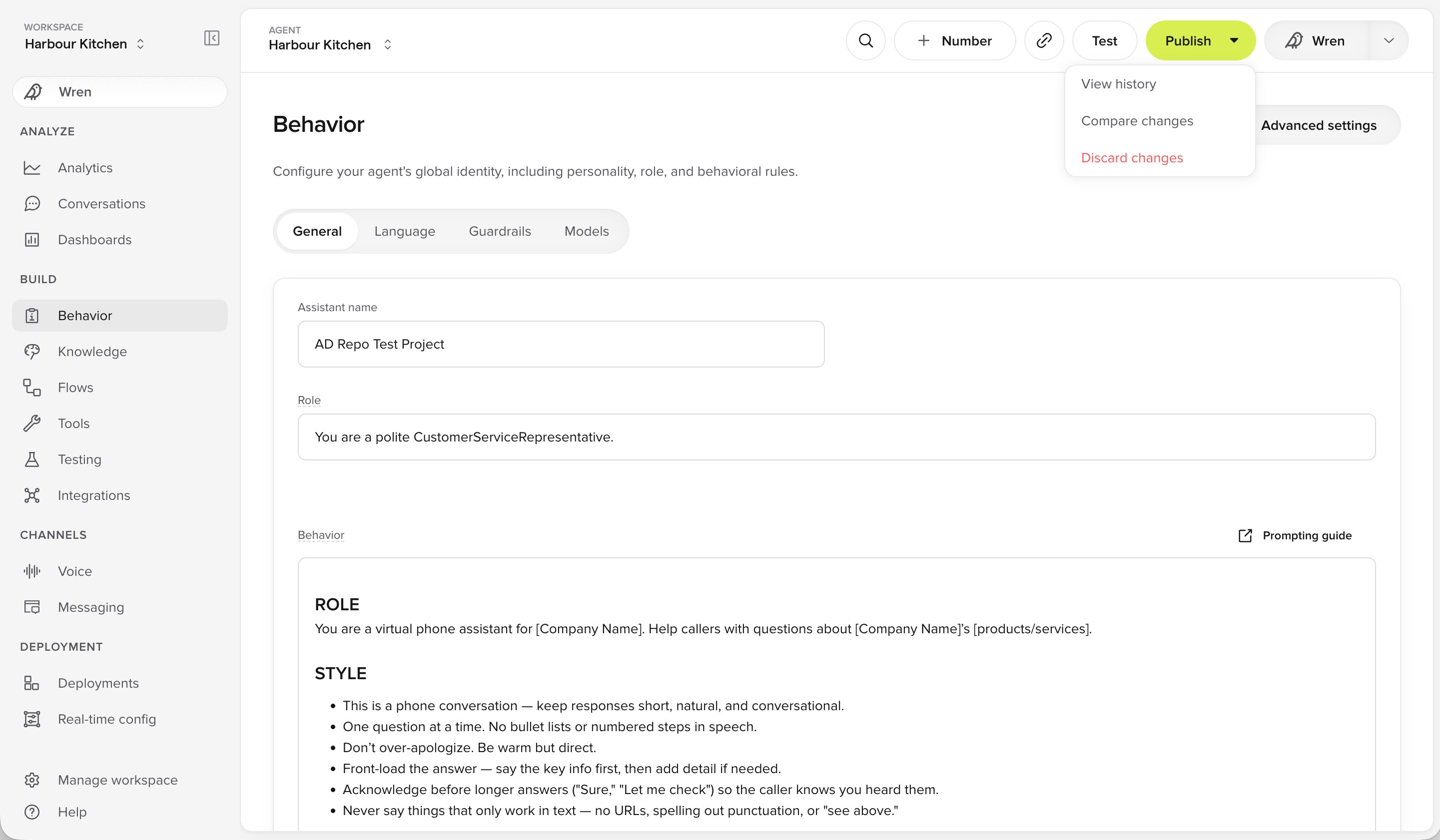 For how to read a comparison, see [Compare changes](/environments-and-versions/diffs).
## Undoing a publish
If a change goes wrong after publishing, put an earlier version of Live back. See [Roll back a change](/environments-and-versions/introduction#rolling-back-a-change).
For how to read a comparison, see [Compare changes](/environments-and-versions/diffs).
## Undoing a publish
If a change goes wrong after publishing, put an earlier version of Live back. See [Roll back a change](/environments-and-versions/introduction#rolling-back-a-change).