> ## Documentation Index
> Fetch the complete documentation index at: https://docs.poly.ai/llms.txt
> Use this file to discover all available pages before exploring further.
# Deployments
> Learn how to ship safely: branch, promote, A/B test, and roll back from one timeline.
**New to environments?** Start with the [Environments tutorial](/learn/guides/get-started/environments) for a hands-on introduction. For detailed workflows and best practices, see [Version management](/learn/maintain/version-management).
**Studio Assistant edits on branches.** Changes from [Studio Assistant](/studio-assistant/introduction) land on a branch off `Main`. Once merged, they flow through this same Draft → Sandbox → Pre-release → Live pipeline. Promotion is always manual.
**Saving is not the same as going live.** Saved changes are drafts. Drafts must be **published** to Sandbox, then **promoted** through Pre-release to Live. Unpublished changes don't appear in any environment.
```mermaid theme={"theme":{"light":"github-light","dark":"github-dark"}}
stateDiagram-v2
[*] --> Draft: Make changes
Draft --> Sandbox: Publish
Sandbox --> PreRelease: Promote
PreRelease --> Live: Promote
Live --> PreRelease: Rollback
PreRelease --> Sandbox: Rollback
note right of Draft: Development
note right of Sandbox: Testing
note right of PreRelease: UAT staging
note right of Live: Production
```
## Creating a version
A draft version
is created whenever changes are made to an agent. A draft banner appears at the top of the page, allowing you to:
* **Delete**: Revert to the most recent published version.
* **Publish**: Save the draft as a version, optionally adding a description highlighting changes made and any notes for future
collaborators.
 Once published, the version becomes your active Sandbox deployment
and you can access it from **Deployments** in the sidebar.
Once published, the version becomes your active Sandbox deployment
and you can access it from **Deployments** in the sidebar.
 ## Working on branches
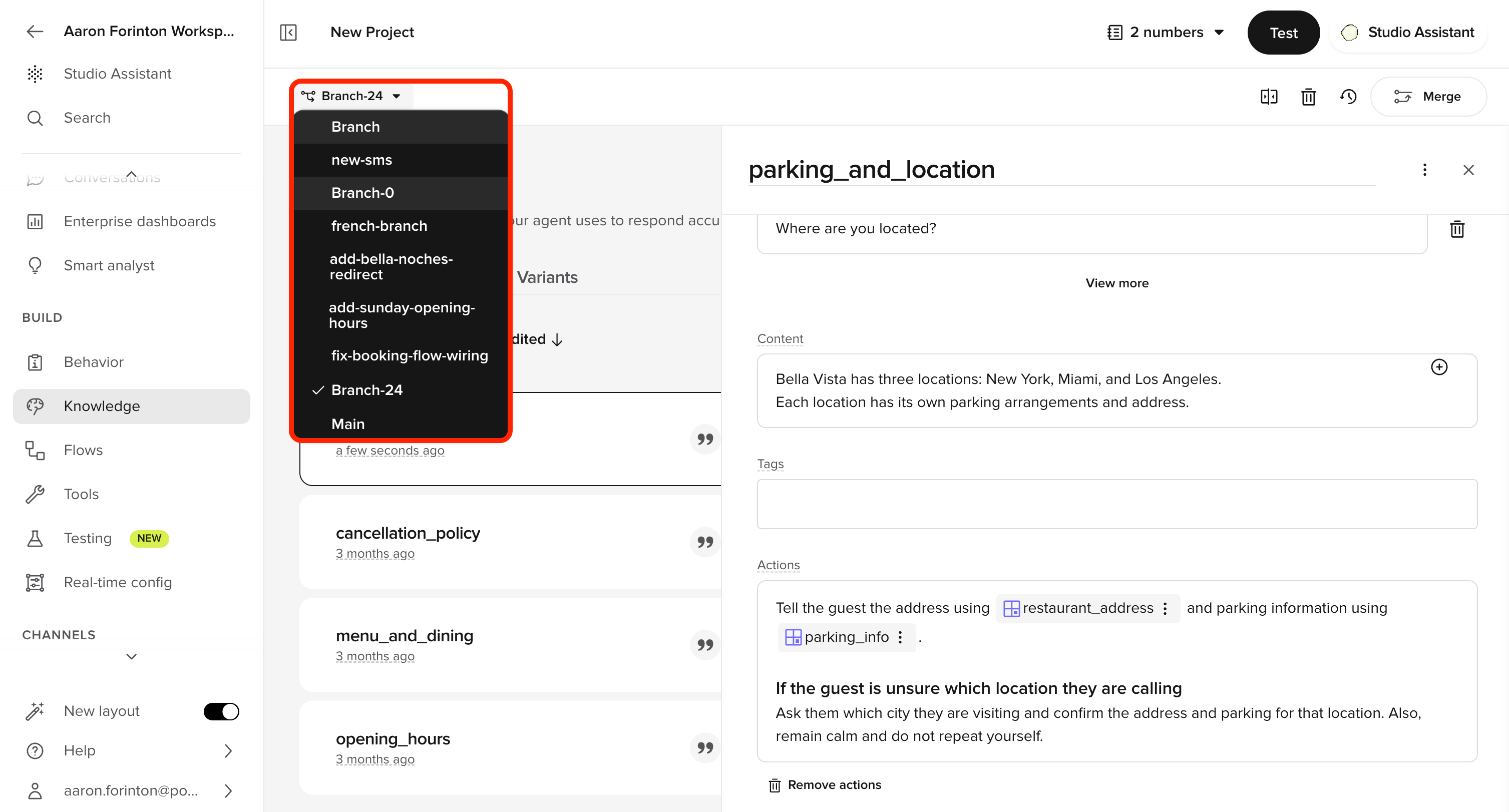
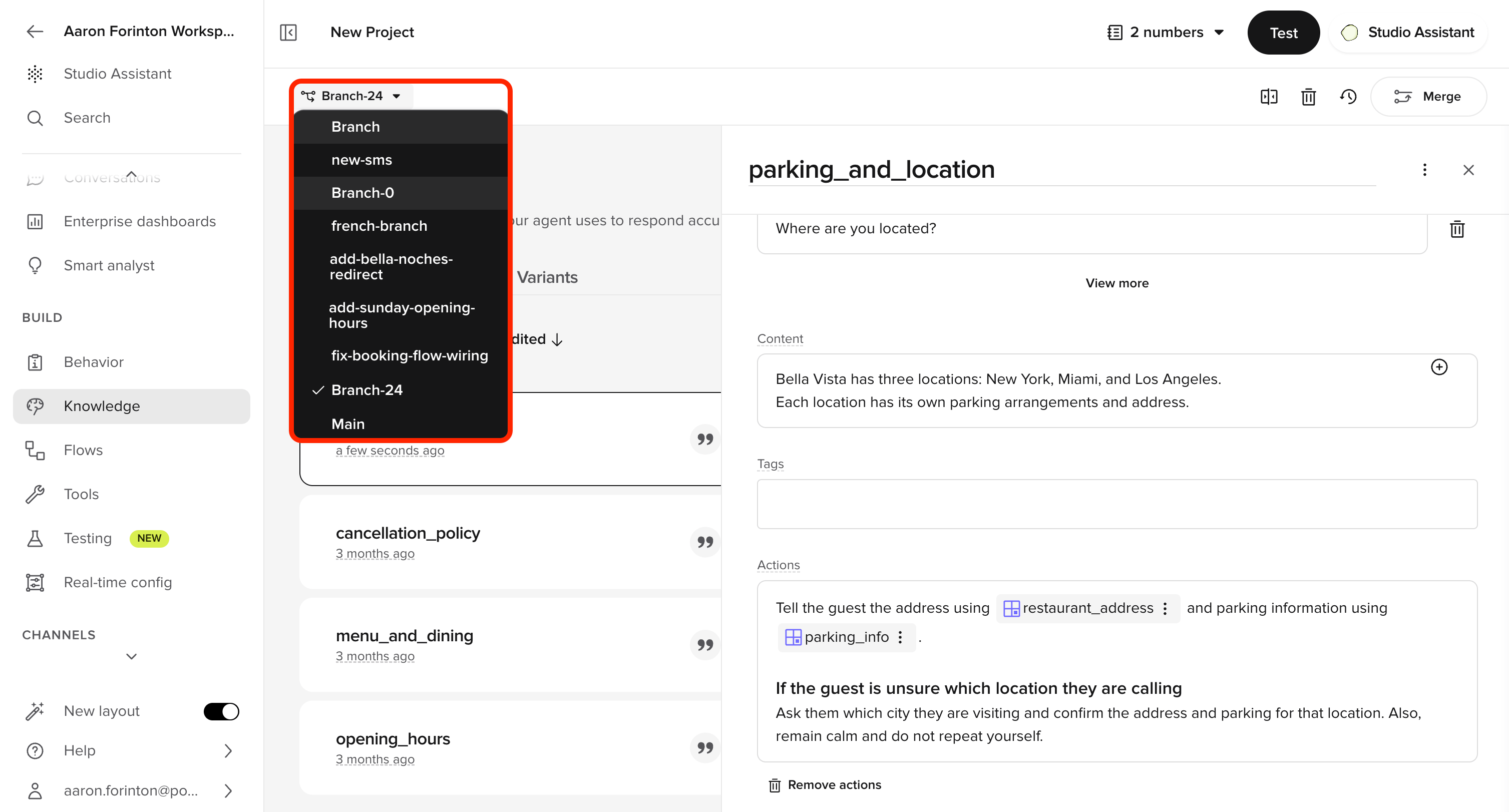
Some areas of Agent Studio — such as **Knowledge** and **Tools** — use a git-style branching workflow so you can develop changes in isolation before they reach the shared version line. A **branch selector** dropdown (top-left) lists your branches alongside **Main**; switch branches to work on a set of changes without affecting `Main`.
## Working on branches
Some areas of Agent Studio — such as **Knowledge** and **Tools** — use a git-style branching workflow so you can develop changes in isolation before they reach the shared version line. A **branch selector** dropdown (top-left) lists your branches alongside **Main**; switch branches to work on a set of changes without affecting `Main`.
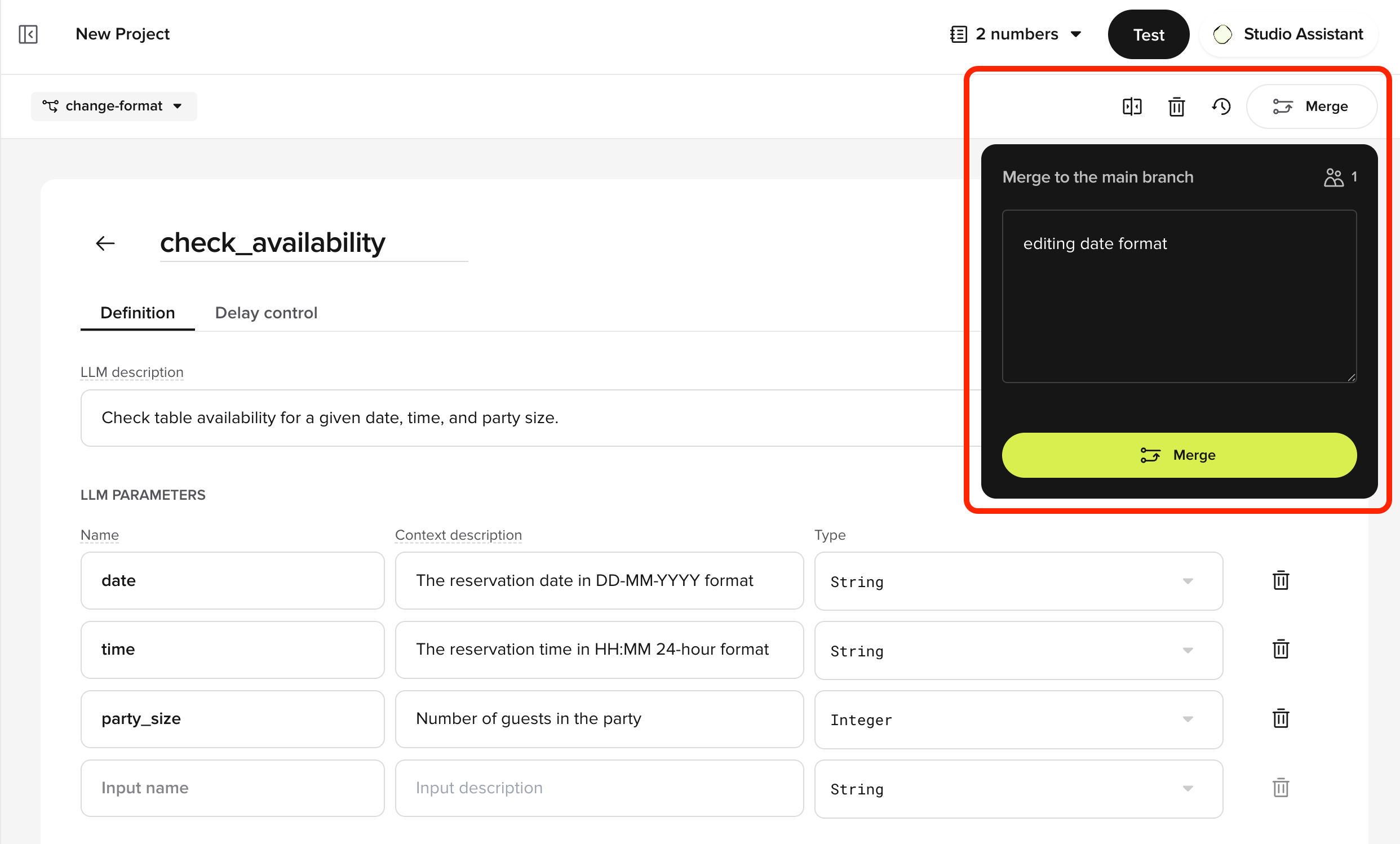
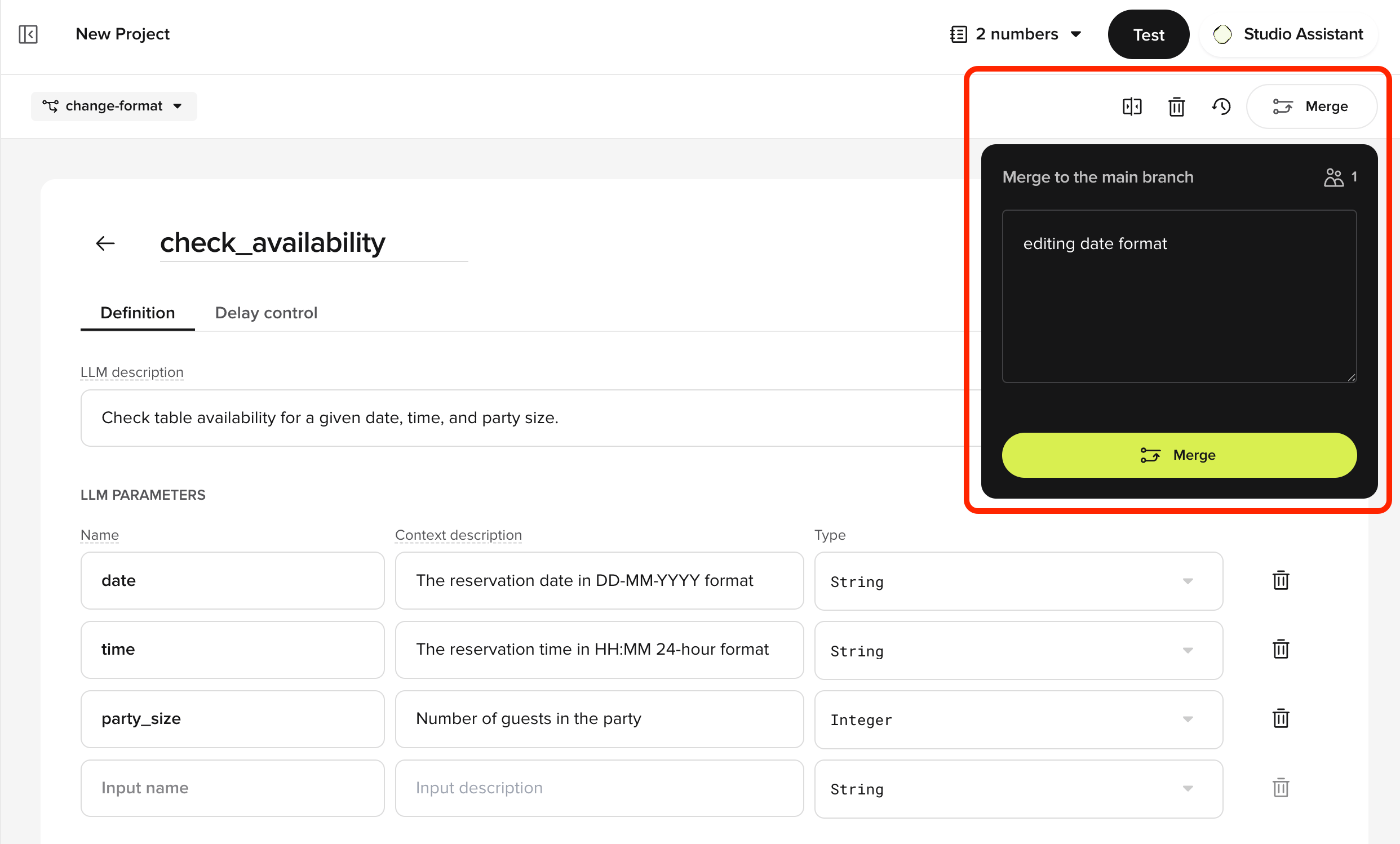
 When a branch is ready, open the **Merge to main branch** popover, add a commit message describing the change, and select **Merge**. Once merged into `Main`, the changes join the shared version line and can be promoted through the Draft → Sandbox → Pre-release → Live pipeline described below.
 ## Promoting a version
Promotion moves a version from one environment to the next. The environments include Sandbox,
Pre-release,
and Live.
### Pre-release
Staging environment for user acceptance testing (UAT).
1. Go to **Deployments** in the sidebar.
2. Click the **Options Menu** next to the desired version.
3. Select **Promote to Pre-release**.
### Live
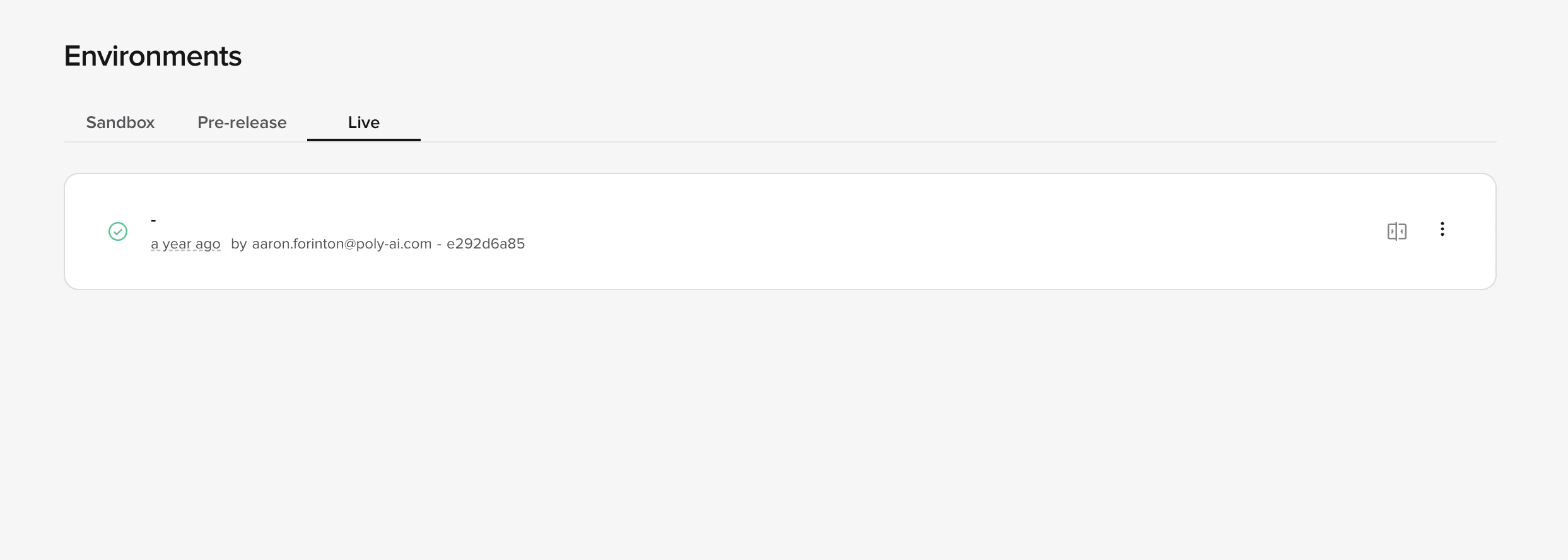
Production. Changes affect all active calls immediately.
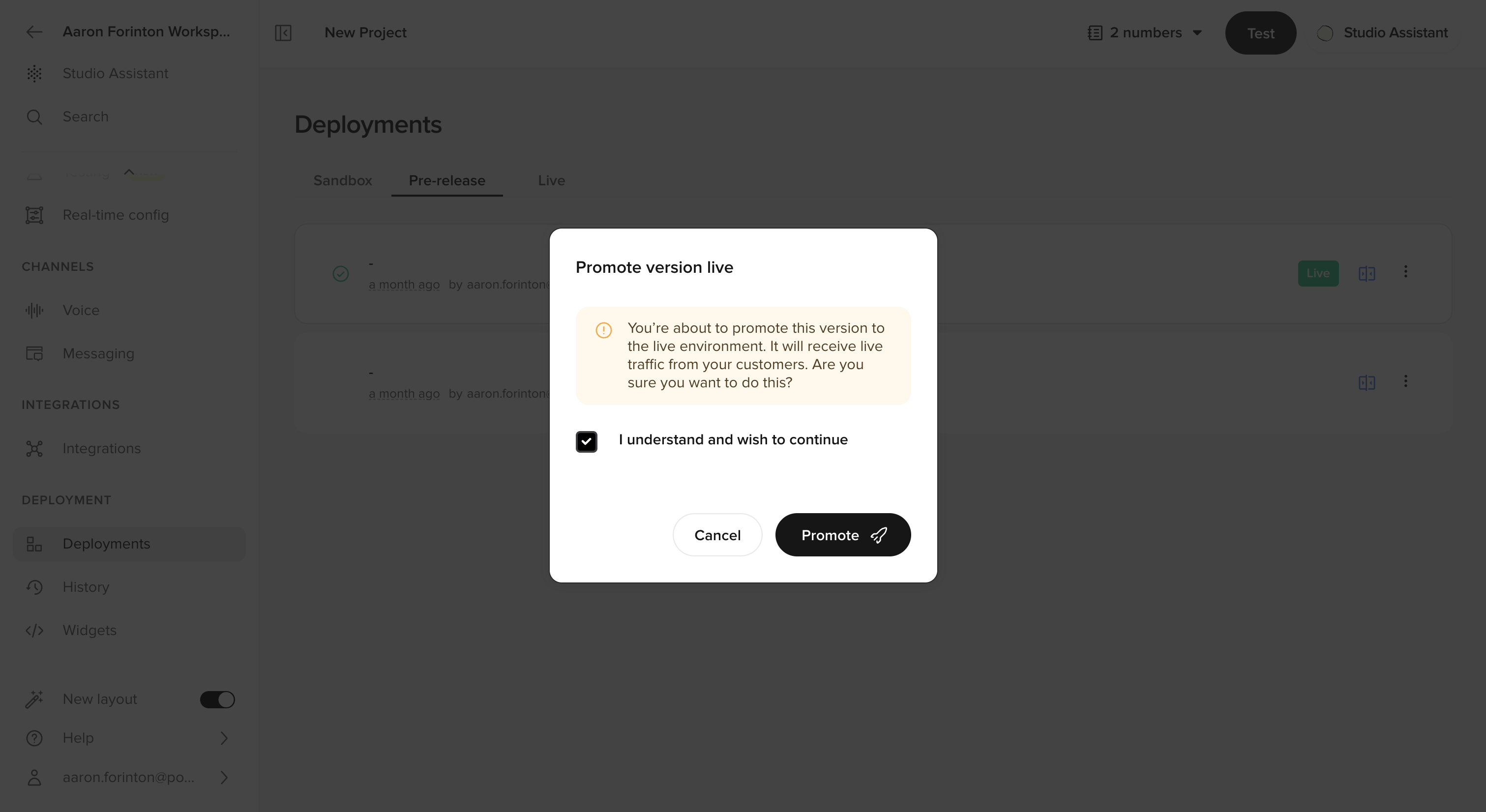
1. Go to the **Pre-release** tab in **Deployments**.
2. Click the overflow menu (three vertical dots) next to the version.
3. Select **Promote to Live**.
4. Confirm your selection by checking the box and clicking **Promote**.
## Promoting a version
Promotion moves a version from one environment to the next. The environments include Sandbox,
Pre-release,
and Live.
### Pre-release
Staging environment for user acceptance testing (UAT).
1. Go to **Deployments** in the sidebar.
2. Click the **Options Menu** next to the desired version.
3. Select **Promote to Pre-release**.
### Live
Production. Changes affect all active calls immediately.
1. Go to the **Pre-release** tab in **Deployments**.
2. Click the overflow menu (three vertical dots) next to the version.
3. Select **Promote to Live**.
4. Confirm your selection by checking the box and clicking **Promote**.
 ## Comparing versions and environments
Before promoting changes, you can compare versions across environments using a side-by-side diff view.
1. Go to the **Deployments** section and open **Environments** or **Project History**.
2. Select a version and click **Compare** to view differences between **Sandbox**, **Pre-release**, and **Live**.
3. Versions appear in **reverse chronological order** (newest first) for easier navigation.
For detailed information on tracking changes between versions, see [Tracking changes](/environments-and-versions/diffs).
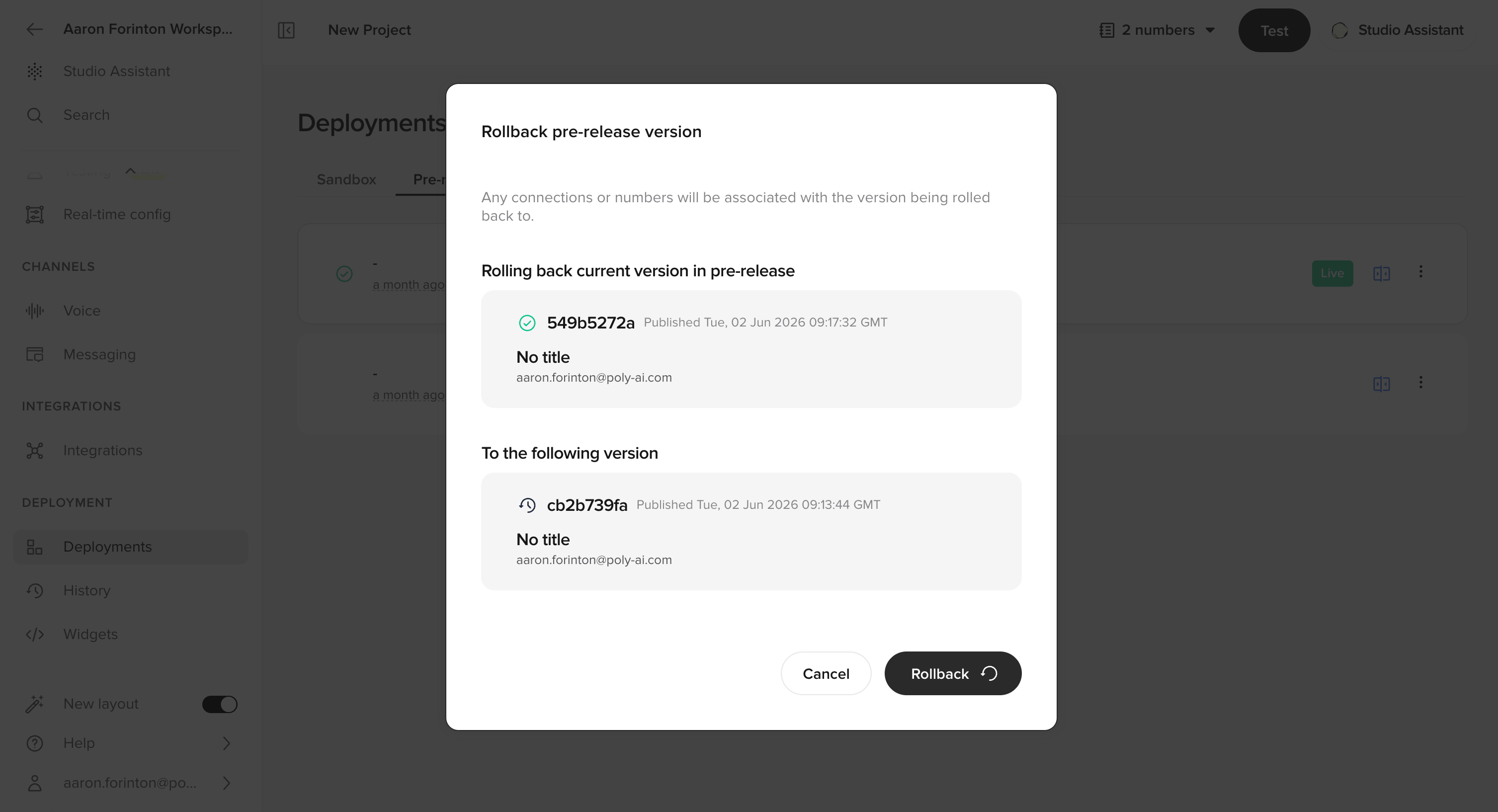
## Rolling back to a previous version
Roll back to a previous version if needed:
1. Go to **Deployments** in the sidebar.
2. Select the **Options Menu** for the desired version.
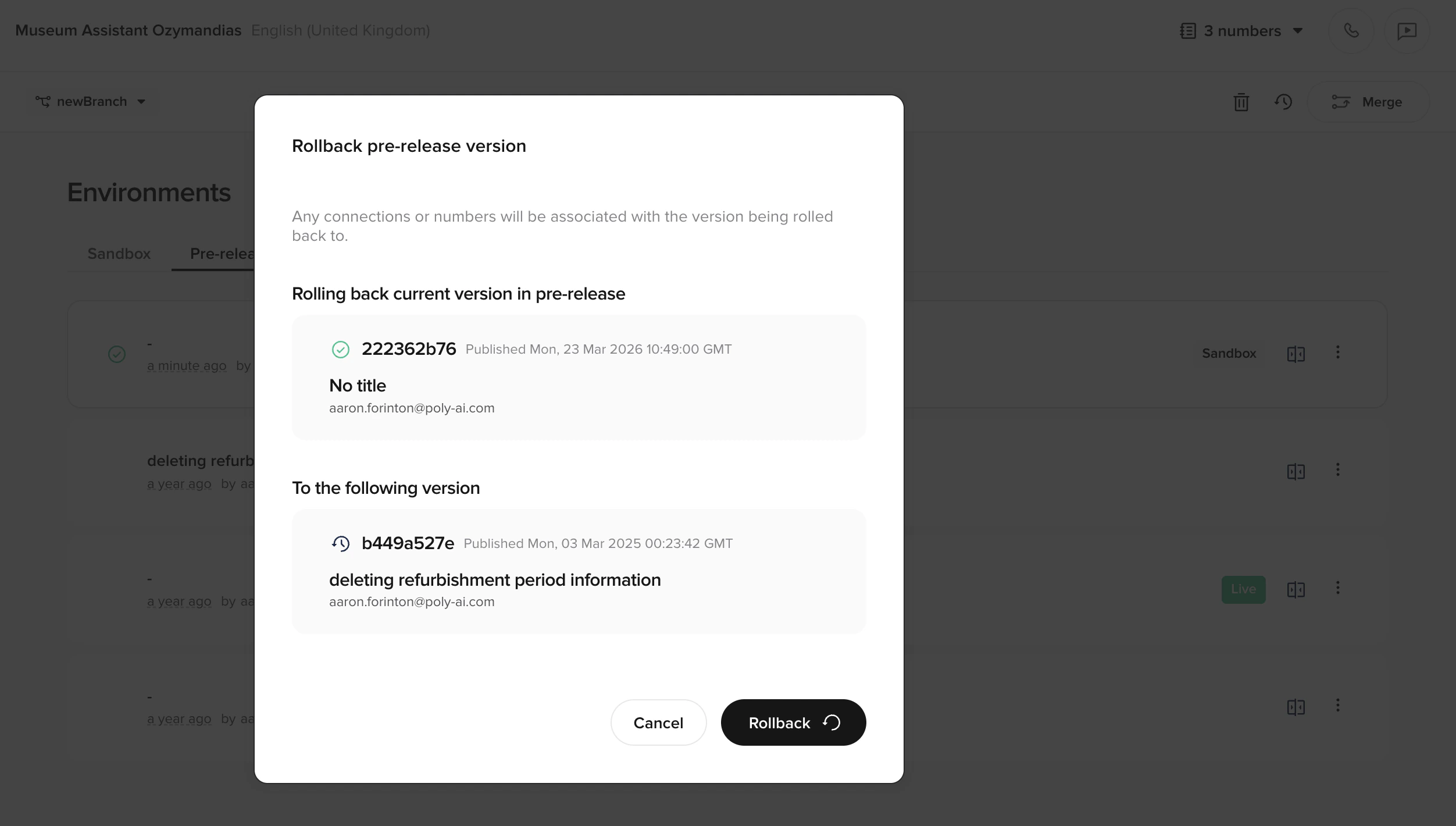
3. Click **Rollback**.
4. Confirm the rollback.
The system confirms when the rollback is complete.
## Comparing versions and environments
Before promoting changes, you can compare versions across environments using a side-by-side diff view.
1. Go to the **Deployments** section and open **Environments** or **Project History**.
2. Select a version and click **Compare** to view differences between **Sandbox**, **Pre-release**, and **Live**.
3. Versions appear in **reverse chronological order** (newest first) for easier navigation.
For detailed information on tracking changes between versions, see [Tracking changes](/environments-and-versions/diffs).
## Rolling back to a previous version
Roll back to a previous version if needed:
1. Go to **Deployments** in the sidebar.
2. Select the **Options Menu** for the desired version.
3. Click **Rollback**.
4. Confirm the rollback.
The system confirms when the rollback is complete.
 ## Testing your agent
Main page: [Quickstart: test your agent](/get-started/quickstart#test-your-agent)
Test your agent in any environment:
1. Click the **Play Chat** icon in the top-right corner of the screen.
2. Select the environment containing the version you want to test.
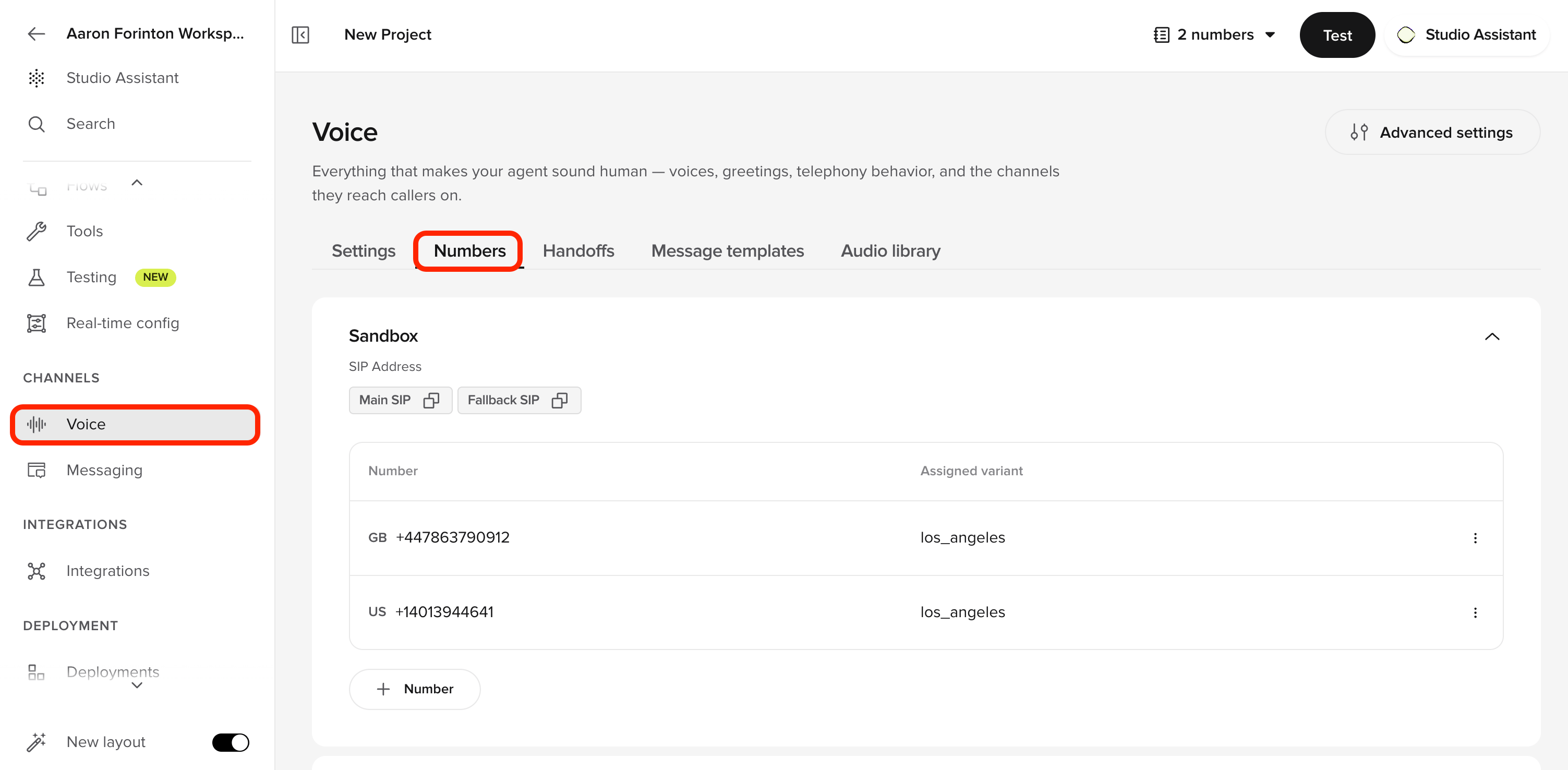
## Assigning phone numbers
Each environment can have its own phone number. To assign:
1. Go to **Voice > Numbers** in the sidebar.
Assign phone numbers and SIP headers per version.
## Testing your agent
Main page: [Quickstart: test your agent](/get-started/quickstart#test-your-agent)
Test your agent in any environment:
1. Click the **Play Chat** icon in the top-right corner of the screen.
2. Select the environment containing the version you want to test.
## Assigning phone numbers
Each environment can have its own phone number. To assign:
1. Go to **Voice > Numbers** in the sidebar.
Assign phone numbers and SIP headers per version.
 ## Automate with the Agents API
The same pipeline is available programmatically, which is useful for wiring deployments into CI or orchestrating releases across many agents.
The [Agents API](/api-reference/agents/introduction) exposes [publish](/api-reference/agents/endpoint/deployments/publish-the-current-draft-to-an-environment), [promote](/api-reference/agents/endpoint/deployments/promote-a-deployment-to-the-next-environment), and [rollback](/api-reference/agents/endpoint/deployments/rollback-to-a-previous-deployment) as the CI-friendly equivalents of the UI actions above. Note that merging a branch into `main` already publishes to Sandbox, so a standalone `publish` call is only needed when you have an undeployed `main` draft. Both `publish` and `promote` return the resulting deployment under a `deployment` key.
```bash curl theme={"theme":{"light":"github-light","dark":"github-dark"}}
# Publish the current draft to sandbox
curl -X POST https://api.us.poly.ai/v1/agents/AGENT_ID/deployments/publish \
-H "x-api-key: $POLYAI_API_KEY" \
-H "Content-Type: application/json" \
-d '{ "environment": "sandbox" }'
# Promote a sandbox deployment to pre-release
curl -X POST https://api.us.poly.ai/v1/agents/AGENT_ID/deployments/DEPLOYMENT_ID/promote \
-H "x-api-key: $POLYAI_API_KEY"
```
```python Python theme={"theme":{"light":"github-light","dark":"github-dark"}}
import os, requests
BASE = "https://api.us.poly.ai"
HEADERS = {"x-api-key": os.environ["POLYAI_API_KEY"]}
# Publish the current draft to sandbox
resp = requests.post(
f"{BASE}/v1/agents/{AGENT_ID}/deployments/publish",
headers=HEADERS,
json={"environment": "sandbox"},
)
deployment_id = resp.json()["deployment"]["id"]
# Promote to pre-release once sandbox checks pass
requests.post(
f"{BASE}/v1/agents/{AGENT_ID}/deployments/{deployment_id}/promote",
headers=HEADERS,
)
```
## Related pages
Side-by-side diff of any two versions before promoting.
Audit trail of all published versions and changes.
Run regression tests against Draft or Sandbox.
Publish, promote, and rollback from the Agents API.
## Automate with the Agents API
The same pipeline is available programmatically, which is useful for wiring deployments into CI or orchestrating releases across many agents.
The [Agents API](/api-reference/agents/introduction) exposes [publish](/api-reference/agents/endpoint/deployments/publish-the-current-draft-to-an-environment), [promote](/api-reference/agents/endpoint/deployments/promote-a-deployment-to-the-next-environment), and [rollback](/api-reference/agents/endpoint/deployments/rollback-to-a-previous-deployment) as the CI-friendly equivalents of the UI actions above. Note that merging a branch into `main` already publishes to Sandbox, so a standalone `publish` call is only needed when you have an undeployed `main` draft. Both `publish` and `promote` return the resulting deployment under a `deployment` key.
```bash curl theme={"theme":{"light":"github-light","dark":"github-dark"}}
# Publish the current draft to sandbox
curl -X POST https://api.us.poly.ai/v1/agents/AGENT_ID/deployments/publish \
-H "x-api-key: $POLYAI_API_KEY" \
-H "Content-Type: application/json" \
-d '{ "environment": "sandbox" }'
# Promote a sandbox deployment to pre-release
curl -X POST https://api.us.poly.ai/v1/agents/AGENT_ID/deployments/DEPLOYMENT_ID/promote \
-H "x-api-key: $POLYAI_API_KEY"
```
```python Python theme={"theme":{"light":"github-light","dark":"github-dark"}}
import os, requests
BASE = "https://api.us.poly.ai"
HEADERS = {"x-api-key": os.environ["POLYAI_API_KEY"]}
# Publish the current draft to sandbox
resp = requests.post(
f"{BASE}/v1/agents/{AGENT_ID}/deployments/publish",
headers=HEADERS,
json={"environment": "sandbox"},
)
deployment_id = resp.json()["deployment"]["id"]
# Promote to pre-release once sandbox checks pass
requests.post(
f"{BASE}/v1/agents/{AGENT_ID}/deployments/{deployment_id}/promote",
headers=HEADERS,
)
```
## Related pages
Side-by-side diff of any two versions before promoting.
Audit trail of all published versions and changes.
Run regression tests against Draft or Sandbox.
Publish, promote, and rollback from the Agents API.