> ## Documentation Index
> Fetch the complete documentation index at: https://docs.poly.ai/llms.txt
> Use this file to discover all available pages before exploring further.
# Safety filters
> Per-channel content filters that classify user input and agent output across hate, sexual, violence, and self-harm – and always-on jailbreak detection.
Safety filters are PolyAI's content classifiers. They inspect every user input and every agent output in real time and block anything that exceeds the severity threshold you set for each category. Filters combine PolyAI's models with third-party services such as [Azure OpenAI content safety](https://learn.microsoft.com/en-us/azure/ai-services/content-safety/).
Configure project-wide defaults in **Behavior**, then override them per channel in **Voice > Advanced > Call settings** and **Messaging > Advanced > Chat configuration**.
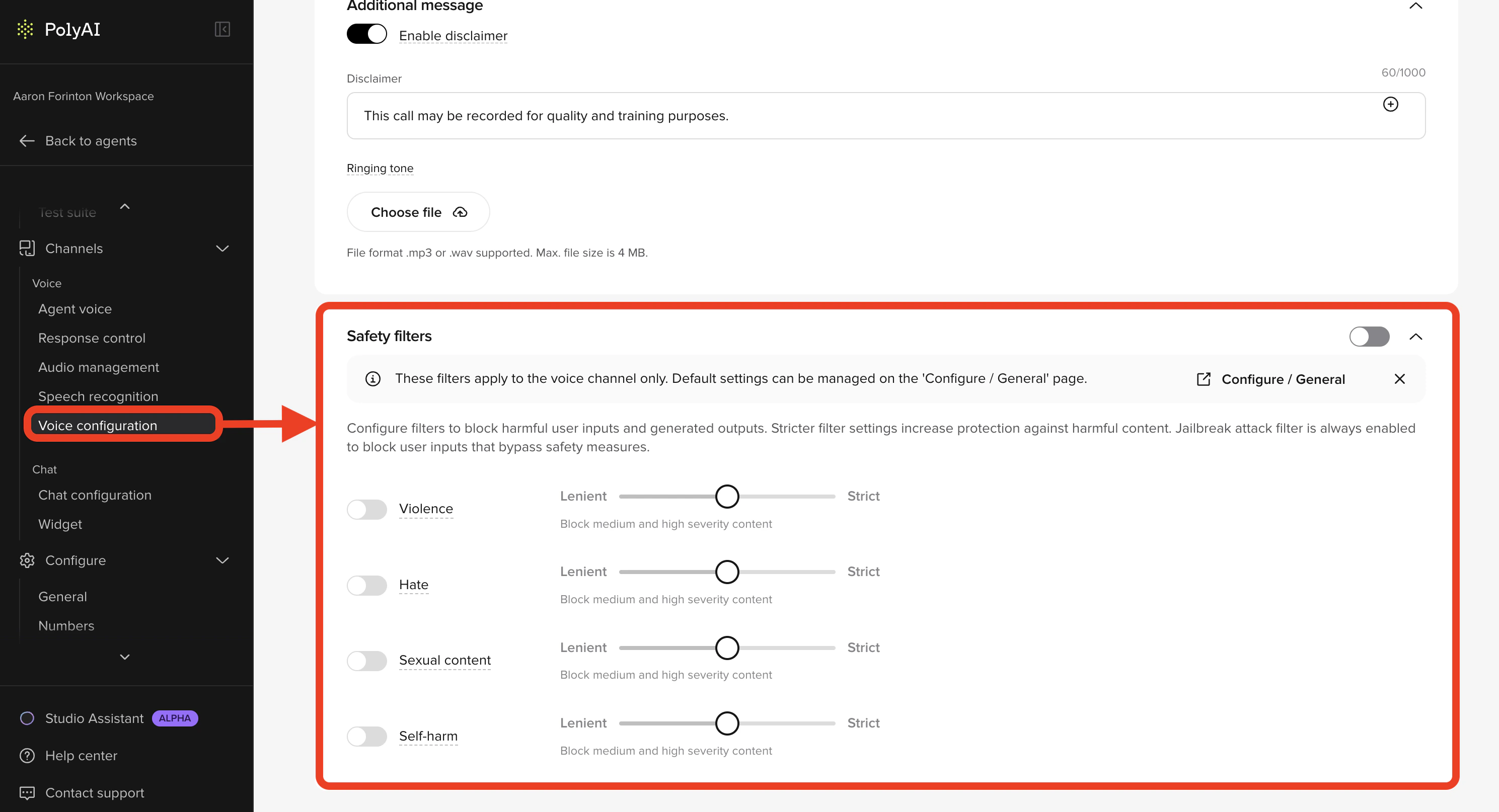 ## How filters run
Filters run on both sides of every turn:
* **User input** – classifies what the caller or visitor says before the agent sees it. Blocked input is replaced with a safe fallback response.
* **Agent output** – classifies what the agent is about to say. Blocked output is suppressed and the agent recovers with a safe response.
Filtering is independent of the LLM prompt – it's a separate model layer, so it works regardless of agent behavior, flow, or prompt changes.
## Categories and severity levels
Each category has four severity levels. Pick the level per category that matches your use case and compliance requirements.
| Severity | Behavior |
| ------------ | --------------------------------------------- |
| **Off** | Category is not enforced. |
| **Lenient** | Block high severity content only. |
| **Moderate** | Block medium and high severity content. |
| **Strict** | Block low, medium, and high severity content. |
Content that attacks or discriminates based on race, ethnicity, nationality, religion, gender identity, sexual orientation, disability, or appearance. Includes bullying, harassment, and slurs.
Content involving explicit anatomy, sexual acts, or romantic/erotic themes – including abusive or exploitative content.
Physical harm, threats, weapons, terrorism, and other violent acts or intimidation.
Mentions of suicide, self-injury, eating disorders, or content about hurting oneself.
**Jailbreak detection is always on.** A separate jailbreak attack filter watches for attempts to bypass or disable safety features. It can't be turned off and is independent of the per-channel severity sliders.
## Project defaults vs. channel overrides
Safety filters are configured on a **per-channel basis** with project-wide defaults as a fallback.
* **Project defaults** – set in **Behavior**. Apply to any channel that does not have its own overrides enabled.
* **Voice channel** – override in **Voice > Advanced > Call settings**. See [Voice configuration → Safety filters](/voice-channel/advanced/call-settings#safety-filters).
* **Chat channel** – override in **Messaging > Advanced > Chat configuration**. See [Chat configuration → Safety filters](/messaging-channel/advanced/chat-configuration#safety-filters).
When a channel has its own filters enabled, the channel values win for that channel. When a channel has filters disabled, the project defaults apply.
Review your use case and compliance requirements before relaxing any category.
## Edit filters
1. Open **Behavior** and find the **Safety filter defaults** section to set the project-wide baseline.
2. To override for a specific channel, open the channel's configuration page (**Voice** or **Messaging**), enable safety filters, and adjust the sliders.
3. Save. Voice and project-level changes follow the standard [environment branching](/environments-and-versions/introduction); chat changes take effect immediately on save.
4. Test with **Chat with Agent** or a sandbox phone number before promoting.
## Monitor filter activity
Every filter trigger is recorded on the conversation. Monitor across conversations from the [Safety dashboard](/analytics/dashboards/safety):
* **Calls managed for risk** – how often filters fired (count and percentage).
* **Caller utterance category** – breakdown by hate, sexual, violence, and self-harm.
* **Caller utterance risk level** – risk distribution of incoming messages.
* **Distribution of flagged calls** – trend over time.
To inspect a single conversation, open it in [Conversation review](/analytics/conversations/review) – flagged turns are annotated inline. Filter the conversations list by safety category in the **QA category** filter.
## Language support
Filters have been trained and tested in English, German, Japanese, Spanish, French, Italian, Portuguese, and Chinese. Other languages are supported but performance may vary – test thoroughly in your target language before going live.
## How safety filters fit with Guardrails
Safety filters and [platform Guardrails](/behavior/guardrails/introduction) protect different layers and are designed to run together:
* **Safety filters** classify each input and output against hate, sexual, violence, and self-harm before/after the LLM. They block content at the model layer.
* **Guardrails** are prompt-level instructions that shape how the LLM responds – for example, refusing to disclose its identity or escalating on a crisis signal.
* **Jailbreak detection** (always-on filter) blocks malicious input upstream; the **Jailbreak & Prompt Defence** guardrail tells the LLM how to respond if anything slips through.
* **Emergency & Crisis Escalation** (a guardrail) catches conversational distress signals that the self-harm filter misses – for example, "I don't want to be here anymore" said in a measured tone.
Use both. They're complementary, not redundant.
## Best practices
* **Test thoroughly** – run your own tests to validate filter behavior against representative content from your domain.
* **Don't default to Strict** – find the level that prevents harm without over-filtering legitimate calls. Over-filtering causes safe fallbacks that hurt CX.
* **Be consistent across variants** – when running [A/B tests](/environments-and-versions/ab-testing) or multiple agents, keep filter levels aligned so reporting is comparable.
* **Review flagged calls weekly** – use the [Safety dashboard](/analytics/dashboards/safety) to catch drift before it becomes a compliance issue.
## Related pages
Platform-level prompt protections that run alongside safety filters.
Monitor flagged conversations and filter trigger trends.
Per-channel filter overrides for voice.
Per-channel filter overrides for chat.
## How filters run
Filters run on both sides of every turn:
* **User input** – classifies what the caller or visitor says before the agent sees it. Blocked input is replaced with a safe fallback response.
* **Agent output** – classifies what the agent is about to say. Blocked output is suppressed and the agent recovers with a safe response.
Filtering is independent of the LLM prompt – it's a separate model layer, so it works regardless of agent behavior, flow, or prompt changes.
## Categories and severity levels
Each category has four severity levels. Pick the level per category that matches your use case and compliance requirements.
| Severity | Behavior |
| ------------ | --------------------------------------------- |
| **Off** | Category is not enforced. |
| **Lenient** | Block high severity content only. |
| **Moderate** | Block medium and high severity content. |
| **Strict** | Block low, medium, and high severity content. |
Content that attacks or discriminates based on race, ethnicity, nationality, religion, gender identity, sexual orientation, disability, or appearance. Includes bullying, harassment, and slurs.
Content involving explicit anatomy, sexual acts, or romantic/erotic themes – including abusive or exploitative content.
Physical harm, threats, weapons, terrorism, and other violent acts or intimidation.
Mentions of suicide, self-injury, eating disorders, or content about hurting oneself.
**Jailbreak detection is always on.** A separate jailbreak attack filter watches for attempts to bypass or disable safety features. It can't be turned off and is independent of the per-channel severity sliders.
## Project defaults vs. channel overrides
Safety filters are configured on a **per-channel basis** with project-wide defaults as a fallback.
* **Project defaults** – set in **Behavior**. Apply to any channel that does not have its own overrides enabled.
* **Voice channel** – override in **Voice > Advanced > Call settings**. See [Voice configuration → Safety filters](/voice-channel/advanced/call-settings#safety-filters).
* **Chat channel** – override in **Messaging > Advanced > Chat configuration**. See [Chat configuration → Safety filters](/messaging-channel/advanced/chat-configuration#safety-filters).
When a channel has its own filters enabled, the channel values win for that channel. When a channel has filters disabled, the project defaults apply.
Review your use case and compliance requirements before relaxing any category.
## Edit filters
1. Open **Behavior** and find the **Safety filter defaults** section to set the project-wide baseline.
2. To override for a specific channel, open the channel's configuration page (**Voice** or **Messaging**), enable safety filters, and adjust the sliders.
3. Save. Voice and project-level changes follow the standard [environment branching](/environments-and-versions/introduction); chat changes take effect immediately on save.
4. Test with **Chat with Agent** or a sandbox phone number before promoting.
## Monitor filter activity
Every filter trigger is recorded on the conversation. Monitor across conversations from the [Safety dashboard](/analytics/dashboards/safety):
* **Calls managed for risk** – how often filters fired (count and percentage).
* **Caller utterance category** – breakdown by hate, sexual, violence, and self-harm.
* **Caller utterance risk level** – risk distribution of incoming messages.
* **Distribution of flagged calls** – trend over time.
To inspect a single conversation, open it in [Conversation review](/analytics/conversations/review) – flagged turns are annotated inline. Filter the conversations list by safety category in the **QA category** filter.
## Language support
Filters have been trained and tested in English, German, Japanese, Spanish, French, Italian, Portuguese, and Chinese. Other languages are supported but performance may vary – test thoroughly in your target language before going live.
## How safety filters fit with Guardrails
Safety filters and [platform Guardrails](/behavior/guardrails/introduction) protect different layers and are designed to run together:
* **Safety filters** classify each input and output against hate, sexual, violence, and self-harm before/after the LLM. They block content at the model layer.
* **Guardrails** are prompt-level instructions that shape how the LLM responds – for example, refusing to disclose its identity or escalating on a crisis signal.
* **Jailbreak detection** (always-on filter) blocks malicious input upstream; the **Jailbreak & Prompt Defence** guardrail tells the LLM how to respond if anything slips through.
* **Emergency & Crisis Escalation** (a guardrail) catches conversational distress signals that the self-harm filter misses – for example, "I don't want to be here anymore" said in a measured tone.
Use both. They're complementary, not redundant.
## Best practices
* **Test thoroughly** – run your own tests to validate filter behavior against representative content from your domain.
* **Don't default to Strict** – find the level that prevents harm without over-filtering legitimate calls. Over-filtering causes safe fallbacks that hurt CX.
* **Be consistent across variants** – when running [A/B tests](/environments-and-versions/ab-testing) or multiple agents, keep filter levels aligned so reporting is comparable.
* **Review flagged calls weekly** – use the [Safety dashboard](/analytics/dashboards/safety) to catch drift before it becomes a compliance issue.
## Related pages
Platform-level prompt protections that run alongside safety filters.
Monitor flagged conversations and filter trigger trends.
Per-channel filter overrides for voice.
Per-channel filter overrides for chat.