> ## Documentation Index
> Fetch the complete documentation index at: https://docs.poly.ai/llms.txt
> Use this file to discover all available pages before exploring further.
# Review
> Browse, filter, and inspect voice and webchat conversations from a single workspace.
Use **Conversation Review** to see exactly what happened on every voice call and webchat session — the full transcript, the topics the agent matched, the tools it called, and how it handled each turn. It is the primary tool for debugging agent behavior and auditing conversation quality.
For end-to-end QA workflows, see [QA and analytics](/learn/maintain/qa-analytics). For programmatic export, see [Call data](/call-data/introduction).
## How the page is organized
The page is built around three layers: **channel scopes** in the sidebar, your **views** as pinned tabs, and the **conversations table** that opens an integrated side panel when you click a row.
### Voice and webchat scopes
Conversations are split by channel. Navigate between them from **Analytics > Conversations** in the sidebar:
* **Voice** — voice calls logged automatically
* **Web chat** — webchat sessions logged automatically
Each scope has its own column layout, its own set of views, and its own default view, so voice and webchat workflows stay completely separate.
### Views
Each scope opens on a built-in **System View** by default:
* **Production** — live environment conversations only
* **Test** — sandbox, draft, and pre-release conversations
System Views can't be renamed or deleted. To save your own filter and column combinations as pinned tabs, see [Views](/analytics/conversations/views).
### Conversations table
Each row in the table is one conversation. Default visible columns are **Start time** (always shown), **Contact**, **Summary**, **Duration**, and **PolyScore**. Additional columns can be toggled on from the **Column** button.
* **Live calls** appear at the top with a duration indicator and update as new turns arrive. See [Live conversations](#live-conversations) below.
* **Sort** any sortable column by clicking its header.
* **Select rows** to create a [test case](/testing/simulation-tests) batch from the toolbar.
* **Click a row** to open the conversation in the review side panel.
### Live conversations
When any conversation is currently in progress, an **"X conversations in progress"** banner appears above the table with a green dot. Click the banner to open the **Live conversations** side panel.
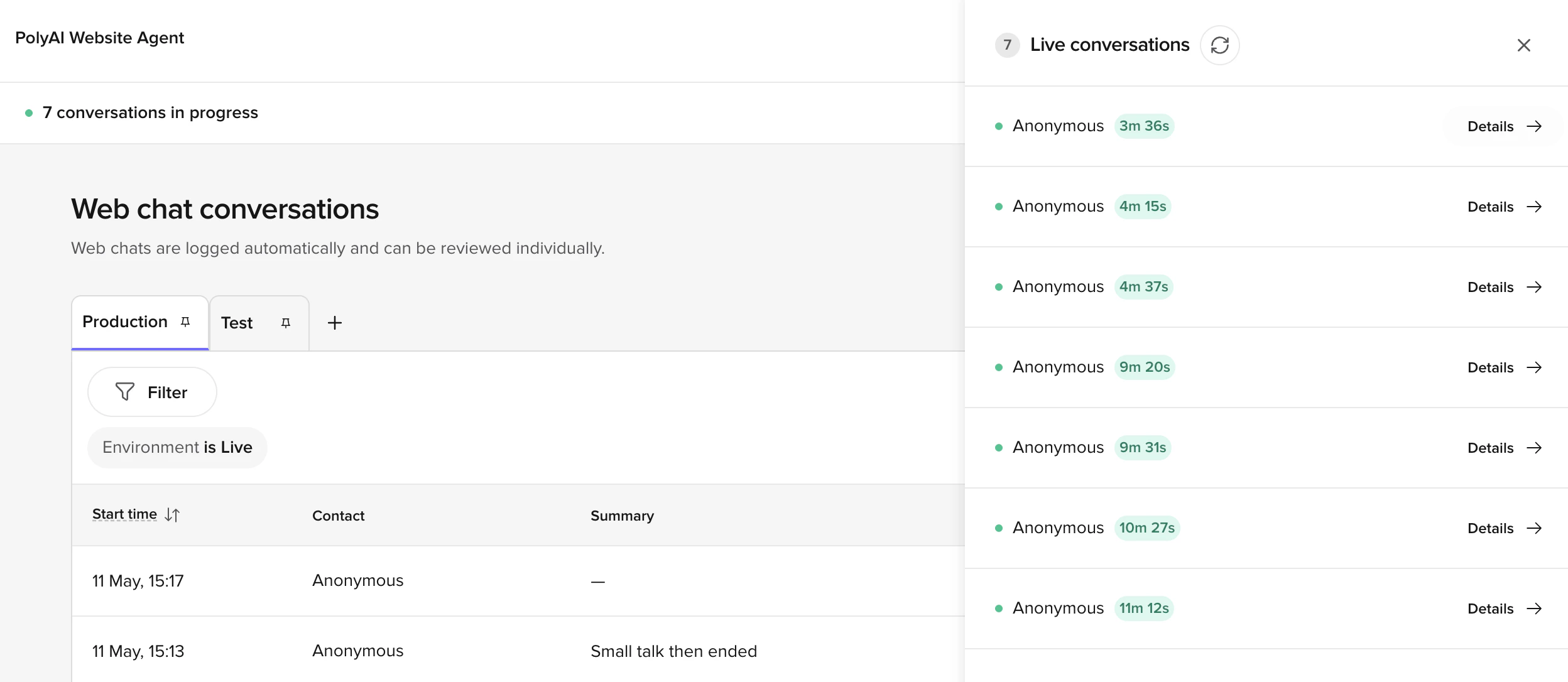 The Live conversations panel:
* Lists every live conversation in the current scope (Voice or Web chat), with contact and elapsed duration.
* Updates in real time as new conversations start and existing ones end.
* Includes a **refresh** button to force an immediate poll.
* **Details →** on any row opens that conversation in the standard review side panel, where you can watch the transcript stream in turn by turn.
Use the Live conversations panel during launches, A/B rollouts, or incident response to watch live traffic without leaving the Conversations workspace. The panel respects the active scope and filter chips, so a Test-scope view shows only sandbox traffic in progress.
Viewing live conversations requires [PII-level access](/tools/classes/conv-log#pii) — in-progress transcripts can't be redacted in real time, so users without PII access get an access-denied response.
### Review side panel
Clicking a row opens the **Conversation Review** panel on the right. The panel header shows the timestamp, channel type, and detected language. For webchat sessions, the contact email also appears.
The Live conversations panel:
* Lists every live conversation in the current scope (Voice or Web chat), with contact and elapsed duration.
* Updates in real time as new conversations start and existing ones end.
* Includes a **refresh** button to force an immediate poll.
* **Details →** on any row opens that conversation in the standard review side panel, where you can watch the transcript stream in turn by turn.
Use the Live conversations panel during launches, A/B rollouts, or incident response to watch live traffic without leaving the Conversations workspace. The panel respects the active scope and filter chips, so a Test-scope view shows only sandbox traffic in progress.
Viewing live conversations requires [PII-level access](/tools/classes/conv-log#pii) — in-progress transcripts can't be redacted in real time, so users without PII access get an access-denied response.
### Review side panel
Clicking a row opens the **Conversation Review** panel on the right. The panel header shows the timestamp, channel type, and detected language. For webchat sessions, the contact email also appears.
 The panel has four tabs:
| Tab | What you see |
| ------------------ | --------------------------------------------------------------------------------------------------------------------------------------------------------------------------------------------------------------- |
| **Transcription** | Turn-by-turn transcript, audio waveform (voice only), matched topics, retrieved sources, and the **Diagnosis** toggle group |
| **Scores** | [PolyScore](/analytics/polyscore) and [CSAT](/analytics/csat/introduction) badges with per-dimension breakdowns |
| **Details** | Call info (status, environment, version), pre-built metrics (handoff target and reason, function calls, SMS events, A/B group, group ID, QA), and links to latency visualization, data logs, and outbound calls |
| **Custom metrics** | Searchable, sortable list of any [custom metrics](/analytics/kpis/introduction) configured for the project |
Use the **link icon** next to "Conversation Review" in the panel header to copy a deep link to the conversation. The **Open in new tab** icon (top right of the panel toolbar) opens the same conversation in the [full-page review](#full-page-review) — useful for in-depth analysis without the table in the background. Press **Esc** or click **×** to close the panel and return to the table.
The panel has four tabs:
| Tab | What you see |
| ------------------ | --------------------------------------------------------------------------------------------------------------------------------------------------------------------------------------------------------------- |
| **Transcription** | Turn-by-turn transcript, audio waveform (voice only), matched topics, retrieved sources, and the **Diagnosis** toggle group |
| **Scores** | [PolyScore](/analytics/polyscore) and [CSAT](/analytics/csat/introduction) badges with per-dimension breakdowns |
| **Details** | Call info (status, environment, version), pre-built metrics (handoff target and reason, function calls, SMS events, A/B group, group ID, QA), and links to latency visualization, data logs, and outbound calls |
| **Custom metrics** | Searchable, sortable list of any [custom metrics](/analytics/kpis/introduction) configured for the project |
Use the **link icon** next to "Conversation Review" in the panel header to copy a deep link to the conversation. The **Open in new tab** icon (top right of the panel toolbar) opens the same conversation in the [full-page review](#full-page-review) — useful for in-depth analysis without the table in the background. Press **Esc** or click **×** to close the panel and return to the table.
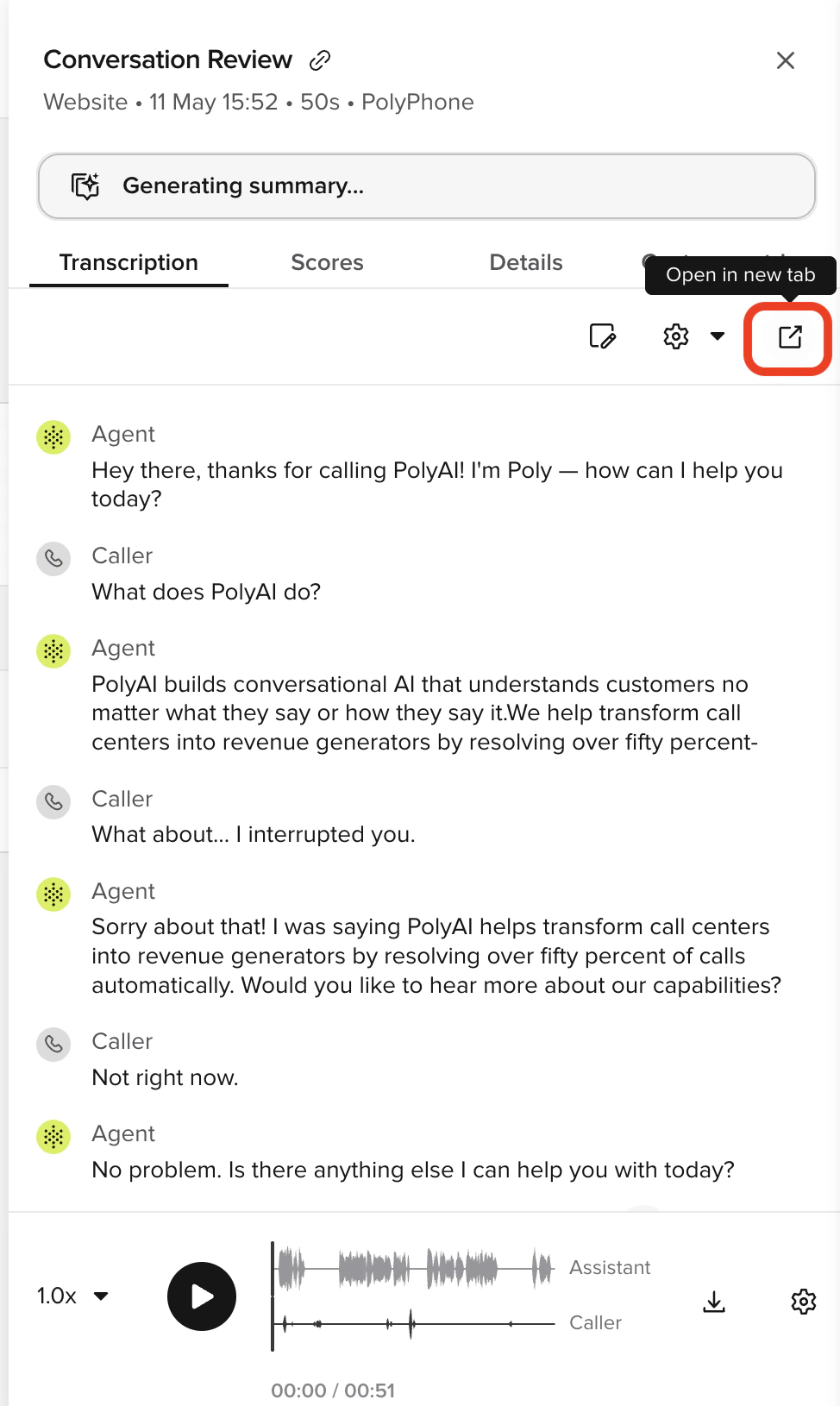 Webchat sessions do not have AI-generated summaries. The panel displays a **"No summary due to conversation being via chat"** notice where the summary would otherwise appear.
### Full-page review
Conversation Review can also be opened as a dedicated full-page view — either by clicking **Open in new tab** from the side panel, or by following a deep-linked URL (for example, a link shared from Slack or a ticket).
* **Conversation tabs**: Switch between *Live*, *Ended*, and *All* to focus on active or completed calls.
* **Conversation turns**: Shows agent and user utterances in chronological order. Live calls will appear here and they will update automatically as new turns arrive. Each turn may display matched [Knowledge](/knowledge/faqs/introduction) topics where relevant.
* **Caller identity**: Displays the user email address if available (for [Webchat](/messaging-channel/introduction)), or phone number if applicable. Personally identifiable details are shown only to users with [PII-level access](/tools/classes/conv-log#pii). For users without PII access, caller phone numbers are automatically redacted as `REDACTED` in the conversations list – inbound calls hide the `from_number`, and outbound calls hide the `to_number`. The opposite number is preserved so you can still tell which line was used.
* **Environment and metadata**: Includes information such as [variant name](/knowledge/variants/introduction), timezone, timestamp, [environment](/environments-and-versions/introduction) (e.g. Sandbox or Production), and version ID.
Active calls display a **live duration indicator** beside the environment label.
* **Matched topics**: When topics from the Knowledge area are referenced or triggered, they are shown as tags beneath the corresponding utterance.
* **Sources**: When the agent retrieves content from [Sources](/knowledge/sources/introduction) sources, a **Sources** tag appears beneath the turn. Click a source name to open an inline preview panel showing the retrieved content. Enable this layer from the **Diagnosis** dropdown.
Webchat sessions do not have AI-generated summaries. The panel displays a **"No summary due to conversation being via chat"** notice where the summary would otherwise appear.
### Full-page review
Conversation Review can also be opened as a dedicated full-page view — either by clicking **Open in new tab** from the side panel, or by following a deep-linked URL (for example, a link shared from Slack or a ticket).
* **Conversation tabs**: Switch between *Live*, *Ended*, and *All* to focus on active or completed calls.
* **Conversation turns**: Shows agent and user utterances in chronological order. Live calls will appear here and they will update automatically as new turns arrive. Each turn may display matched [Knowledge](/knowledge/faqs/introduction) topics where relevant.
* **Caller identity**: Displays the user email address if available (for [Webchat](/messaging-channel/introduction)), or phone number if applicable. Personally identifiable details are shown only to users with [PII-level access](/tools/classes/conv-log#pii). For users without PII access, caller phone numbers are automatically redacted as `REDACTED` in the conversations list – inbound calls hide the `from_number`, and outbound calls hide the `to_number`. The opposite number is preserved so you can still tell which line was used.
* **Environment and metadata**: Includes information such as [variant name](/knowledge/variants/introduction), timezone, timestamp, [environment](/environments-and-versions/introduction) (e.g. Sandbox or Production), and version ID.
Active calls display a **live duration indicator** beside the environment label.
* **Matched topics**: When topics from the Knowledge area are referenced or triggered, they are shown as tags beneath the corresponding utterance.
* **Sources**: When the agent retrieves content from [Sources](/knowledge/sources/introduction) sources, a **Sources** tag appears beneath the turn. Click a source name to open an inline preview panel showing the retrieved content. Enable this layer from the **Diagnosis** dropdown.
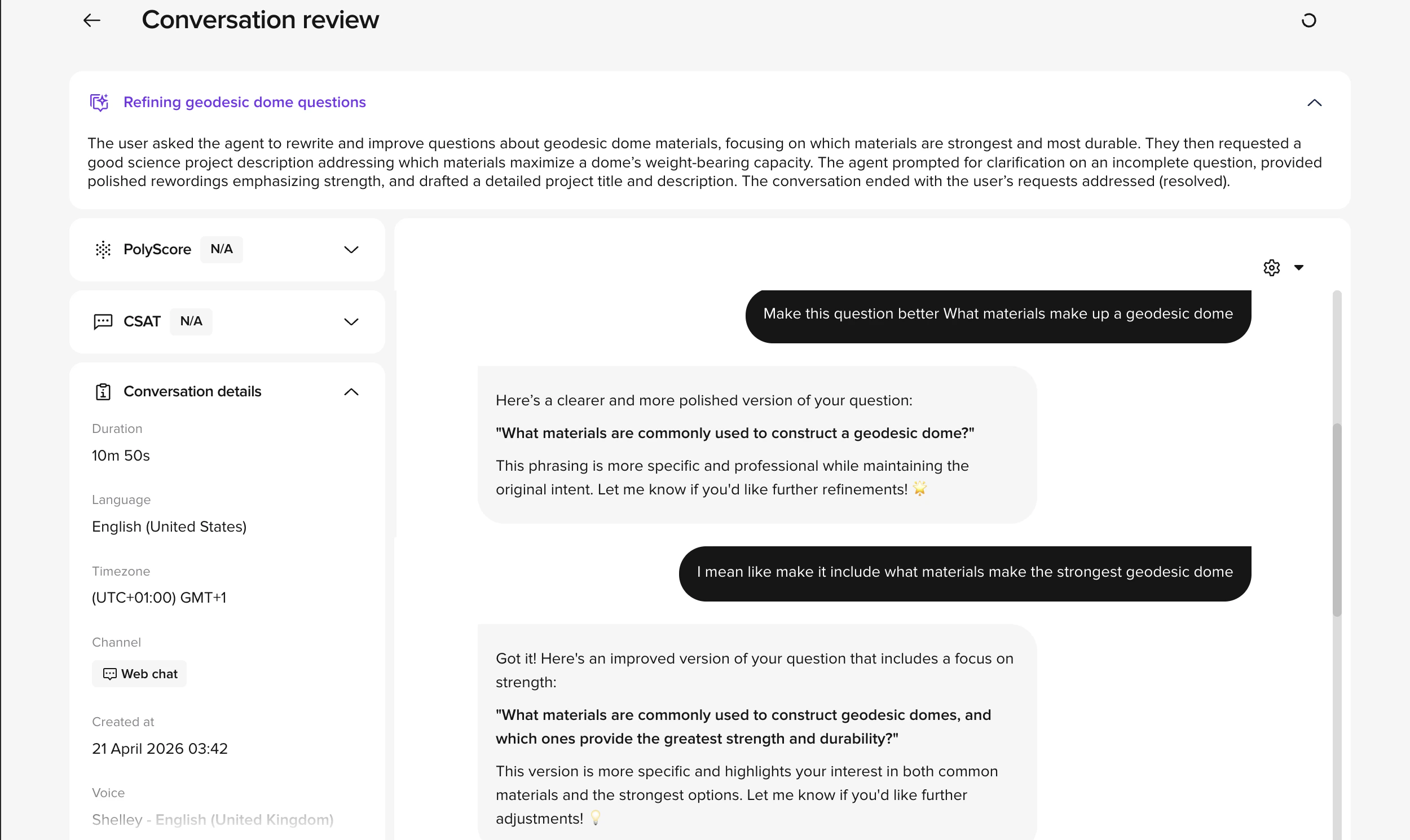 The full-page view shows everything the side panel exposes via tabs, but laid out side-by-side instead:
* **Header** — back arrow to return to the previous page, conversation title, and a reload button to fetch any new turns.
* **Summary banner** — the AI-generated [Call summary](/analytics/polyscore) at the top, expandable for the full text.
* **Left column** — stacked cards for **PolyScore**, **CSAT**, **Conversation details**, and **Metrics** (pre-built and custom). Each card collapses independently.
* **Right column** — the full transcript with the **Diagnosis** toggle group (cog icon) controlling which layers overlay each turn.
Use the full-page view when you want to scan PolyScore, CSAT, metrics, and the transcript together without flipping between tabs — for example, during a deep QA pass or when sharing a single conversation with a teammate.
## Columns
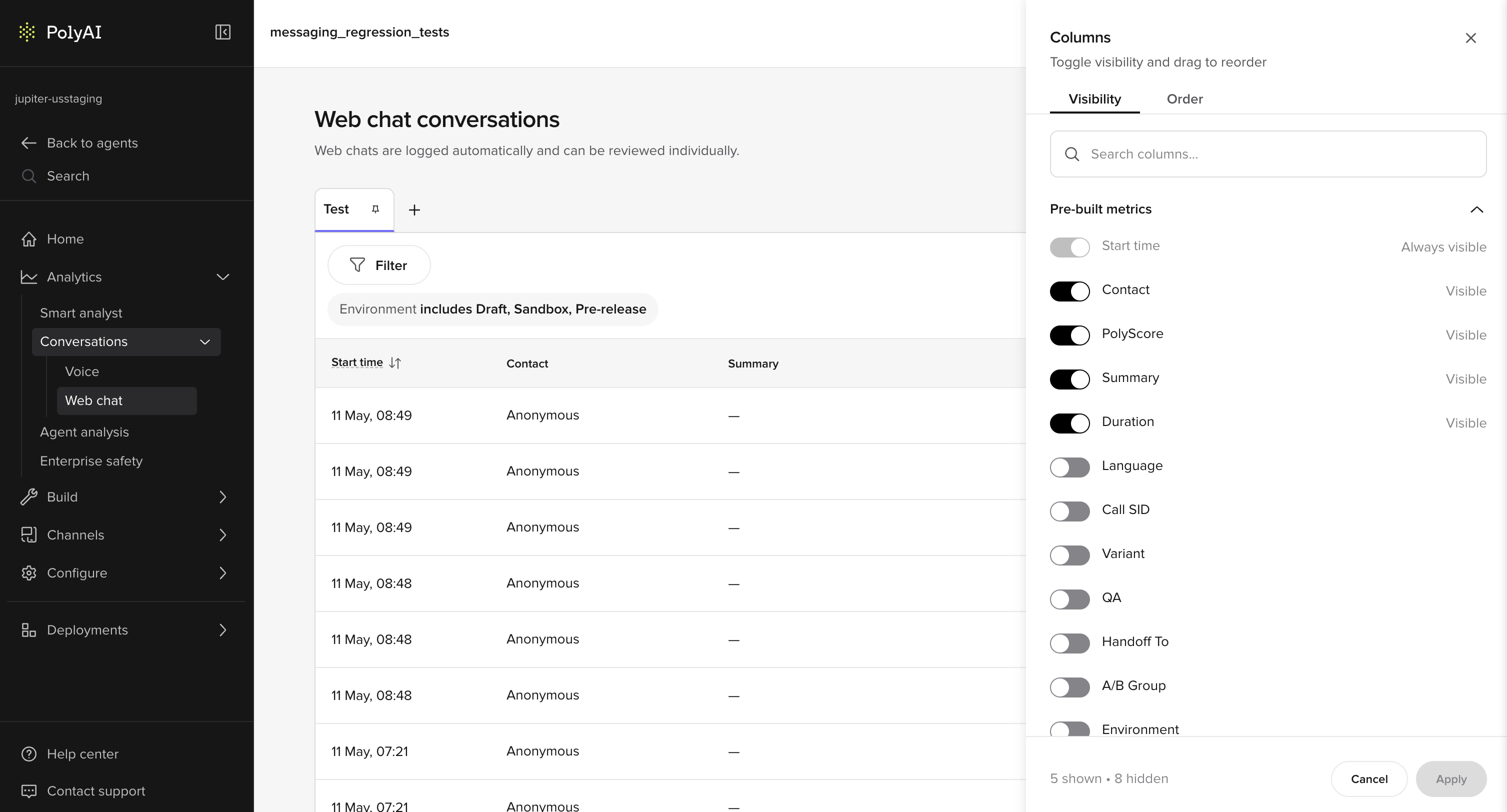
Click **Column** in the table toolbar to configure which columns are shown and in what order.
### Visibility
The **Visibility** tab lists all available columns with a toggle for each. **Start time** is always visible and cannot be hidden. All other columns under **Pre-built metrics** can be turned on or off: Contact, PolyScore, Summary, Duration, Language, Call SID, Variant, QA, Handoff To, A/B Group, and Environment.
The full-page view shows everything the side panel exposes via tabs, but laid out side-by-side instead:
* **Header** — back arrow to return to the previous page, conversation title, and a reload button to fetch any new turns.
* **Summary banner** — the AI-generated [Call summary](/analytics/polyscore) at the top, expandable for the full text.
* **Left column** — stacked cards for **PolyScore**, **CSAT**, **Conversation details**, and **Metrics** (pre-built and custom). Each card collapses independently.
* **Right column** — the full transcript with the **Diagnosis** toggle group (cog icon) controlling which layers overlay each turn.
Use the full-page view when you want to scan PolyScore, CSAT, metrics, and the transcript together without flipping between tabs — for example, during a deep QA pass or when sharing a single conversation with a teammate.
## Columns
Click **Column** in the table toolbar to configure which columns are shown and in what order.
### Visibility
The **Visibility** tab lists all available columns with a toggle for each. **Start time** is always visible and cannot be hidden. All other columns under **Pre-built metrics** can be turned on or off: Contact, PolyScore, Summary, Duration, Language, Call SID, Variant, QA, Handoff To, A/B Group, and Environment.
 When a metric has multiple values for one conversation (e.g. several QA topic matches), the cell shows them comma-joined (e.g. `billing, handoff`) with the most recent timestamp. Filtering and sorting still operate on the individual values.
### Order
The **Order** tab lets you drag columns into your preferred display order. Start time is locked as the first column.
When a metric has multiple values for one conversation (e.g. several QA topic matches), the cell shows them comma-joined (e.g. `billing, handoff`) with the most recent timestamp. Filtering and sorting still operate on the individual values.
### Order
The **Order** tab lets you drag columns into your preferred display order. Start time is locked as the first column.
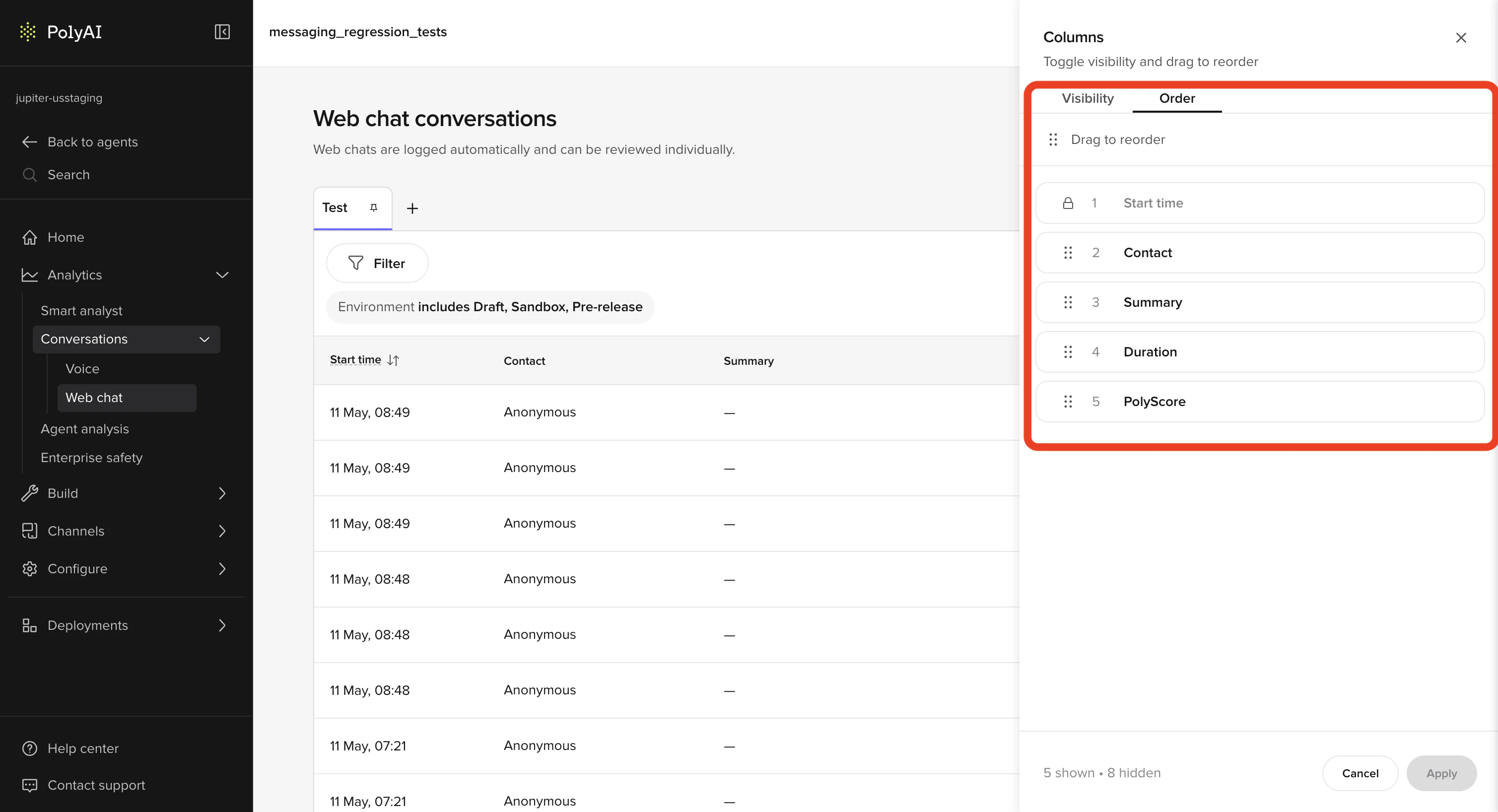 Column changes apply to the active view only. Save the view after adjusting columns to make the layout persistent.
## Filters
Click **Filter** to open the filter builder. You can add up to **10 filters** per view.
Column changes apply to the active view only. Save the view after adjusting columns to make the layout persistent.
## Filters
Click **Filter** to open the filter builder. You can add up to **10 filters** per view.
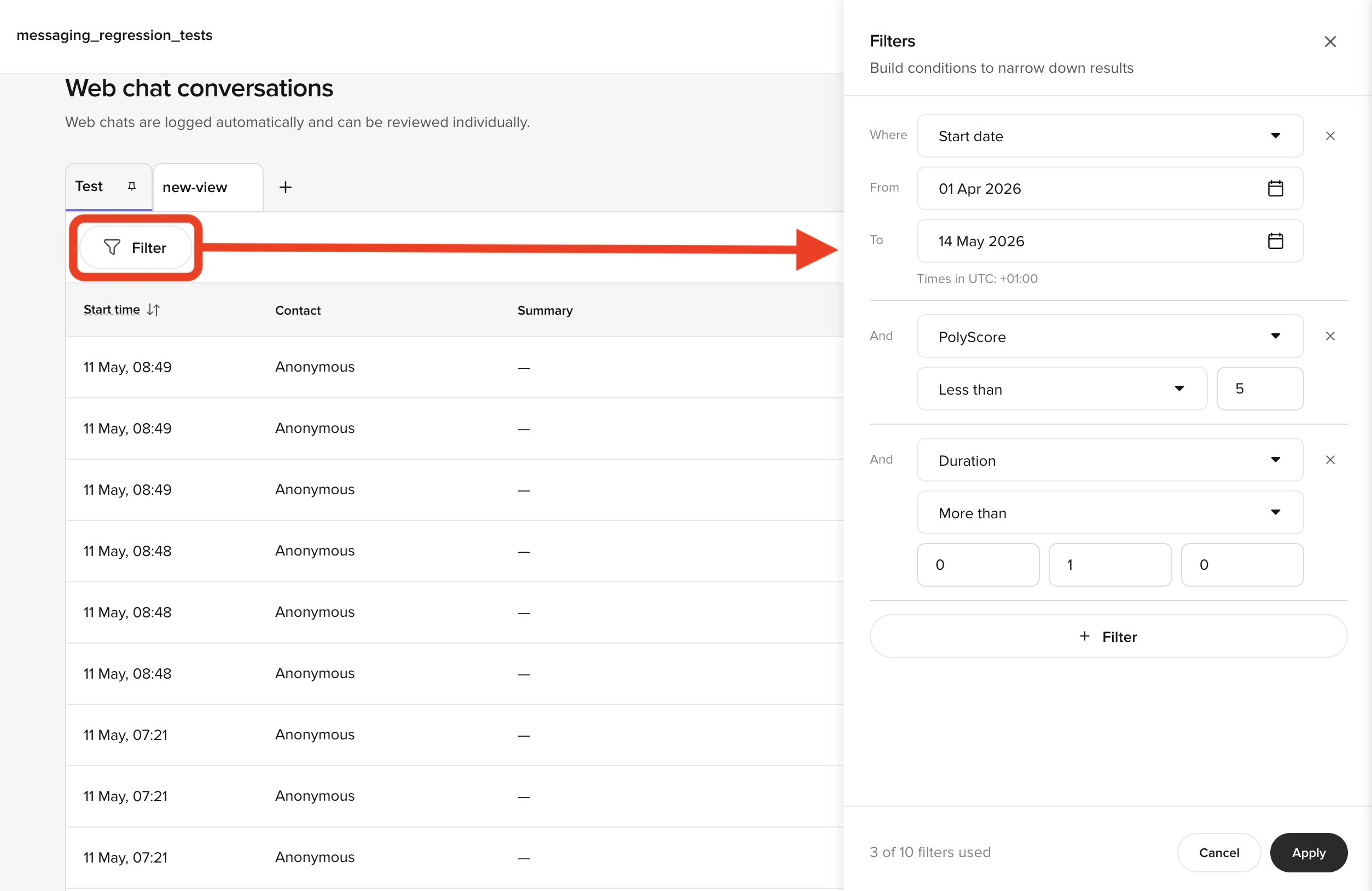 Available filter types include:
* **Start date** — date range picker (timezone offset shown)
* **PolyScore** — numeric comparison: less than, greater than, equals
* **Duration** — time comparison (more than / less than), entered as hours, minutes, seconds
* **Environment** — include or exclude specific environments
* **Contact** — filter by caller or recipient phone number. Matches against either the `from_number` or `to_number` on the conversation, so a single value finds both inbound and outbound calls involving that number. Supports *equals*, *contains*, and *not contains* — use *contains* to match a partial number such as the last four digits.
* **CSAT score** — filter by the [CSAT survey](/analytics/csat/introduction) rating (1–5) the caller gave at the end of the conversation. Supports *equals*, *less than*, *greater than*, range comparisons, and *exists* to find every conversation that has (or doesn't have) a recorded score.
* **Function calls** — filter by whether any function ran, or by a specific function name (supports *exists*, *equals*, *contains*, *not contains*)
* **SMS events** — filter by whether any SMS was sent, or by a specific SMS event name (supports *exists*, *equals*, *contains*, *not contains*)
* **Custom metrics** — filter by any [custom metric](/analytics/kpis/introduction) recorded on the conversation. String metrics support *equals*, *exists*, *contains*, and *not contains*; numeric metrics support *equals*, *less than*, *greater than*, and range comparisons.
#### Substring matching with contains and not contains
Use **contains** and **not contains** to match any conversation whose field value includes the text you enter as a substring. Matching is case-insensitive, so `pizza` matches `Pizza Palace` and `THE PIZZERIA`.
* **contains: `pizza`** — keeps conversations where the value includes `pizza` anywhere in the string.
* **not contains: `pizza`** — excludes conversations where the value includes `pizza`, and keeps everything else (including conversations where the field is empty).
For example, filtering the `RESTAURANT_NAME` custom metric with **contains: `pizza`** surfaces every booking taken for a restaurant with "pizza" in its name, while **not contains: `sms`** on the **Channel** field hides any conversation routed through an SMS channel.
Click **Apply** to run the filters. Active filters appear as chips above the table showing a short summary of each condition — for example, **PolyScore \< 5** and **Duration > 1m 0s**. Click **×** on a chip to remove that filter.
Available filter types include:
* **Start date** — date range picker (timezone offset shown)
* **PolyScore** — numeric comparison: less than, greater than, equals
* **Duration** — time comparison (more than / less than), entered as hours, minutes, seconds
* **Environment** — include or exclude specific environments
* **Contact** — filter by caller or recipient phone number. Matches against either the `from_number` or `to_number` on the conversation, so a single value finds both inbound and outbound calls involving that number. Supports *equals*, *contains*, and *not contains* — use *contains* to match a partial number such as the last four digits.
* **CSAT score** — filter by the [CSAT survey](/analytics/csat/introduction) rating (1–5) the caller gave at the end of the conversation. Supports *equals*, *less than*, *greater than*, range comparisons, and *exists* to find every conversation that has (or doesn't have) a recorded score.
* **Function calls** — filter by whether any function ran, or by a specific function name (supports *exists*, *equals*, *contains*, *not contains*)
* **SMS events** — filter by whether any SMS was sent, or by a specific SMS event name (supports *exists*, *equals*, *contains*, *not contains*)
* **Custom metrics** — filter by any [custom metric](/analytics/kpis/introduction) recorded on the conversation. String metrics support *equals*, *exists*, *contains*, and *not contains*; numeric metrics support *equals*, *less than*, *greater than*, and range comparisons.
#### Substring matching with contains and not contains
Use **contains** and **not contains** to match any conversation whose field value includes the text you enter as a substring. Matching is case-insensitive, so `pizza` matches `Pizza Palace` and `THE PIZZERIA`.
* **contains: `pizza`** — keeps conversations where the value includes `pizza` anywhere in the string.
* **not contains: `pizza`** — excludes conversations where the value includes `pizza`, and keeps everything else (including conversations where the field is empty).
For example, filtering the `RESTAURANT_NAME` custom metric with **contains: `pizza`** surfaces every booking taken for a restaurant with "pizza" in its name, while **not contains: `sms`** on the **Channel** field hides any conversation routed through an SMS channel.
Click **Apply** to run the filters. Active filters appear as chips above the table showing a short summary of each condition — for example, **PolyScore \< 5** and **Duration > 1m 0s**. Click **×** on a chip to remove that filter.
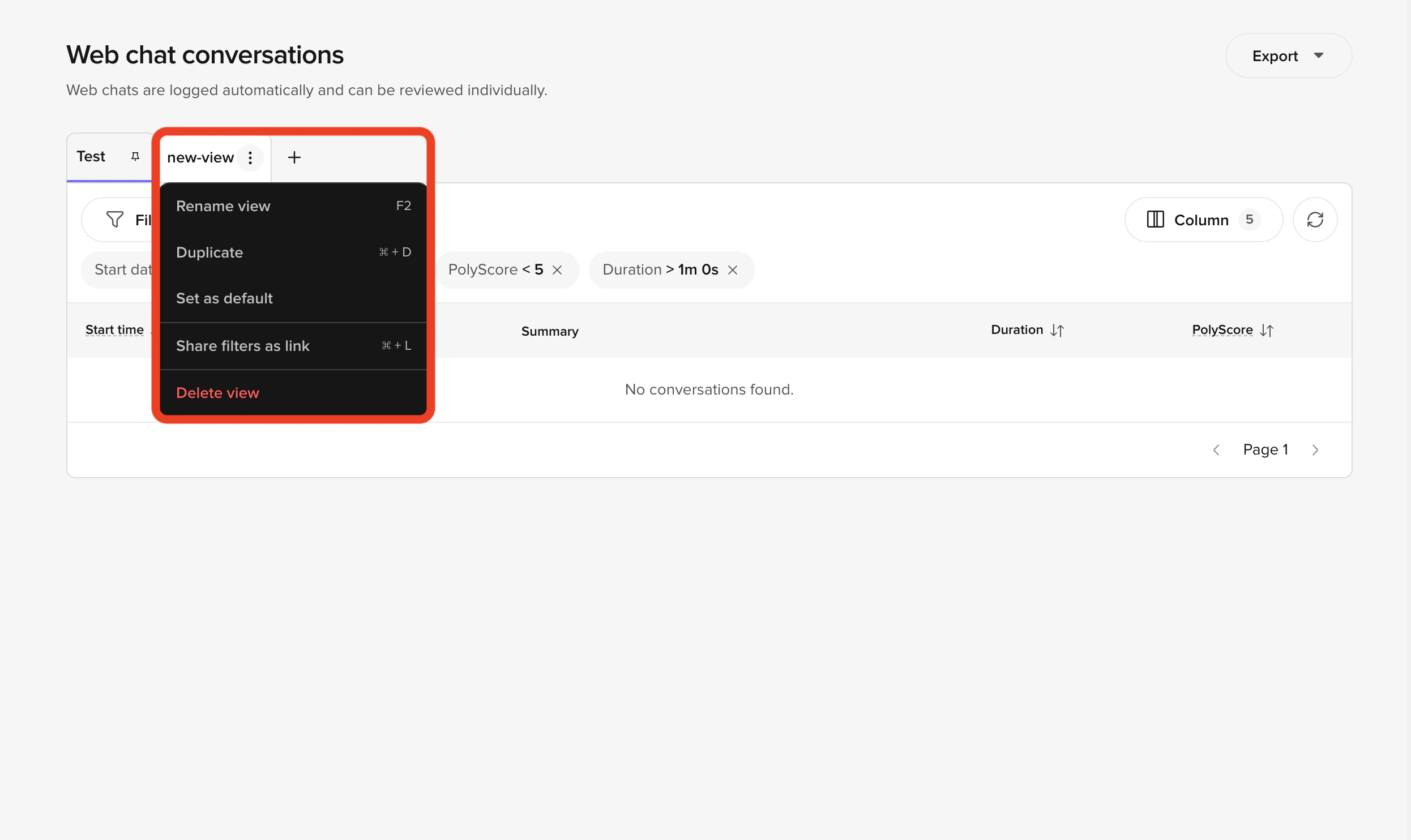 Combine PolyScore and Duration filters to build a focused QA queue — for example, all calls where the score was below 5 and the conversation ran for at least a minute.
### Share filters as a link
Active filters are encoded in the page URL. To share a filtered view with a teammate, copy the URL from your browser's address bar after applying the filters and paste it into Slack, email, or a ticket. When the recipient opens the link, Conversation Review loads with the same scope, view, and filter conditions pre-applied (subject to their access permissions).
Shared links reflect filter state only — they don't pin column visibility or order. To share a full layout, save a [Custom View](/analytics/conversations/views) and share the link to that view instead.
## Export
Click **Export** in the table toolbar to download the conversations in the current view as a file. The export reflects the active view — its filters, columns, and channel scope — so refine the view first if you want a subset.
Combine PolyScore and Duration filters to build a focused QA queue — for example, all calls where the score was below 5 and the conversation ran for at least a minute.
### Share filters as a link
Active filters are encoded in the page URL. To share a filtered view with a teammate, copy the URL from your browser's address bar after applying the filters and paste it into Slack, email, or a ticket. When the recipient opens the link, Conversation Review loads with the same scope, view, and filter conditions pre-applied (subject to their access permissions).
Shared links reflect filter state only — they don't pin column visibility or order. To share a full layout, save a [Custom View](/analytics/conversations/views) and share the link to that view instead.
## Export
Click **Export** in the table toolbar to download the conversations in the current view as a file. The export reflects the active view — its filters, columns, and channel scope — so refine the view first if you want a subset.
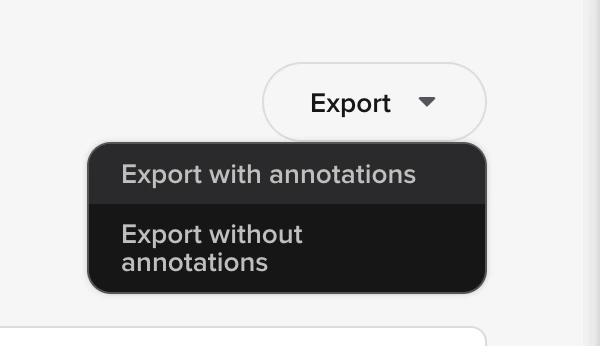 Choose one of two options from the dropdown:
* **Export with annotations** — includes any [annotations](/analytics/conversations/annotations) (wrong transcription, missing topic) flagged on the conversations in the current view. Use this when you want reviewer feedback to travel with the data — for example, when sharing low-quality calls with the team responsible for ASR or Knowledge tuning.
* **Export without annotations** — exports the conversations only. Use this when you just need the raw transcripts and metadata, or when sharing data with stakeholders who don't need the QA layer.
For programmatic export and the underlying API, see [Call data](/call-data/introduction).
## Caller identity and PII
The panel header displays the caller's email (webchat) or phone number (voice) when available. Personally identifiable details are visible only to users with [PII-level access](/tools/classes/conv-log#pii). When PII masking is enabled for your account, contact details are redacted in both the table and the panel.
### Audio playback and PII
Audio playback in the Transcription tab follows the same [PII-level access](/tools/classes/conv-log#pii) rules as the rest of the panel. Users with PII access hear the original recording by default and can opt in to the redacted version. Users without PII access always hear the redacted recording — sensitive segments are muted server-side, and the option to fetch the unredacted audio is not available. The same rule applies to the public [Conversations API](/api-reference/conversations/introduction) `/audio` endpoint: requests from API keys without PII access return redacted audio regardless of the `redacted` query parameter.
## Matched topics and sources
When the agent matches [Knowledge](/knowledge/faqs/introduction) topics or retrieves content from [Sources](/knowledge/sources/introduction) sources, both surfaces appear under the relevant turn:
* **Matched topics** — tags listing the topics most relevant to the user's utterance.
* **Sources** — clickable source names. Clicking a source opens an inline preview; use **Open in Knowledge** to jump to the source file.
Choose one of two options from the dropdown:
* **Export with annotations** — includes any [annotations](/analytics/conversations/annotations) (wrong transcription, missing topic) flagged on the conversations in the current view. Use this when you want reviewer feedback to travel with the data — for example, when sharing low-quality calls with the team responsible for ASR or Knowledge tuning.
* **Export without annotations** — exports the conversations only. Use this when you just need the raw transcripts and metadata, or when sharing data with stakeholders who don't need the QA layer.
For programmatic export and the underlying API, see [Call data](/call-data/introduction).
## Caller identity and PII
The panel header displays the caller's email (webchat) or phone number (voice) when available. Personally identifiable details are visible only to users with [PII-level access](/tools/classes/conv-log#pii). When PII masking is enabled for your account, contact details are redacted in both the table and the panel.
### Audio playback and PII
Audio playback in the Transcription tab follows the same [PII-level access](/tools/classes/conv-log#pii) rules as the rest of the panel. Users with PII access hear the original recording by default and can opt in to the redacted version. Users without PII access always hear the redacted recording — sensitive segments are muted server-side, and the option to fetch the unredacted audio is not available. The same rule applies to the public [Conversations API](/api-reference/conversations/introduction) `/audio` endpoint: requests from API keys without PII access return redacted audio regardless of the `redacted` query parameter.
## Matched topics and sources
When the agent matches [Knowledge](/knowledge/faqs/introduction) topics or retrieves content from [Sources](/knowledge/sources/introduction) sources, both surfaces appear under the relevant turn:
* **Matched topics** — tags listing the topics most relevant to the user's utterance.
* **Sources** — clickable source names. Clicking a source opens an inline preview; use **Open in Knowledge** to jump to the source file.
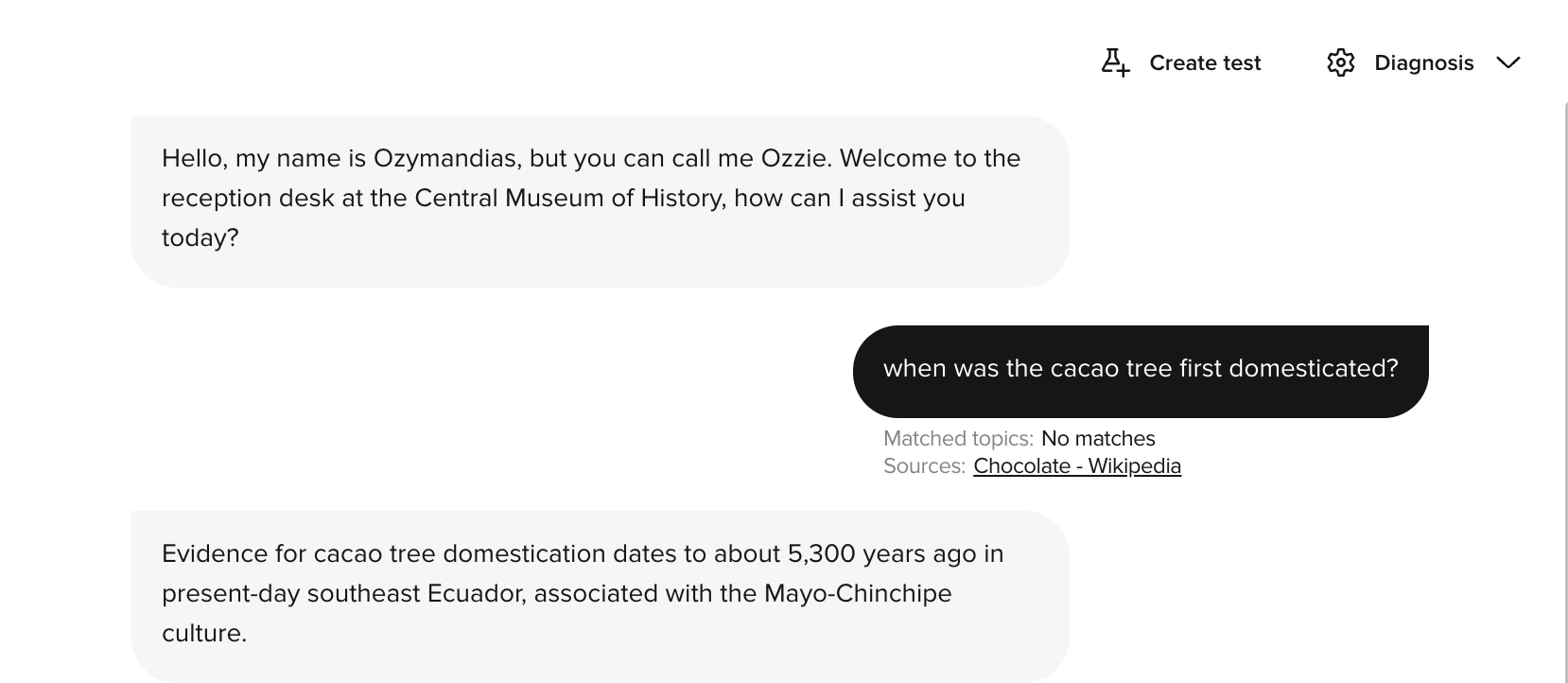 Enable both layers from the **Diagnosis** toggle group on the Transcription tab. See [Diagnosis](/analytics/conversations/diagnosis) for all available layers.
## PolyScore at a glance
Every eligible voice call displays a [PolyScore](/analytics/polyscore) badge in the table and on the **Scores** tab — a 0–10 quality rating generated automatically by AI. The badge is color-coded (green 7–10, amber 4–6, red 0–3) and expands to show per-dimension breakdowns.
Use PolyScore in Conversation Review to:
* **Prioritize review** — sort or filter by PolyScore to surface the lowest-quality conversations first.
* **Understand failure modes** — expand the breakdown to see whether a low score reflects poor flow, an unresolved task, or caller frustration.
* **Spot-check high scores** — confirm that well-scored calls followed the right process before using them as benchmarks.
Save a [view](/analytics/conversations/views) filtered to low PolyScore to build a persistent QA queue.
## Conversation status
The end of every conversation is visually marked with an **"Ended conversation"** indicator. Live calls show an **"In progress"** badge until they close automatically.
## Default view
Each scope opens on the **Production** System View. If you are working in Sandbox or haven't yet deployed to production, switch to the **Test** System View, or create a Custom View with your preferred filters and set it as your default.
## Data retention
Transcripts are removed once they fall outside your contracted retention period. Retention varies by contract — export anything you need to keep longer.
## Related pages
Save filter and column combinations as pinned tabs.
Inspect tool calls, flows, latency, and topic citations for a specific turn.
Flag transcription errors and missing topics to drive continuous improvement.
Understand how conversations are scored and what each dimension measures.
Enable both layers from the **Diagnosis** toggle group on the Transcription tab. See [Diagnosis](/analytics/conversations/diagnosis) for all available layers.
## PolyScore at a glance
Every eligible voice call displays a [PolyScore](/analytics/polyscore) badge in the table and on the **Scores** tab — a 0–10 quality rating generated automatically by AI. The badge is color-coded (green 7–10, amber 4–6, red 0–3) and expands to show per-dimension breakdowns.
Use PolyScore in Conversation Review to:
* **Prioritize review** — sort or filter by PolyScore to surface the lowest-quality conversations first.
* **Understand failure modes** — expand the breakdown to see whether a low score reflects poor flow, an unresolved task, or caller frustration.
* **Spot-check high scores** — confirm that well-scored calls followed the right process before using them as benchmarks.
Save a [view](/analytics/conversations/views) filtered to low PolyScore to build a persistent QA queue.
## Conversation status
The end of every conversation is visually marked with an **"Ended conversation"** indicator. Live calls show an **"In progress"** badge until they close automatically.
## Default view
Each scope opens on the **Production** System View. If you are working in Sandbox or haven't yet deployed to production, switch to the **Test** System View, or create a Custom View with your preferred filters and set it as your default.
## Data retention
Transcripts are removed once they fall outside your contracted retention period. Retention varies by contract — export anything you need to keep longer.
## Related pages
Save filter and column combinations as pinned tabs.
Inspect tool calls, flows, latency, and topic citations for a specific turn.
Flag transcription errors and missing topics to drive continuous improvement.
Understand how conversations are scored and what each dimension measures.