> ## Documentation Index
> Fetch the complete documentation index at: https://docs.poly.ai/llms.txt
> Use this file to discover all available pages before exploring further.
# AI Scores
> Score every conversation from 1 to 5 against criteria you write yourself.
**AI Scores** let you score conversations against your own criteria. You give the score a name, describe what it measures, and add up to five weighted criteria. After each conversation ends, the AI reads the transcript, grades every criterion, and gives the conversation a **1–5 score**.
AI Scores sit alongside [PolyScore](/analytics/polyscore). PolyScore keeps working exactly as before.
 ## AI Scores or PolyScore?
| | [PolyScore](/analytics/polyscore) | AI Scores |
| - | - | - |
| **Who defines it** | PolyAI | You |
| **How it is measured** | The AI grades the transcript against a fixed PolyAI rubric | The AI grades the transcript against criteria you write |
| **Value** | 1–5 | 1–5, one decimal place |
| **Best for** | A standard quality score you can compare across agents | Quality, outcome, or compliance checks that are specific to your business |
Use an AI Score when you need a check that PolyScore doesn't cover, such as *"Did the agent give the required disclosures?"*
## How an AI Score works
Each AI Score has:
* A **description** that gives the AI the overall context for the score.
* Up to **five criteria**. Each criterion has a title, a description that tells the AI what to look for, a score type, and a weight.
There are two score types:
| Score type | Answers |
| - | - |
| **3-point scale** | Good, Fair, or Poor |
| **Yes/No** | Yes or No |
Criterion weights are whole percentages, and they must add up to exactly 100%.
### How the score is calculated
The AI grades each criterion. Each answer is worth a value on the 1–5 scale:
| Score type | Answer | Value |
| - | - | - |
| **3-point scale** | Good | 5 |
| | Fair | 3 |
| | Poor | 1 |
| **Yes/No** | Yes | 5 |
| | No | 1 |
The score is the weighted average of these values, rounded to one decimal place. Criteria with a higher weight move the score more.
For example, a score has two criteria: **Request resolved** (Yes/No) and **Accurate information** (3-point).
| Request resolved (70% weight) | Accurate information (30% weight) | Score |
| - | - | - |
| Yes | Good | 5.0 |
| Yes | Fair | 4.4 |
| No | Good | 2.2 |
| No | Poor | 1.0 |
The score badge is color-coded:
| Score | Color |
| - | - |
| 4.0–5.0 | Green |
| 3.0–3.9 | Yellow |
| 1.0–2.9 | Red |
### Which conversations get scored
An active AI Score scores a conversation when all of these are true:
* The conversation is on a channel the score applies to: **Voice**, **Webchat**, or both.
* The conversation has at least **3 turns**. This is a fixed system default, and you can't change it per score.
* The conversation does not match the score's **exclusion criteria**, if it has any.
* The conversation ended after the score was turned on. AI Scores do not score past conversations.
If a conversation isn't scored, it shows **N/A**. Hover over **N/A** to see the reason. See [Scoring states](#scoring-states).
## Create an AI Score
Only **Admins** can create, edit, turn on, turn off, duplicate, and delete AI Scores.
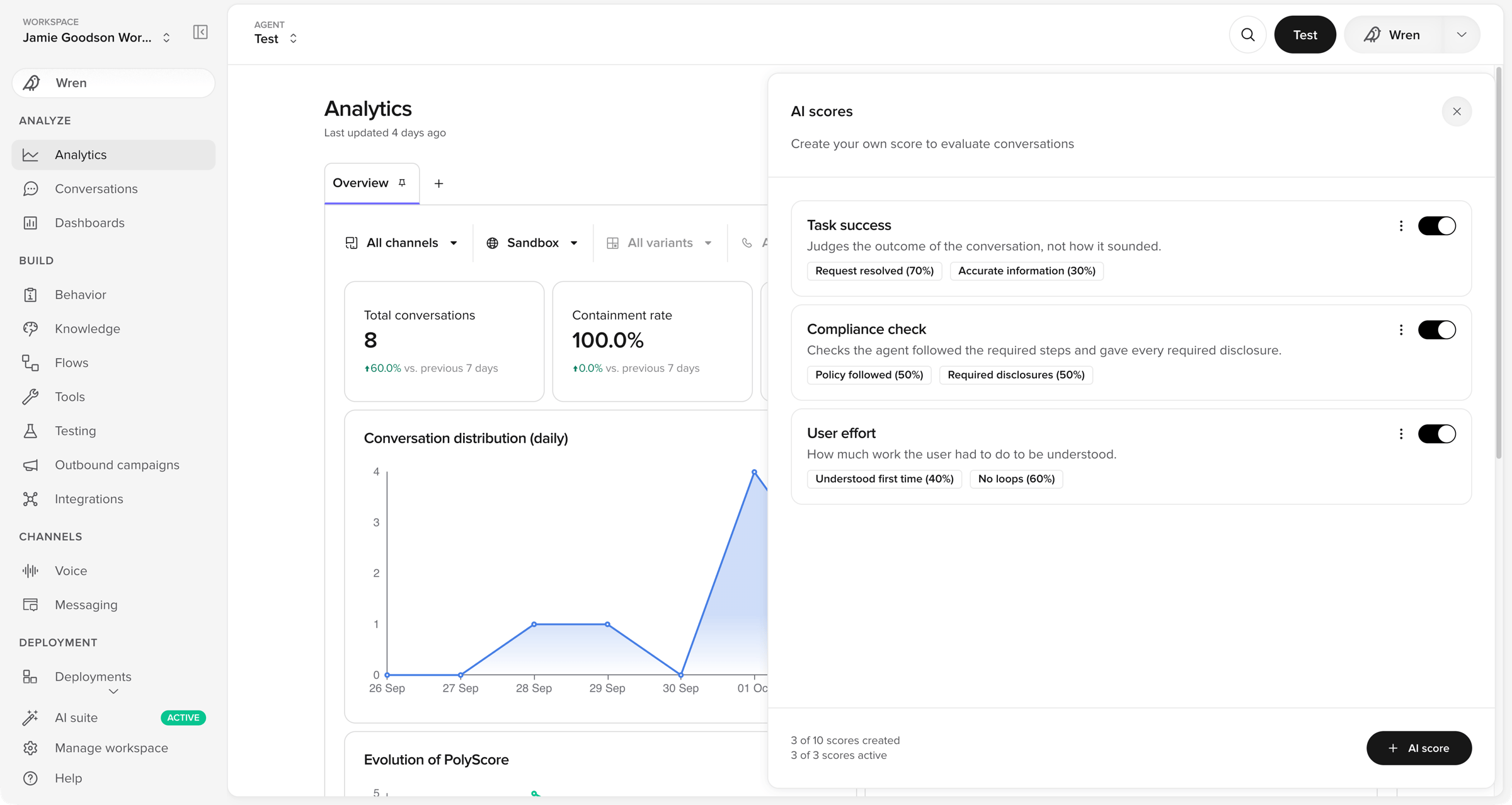
Go to **Analyze > Analytics**, select **Edit**, then select **AI scores**.
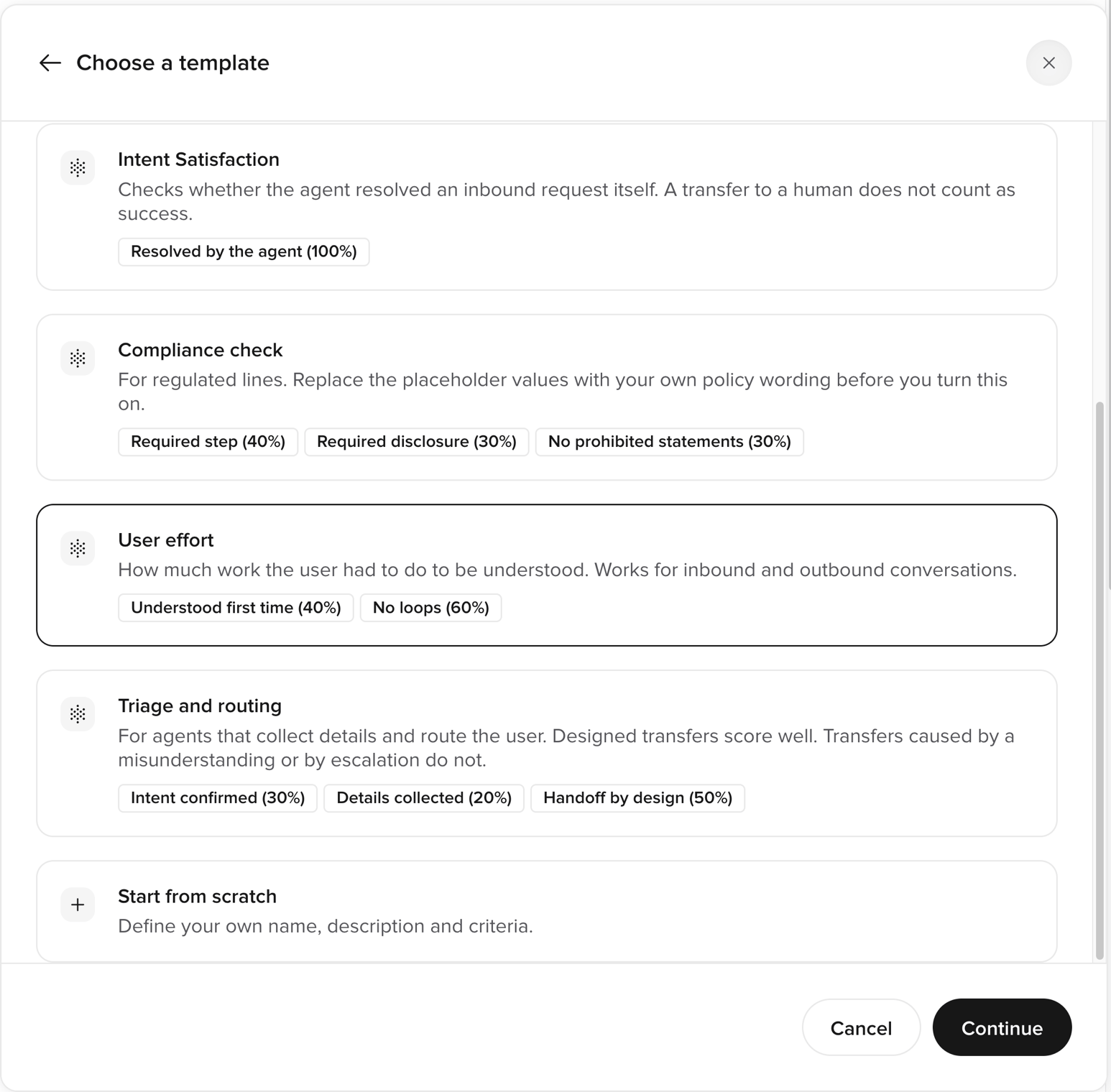
Select **+ AI score**, then choose a [template](#templates) or select **Start from scratch**.
## AI Scores or PolyScore?
| | [PolyScore](/analytics/polyscore) | AI Scores |
| - | - | - |
| **Who defines it** | PolyAI | You |
| **How it is measured** | The AI grades the transcript against a fixed PolyAI rubric | The AI grades the transcript against criteria you write |
| **Value** | 1–5 | 1–5, one decimal place |
| **Best for** | A standard quality score you can compare across agents | Quality, outcome, or compliance checks that are specific to your business |
Use an AI Score when you need a check that PolyScore doesn't cover, such as *"Did the agent give the required disclosures?"*
## How an AI Score works
Each AI Score has:
* A **description** that gives the AI the overall context for the score.
* Up to **five criteria**. Each criterion has a title, a description that tells the AI what to look for, a score type, and a weight.
There are two score types:
| Score type | Answers |
| - | - |
| **3-point scale** | Good, Fair, or Poor |
| **Yes/No** | Yes or No |
Criterion weights are whole percentages, and they must add up to exactly 100%.
### How the score is calculated
The AI grades each criterion. Each answer is worth a value on the 1–5 scale:
| Score type | Answer | Value |
| - | - | - |
| **3-point scale** | Good | 5 |
| | Fair | 3 |
| | Poor | 1 |
| **Yes/No** | Yes | 5 |
| | No | 1 |
The score is the weighted average of these values, rounded to one decimal place. Criteria with a higher weight move the score more.
For example, a score has two criteria: **Request resolved** (Yes/No) and **Accurate information** (3-point).
| Request resolved (70% weight) | Accurate information (30% weight) | Score |
| - | - | - |
| Yes | Good | 5.0 |
| Yes | Fair | 4.4 |
| No | Good | 2.2 |
| No | Poor | 1.0 |
The score badge is color-coded:
| Score | Color |
| - | - |
| 4.0–5.0 | Green |
| 3.0–3.9 | Yellow |
| 1.0–2.9 | Red |
### Which conversations get scored
An active AI Score scores a conversation when all of these are true:
* The conversation is on a channel the score applies to: **Voice**, **Webchat**, or both.
* The conversation has at least **3 turns**. This is a fixed system default, and you can't change it per score.
* The conversation does not match the score's **exclusion criteria**, if it has any.
* The conversation ended after the score was turned on. AI Scores do not score past conversations.
If a conversation isn't scored, it shows **N/A**. Hover over **N/A** to see the reason. See [Scoring states](#scoring-states).
## Create an AI Score
Only **Admins** can create, edit, turn on, turn off, duplicate, and delete AI Scores.
Go to **Analyze > Analytics**, select **Edit**, then select **AI scores**.
Select **+ AI score**, then choose a [template](#templates) or select **Start from scratch**.
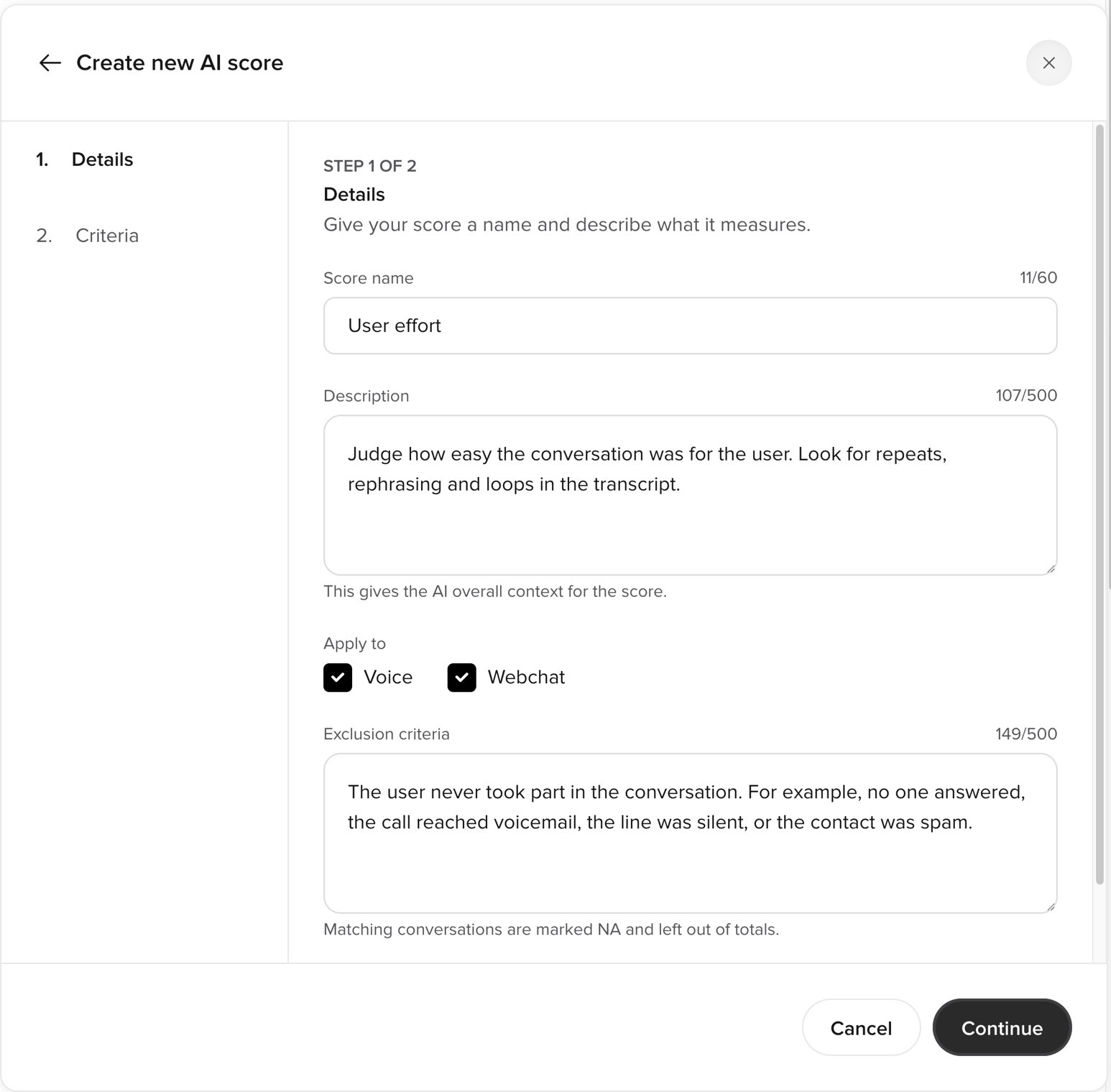
 * **Score name** — a short, unique name for the score. It becomes the column header in Conversations. Up to 60 characters.
* **Description** — what the score measures. This gives the AI the overall context for the score. Up to 500 characters.
* **Apply to** — the channels to score: **Voice**, **Webchat**, or both.
* **Exclusion criteria** (optional) — describe the conversations the score should skip, for example *"The caller dialed the wrong number."* Matching conversations show **N/A** and are left out of totals. Up to 500 characters.
Select **Continue**.
* **Score name** — a short, unique name for the score. It becomes the column header in Conversations. Up to 60 characters.
* **Description** — what the score measures. This gives the AI the overall context for the score. Up to 500 characters.
* **Apply to** — the channels to score: **Voice**, **Webchat**, or both.
* **Exclusion criteria** (optional) — describe the conversations the score should skip, for example *"The caller dialed the wrong number."* Matching conversations show **N/A** and are left out of totals. Up to 500 characters.
Select **Continue**.
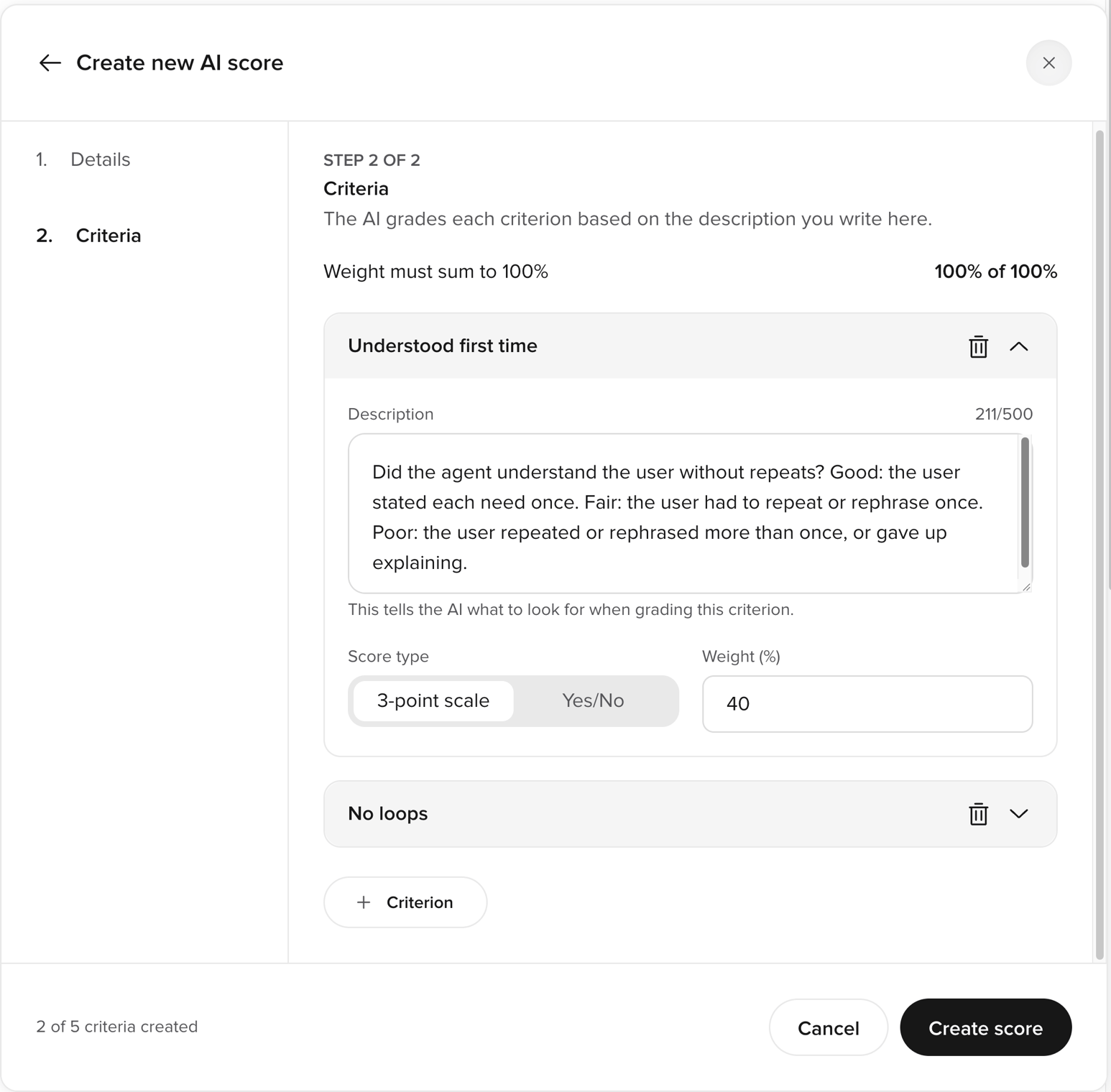
 For each criterion, enter:
* **Title** — what the criterion checks, for example *"Verified account holder"*. Up to 60 characters, unique within the score.
* **Description** — what the AI should look for when it grades this criterion. Up to 500 characters.
* **Score type** — **3-point scale** or **Yes/No**.
* **Weight (%)** — a whole number from 1 to 100.
Select **+ Criterion** to add another criterion, up to five. The running total above the criteria shows how close the weights are to 100%.
For each criterion, enter:
* **Title** — what the criterion checks, for example *"Verified account holder"*. Up to 60 characters, unique within the score.
* **Description** — what the AI should look for when it grades this criterion. Up to 500 characters.
* **Score type** — **3-point scale** or **Yes/No**.
* **Weight (%)** — a whole number from 1 to 100.
Select **+ Criterion** to add another criterion, up to five. The running total above the criteria shows how close the weights are to 100%.
 Select **Create score**, then confirm.
New scores start **off**. Use the toggle on the score's card to turn it on. The score starts with the next conversations that end.
Changes can take up to **5 minutes** to apply. Conversations that end before then are scored against the previous version of the score, if there was one.
### Write good criteria
* **Check one thing per criterion.** *"Verified the caller before discussing the account"* is easier to grade than *"Was secure and polite"*.
* **Describe each answer.** For a 3-point criterion, say what Good, Fair, and Poor look like. For a Yes/No criterion, say when the answer is Yes. The templates show this pattern.
* **Describe only what the transcript can show.** The AI reads the transcript only. It can't check your systems or your knowledge base.
* **Use exclusion criteria to skip conversations.** If the score doesn't apply to a type of conversation, such as wrong numbers or silent calls, exclude those conversations. Don't add the condition to every criterion.
* **Weight what matters most.** A criterion with 60% weight moves the score more than a criterion with 20% weight.
* **Check the first results.** After you turn a score on, open some scored conversations in [Conversation review](/analytics/conversations/review) and read the breakdown. Refine the descriptions where the grades don't match your judgment.
## Manage AI Scores
All management happens in the **AI scores** panel. Open it from **Analyze > Analytics** > **Edit** > **AI scores**.
| Limit | Value |
| - | - |
| AI Scores per project | 10 |
| Active AI Scores per project | 3 |
| Criteria per score | 5 |
The counters at the bottom of the panel show how many scores you have created and how many are active.
* **Turn on or off** — use the toggle on a score's card. Turning a score off stops it scoring new conversations. Past results are kept, and you can still chart them. Turning a score back on does not score the conversations that ended while it was off.
* **Edit** — select **⋮** > **Edit**. Conversations that were already scored keep the criteria and results they were scored with. Edits apply only to new conversations.
* **Duplicate** — select **⋮** > **Duplicate**. The copy is named *"\ (copy)"* and starts off.
* **Delete** — select **⋮** > **Delete**. The score stops scoring conversations and is removed from the list, from the Conversations columns, and from the filters.
To change what a score measures without mixing old and new results, duplicate it, edit the copy, then turn the original off and the copy on.
Users who are not Admins can open the **AI scores** panel to see each score and its criteria, but they can't change anything.
## Where AI Scores appear
### Conversations table
Each active AI Score has its own column in the [conversations table](/analytics/conversations/review#conversations-table). The columns are shown by default, after the standard columns. Hover over a score to see the breakdown: each criterion with its weight and its answer.
Select **Create score**, then confirm.
New scores start **off**. Use the toggle on the score's card to turn it on. The score starts with the next conversations that end.
Changes can take up to **5 minutes** to apply. Conversations that end before then are scored against the previous version of the score, if there was one.
### Write good criteria
* **Check one thing per criterion.** *"Verified the caller before discussing the account"* is easier to grade than *"Was secure and polite"*.
* **Describe each answer.** For a 3-point criterion, say what Good, Fair, and Poor look like. For a Yes/No criterion, say when the answer is Yes. The templates show this pattern.
* **Describe only what the transcript can show.** The AI reads the transcript only. It can't check your systems or your knowledge base.
* **Use exclusion criteria to skip conversations.** If the score doesn't apply to a type of conversation, such as wrong numbers or silent calls, exclude those conversations. Don't add the condition to every criterion.
* **Weight what matters most.** A criterion with 60% weight moves the score more than a criterion with 20% weight.
* **Check the first results.** After you turn a score on, open some scored conversations in [Conversation review](/analytics/conversations/review) and read the breakdown. Refine the descriptions where the grades don't match your judgment.
## Manage AI Scores
All management happens in the **AI scores** panel. Open it from **Analyze > Analytics** > **Edit** > **AI scores**.
| Limit | Value |
| - | - |
| AI Scores per project | 10 |
| Active AI Scores per project | 3 |
| Criteria per score | 5 |
The counters at the bottom of the panel show how many scores you have created and how many are active.
* **Turn on or off** — use the toggle on a score's card. Turning a score off stops it scoring new conversations. Past results are kept, and you can still chart them. Turning a score back on does not score the conversations that ended while it was off.
* **Edit** — select **⋮** > **Edit**. Conversations that were already scored keep the criteria and results they were scored with. Edits apply only to new conversations.
* **Duplicate** — select **⋮** > **Duplicate**. The copy is named *"\ (copy)"* and starts off.
* **Delete** — select **⋮** > **Delete**. The score stops scoring conversations and is removed from the list, from the Conversations columns, and from the filters.
To change what a score measures without mixing old and new results, duplicate it, edit the copy, then turn the original off and the copy on.
Users who are not Admins can open the **AI scores** panel to see each score and its criteria, but they can't change anything.
## Where AI Scores appear
### Conversations table
Each active AI Score has its own column in the [conversations table](/analytics/conversations/review#conversations-table). The columns are shown by default, after the standard columns. Hover over a score to see the breakdown: each criterion with its weight and its answer.
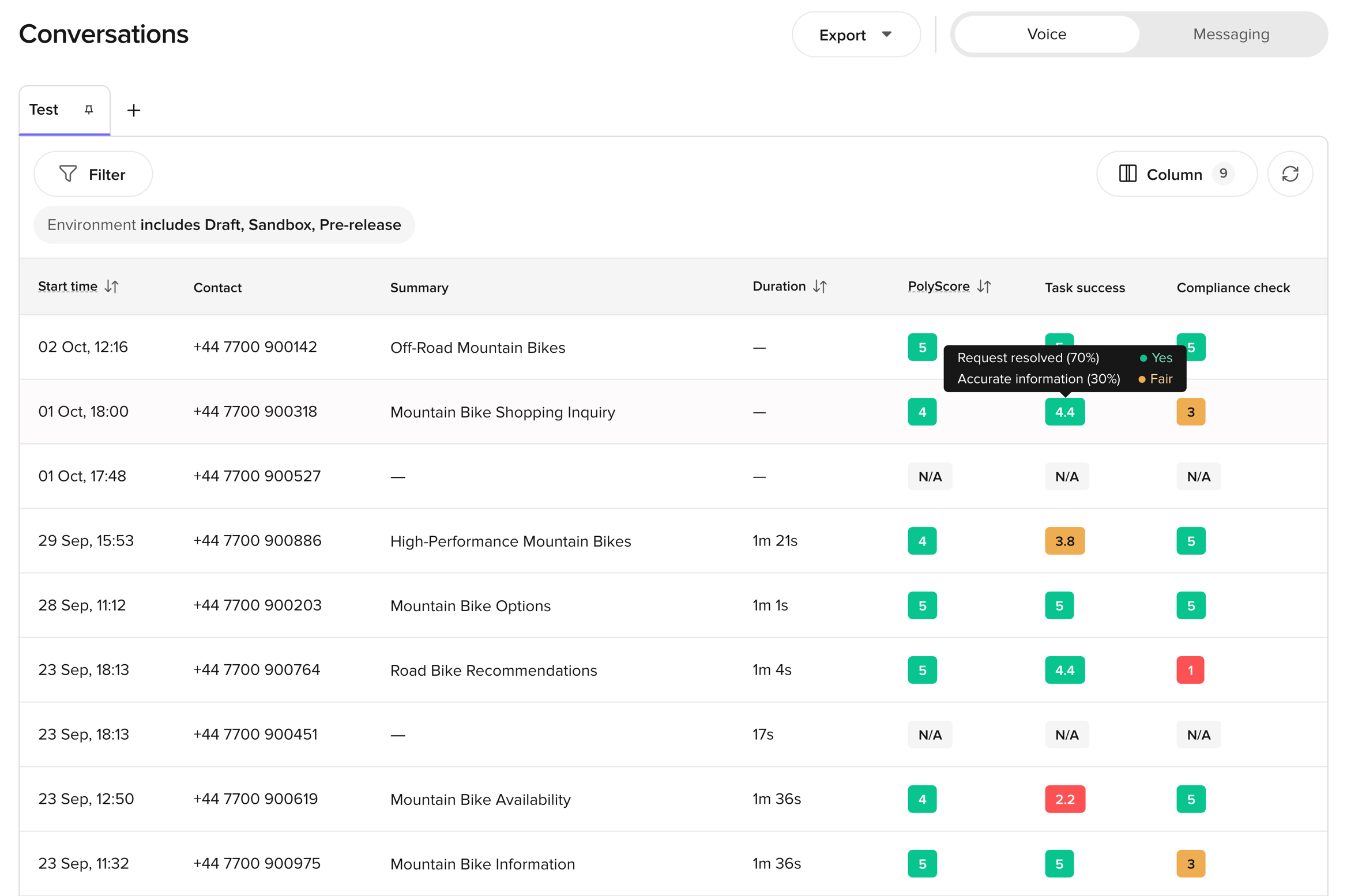 To show or hide AI Score columns, select **Column**. They are listed with your custom metrics.
### Filters
Select **Filter** and pick a score under **AI Scores created by you**. Compare the score with a value from 1 to 5 using *equals*, *less than*, *greater than*, *less than or equal to*, or *greater than or equal to*. Use *exists* to find the conversations that have a score, or the ones that don't.
Scores that are turned off stay in the filter list, so saved views that filter on them keep working.
Save a [view](/analytics/conversations/views) filtered to a low AI Score to build a QA queue for that check.
### Scores tab
Open a conversation and select the **Scores** tab. Each AI Score is listed below PolyScore with its badge. Expand a score to see each criterion with its weight, its answer, and its description. The same breakdown appears in the full-page conversation view.
### CSV export
[Exports](/analytics/conversations/review#export) include one column for each AI Score, named **AI Score: \**.
### Dashboards
AI Scores are available in the **Metric** field when you add a tile to a [self-serve dashboard](/analytics/dashboards/introduction). Look under **AI Scores created by you**. Scores that are turned off are still listed, so you can chart their past results.
### Wren
[Wren](/wren/analyze) knows your project's AI Scores and can query their values. For example, ask *"What's the average Compliance check score this week?"* or *"Which days had the lowest Task success score?"* Wren can see each score's name, description, and whether it is on. It can't see the criteria or the weights.
## Scoring states
While a conversation that has ended is being scored, the cell shows a loading badge. Scoring usually takes a few moments.
When a conversation has no value for an AI Score, the cell shows **N/A**. Hover over it to see why.
| Reason | What it means |
| - | - |
| **Too short to score** | The conversation had fewer than 3 turns. |
| **Matched the exclusion criteria** | The score's exclusion criteria matched the conversation, so it was skipped. |
| **Scoring failed** | The AI couldn't produce a valid score for this conversation. |
| **Not scored** | The conversation ended before the score was turned on, is on a channel the score doesn't cover, or is still being scored. |
Conversations with **N/A** are left out of averages and other totals.
## Limitations
AI Scores grade the transcript only. They can't access your knowledge base, flows, or external systems.
* An AI Score **can't confirm that an action happened** in an external system, such as a booking or a refund. It can only judge what the conversation says.
* **Past conversations are not scored.** Turning a score on or editing it applies to new conversations only.
* The breakdown shows each criterion's answer, but not the AI's reasoning for it.
* You can filter by the overall score, but not by a single criterion. AI Score columns can't be sorted.
## Related pages
The standard 1–5 quality score that PolyAI defines.
Filter by AI Score and read the criteria breakdown.
Chart AI Scores over time.
To show or hide AI Score columns, select **Column**. They are listed with your custom metrics.
### Filters
Select **Filter** and pick a score under **AI Scores created by you**. Compare the score with a value from 1 to 5 using *equals*, *less than*, *greater than*, *less than or equal to*, or *greater than or equal to*. Use *exists* to find the conversations that have a score, or the ones that don't.
Scores that are turned off stay in the filter list, so saved views that filter on them keep working.
Save a [view](/analytics/conversations/views) filtered to a low AI Score to build a QA queue for that check.
### Scores tab
Open a conversation and select the **Scores** tab. Each AI Score is listed below PolyScore with its badge. Expand a score to see each criterion with its weight, its answer, and its description. The same breakdown appears in the full-page conversation view.
### CSV export
[Exports](/analytics/conversations/review#export) include one column for each AI Score, named **AI Score: \**.
### Dashboards
AI Scores are available in the **Metric** field when you add a tile to a [self-serve dashboard](/analytics/dashboards/introduction). Look under **AI Scores created by you**. Scores that are turned off are still listed, so you can chart their past results.
### Wren
[Wren](/wren/analyze) knows your project's AI Scores and can query their values. For example, ask *"What's the average Compliance check score this week?"* or *"Which days had the lowest Task success score?"* Wren can see each score's name, description, and whether it is on. It can't see the criteria or the weights.
## Scoring states
While a conversation that has ended is being scored, the cell shows a loading badge. Scoring usually takes a few moments.
When a conversation has no value for an AI Score, the cell shows **N/A**. Hover over it to see why.
| Reason | What it means |
| - | - |
| **Too short to score** | The conversation had fewer than 3 turns. |
| **Matched the exclusion criteria** | The score's exclusion criteria matched the conversation, so it was skipped. |
| **Scoring failed** | The AI couldn't produce a valid score for this conversation. |
| **Not scored** | The conversation ended before the score was turned on, is on a channel the score doesn't cover, or is still being scored. |
Conversations with **N/A** are left out of averages and other totals.
## Limitations
AI Scores grade the transcript only. They can't access your knowledge base, flows, or external systems.
* An AI Score **can't confirm that an action happened** in an external system, such as a booking or a refund. It can only judge what the conversation says.
* **Past conversations are not scored.** Turning a score on or editing it applies to new conversations only.
* The breakdown shows each criterion's answer, but not the AI's reasoning for it.
* You can filter by the overall score, but not by a single criterion. AI Score columns can't be sorted.
## Related pages
The standard 1–5 quality score that PolyAI defines.
Filter by AI Score and read the criteria breakdown.
Chart AI Scores over time.