> ## Documentation Index
> Fetch the complete documentation index at: https://docs.poly.ai/llms.txt
> Use this file to discover all available pages before exploring further.
# Getting started with PolyAI
The fastest way to get up and running is entirely from the command line. Two steps — install the ADK, then sign in — take you from an empty machine to a local project you can edit, push, and deploy. Sign-in uses `poly start` (self-serve) or `poly login` (enterprise), described below.
***
## Step 1 — Install the ADK
You need **uv** to manage the Python environment. If you already have it, skip the first line.
```bash theme={"theme":{"light":"github-light","dark":"github-dark"}}
curl -LsSf https://astral.sh/uv/install.sh | sh # or: brew install uv
```
Then create a virtual environment and install the ADK:
```bash theme={"theme":{"light":"github-light","dark":"github-dark"}}
uv venv --python=3.14 --seed
source .venv/bin/activate
pip install polyai-adk
```
Confirm it worked:
```bash theme={"theme":{"light":"github-light","dark":"github-dark"}}
poly --help
```
**Suppress SyntaxWarnings from platform-generated code**
Platform-generated code uses regex patterns (such as `\d`) that trigger `SyntaxWarning` in Python 3.14's stricter string handling. This produces 40+ warning lines on every `poly` command and obscures normal output.
To suppress them, set this before running any `poly` command:
```bash theme={"theme":{"light":"github-light","dark":"github-dark"}}
export PYTHONWARNINGS=ignore
```
**Optional — install the VS Code / Cursor extension**
If you plan to work in **VS Code** or **Cursor**, you can also install the [PolyAI ADK extension](/adk/reference/tooling#polyai-adk-extension-for-vs-code-and-cursor) for resource-aware editing on top of the CLI. The extension is additive — the `poly` command remains the source of truth for every workflow.
## Step 2 — Sign in and set up your API key
The right setup path depends on the type of Agent Studio account you have:
* **Self-serve accounts** (signed up at [studio.poly.ai](https://studio.poly.ai)) — use [`poly start`](#self-serve-accounts-poly-start) for an end-to-end setup that creates an account, an API key, and an optional first project.
* **Enterprise accounts** (a workspace provisioned by PolyAI on a regional cluster such as `us-1`, `euw-1`, or `uk-1`) — use [`poly login --region `](#enterprise-accounts-poly-login-or-manual-api-key) to sign in through your browser, or create an API key in the Agent Studio UI and [export it manually](#manual-api-key-export). `poly start` is self-serve only and does not work against enterprise clusters.
If you're not sure which you have, your PolyAI contact can confirm.
### Self-serve accounts — `poly start`
```bash theme={"theme":{"light":"github-light","dark":"github-dark"}}
poly start
```
`poly start` handles everything you need to authenticate:
1. **Sign up or sign in** — opens a browser window for authentication. This can be on any device, not just the machine running the CLI.
2. **API key** — generates a key and saves it to `~/.poly/credentials.json`. Future `poly` commands pick it up automatically — no environment variables to manage.
3. **Create a project** — optionally creates a new Agent Studio project and pulls it down locally so you can start editing immediately.
**Already have a self-serve account?**
If `poly start` detects an existing API key (from the credential file or an environment variable), it asks whether to keep using it — accept and you skip straight to the project creation step. Decline and it runs the full sign-in flow again.
### Enterprise accounts — `poly login` or manual API key
Enterprise workspaces have two options. `poly login` is the quickest path for most users; the manual export is the fallback if you can't authenticate through the browser (for example, on a CI runner).
#### Option 1 — `poly login` (recommended)
```bash theme={"theme":{"light":"github-light","dark":"github-dark"}}
poly login --region us-1 # or euw-1, uk-1
```
`poly login`:
1. Opens a browser window so you can sign in to your enterprise workspace.
2. Fetches (or creates) an API key for your user.
3. Saves it to `~/.poly/credentials.json` under the region you specified, so future `poly` commands pick it up automatically.
If you omit `--region`, the CLI prompts you to pick one. To sign in to more than one region from the same machine, re-run `poly login` with each region — the credential file stores them side by side.
#### Option 2 — Manual API key export
If you'd rather create the key yourself in the Agent Studio UI:
1. Log in to Agent Studio for your region and open your workspace.
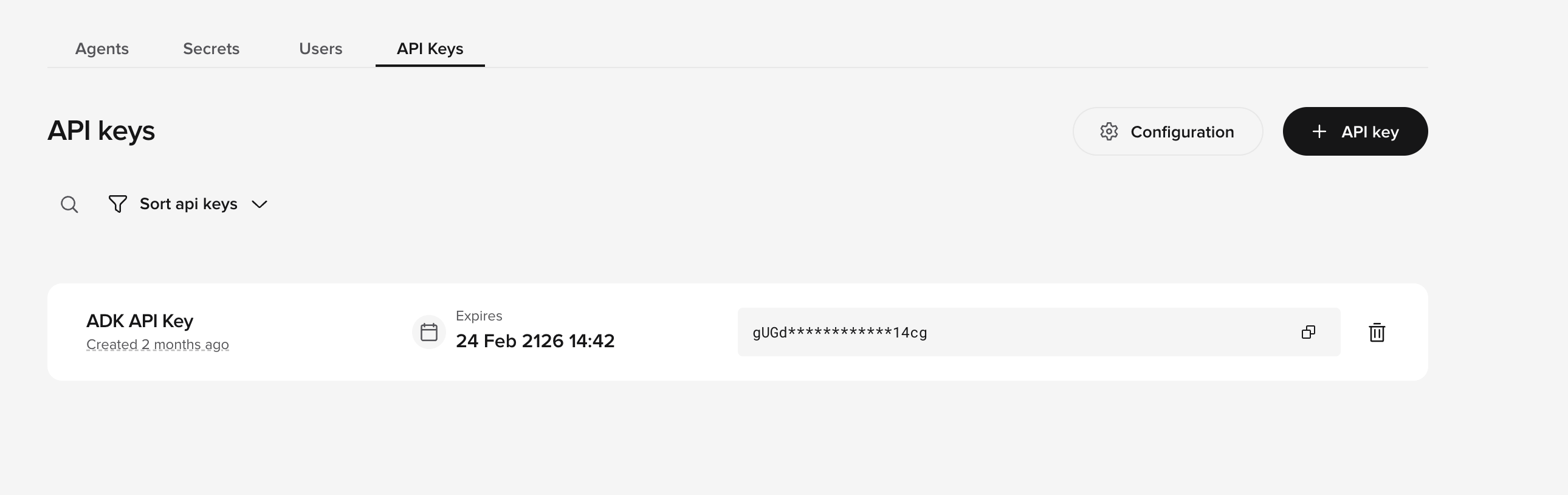
2. In the **API Keys** tab (next to the **Users** tab), click **+ API key**.
 Then export the key:
```bash theme={"theme":{"light":"github-light","dark":"github-dark"}}
export POLY_ADK_KEY=
```
To make it permanent, add the export line to your shell profile (`~/.zshrc` or `~/.bashrc`). If you work across more than one region, use the region-scoped variables in [per-region API keys](#per-region-api-keys) below.
**How the ADK resolves API keys**
The ADK checks for credentials in the following order:
1. **Credential file** — `~/.poly/credentials.json` (written by `poly start` or `poly login`)
2. **Region-specific env var** — e.g. `POLY_ADK_KEY_US`
3. **General env var** — `POLY_ADK_KEY`
The first match wins. If nothing is found, the CLI raises an error.
## Step 3 — Start building
If `poly start` created a project for you, `cd` into the project directory. Otherwise, connect to an existing project:
```bash theme={"theme":{"light":"github-light","dark":"github-dark"}}
poly init
```
[`poly init`](/adk/reference/cli#poly-init) walks you through interactive dropdowns to pick a region, account, and project, then pulls the configuration locally.
From inside your project directory, the core workflow is:
```bash theme={"theme":{"light":"github-light","dark":"github-dark"}}
poly status # see what's changed
poly diff # inspect changes in detail
poly branch create dev # work on a branch
poly push # push changes to Agent Studio
poly chat # talk to your agent
```
Edit flows, functions, topics, and other resources in your editor of choice — they're just YAML and Python files. Push when you're ready to test in Agent Studio.
Follow the full step-by-step tutorial for local development.
Explore the full set of CLI commands available to you.
***
## Seed an agent from your website
If you're starting from scratch and want a working baseline, you can generate an agent from your company website inside Agent Studio. This gives you topics and agent settings pre-populated from your site's public content — a useful starting point before building locally.
1. Open [Agent Studio](https://studio.poly.ai) for self-serve, or your region's URL for enterprise, and sign in with the same account you authenticated with above.
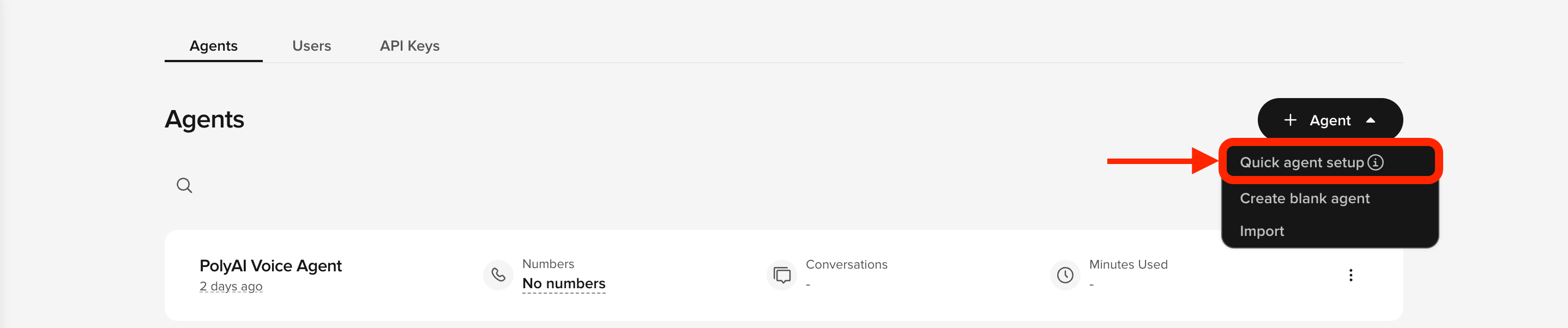
2. Click **+ Agent** → **Quick Agent Setup**.
3. Enter your website URL and click **Create agent**.
Then export the key:
```bash theme={"theme":{"light":"github-light","dark":"github-dark"}}
export POLY_ADK_KEY=
```
To make it permanent, add the export line to your shell profile (`~/.zshrc` or `~/.bashrc`). If you work across more than one region, use the region-scoped variables in [per-region API keys](#per-region-api-keys) below.
**How the ADK resolves API keys**
The ADK checks for credentials in the following order:
1. **Credential file** — `~/.poly/credentials.json` (written by `poly start` or `poly login`)
2. **Region-specific env var** — e.g. `POLY_ADK_KEY_US`
3. **General env var** — `POLY_ADK_KEY`
The first match wins. If nothing is found, the CLI raises an error.
## Step 3 — Start building
If `poly start` created a project for you, `cd` into the project directory. Otherwise, connect to an existing project:
```bash theme={"theme":{"light":"github-light","dark":"github-dark"}}
poly init
```
[`poly init`](/adk/reference/cli#poly-init) walks you through interactive dropdowns to pick a region, account, and project, then pulls the configuration locally.
From inside your project directory, the core workflow is:
```bash theme={"theme":{"light":"github-light","dark":"github-dark"}}
poly status # see what's changed
poly diff # inspect changes in detail
poly branch create dev # work on a branch
poly push # push changes to Agent Studio
poly chat # talk to your agent
```
Edit flows, functions, topics, and other resources in your editor of choice — they're just YAML and Python files. Push when you're ready to test in Agent Studio.
Follow the full step-by-step tutorial for local development.
Explore the full set of CLI commands available to you.
***
## Seed an agent from your website
If you're starting from scratch and want a working baseline, you can generate an agent from your company website inside Agent Studio. This gives you topics and agent settings pre-populated from your site's public content — a useful starting point before building locally.
1. Open [Agent Studio](https://studio.poly.ai) for self-serve, or your region's URL for enterprise, and sign in with the same account you authenticated with above.
2. Click **+ Agent** → **Quick Agent Setup**.
3. Enter your website URL and click **Create agent**.
 Agent Studio crawls your site and generates a configuration — usually within a few minutes. Once it's ready, pull it into your local project:
```bash theme={"theme":{"light":"github-light","dark":"github-dark"}}
poly pull
```
**What gets generated**
Agent Studio populates **topics** (knowledge base entries) and basic **agent settings** (personality, role, rules) from your website's public content. It does not generate flows, variants, entities, handoffs, or integrations — those are for you to build locally with the ADK.
***
## Already have an agent in Agent Studio?
If you have an existing project — built in the browser, by a PolyAI team, or by any other method — connect it to the ADK with `poly init` once your API key is set up:
```bash theme={"theme":{"light":"github-light","dark":"github-dark"}}
# Self-serve accounts:
poly start # sign in and save your API key (skip if already done)
poly init # interactive prompts to pick region, account, and project
# Enterprise accounts (poly login — recommended):
poly login --region us-1 # or euw-1, uk-1
poly init
# Enterprise accounts (manual key export, fallback):
export POLY_ADK_KEY= # see "Manual API key export" above
poly init
```
`poly init` creates a local directory and pulls the full project configuration. From there the standard `poly status` / `poly push` / `poly pull` workflow applies.
***
## Per-region API keys
If you work across multiple regions, you can set region-scoped environment variables. The ADK checks the credential file first, then region-scoped env vars, then `POLY_ADK_KEY`.
| Region | Environment variable |
| --------- | ---------------------- |
| `us-1` | `POLY_ADK_KEY_US` |
| `euw-1` | `POLY_ADK_KEY_EUW` |
| `uk-1` | `POLY_ADK_KEY_UK` |
| `studio` | `POLY_ADK_KEY_STUDIO` |
| `staging` | `POLY_ADK_KEY_STAGING` |
| `dev` | `POLY_ADK_KEY_DEV` |
```bash theme={"theme":{"light":"github-light","dark":"github-dark"}}
export POLY_ADK_KEY_US=
export POLY_ADK_KEY= # used for any other region
```
***
## Next step
Understand what the ADK does and how it fits into Agent Studio.
Agent Studio crawls your site and generates a configuration — usually within a few minutes. Once it's ready, pull it into your local project:
```bash theme={"theme":{"light":"github-light","dark":"github-dark"}}
poly pull
```
**What gets generated**
Agent Studio populates **topics** (knowledge base entries) and basic **agent settings** (personality, role, rules) from your website's public content. It does not generate flows, variants, entities, handoffs, or integrations — those are for you to build locally with the ADK.
***
## Already have an agent in Agent Studio?
If you have an existing project — built in the browser, by a PolyAI team, or by any other method — connect it to the ADK with `poly init` once your API key is set up:
```bash theme={"theme":{"light":"github-light","dark":"github-dark"}}
# Self-serve accounts:
poly start # sign in and save your API key (skip if already done)
poly init # interactive prompts to pick region, account, and project
# Enterprise accounts (poly login — recommended):
poly login --region us-1 # or euw-1, uk-1
poly init
# Enterprise accounts (manual key export, fallback):
export POLY_ADK_KEY= # see "Manual API key export" above
poly init
```
`poly init` creates a local directory and pulls the full project configuration. From there the standard `poly status` / `poly push` / `poly pull` workflow applies.
***
## Per-region API keys
If you work across multiple regions, you can set region-scoped environment variables. The ADK checks the credential file first, then region-scoped env vars, then `POLY_ADK_KEY`.
| Region | Environment variable |
| --------- | ---------------------- |
| `us-1` | `POLY_ADK_KEY_US` |
| `euw-1` | `POLY_ADK_KEY_EUW` |
| `uk-1` | `POLY_ADK_KEY_UK` |
| `studio` | `POLY_ADK_KEY_STUDIO` |
| `staging` | `POLY_ADK_KEY_STAGING` |
| `dev` | `POLY_ADK_KEY_DEV` |
```bash theme={"theme":{"light":"github-light","dark":"github-dark"}}
export POLY_ADK_KEY_US=
export POLY_ADK_KEY= # used for any other region
```
***
## Next step
Understand what the ADK does and how it fits into Agent Studio.